
5.7Agent safeguards: protected containers
Last updated
What protected containers are for
Some parts of a directory are too sensitive to be changed by automation without a person looking first — a Tier 0 organizational unit, the accounts of a recently acquired company, service accounts frozen during a migration. Active Directory itself cannot tell the platform which containers these are, so you list them per connection.
A protected container is an organizational unit or container in this connection's directory. Any change an AI agent or an API key makes inside it, or into it, waits for a person to approve it — whatever level of supervision that agent or key otherwise has.
Protected containers:
- apply only to machine credentials — API keys and connected AI agents. People using the console are never held by them.
- can only make an agent wait, never skip a wait. They add a check; they cannot remove one.
- cover the whole subtree. Protecting
OU=Tier0,DC=corp,DC=localalso protects everything beneath it. Matching respects name boundaries, soOU=Tier0does not cover a sibling calledOU=Tier0Lab. - cover both ends of a move. Moving an object out of a protected container, and moving or creating an object into one, both count as changes to that container.
- belong to one directory. A distinguished name only means something inside its own domain, so each connection has its own list.
When a change by an agent or API key is held for this reason, it appears among the waiting operations with the reason it is waiting. How supervision levels, approvals and the other agent safeguards work is described in Chapter 10, Operation policies, attribute policies and agent supervision, and Chapter 9, Operations log, approvals and waiting operations.
Who can manage them
- Viewing the list requires
adconnections:read. - Adding and removing containers requires
adconnections:update. - In both cases your active role must be allowed to use this connection (see 5.10).
Each addition and removal is audited and appears in the connection's change history. These changes are never themselves held for approval.
Protecting a container
The Agent safeguards card sits under the connection form on the edit screen.
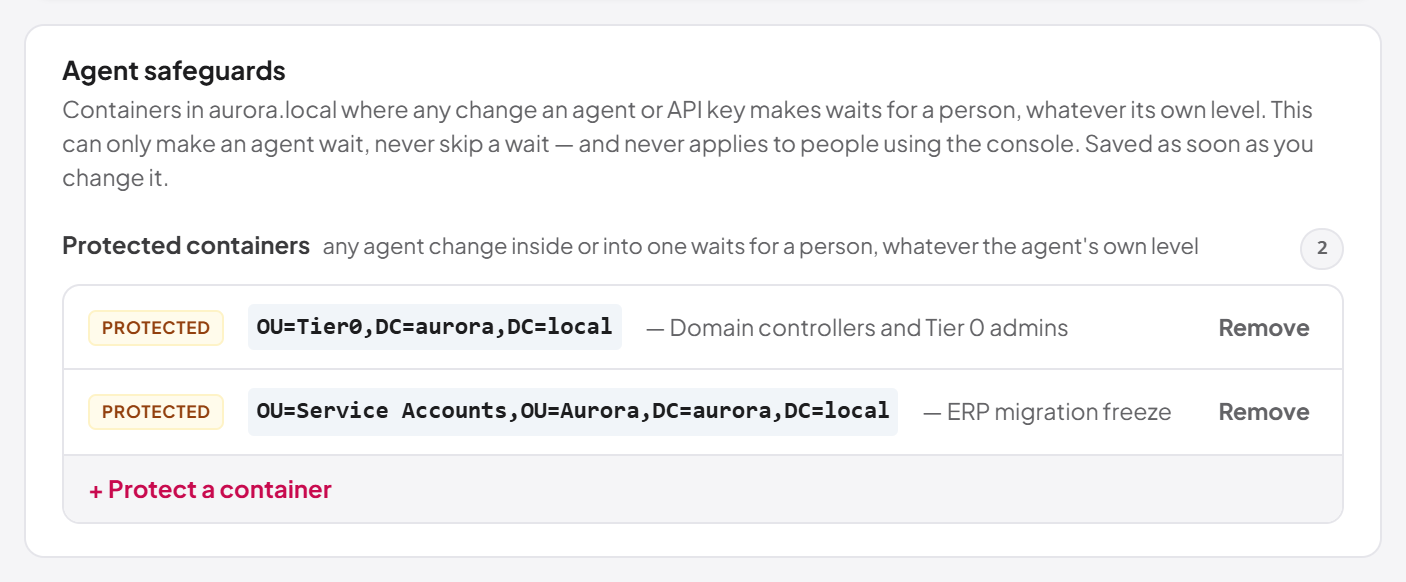
- Open the connection for editing and scroll to Agent safeguards.
- Select + Protect a container.
- In the first field, enter the container's full distinguished name, for example
OU=Tier0,DC=corp,DC=local. The placeholder suggests one in your own domain. - Optionally, in the second field, enter a note saying why it is protected (up to 200 characters).
- Select Protect, or press Enter.
You see "Container protected", and the container appears in the list with a Protected chip. The protection takes effect immediately.
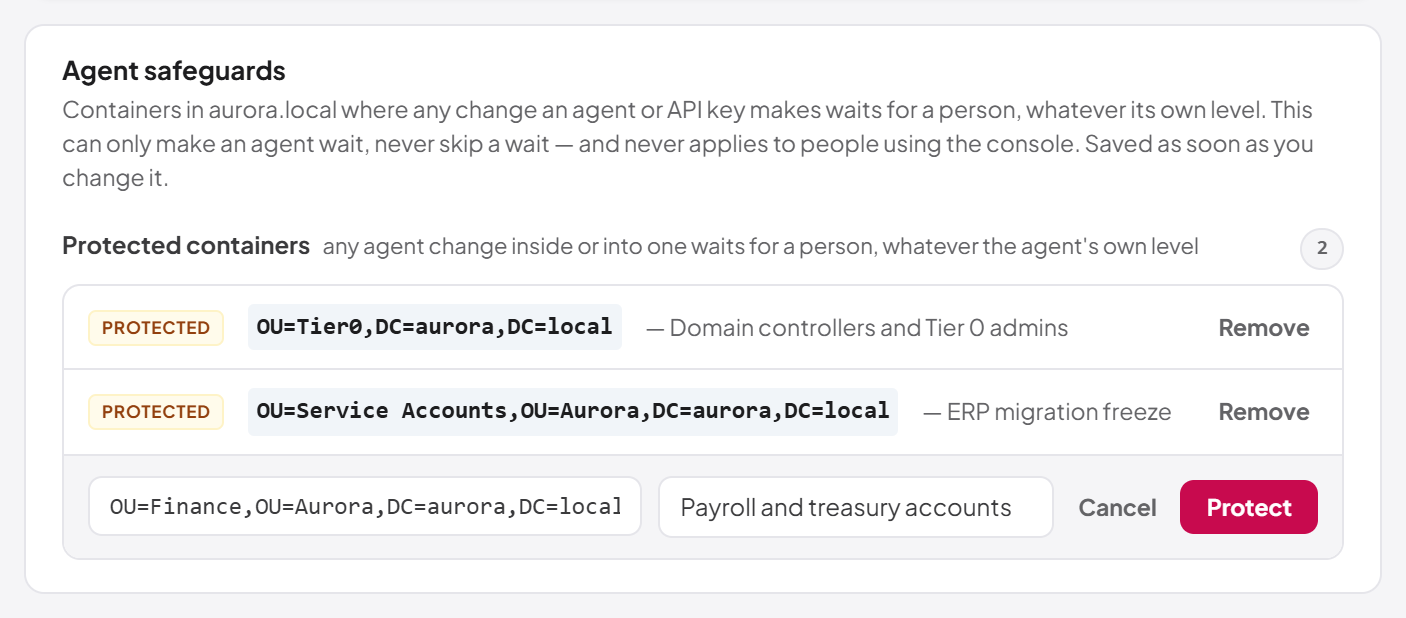
OU= or CN= and end with a DC= component. Until it does, Protect stays disabled and the card says "Needs a full DN, starting OU= or CN= and ending in DC=…". The name may be up to 500 characters. A container that is already protected for this directory cannot be added twice.
Press Escape or select Cancel to close the add row without saving.
Removing a protection
- In the Agent safeguards card, select Remove on the container's row.
- Select Stop protecting to confirm, or Cancel to keep it.
You see "Container no longer protected". From then on, agent changes in that container are judged only by the agent's own supervision level and the other safeguards.
Note: Some objects are already treated with extra care for agents: an object Active Directory marks as protected (adminCount=1) and, on deletion, an object protected from accidental deletion always wait for a person. Protected containers add the parts of your directory that Active Directory cannot identify on its own.Connections trusted for Windows sign-in
If you use Windows sign-in (Kerberos or NTLM through IIS), the platform looks up the signing-in Windows account only in the connections listed under Trusted connections in the Windows sign-in settings. A connection that is not trusted is never searched for sign-in. Linking a platform account to a Windows account also works only with a trusted connection; otherwise the link is refused with "That account is in a connection that is not trusted for Windows sign-in."
Trust is set on the Windows sign-in settings screen, not on the connection itself. Windows sign-in, trusted connections and the mapping of Active Directory groups to roles are described in Chapter 17, Single sign-on.
Note: If you delete a connection that is trusted for Windows sign-in, the Windows sign-in settings show it as "Connection no longer exists". Clear it there and save.
Which roles may use a connection
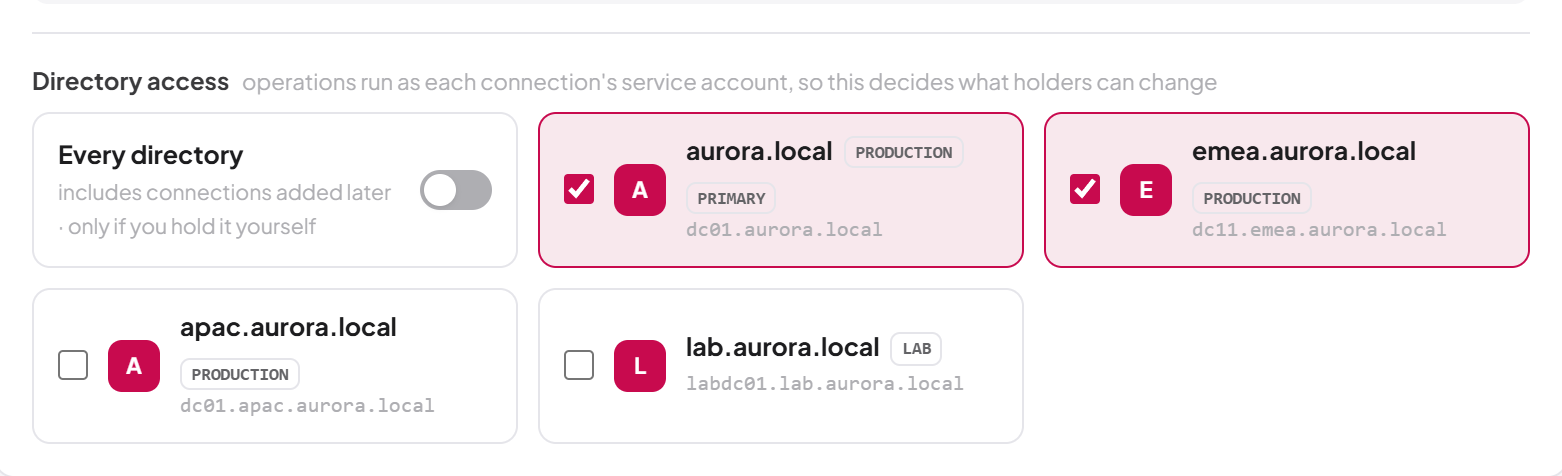
Being able to administer connections (the adconnections:* permissions) is separate from being able to work in a directory through one. Which directories a role may act against is set on the role itself, in the Directory access section of the role form:
- Every directory — the role reaches every connection, including connections added later. You can grant this only if you hold it yourself.
- Otherwise, tick the individual connections the role may use. A role with nothing selected reaches no directory at all.
A new connection is therefore reachable at first only by roles that have Every directory. To let other roles work in it, edit those roles and add the connection. Because operations run as the connection's service account, this choice decides more than what the role can see.
The workspace picker, the per-directory settings screens (protected containers, per-directory policies, notification rules and MCP tool descriptions) and every Active Directory request check this binding. An API key is bound to one connection separately; see Chapter 12, API keys. Roles and their directory access are described fully in Chapter 11, Users, roles and permissions.
Last updated
Thank you for your feedback.