
8.3Creating a saved filter
Last updated
There are two ways to create a saved filter: on the LDAP Filters screen, where you control every field, or from a search you have just run in the Directory Browser.
On the LDAP Filters screen
To create a saved filter:
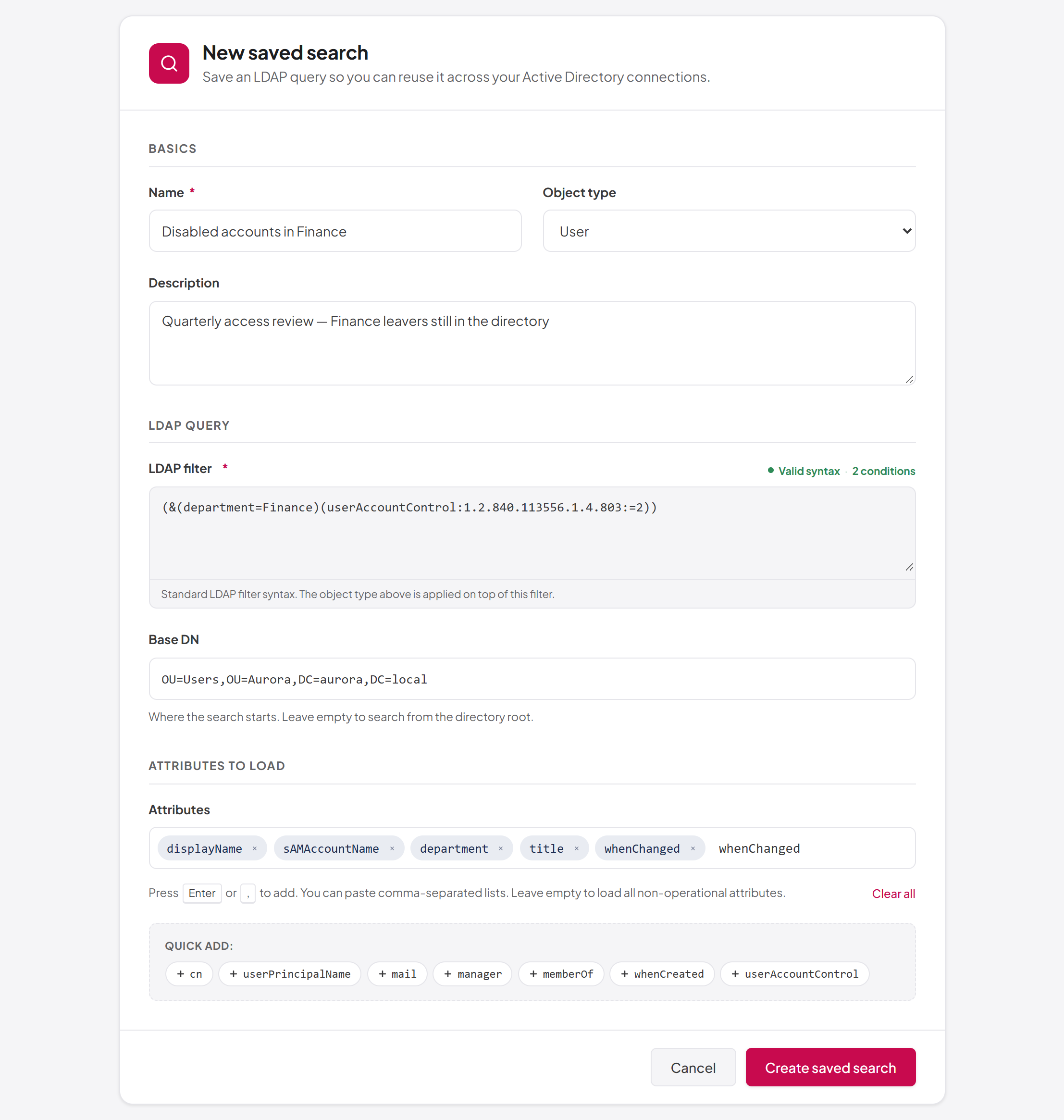
- On the LDAP Filters screen, select New Search. The New saved search form opens.
- Under Basics, enter a Name, for example "Active users in IT".
- Choose the Object type: Generic, User, Group, Computer or Organizational Unit.
- Optionally enter a Description of what the search returns.
- Under LDAP query, type the LDAP filter. As you type, the label shows Valid syntax with the number of conditions, or a problem such as Unbalanced brackets, Wrap the filter in brackets or No condition to match on.
- Optionally enter a Base DN, such as
OU=Users,DC=example,DC=com. Leave it empty to search from the directory root. - Under Attributes to load, add the attributes the results should return (see below), or leave it empty to return all non-operational attributes.
- Select Create saved search.
A confirmation message ("Filter created successfully") appears and you return to the list.
Field reference
| Field | Required | Notes |
|---|---|---|
| Name | Yes | Up to 200 characters. Shown in every list and picker, so make it describe the result |
| Object type | Yes (defaults to Generic) | Applied on top of the filter. Generic adds no type restriction |
| Description | No | Up to 500 characters. Shown in the list and searchable |
| LDAP filter | Yes | Up to 2,048 characters. Standard LDAP syntax, wrapped in parentheses |
| Base DN | No | The distinguished name where the search starts. Empty means the directory root |
| Attributes | No | Attributes to return. Empty returns all non-operational attributes |
The Create saved search button stays disabled until both Name and LDAP filter are filled in.
Writing the LDAP filter
The filter uses standard LDAP syntax: each condition in parentheses, combined with & (and), | (or) and ! (not). The check next to the label catches the most common mistake, a missing bracket, as you type. It is deliberately a quick local check: a filter it calls valid can still be refused by the directory or by the security checks described earlier.
Some examples:
| Purpose | Object type | LDAP filter |
|---|---|---|
| Enabled user accounts | Generic | (&(objectClass=user)(!(userAccountControl:1.2.840.113556.1.4.803:=2))) |
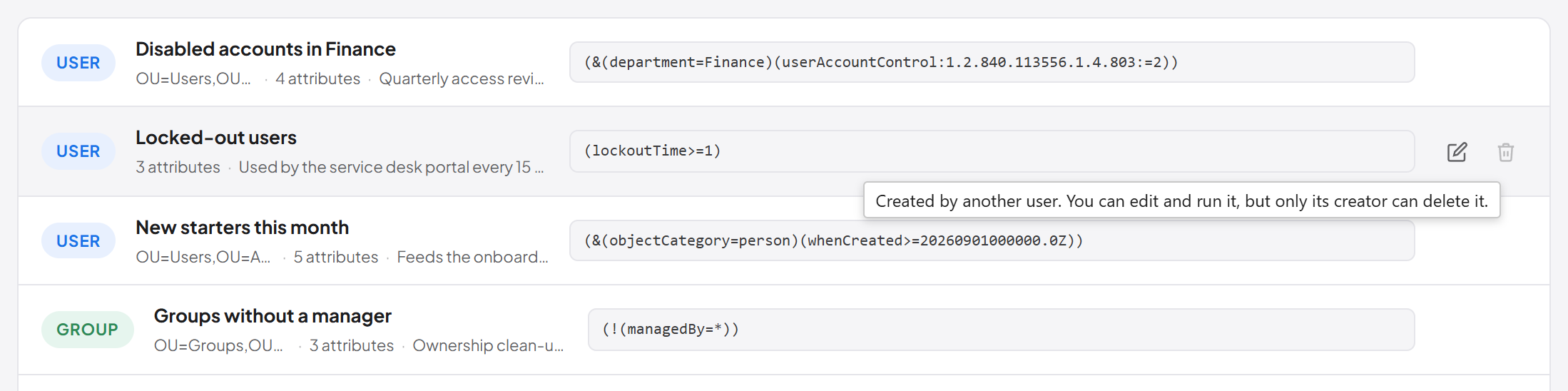
| Disabled accounts in Finance | User | (&(department=Finance)(userAccountControl:1.2.840.113556.1.4.803:=2)) |
| Windows Server 2012 computers | Computer | (operatingSystem=Windows Server 2012*) |
| Groups with no manager | Group | (!(managedBy=*)) |
The userAccountControl:1.2.840.113556.1.4.803:=2 clause is a bit test that matches accounts with the "disabled" flag set.
Choosing attributes
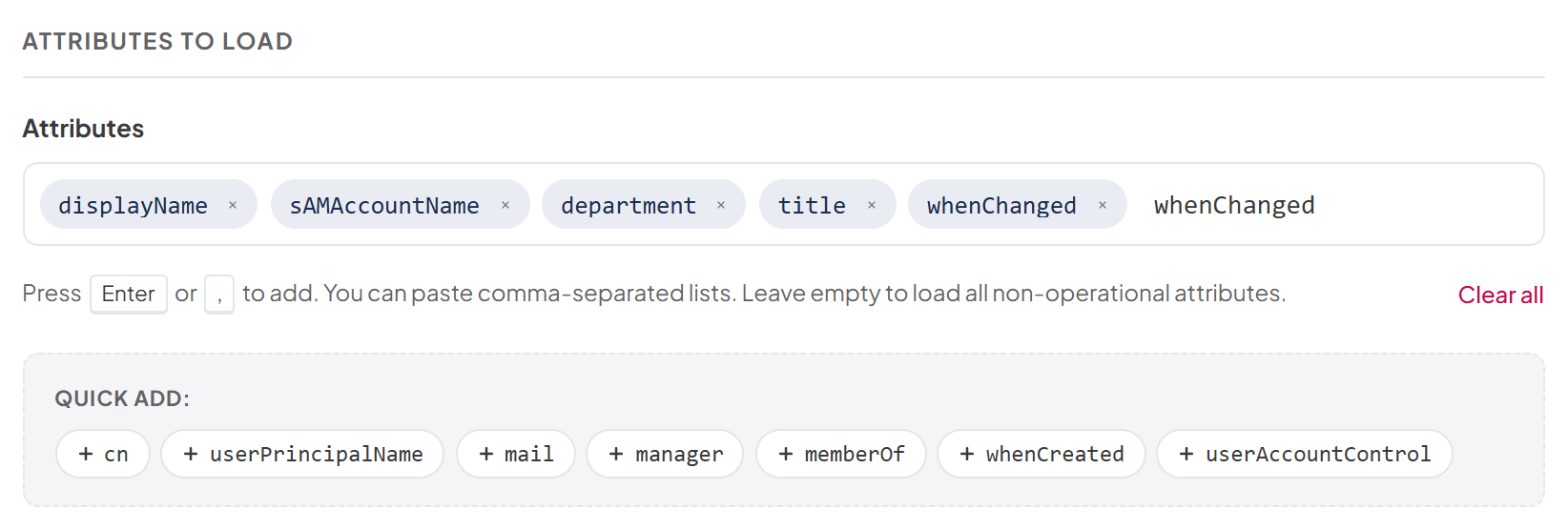
The Attributes box collects attribute names as chips:
- Type an attribute name and press Enter or , to add it.
- Paste a comma-separated or space-separated list and press Enter to add several at once. Duplicates are ignored.
- Press Backspace in the empty box to remove the last chip, or select the × on a chip to remove that one.
- Select Clear all to remove every chip.
- Use Quick add: to add common attributes for the chosen object type with one click.
| Object type | Quick add suggestions |
|---|---|
| User | cn, displayName, sAMAccountName, userPrincipalName, mail, department, title, manager, memberOf, whenCreated, whenChanged, userAccountControl |
| Group | cn, displayName, sAMAccountName, description, groupType, member, managedBy, whenCreated |
| Computer | cn, dNSHostName, operatingSystem, operatingSystemVersion, lastLogonTimestamp, description, whenCreated |
| Organizational Unit | ou, name, description, managedBy, whenCreated |
| Generic | cn, distinguishedName, objectClass, objectGUID, whenCreated, whenChanged |
Tip: Name only the attributes you need. Results with fewer attributes are faster to return, and workflows, agents and REST callers receive only what they asked for.
From a search in the Directory Browser
You can also build a query interactively in the Directory Browser and save it once it returns what you want:
- In the Directory Browser, right-click a container (an organizational unit or domain) and choose Search in this container…. The Directory search dialog opens.
- Choose the object class, type an optional LDAP filter and set include subtree, then select Search.
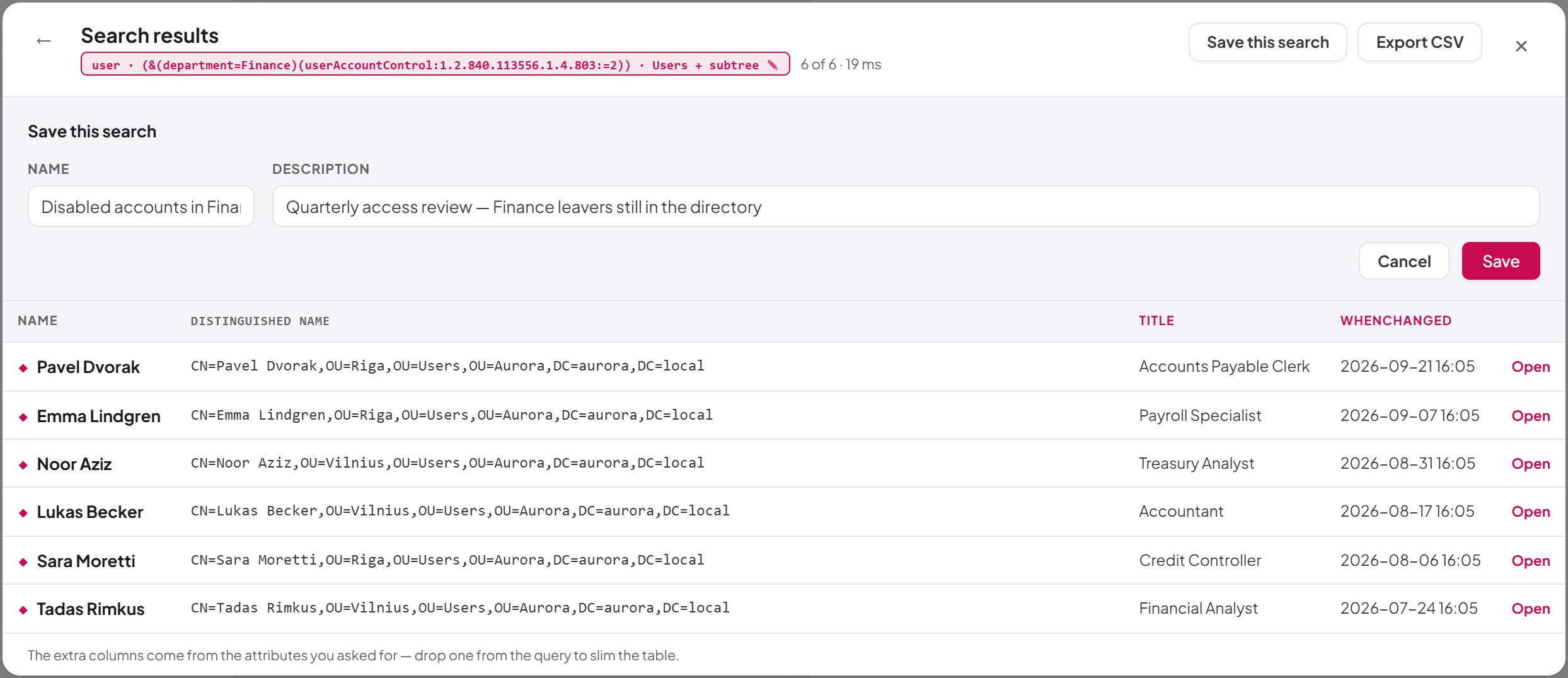
- When the results appear, select Save this search. (The same link is also offered at the bottom of the query dialog, before you run it.)
- Enter a Name and optionally a Description, then select Save.
The new saved search stores the filter you typed (or, if you typed none, a filter matching the chosen object class), the container you searched as its base DN, and an object type matching the class you searched. A message confirms "Saved search … created". Extra attributes you added to the manual search are not stored; open the filter on the LDAP Filters screen to add them under Attributes. You need savedfilters:create for Save this search to appear, and it is offered only for manual searches. See Chapter 6, Directory Browser, for the search dialog itself.
Editing a saved filter
To edit a saved filter:
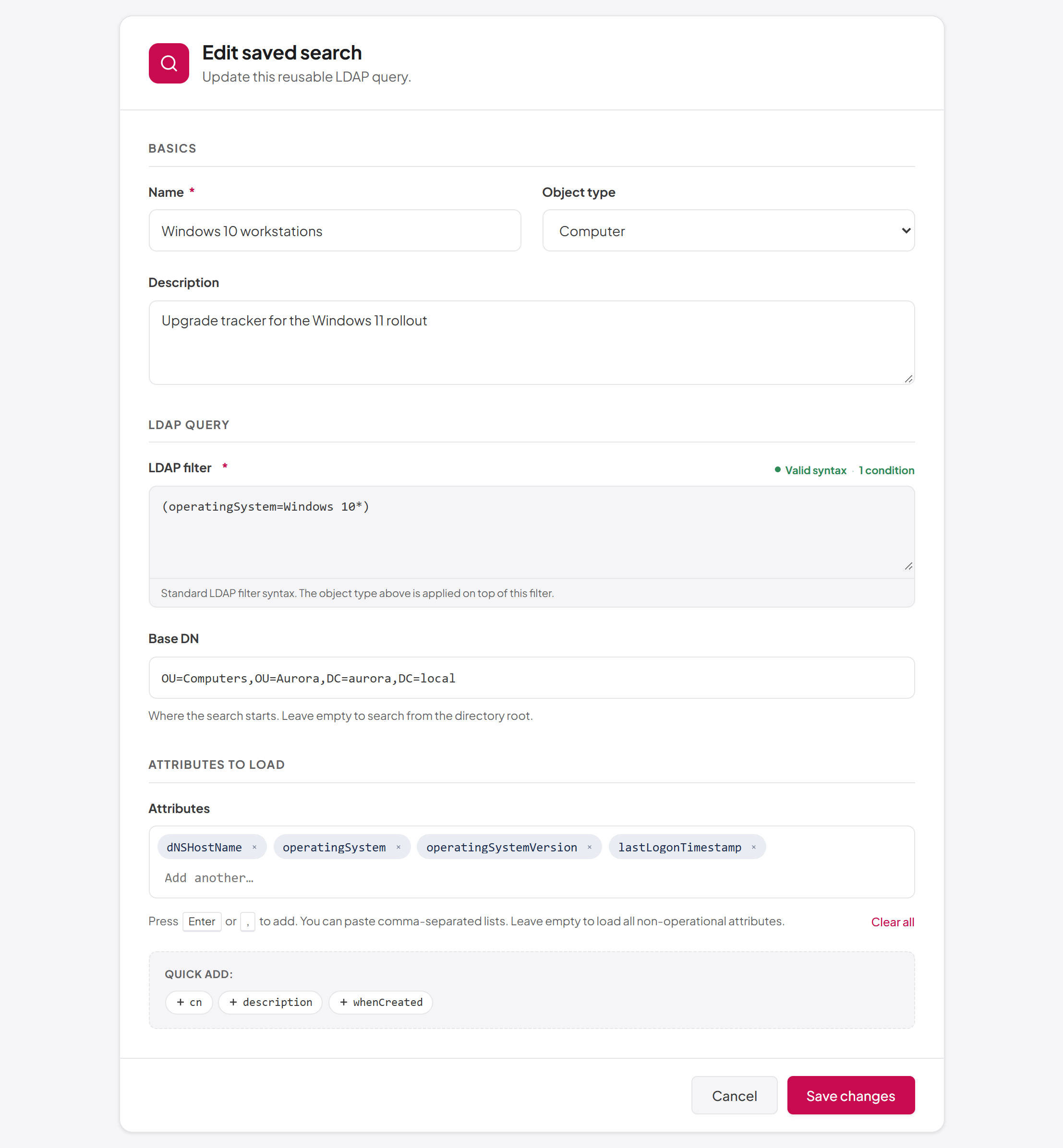
- On the LDAP Filters screen, select the Edit (pencil) button on the filter's row, or select the row itself.
- The Edit saved search form opens with the current values. It has the same fields as the creation form.
- Change what you need.
- Select Save changes. A message confirms "Filter updated successfully".
You need savedfilters:update, and you can edit any saved filter, not only your own. The platform records who last changed the filter and when.
Important: Everyone who runs a shared filter, including n8n workflows and AI agents that call it by its identifier, gets the edited version from the next run. Check with the people and integrations that depend on a filter before changing what it returns.
Deleting a saved filter
To delete a saved filter:
- On the LDAP Filters screen, select the Delete (bin) button on the filter's row.
- In the Delete saved search dialog, select Delete to confirm.
A message confirms "Saved search deleted". You need savedfilters:delete, and you can delete only filters you created. On a filter created by someone else the button is shown disabled, and hovering over it explains: "Created by another user. You can edit and run it, but only its creator can delete it." Over the REST API, the same attempt is refused with HTTP 403 and the error code SavedLdapFilter.NotOwned.
Note: Workflows and agents that refer to a deleted filter by its identifier receive "not found" from then on.
Last updated
Thank you for your feedback.