
18.2Log Stream (log webhooks and Sentry)
Last updated
The Log Stream page (route /dashboard/log-webhooks) sends the application log to one or more external destinations. A destination is one of two types:
- Webhook – the platform posts its own JSON batches to any HTTPS address. Typical webhooks are a SIEM (for example a Splunk HTTP Event Collector), a log collector, or an automation that reacts to errors, such as an n8n workflow.
- Sentry – the platform sends straight to a project in Sentry, the error-tracking service, using Sentry's own protocol. You identify the project by its DSN (Data Source Name, the address Sentry gives each project), and choose whether the entries arrive as Logs or as Issues.
Each destination has its own level and source filter, its own credential and its own batching, and each is delivered to independently: one failing destination never delays the others.
Note: Log Stream forwards log entries only. Traces and metrics are exported through Telemetry, described later in this chapter.
What a webhook receives
Each delivery to a webhook is an HTTP POST with a JSON body. The body contains a source block that names the product, the installation (the computer name of the server) and the webhook, the time the batch was sent, a count of entries dropped since the last successful delivery, and an array of entries. Each entry carries timestamp, level, message and sourceContext, plus exception when the entry has one; empty fields are left out.
POST https://collector.example.com/ingest
Content-Type: application/json
Authorization: ••••••••

{ "source": { "product": "synergy-management-gateway", "instance": "…", "webhook": "…" },
  "sentAt": "2026-09-22T09:41:07.212Z",
  "droppedSinceLastDelivery": 0,
  "count": 1,
  "events": [
    { "timestamp": "2026-09-22T09:41:07.198Z",
      "level": "Warning",
      "message": "Graph sendMail failed: 503 …",
      "sourceContext": "Synergy.ManagementGateway.Infrastructure.Notifications" } ] }
What a Sentry project receives
A Sentry destination sends the same information as a webhook — message, level, source, request id and exception text — plus the computer name of the server, the installed version of SYNERGY Management Gateway (as Sentry's release) and the environment you configure. It sends no user names, IP addresses or request contents. How the entries arrive depends on Send as:
| Send as | What happens in Sentry | Suits |
|---|---|---|
| Logs | Each batch goes to Sentry's Logs product in one request. Entries are searchable there, and entries from the same request of the platform appear together. Logs do not open issues by themselves. | Any level, including a high-volume Information stream. |
| Issues | Every shipped log line becomes a Sentry event. Sentry groups events into issues by their message template, so the same kind of message from different objects lands in one issue. An entry with an exception keeps the exception's type, message and full text. | Warning or Error, so that Sentry alerts you about problems rather than routine activity. |
For example, with Send as set to Issues, the lines Bind to dc01 failed and Bind to dc02 failed are written from one message template, so Sentry shows them as two events of one issue, not as two issues.
Note: With Issues, a batch that is retried after a failure is resent with the same event identifiers. Sentry discards the events it already received, so a retry does not create duplicates.
How delivery works
These rules apply to both types of destination:
- Batching. Entries are sent in batches. A batch goes out when it reaches the configured number of entries (100 by default) or when the configured number of seconds has passed (5 by default), whichever comes first, so a quiet instance still reports promptly.
- Acknowledgement. Any
2xxresponse acknowledges the batch. Any other response, or no answer within 15 seconds, holds the batch for a retry. - Loss is counted, not hidden. If the destination is unreachable for long enough that the buffer fills, entries are dropped. A webhook is told how many were lost in
droppedSinceLastDeliveryon the next successful delivery. - Paused destinations buffer nothing. Entries written while a destination is paused are never sent to it later.
The destinations list
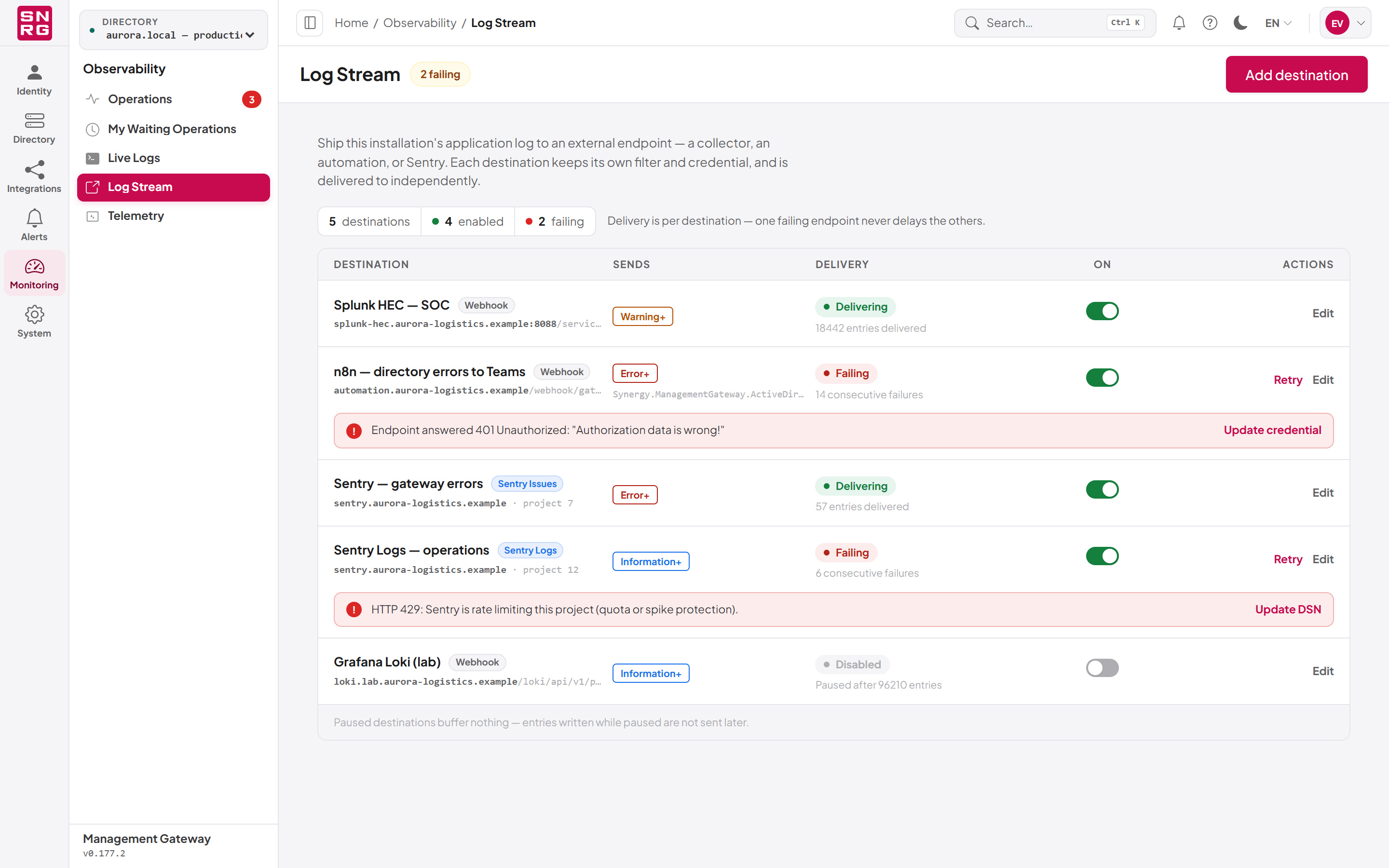
When no destination exists yet, the page explains what a destination receives and offers Add the first destination. Once you have destinations, the page shows a summary (number of destinations, how many are enabled and how many are failing) and a list with these columns:
| Column | Shows |
|---|---|
| Destination | The destination's name with a type tag (Webhook, Sentry Logs or Sentry Issues). Under it, a webhook shows its endpoint address; a Sentry destination shows the Sentry host and the project number, for example sentry.example.com · project 7. |
| Sends | The minimum level (for example Warning+) and the source filter, if any |
| Delivery | The status (Delivering, Failing, Nothing sent yet or Disabled) and a detail line, such as how many entries were delivered or how many consecutive failures occurred |
| On | A switch to pause or resume the destination |
| Actions | Edit, and Retry for a failing destination |
The page header also shows an overall status such as Not shipping, 2 delivering or 1 failing.
Adding a webhook
To add a webhook:
- Make sure your active role is System Admin, then open Monitoring › Log Stream.
- Click Add destination in the page header (or Add the first destination on an empty page).
- Leave Destination type on Webhook and fill in the form, described in the field reference below.
- Optionally click Send test to post one test entry to the endpoint with the values in the form. Nothing is saved by a test.
- Read the sentence in This destination, in one sentence on the right. It rewrites itself as you edit, for example "Splunk HEC sends Warning and above from every source to https://…, in batches of up to 100 entries or every 5 seconds."
- Click Save destination. If the button is unavailable, the text under it names the fields still needed.
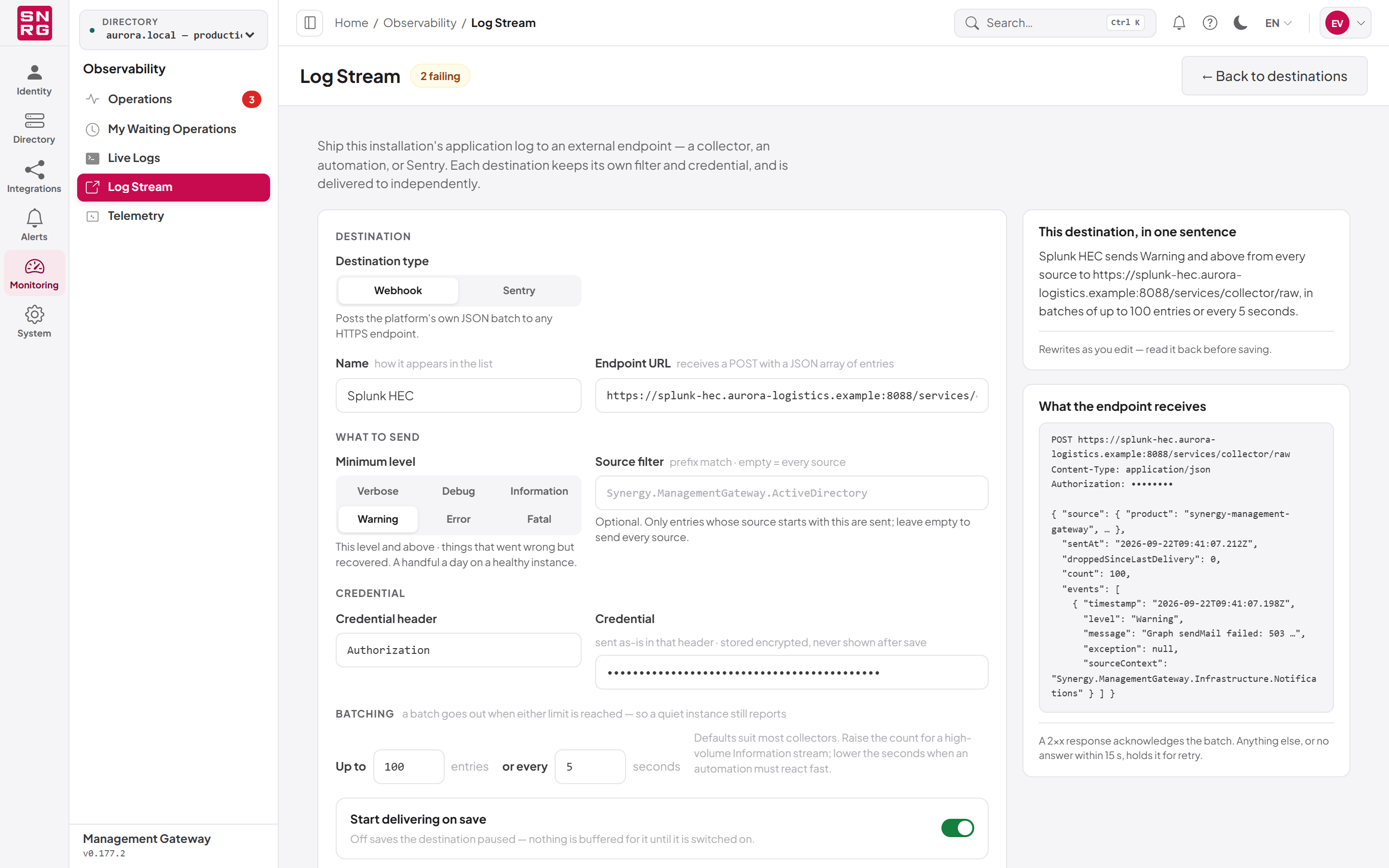
| Field | Group | Description |
|---|---|---|
| Destination type | Destination | Webhook for this kind of destination. |
| Name | Destination | How the destination appears in the list, for example Splunk HEC. |
| Endpoint URL | Destination | The full address that receives the POST. Must start with https://; plain http:// is accepted with a warning, because the credential and every log line would travel unencrypted. |
| Minimum level | What to send | Verbose, Debug, Information, Warning (default), Error or Fatal. The destination receives this level and everything more serious; Fatal sends only Fatal entries. |
| Source filter | What to send | Optional. Only entries whose source starts with this text are sent, for example Synergy.ManagementGateway.ActiveDirectory. Leave empty to send every source. |
| Credential header | Credential | The HTTP header that carries the credential, for example Authorization. |
| Credential | Credential | The value sent as-is in that header, for example Splunk 1234-… or Bearer …. Stored encrypted and never shown after saving. |
| Up to … entries | Batching | Maximum entries per batch, 1–500 (default 100). |
| or every … seconds | Batching | Maximum wait before a partial batch is sent, 1–300 (default 5). |
| Start delivering on save | — | When on, delivery starts as soon as you save. When off, the destination is saved paused. |
Choosing a level below Information shows a warning: the server's own minimum level is Information by default, so nothing below it reaches the destination until that level is lowered on the server.
The batching defaults suit most collectors. Raise the entry count for a high-volume Information stream; lower the seconds when an automation must react quickly.
Note: A credential is required while the webhook is enabled. If you do not have it yet, switch Start delivering on save off and save the destination paused. A paused webhook without a credential cannot be switched on from the list until a credential is entered.
Adding a Sentry destination
Before you start, copy the project's DSN in Sentry. It is on the project's Client Keys page and looks like https://<key>@<host>/<project number>, for example https://3f9a…c21@sentry.example.com/7. The part before the @ is the key; whoever holds it can send events into the project, so treat the DSN like a password.
To add a Sentry destination:
- Make sure your active role is System Admin, then open Monitoring › Log Stream.
- Click Add destination.
- Under Destination type, click Sentry.
- Under Send as, choose Logs or Issues (see What a Sentry project receives above).
- Enter a Name, and paste the complete DSN, including its key, into DSN. The hint under the field confirms that the key is split off and stored encrypted.
- Optionally enter an Environment, for example
productionorstaging. - Choose the Minimum level and, if needed, a Source filter.
- Optionally click Send test, then click Save destination.
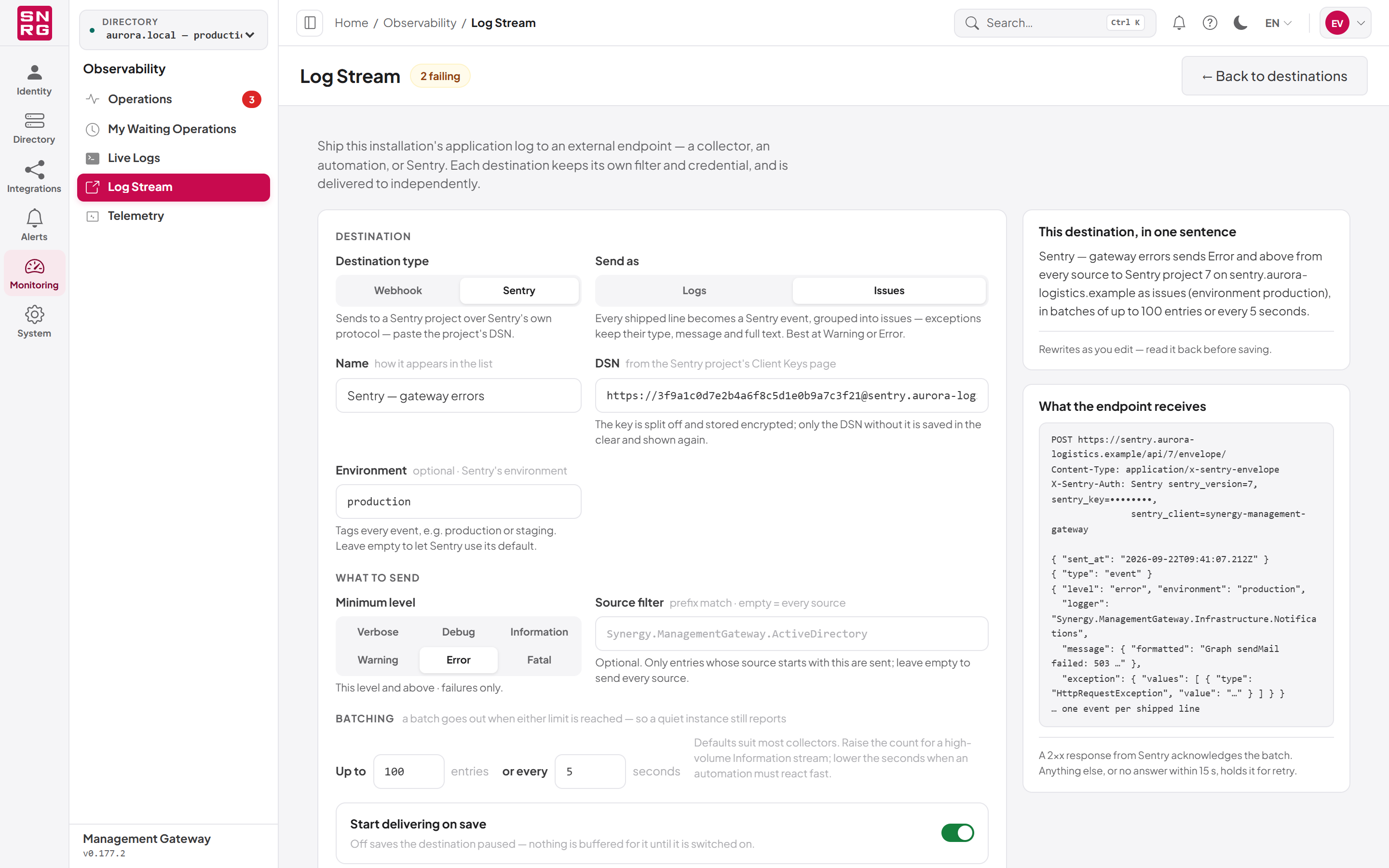
| Field | Description |
|---|---|
| Send as | Logs (the default) or Issues. Shown as Sentry Logs or Sentry Issues in the list. |
| DSN | The project's DSN, from the Sentry project's Client Keys page. When you save, the key is split off and stored encrypted; only the DSN without its key is saved in the clear, and that is what the form shows when you edit the destination later. Both https:// and, with a warning, http:// are accepted. |
| Environment | Optional, up to 64 characters, without a slash (/) or a line break. Tags every event, so you can tell installations apart in Sentry. Leave it empty to let Sentry use its default environment. Sentry does not accept the name None. |
When you edit a saved Sentry destination, the DSN field shows the address without the key and the hint Key stored — paste the full DSN to replace it. Keep in mind:
- To replace the key, paste the complete new DSN, with its key, over the old one.
- To send to another project or Sentry server, you must paste the complete DSN with its key. The stored key is never reused for a different host or project; the form warns This DSN points at another host or project, so the stored key is not reused.
- A DSN without a key can be saved only paused. To switch the destination on, paste the full DSN with its key, or save it paused and add the key later.
Tip: With Send as set to Issues and a minimum level below Warning, the form warns that every routine line would become a Sentry event and issue. Issues is usually set to Warning or Error; use Logs to send Information entries to Sentry.
Testing a destination
Send test sends one synthetic entry with the values currently in the form, without saving: a webhook receives one test entry, a Sentry project receives one test event (in Logs or as an issue, depending on Send as) whose message says the destination is configured correctly. The result appears in the form footer, for example Endpoint answered 200 in 84 ms — the test entry was accepted, or the error the receiver returned. Click Dismiss to clear it.
The stored credential is sent only to the address it was saved for. If you change the Endpoint URL of an existing webhook, or the host or project of a Sentry DSN, the stored credential or key is not reused, either for the test or for delivery: the form asks you to enter it again for the new address. This prevents a saved credential from being sent to an address somebody typed later.
Editing, pausing and deleting
- To change a destination, click Edit on its row, change the fields and click Save destination. To replace a webhook's stored credential, click Replace beside it; to replace a Sentry key, paste the full DSN. Click ← Back to destinations to return to the list without saving.
- To pause or resume a destination, click its switch in the On column. Pausing takes effect immediately and nothing is buffered while paused. A destination without a stored credential or DSN key cannot be resumed from the list: the form opens so that you can enter it.
- To retry a failing destination immediately, click Retry. The retry is queued and runs within a few seconds.
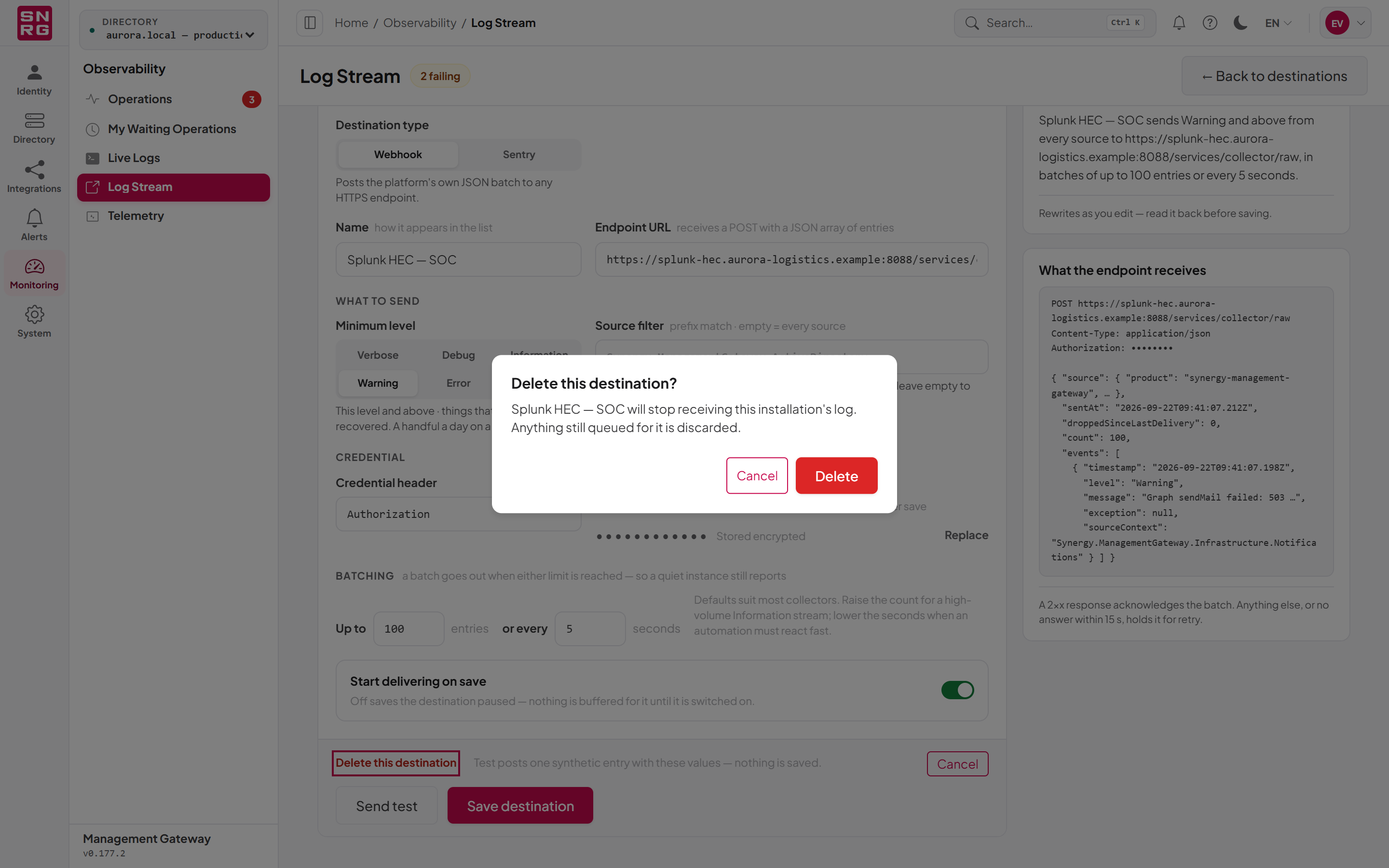
- To delete a destination, open it with Edit, click Delete this destination and confirm. The destination stops receiving the log at once, and anything still queued for it is discarded.
Which addresses are allowed
Log receivers are usually on the internal network, so private addresses (for example 10.x.x.x or a collector on the same server) are allowed by default. To refuse private addresses, set LogWebhooks:AllowPrivateReceiver to false in the API's configuration file. Link-local addresses (169.254.x.x, which is where cloud metadata services live) are always refused. The same rules apply to the host in a Sentry DSN, so a self-hosted Sentry server on the internal network works by default.
Auditing
Creating, changing and deleting log stream destinations is recorded in the operations log as a platform change, tagged System. The credential value is never recorded, only the fact that it changed. For a Sentry destination, the record holds the DSN without its key; the key itself never appears in the operations log, in what the page shows, or in a platform backup.
Last updated
Thank you for your feedback.