
1.3Key concepts
Last updated
This section introduces the ideas you will meet throughout the product. Each is described in detail in the chapter named.
Directory connections
A directory connection tells the product how to reach one Active Directory domain: the domain controller address, the port and whether to use SSL (LDAPS), the base distinguished name (base DN) that limits what is managed, and the service account credentials used to bind. You can create as many connections as you need, for example one per domain or forest.
Connections are created in the console after installation, not in the setup wizard. Their credentials are stored encrypted in the product's own database. The product checks each connection's health in the background and shows the result on the Connections screen.
See Chapter 5, Directory connections.
The workspace directory
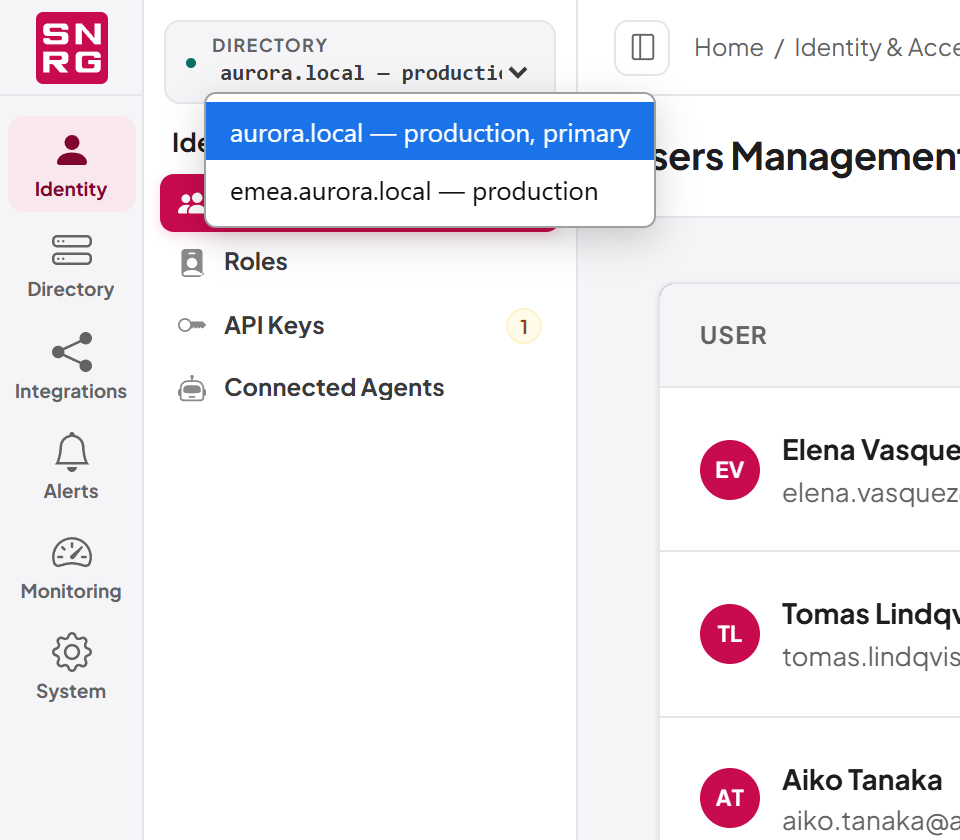
When you work in the console you always work in one directory at a time, called the workspace directory. You choose it from the directory picker at the top of the navigation panel, on the left of the console. Every directory screen — the Directory Browser, the Recycle Bin, saved LDAP filters, the operations log — follows the workspace directory, so you cannot accidentally change an object in one domain while looking at another.
Which directories appear in the picker depends on your active role: a role can be allowed to use all connections or only specific ones.
See Chapter 4, Working in the console.
Platform users, roles and permissions
The people who sign in to SYNERGY Management Gateway are platform users. They are separate from the user accounts in Active Directory that they manage, although a platform user can be linked to a Windows account for Windows sign-in, and can sign in through single sign-on.
What a platform user may do is decided by roles. A role is a named set of permissions (for example ad:users:read, ad:users:update, operations:approve) together with the directory connections it may reach. A user can hold several roles and chooses one active role at a time; the active role decides what the console shows and what the server allows. A role can also require two-factor authentication for every account that holds it.
When you create a role you can start from one of the built-in role templates, such as a help desk or auditor template. A template only pre-fills the permission selection; the saved role is an ordinary role that you can change freely.
See Chapter 11, Users, roles and permissions.
The System Admin role
System Admin is a built-in role that holds every permission and reaches every directory connection. Its permissions cannot be changed and it cannot be deleted; the only setting you can change on it is whether its holders must use two-factor sign-in. Some settings that affect the whole installation — single sign-on, email providers, live logs, log shipping, MCP server settings, deleting a directory connection and platform backups — are available only while your active role is System Admin.
There is no built-in user account. A new installation has no users at all, and the first administrator is created once, from a browser on the server itself, and receives the System Admin role. After that, System Admin can be assigned to other users. The product never lets the last active holder of the role lose it, be deactivated or be deleted, because there would be no way to recover administration.
See Chapter 2, Installation and first-time setup, and Chapter 11, Users, roles and permissions.
API keys and AI agents
Systems that call the product without a person at the keyboard use machine credentials:
- An API key belongs to a platform user (its owner) and is given a role. A key can never do more than its owner can do at that moment: if the owner loses a permission or is deactivated, the key loses it too. A key can be bound to one directory connection.
- An AI agent connects to the MCP server and signs in as its person through a browser consent screen. The person chooses the role, the directory, whether the agent may only read or may also make changes, and how closely it is supervised. A person can disconnect their agents at any time from their profile, and administrators can see and disconnect every agent on the Connected Agents screen.
See Chapter 12, API keys, and Chapter 13, AI agents (MCP server).
Operations log and audit
Every operation that reaches a directory, and every change to the product's own administration (roles, users, API keys, policies, single sign-on and similar settings), is recorded as a row in the operations log. A row shows who requested the operation, whether it arrived through the REST interface (used by the console, n8n and integration scripts) or through the MCP server, which agent or API key acted where applicable, what changed, which directory it concerned and how it ended.
By default the log is protected by a hash-chained audit trail: each change to an operation record appends a signed entry that can later be verified, so a record that was altered after the fact can be detected.
See Chapter 9, Operations log, approvals and waiting operations.
Approval of agent operations
Approval in SYNERGY Management Gateway is a control on machine credentials, not on operations. When an API key or an AI agent asks for a directory change, the product decides whether a person must approve it first, based on:
- the credential's supervision level: Unsupervised, Guarded (the default) or Supervised;
- how risky the operation is (for example, anything that grants privileges is treated as escalating);
- whether the target is protected (an object marked by Active Directory as protected, an object inside a container you have declared protected for that directory, or — for a deletion — an object protected from accidental deletion);
- whether the operation's policy says agents must always ask;
- whether the credential has suddenly become very busy (a volume brake).
A change that must wait is answered with 202 Accepted and an operation identifier rather than being performed. An approver with the operations:approve permission then approves or rejects it in the console. Approval decisions are always made by a person in a browser session; no API key or agent can approve an operation.
See Chapter 9, Operations log, approvals and waiting operations, and Chapter 10, Operation policies, attribute policies and agent supervision.
Licence modules
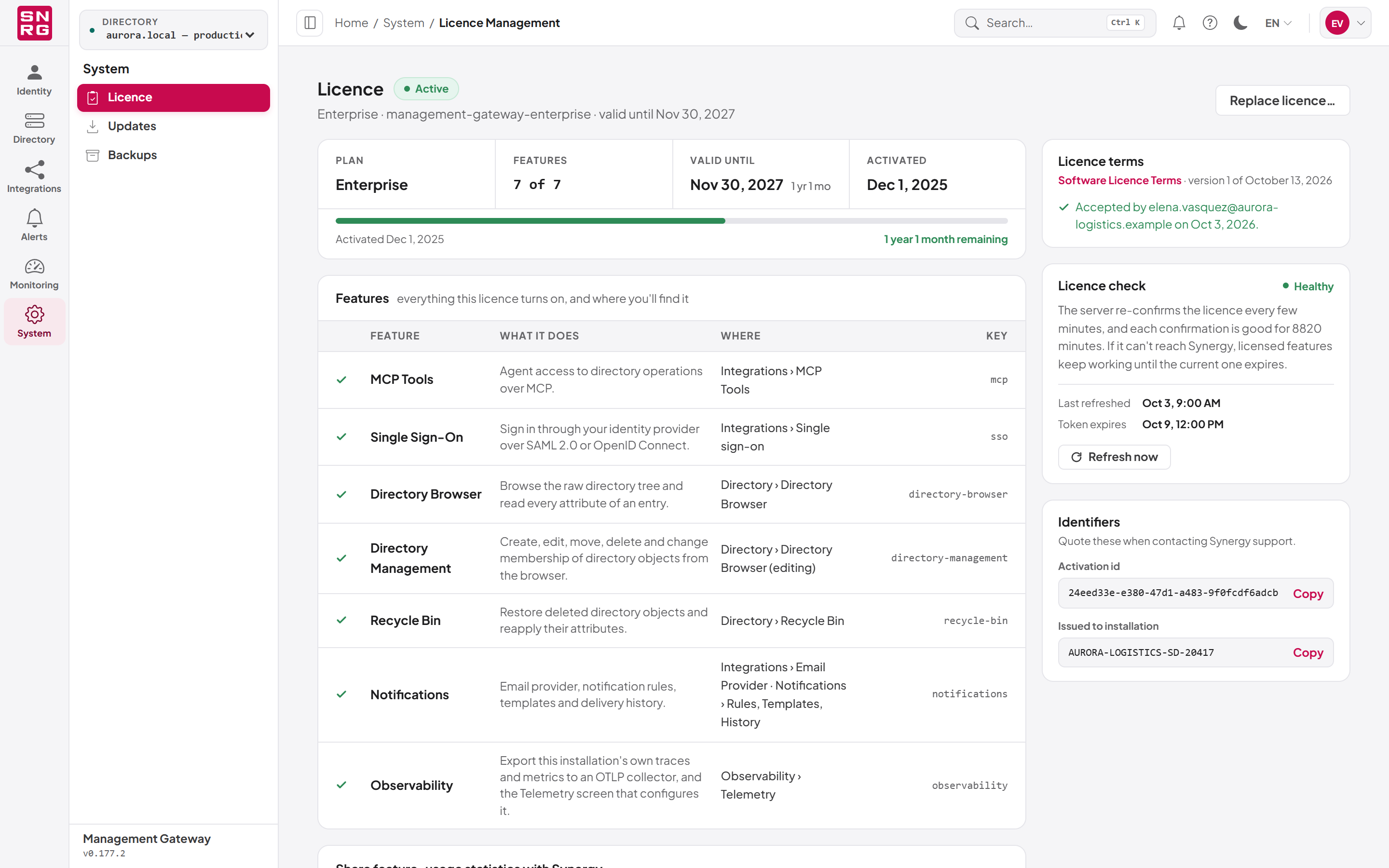
SYNERGY Management Gateway must be activated with a licence key before it performs any Active Directory operation. Until then you can sign in, reach the Licence screen, create directory connections and choose a workspace directory, but every directory operation is refused with 403 License.NotActivated.
On top of the base product, the licence grants modules:
| Module key | What it unlocks |
|---|---|
directory-browser | The Directory Browser: tree navigation and attribute inspection of the directory |
directory-management | Creating, renaming, moving, deleting and editing objects from inside the Directory Browser |
recycle-bin | Listing and restoring deleted objects |
mcp | The MCP server for AI agents, and MCP tool administration |
sso | Single sign-on with SAML 2.0, OpenID Connect and Windows sign-in |
notifications | Email notifications, notification rules, templates and history |
observability | Exporting traces and metrics to an OpenTelemetry collector |
A module that is not licensed is hidden from the navigation or shown as unavailable, and the server refuses its functions. The one exception is directory-management: it only controls whether the Directory Browser offers its editing actions, and does not change what a caller with the right permissions may do through the API.
 See
See Last updated
Thank you for your feedback.