
3.5Setting your password from a welcome email
Last updated
An administrator can create your account without choosing a password for you. Instead, they tick the option to send a password setup email, and you receive a message inviting you to choose your own password. Your account exists from that moment; it simply has no password until you set one.
To set your password:
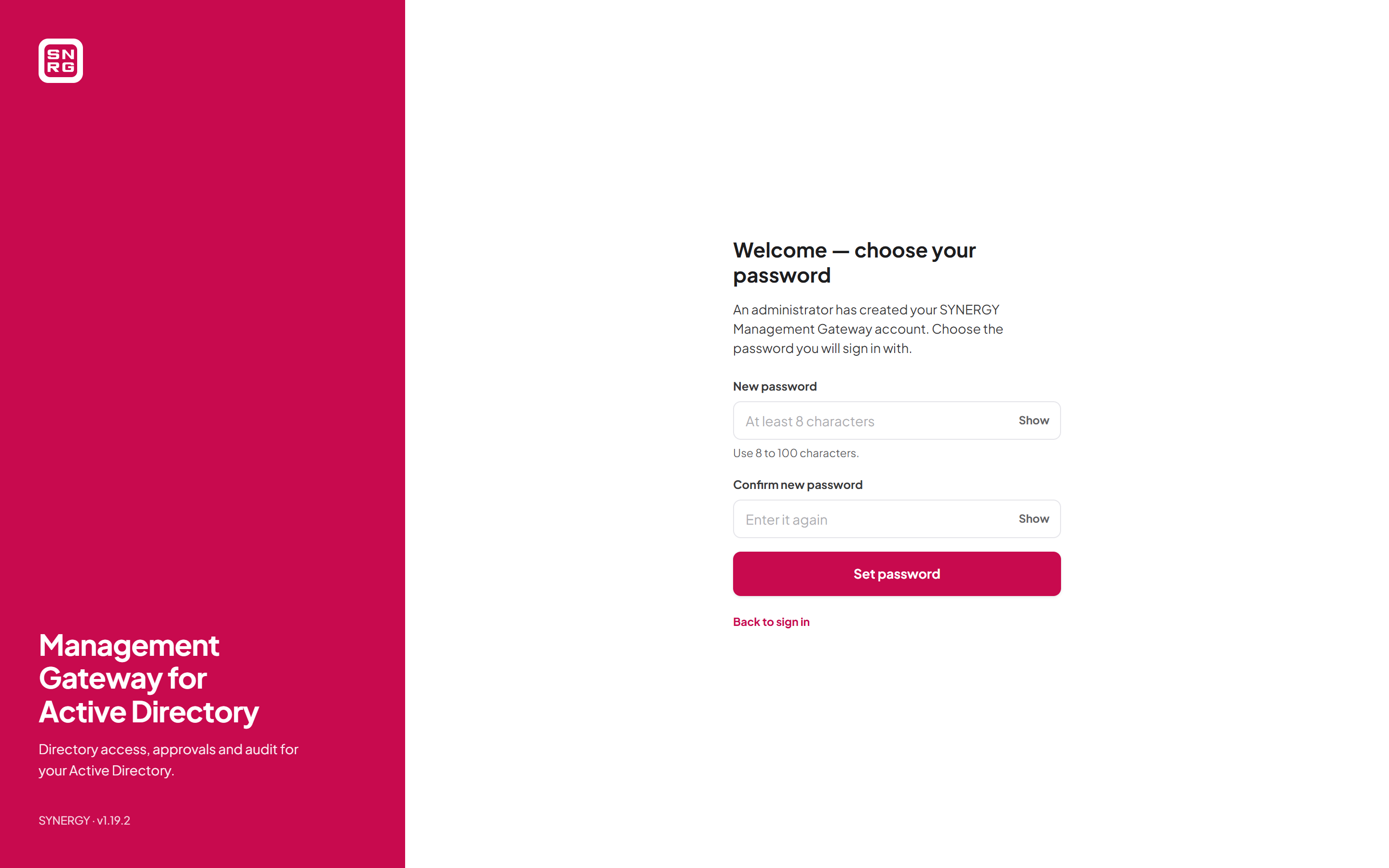
- Open the welcome email and select the link. The Welcome — choose your password page opens, explaining that an administrator has created your account.
- In New password, type a password of 8 to 100 characters, and type it again in Confirm new password.
- Select Set password.
- You return to the sign-in page, which says "Password set — sign in with your new password." Sign in.
- A setup link is valid for 72 hours by default. Your administrator can set it between 1 and 168 hours with
PasswordRecovery:SetupLinkHours. - It works once, and only to choose the first password. It can never replace a password you already set.
- It stops working if the administrator sends you a new link, changes your email address, or deactivates the account. In that case the page says: "This setup link is invalid or has expired. Links work once and expire after a while. Ask your administrator to send you a new link." An administrator can resend the link from the user's page (see Chapter 11, Users, roles and permissions).
- Until you choose a password, single sign-on will not attach itself to your account by email address. This protects the account from being claimed by anyone other than the person who reads the setup email.
Last updated
Thank you for your feedback.