
6.8Managing organizational units
Last updated
Organizational unit management requires the directory-management licence entitlement and the relevant ad:ous:* permission.
To create an organizational unit
- Right-click the parent container and choose New object here….
- Under What to create, select Organisational unit.
- Enter the OU name (up to 64 characters) and select Create.
The organizational unit Actions menu
| Action | Permission | What it does |
|---|---|---|
| Rename… | ad:ous:update | Changes the OU's name. |
| Move… | ad:ous:update | Moves the OU and everything in it. |
| Enable accounts… / Disable accounts… | see below | Enables or disables the user and computer accounts in the OU in one run. |
| Protect from accidental deletion / Allow this OU to be deleted | ad:acl:manage | Adds or removes the deletion protection. |
| Delete this OU… | ad:ous:delete | Deletes the OU and everything inside it. |
Renaming and moving an organizational unit
Use Rename… or Move… as for users. Because a rename or move rewrites the distinguished name of every object beneath the OU, both dialogs warn you: the objects themselves are untouched, but group policy links, delegated permissions, scripts and saved filters that name them by distinguished name will need updating.
Enabling or disabling all accounts in an OU
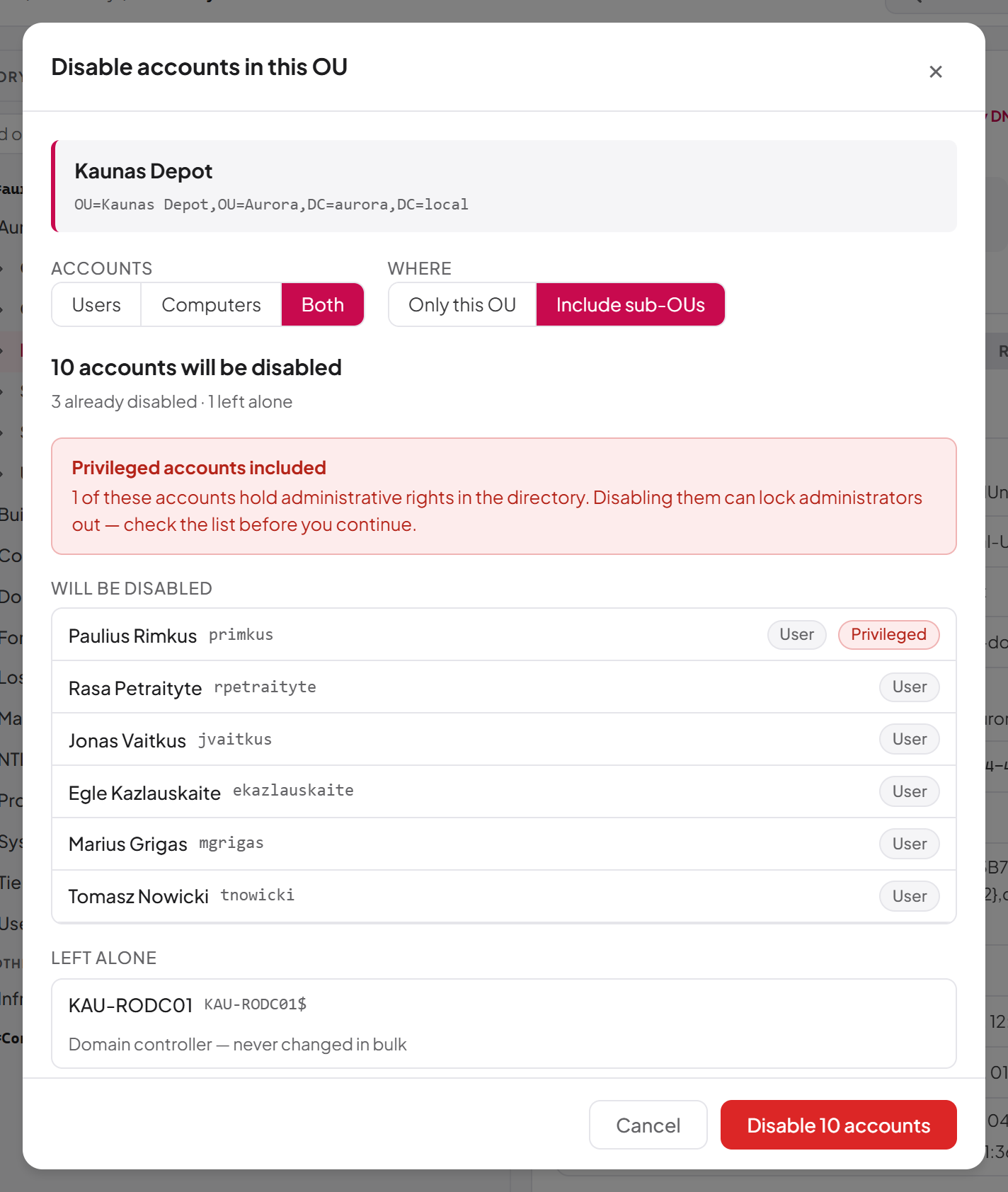
You can enable or disable the user and computer accounts in an organizational unit in one run, with a preview first.
Who can use it: you need ad:ous:read, plus, for user accounts, ad:users:update and ad:users:read, and for computer accounts, ad:computers:update and ad:computers:list. Only the account kinds you hold both permissions for are offered.
To enable or disable the accounts in an OU:
- Select the OU, open Actions and choose Enable accounts… or Disable accounts….
- Under Accounts, choose Users, Computers or Both (shown only when you may change both kinds).
- Under Where, choose Only this OU or Include sub-OUs.
- Wait while the dialog works out which accounts would change, then review the preview. The headline states how many accounts will change (for example "12 accounts will be disabled"), with the number already in that state and the number left alone. The list Will be disabled (or Will be enabled) shows each account's name, logon name, kind and a Privileged badge where it holds administrative rights. The list Left alone gives the reason for each account that will not be touched.
- Select the confirm button, for example Disable 12 accounts.
The dialog then shows the result: how many accounts were changed and, under Not changed, any that failed.
These accounts are never changed in bulk and appear under Left alone:
- Domain controller accounts.
- The Kerberos service account (
krbtgt). - Built-in or system-critical accounts, such as the built-in Administrator, Guest and DefaultAccount.
- On a disable, also: your own account, the account the platform signs in to Active Directory with, and the computer account of the server running SYNERGY Management Gateway.
Limits and behaviour to be aware of:
- At most 100 accounts are changed in one run. If the selection is larger, the dialog says so and you cannot continue; narrow it to one kind of account, to Only this OU, or to an OU further down.
- When privileged accounts are included, a warning is shown. Disabling them can lock administrators out; enabling them lets them sign in with those rights again.
- The run is not transactional. Each account is changed as its own operation; if one fails, the accounts changed before it stay changed. Each change is recorded separately in the operations log.
- The accounts are fixed by the preview: the run changes the accounts the preview found, not whatever the OU happens to hold by the time the change runs.
- When a long list is shortened, a note says that the lists show only the first accounts while the counts cover all of them.
Protecting an organizational unit from accidental deletion
Protection from accidental deletion adds an explicit deny of Delete and Delete Subtree for Everyone to the OU's security. While it is in place, nothing can delete the OU — including tools that expect to — until the protection is removed. It is the guard that stops a mistaken delete taking a whole subtree with it.
You need ad:acl:read for the browser to know whether an OU is protected, and ad:acl:manage to change it. The menu shows only the entry that applies: Protect from accidental deletion on an unprotected OU, Allow this OU to be deleted on a protected one.
To protect an OU:
- Select the OU, open Actions and choose Protect from accidental deletion.
- Confirm with Protect.
To remove the protection, choose Allow this OU to be deleted and confirm with Remove protection.
Deleting an organizational unit
- Select the OU, open Actions and choose Delete this OU… (or right-click it and choose Delete…).
- Confirm with Delete OU.
The OU is removed along with everything inside it. If the OU is protected from accidental deletion, the confirmation tells you that the directory will refuse until the protection is removed.
Last updated
Thank you for your feedback.