
2.4Stage 3: Create the first administrator
Last updated
A new installation has no user accounts at all, not even a built-in administrator. The first administrator is created once, from a web browser running on the server itself.
The first-run page is available only while no account holds the System Admin role, and only to a browser on the server (a request from the local machine). Once the first administrator exists, the page closes for good. Further administrators are created in the console, by assigning the System Admin role to other users.
To create the first administrator:
- Sign in to the server where the product is installed.
- Open a browser on the server and go to the public base URL, for example
https://gateway.example.com/. While no administrator exists, the sign-in page sends you to the Welcome to SYNERGY Management Gateway page (route/setup). - Enter First name, Last name and Email. The email address is the account's sign-in name.
- Enter a Password and repeat it in Confirm password. The checklist under the field ticks each password rule as you meet it (the rules are listed after this procedure).
- Select Create administrator.
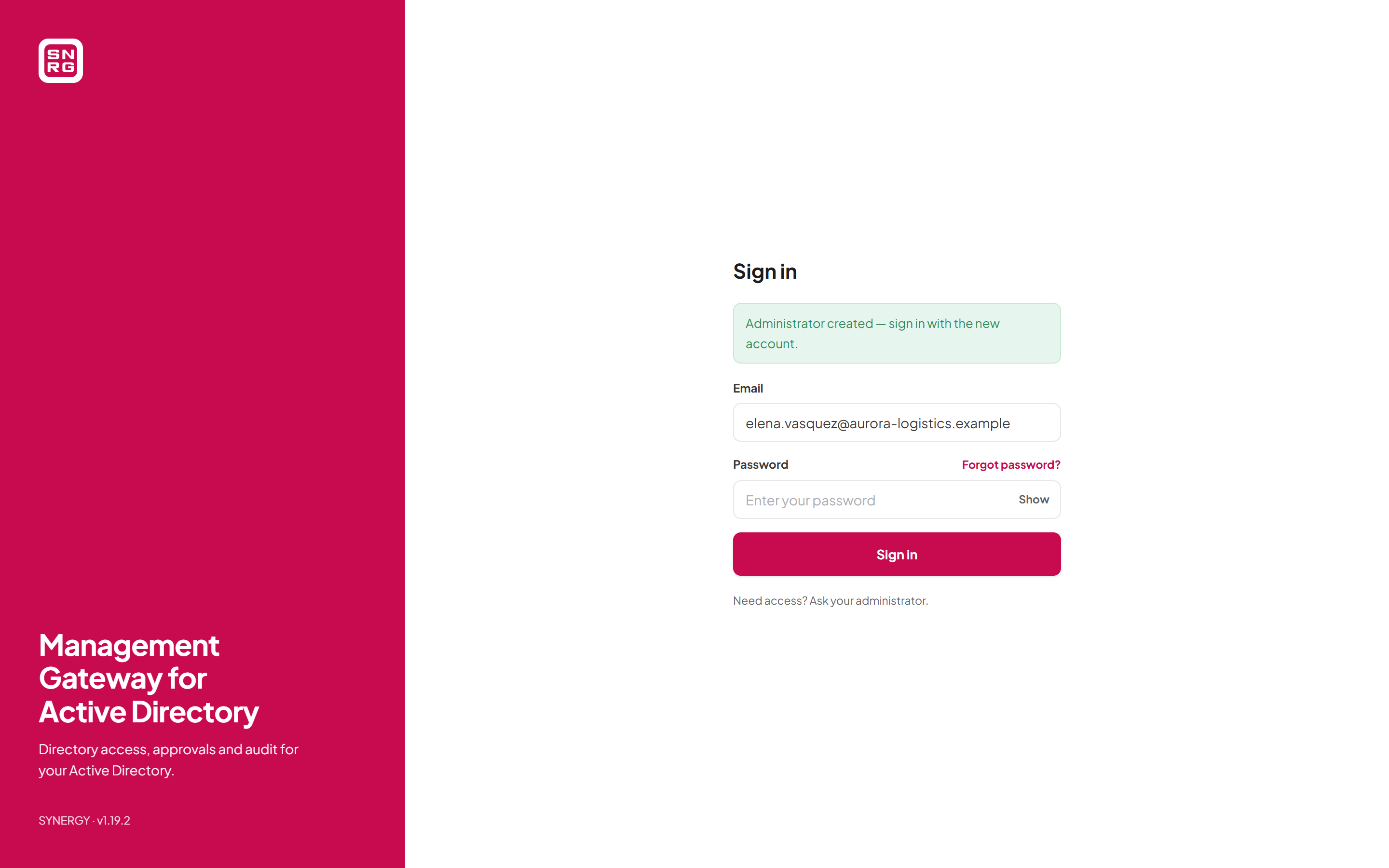
- You are returned to the sign-in page, which shows Administrator created — sign in with the new account. with the email address filled in. Sign in with the new password.
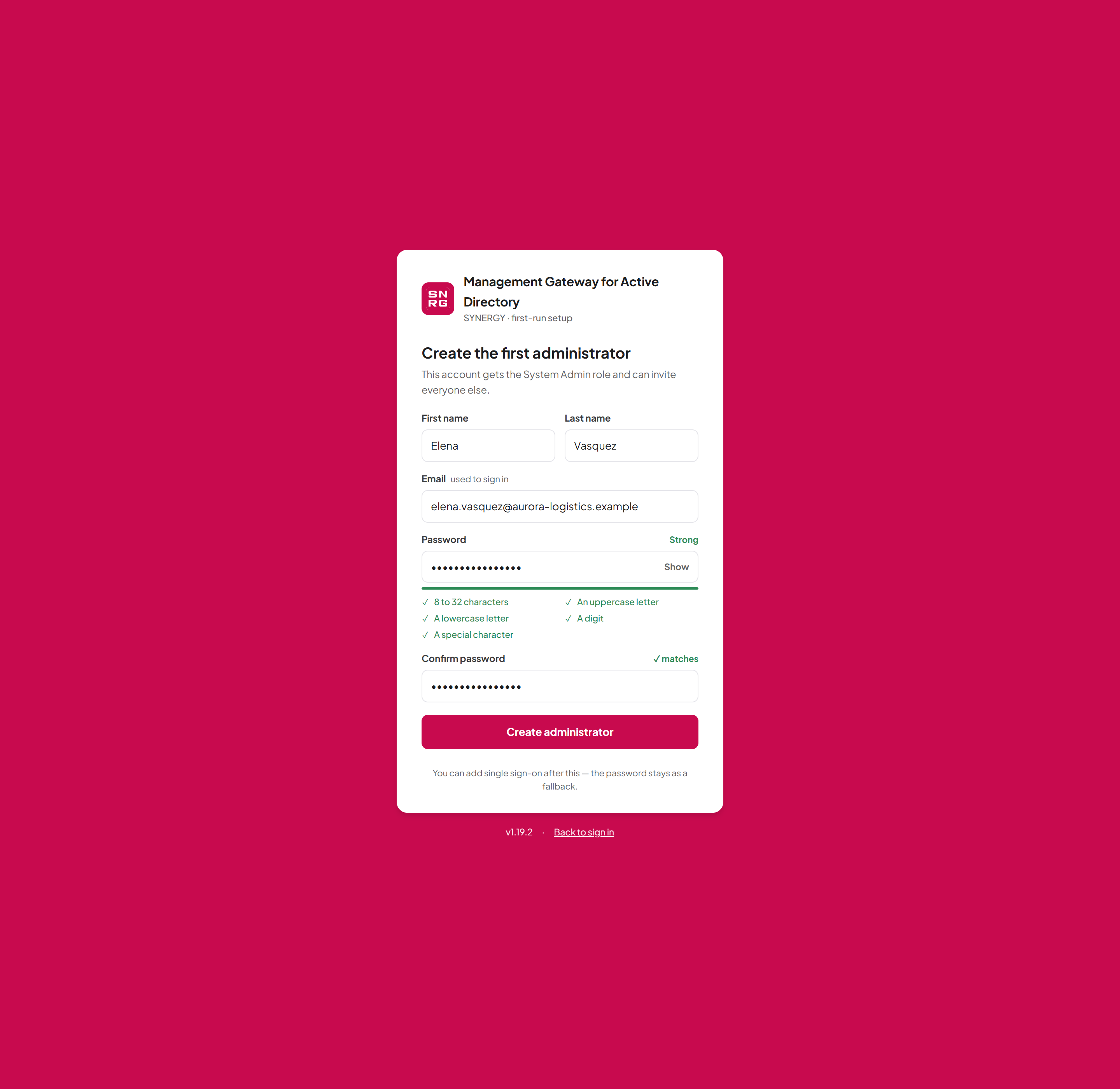
- 8 to 32 characters;
- an uppercase letter;
- a lowercase letter;
- a digit;
- a special character.
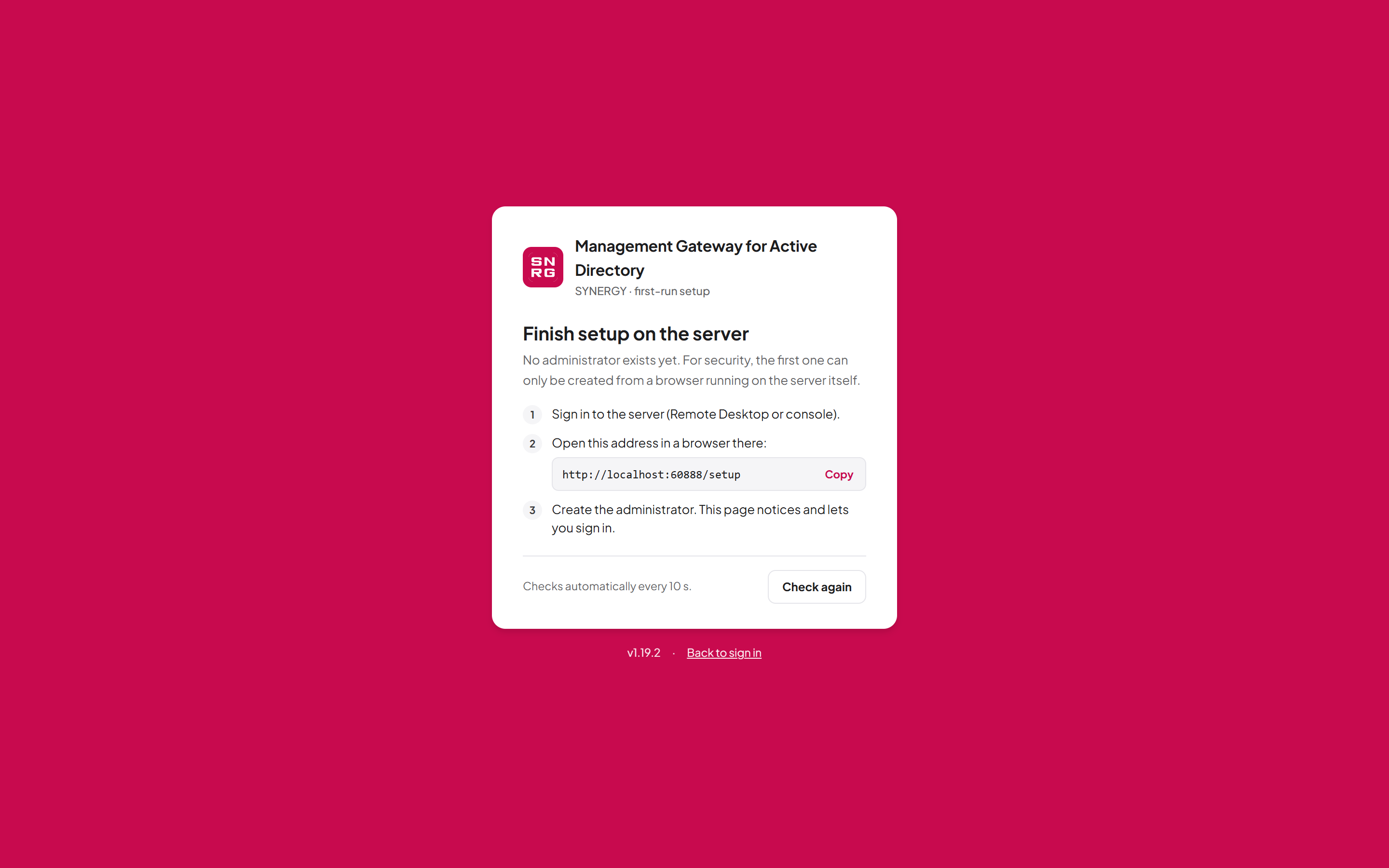
If the page says setup must be completed on the server
If you open the site from another computer before the first administrator exists, you see Setup must be completed on the server. This is a security measure: nobody on the network can claim the installation before you do. Sign in to the server and open the site there, then select Check again if the page is still open, or Back to sign in to leave.
The same message appears on the server itself when the request reaches the product through a reverse proxy, because a relayed request is never treated as local. In that case open the site on the server directly, for example https://localhost/, bypassing the proxy.
Error messages on the first-run page
| Message | Meaning |
|---|---|
| Setup has already been completed. Sign in with an administrator account. | Someone already holds the System Admin role. Use the normal sign-in page. |
| An account with this email already exists. | Choose another email address. |
| Could not check the setup state. Make sure the service is running, then try again. | The API is not answering. Check that the application pool is running and the readiness address responds. |
| The administrator could not be created. Please try again. | Another problem occurred. Check the application log. |
Integrations can query the same state through GET /rest/auth/setup (or /api/auth/setup), which reports whether setup is still required and whether it is available from where the request was made. Creating the administrator is refused from anywhere but the server with error code Setup.NotLocal, and after completion with Setup.AlreadyCompleted.
Next steps after the first sign-in
Activate the licence
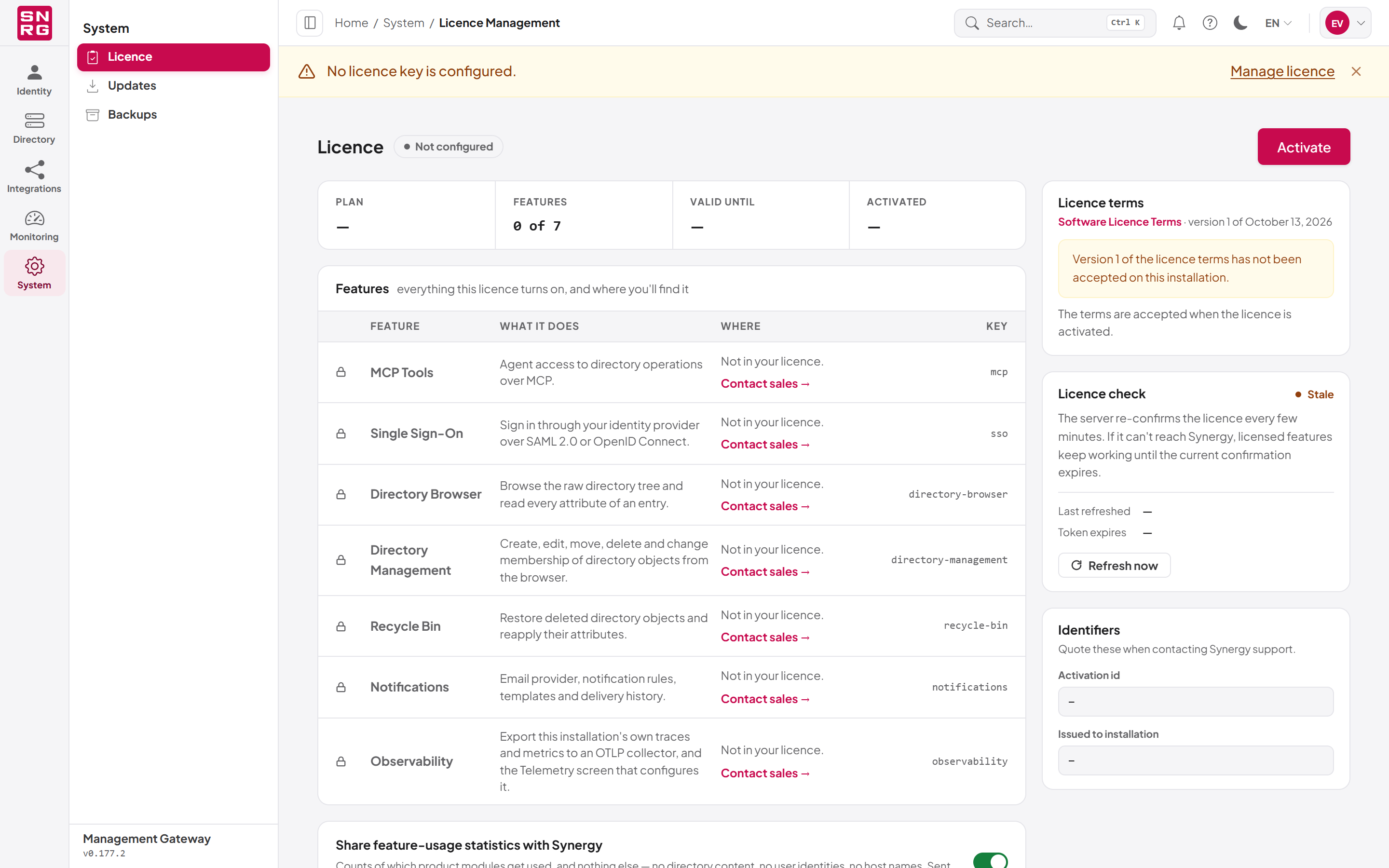
Until a licence is activated, every Active Directory operation is refused with 403 License.NotActivated, and the licensed modules do not appear in the navigation. You can still sign in, open the Licence screen, create directory connections and choose a workspace directory, so that activation is always possible.
Open System > Licence in the console, select Activate, paste the key issued for your installation into Licence key and confirm. See Chapter 19, Licence, updates and backups.
Add the first directory connection
Open Directory > Connections and create a connection to your first Active Directory domain: domain controller address, port and SSL, base DN and service account credentials. Then choose it as your workspace directory in the directory picker at the top of the navigation panel. See Chapter 5, Directory connections.
Create users and roles
Create platform users for the other people who will use the product, and roles that give them only the permissions they need. Consider assigning System Admin to a second, trusted person so that administration does not depend on a single account. See Chapter 11, Users, roles and permissions.
Post-installation checklist
Work through this list before you hand the installation over to its users.
| Done | Check |
|---|---|
| The site has an HTTPS binding with a trusted certificate for the public host name. | |
https://gateway.example.com/backend/health/ready answers successfully. | |
| The first administrator exists and can sign in from a workstation, not only from the server. | |
| The licence is activated and the expected modules appear in the navigation. | |
| At least one directory connection is created and shows as healthy. | |
| A second person holds the System Admin role. | |
| An email provider is configured if you want notifications or self-service password reset (see Chapter 16, Notifications). | |
| Roles follow least privilege; nobody uses System Admin for everyday work. | |
| Single sign-on or Windows sign-in is configured if required (see Chapter 17, Single sign-on). | |
The log folder (default C:\Logs) is monitored, and off-server logging is configured if your policy requires it. | |
| Backups of the product's database are scheduled (and, if you use them, platform backups on System > Backups are configured; see Chapter 19). | |
SETUP-NOTES.md has been read and stored with your system documentation. |
Last updated
Thank you for your feedback.