
6.4Searching the directory
Last updated
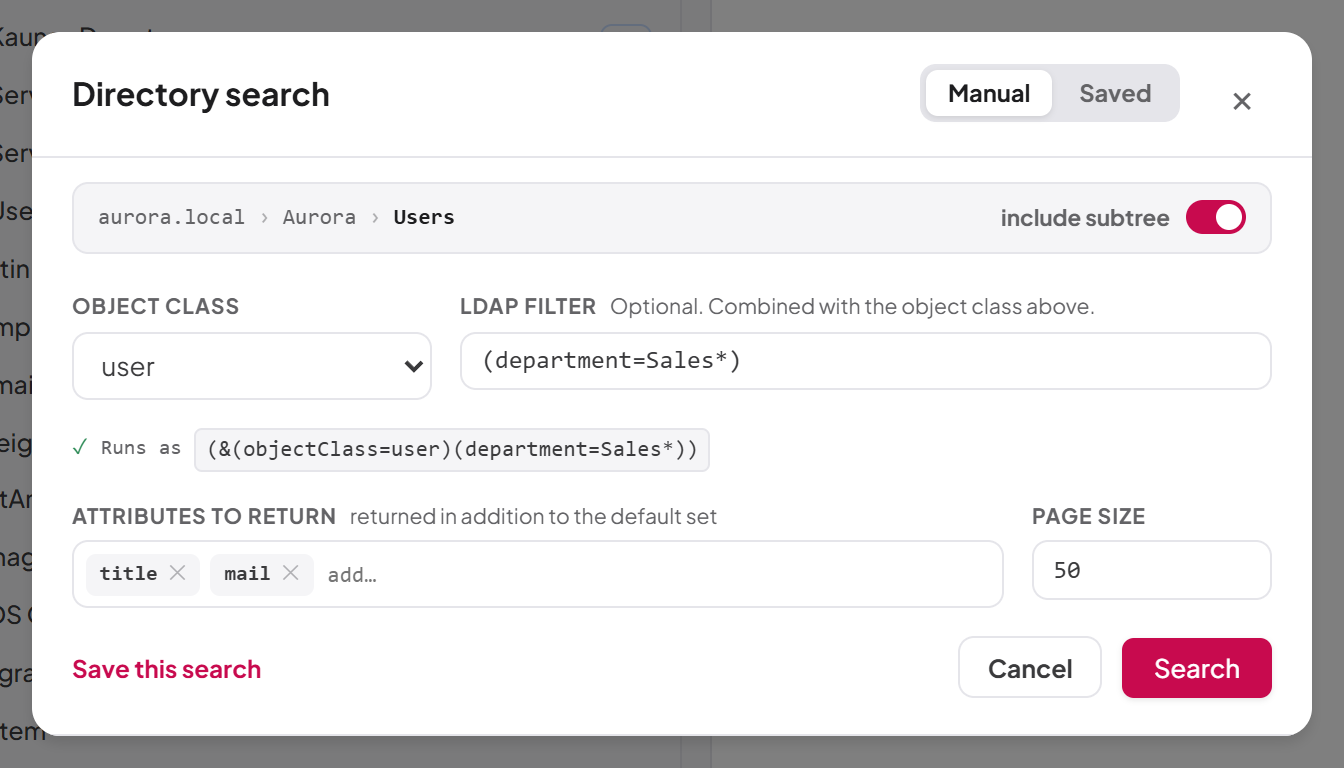
Search opens as a window over the tree, so you keep your place. You start it from a container, which becomes the place the search looks.
To search a container
- Right-click the container in the tree and choose Search in this container….
- If you see the Manual / Saved switch, make sure Manual is selected.
- Check the scope shown at the top. Select include subtree to search the container and everything beneath it; clear it to search only the container's direct children.
- Fill in the query fields (see the table below).
- Select Search.
| Field | Description |
|---|---|
| Object class | What to look for: user, group, computer or organizationalUnit. |
| LDAP filter | Optional, for example (sn=Smith*). It is combined with the object class. The Runs as line below the fields shows the complete filter that will run. |
| Attributes to return | Optional extra attributes, returned in addition to the default set. Type a name in the add… box and press Enter or a comma; each name becomes a chip, which you can remove with its ✕. A pasted list such as department, title, mail is split into separate chips. Each attribute becomes an extra column in the results. |
| Page size | How many results to read per page, from 1 to 1000. The default is 50. |
The results
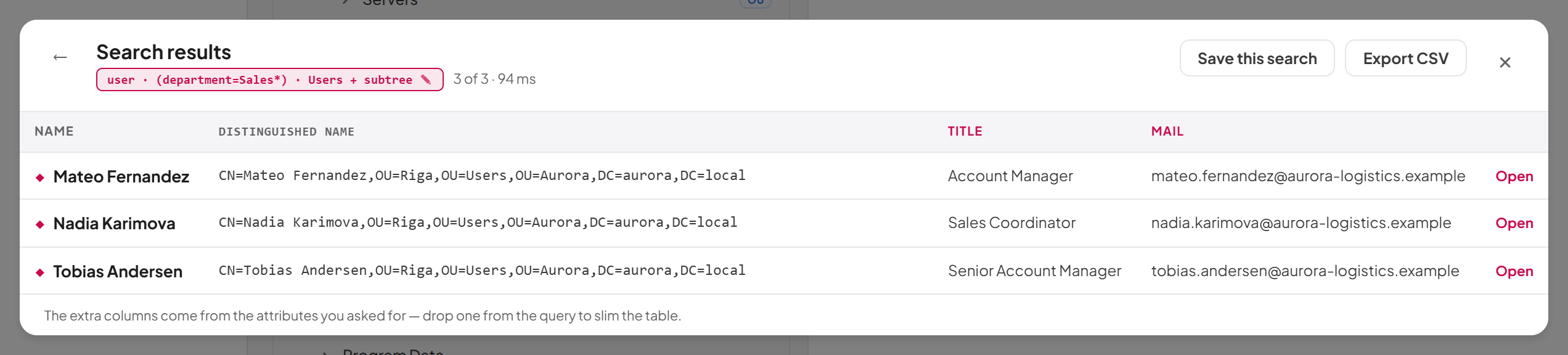
The results replace the query form and show a recap of what was searched, the number of results and how long the search took. The table lists the Name and Distinguished name of each match plus one column for each extra attribute you asked for.
- Select Open on a row to close the search and reveal that object in the tree, selected.
- Select Load next page to read further results.
- Select Export CSV to download the results shown as
directory-search.csv. - Select the back arrow (Back to the query) to change the search.
Saving a search
If you have the savedfilters:create permission, Save this search appears on the manual query form and above the results of a manual search (a saved search cannot be saved again). Enter a Name and, optionally, a Description, then select Save. The search is stored as a saved LDAP filter that can be run again. Saved filters are managed under LDAP Filters; see Chapter 8, Saved LDAP filters.
To run a saved search
- Right-click a container and choose Run a saved search… (or switch to Saved in the search window).
- Choose a saved search from the list. Each shows where it searches from. If the list is empty, it says "No saved searches yet. Run a manual search and save it."
- Select Search.
The Saved option is offered only when you hold both savedfilters:list and savedfilters:execute.
A saved search brings its own filter, search base and attributes, so the container you right-clicked does not limit it.
Note: A filter that names a password or credential attribute (for example a LAPS password attribute) is refused, both in a manual search and in a saved one.
Last updated
Thank you for your feedback.