
9.2The Operations page
Last updated
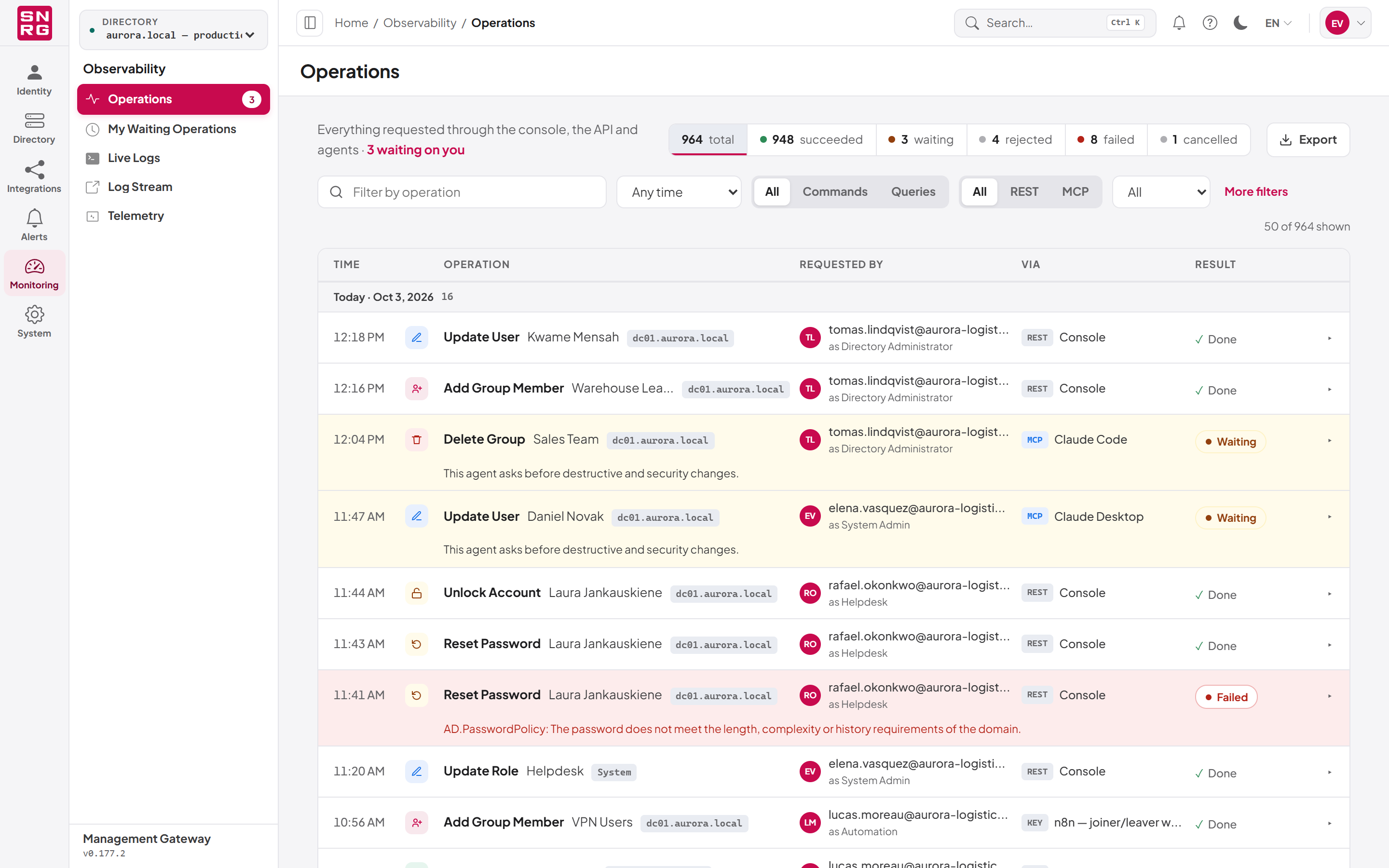
The Operations page is the operations log. Open it from the navigation: select Monitoring on the navigation rail (the panel it opens is headed Observability), then Operations. Its address is /dashboard/operations.
When operations are waiting for approval, the Operations menu item shows a red badge with the number waiting ("Operations awaiting approval: N"). Failures are not counted in the badge; they stand out on the page itself.
Which directory the log shows
The log follows the workspace directory, the directory named in the console's top bar (see Chapter 4, Working in the console). There is no separate directory filter on this page: to read another directory's operations, switch the workspace. By default the page also shows platform rows (the ones tagged System), because changes to roles, keys or policies concern every directory's administrators.
Layout of the page
The page has four parts, from top to bottom.
The header line says what the log holds and what is waiting. When your role holds operations:approve it reads, for example, "Everything requested through the console, the API and agents · 3 waiting on you"; select the waiting count to show only the waiting operations. When nothing is waiting it reads "nothing is waiting on you".
The stat bar beside it shows how many operations match the current filters, and how many of those succeeded, are waiting, were rejected and failed (Cancelled appears when there are any). The stat bar is also the status filter: select a count to show only that status, and select it again to show every status. The counts always cover every status, so you can see the mix while one status is selected. Export next to it downloads the log (see 9.10).
The toolbar and the filters below it narrow what is shown (see 9.3.1). At its right end, "50 of 1,204 shown" tells you how many of the matching operations are on the page so far.
The list shows every operation, newest first, grouped under a heading for each day ("Today · 5 Oct 2026", "Yesterday · …", then the date) with the number of operations that day. Each line has these columns:
| Column | Content |
|---|---|
| Time | Hours and minutes. The day is on the group heading. |
| (icon) | The kind of operation: create, delete, update, reset, and so on, in the same icons as Directory Policies. |
| Operation | The operation's name, then the object it was done to by its own name (for example "Ann Lee" rather than the full distinguished name), then the directory as a small tag, or System for a change to the platform itself. A read, such as listing users, carries a Read tag. |
| Requested by | The person the request was made for, and below it the role they acted as, for example "as Helpdesk". For an API key this is the key's owner; for an agent, the person who connected it. Operations recorded before version 0.179 show no role. |
| Via | How the request arrived: MCP with the agent's name (for example "Claude Code"), KEY with the API key's name, or REST · Console for a person working in the console. |
| Result | "✓ Done" for an operation that succeeded. Anything else has a pill: Waiting, Failed, Rejected or Cancelled. |
Operations that need attention stand out: a waiting operation has an amber background and a failure that nobody has dismissed has a red one. The reason is printed under the line itself: the error code and message for a failure, the rejection message for a rejected request, and the reason it is held for a waiting one.
Older operations load by themselves as you scroll towards the end of the list. The line at the bottom reads "Newest first · older operations load as you scroll", with a Load older link, and "that is everything for these filters" once all of them are shown.
Tip: The page refreshes itself as operations happen, through the live operations stream. New operations appear at the top and decisions update the line they belong to, without losing your place in the list.
9.3.1 Filtering the log
The toolbar holds the filters you use most:
| Control | What it does |
|---|---|
| Filter by operation (search box) | Matches the operation's command name and display name, ignoring capitals. The list follows as you type. It does not search distinguished names; use Target contains for that. |
| Time range | Any time, Today, Last 7 days, Last 30 days or Custom… |
| All / Commands / Queries | Commands are operations that change something; Queries are operations that only read. |
| All / REST / MCP | REST is the browser console, API keys, n8n and scripts; MCP is AI agents. To tell a person from an API key, use Made by under More filters. |
| Scope | All (this directory's rows and platform rows), Directory (this directory only) or System (platform rows only). |
| More filters | Opens the panel described below. A number beside it says how many of its filters are in use. |
To filter the log by a custom time range:
- In the time-range list, select Custom….
- In the row that appears, set From and To (local date and time).
- Select Apply filters.
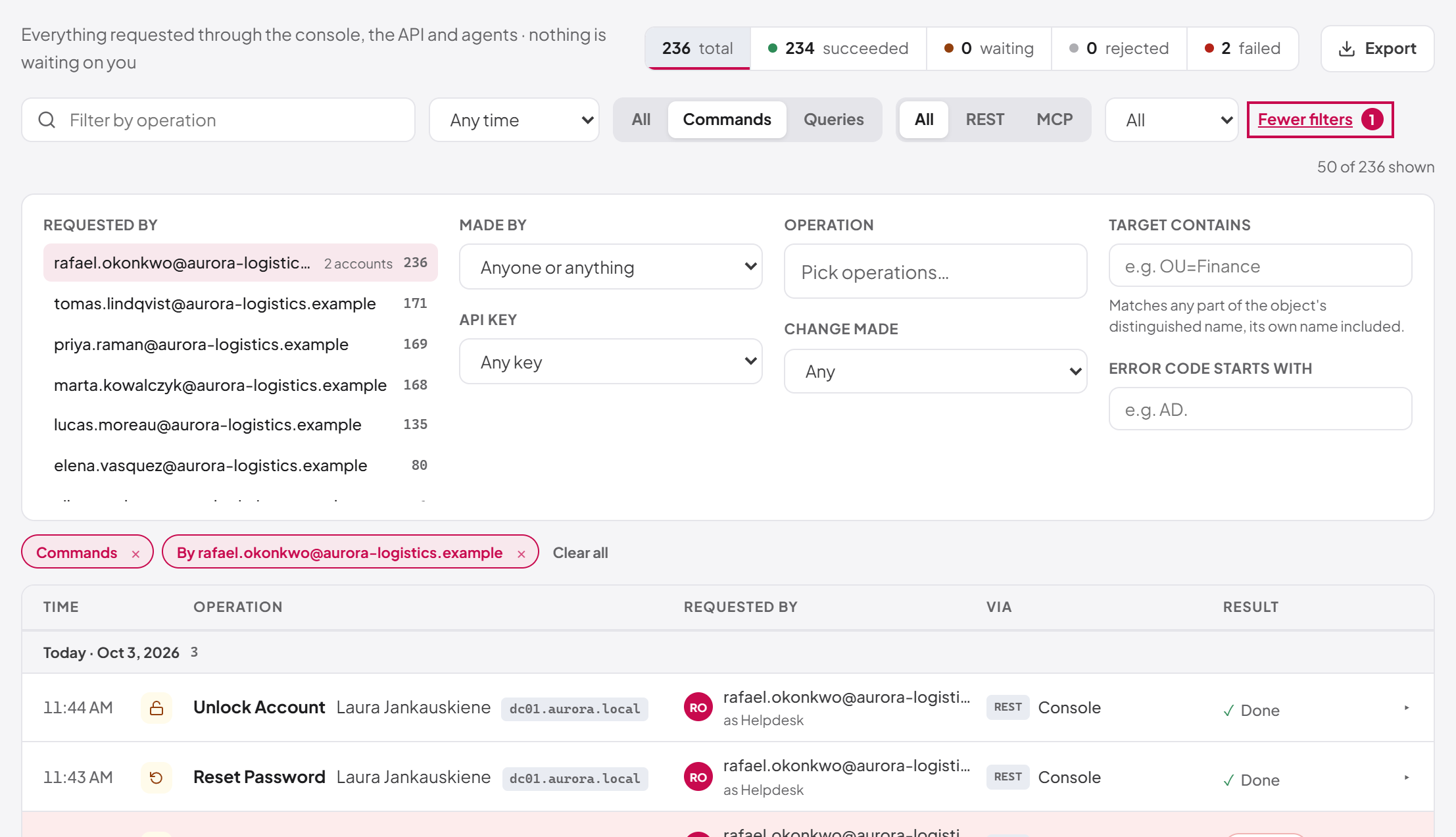
More filters opens a panel with four columns:
| Filter | What it does |
|---|---|
| Requested by | Everyone who appears in the log, with how many operations each requested, busiest first. Select a person to show only their operations, and select them again to show everyone. If one email address belongs to more than one account (for example an account that was deleted and created again), the person appears once, marked "2 accounts", and the filter covers both. |
| Made by | A person (someone working in the console), An API key or A connected agent. Operations nobody requested, such as an account created at its first single sign-on, count as none of these. |
| API key | The operations of one API key, by name. Keys that have since been deleted are still listed. |
| Operation | Pick one or more operations by name (see below). |
| Change made | Create, Update or Delete. |
| Target contains | Any part of the object's distinguished name, its own name included, ignoring capitals. For example OU=Finance finds every operation on an object in that OU. |
| Error code starts with | For example AD. finds every Active Directory error. The box suggests the codes that occur in the log. |
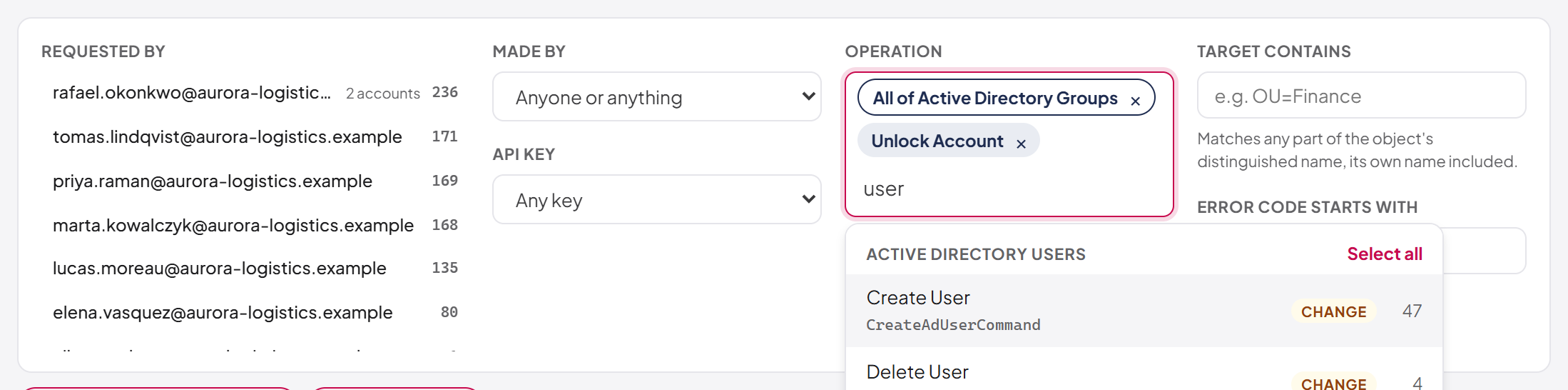
To choose operations to filter on:
- Select More filters, then select the Operation box.
- Type part of an operation's name, its command name or an area such as "groups". The suggestions are grouped by area (for example Active Directory Users or Platform — Roles). Each shows whether it is a Change or a Read, and how many times it occurs in the log.
- Select an operation to add it. Repeat for more; up to 20 single operations can be chosen.
- To take a whole area at once, select Select all beside the area's heading. The area becomes one chip, such as "All of Active Directory Groups", and covers every operation in it.
- To remove a choice, select × on its chip, or press Backspace in the empty box.
The address keeps the filters. Every filter is written into the page's address as you set it, so you can bookmark a filtered view, send it to a colleague, or come back to it with the browser's Back button. A named range such as Last 7 days stays relative: opened tomorrow, it shows the seven days before tomorrow.
Some filters usually arrive with a link from another screen:
- From Connected agents, the link to an agent's activity opens the log filtered to that one agent session (the chip reads "One connected agent's session"). In that case the log shows the agent's rows in the directory the agent was granted, even if that is not your workspace directory. See Chapter 13, AI agents (MCP server).
- A link with a requester filter shows one person's operations.
- A link with
?operationId=opens one operation's detail directly (see 9.4.3).
The All operations → link at the foot of a Change history panel on another screen opens this page (see 9.3.3).
9.3.2 The operation detail
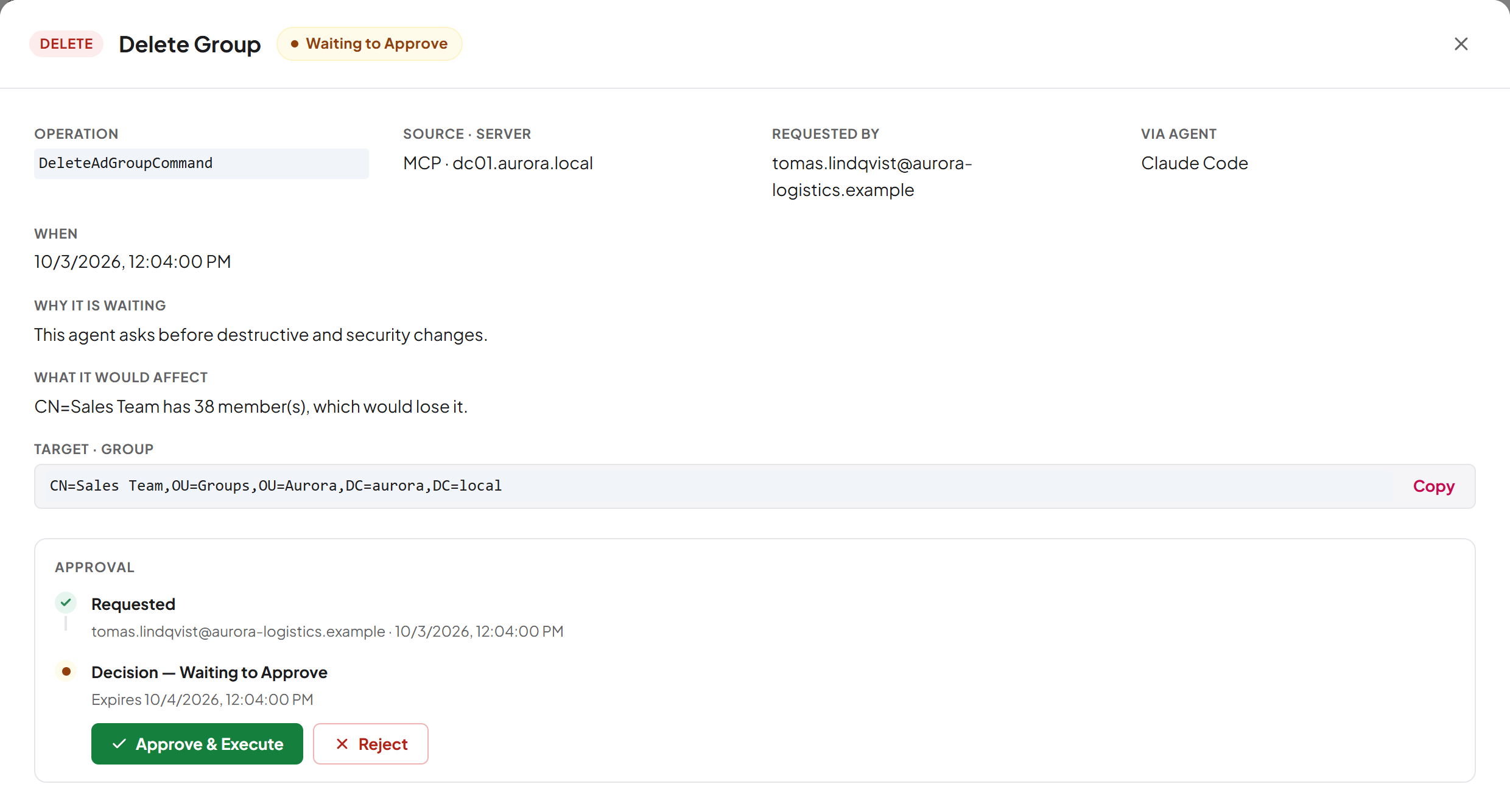
Select any line to open it in place. The expanded line shows who requested it and the role they acted as, the command name, the full distinguished name of the target, how long it took, when it was requested, how it arrived, and the impact summary where one was recorded. It also offers:
- Open full record, which opens the operation's detail window, described below;
- Copy request id, which copies the operation's id, for a support ticket or the REST API;
- Approve and Reject for a waiting operation, and Dismiss for a failure, when your role holds
operations:approve(see 9.4).
Select the line again to close it. A waiting operation can also be opened by a link (see 9.4.3). In the detail window, press Escape or the close button to close it.
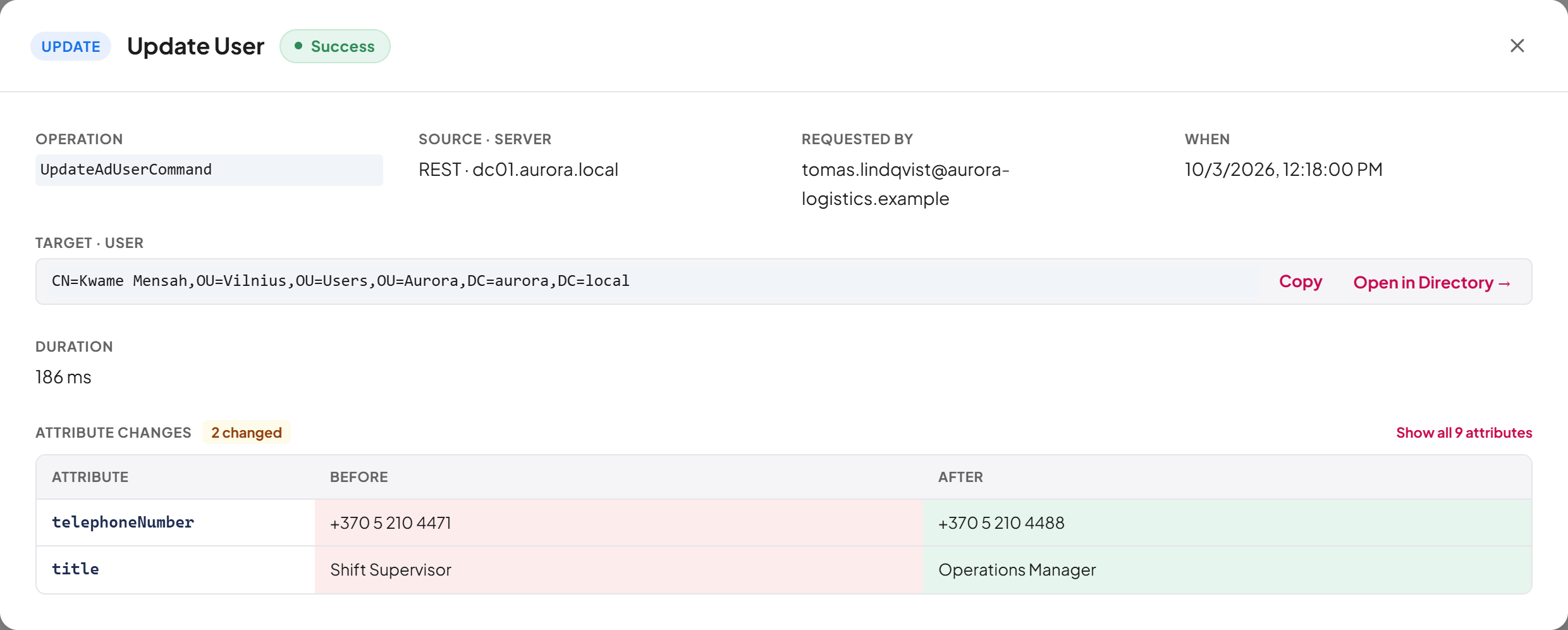
The body shows:
| Field | Content |
|---|---|
| Operation | The internal command name, for example UpdateAdUserCommand. Useful when you report a problem. |
| Source · Server | REST or MCP, and the directory the operation ran against. For a platform change: Source only. |
| Requested by | The person the request was made for. For an API key, its owner; for an agent, the person who connected it. |
| Via agent | The AI agent that acted, by the name it registered under. Hover to see its client id. Shown only for agent requests. |
| Via key | The API key used, by name. Hover to see its id. Shown only for API key requests. |
| When | When the request was made. |
| Why it is waiting | The reason the request was held (see 9.1). Shown only for held requests. |
| What it would affect | The impact summary (see 9.6). Shown only where one was recorded. |
| Target | The distinguished name of the object, with its object class. For a platform change, Changed record instead. |
| Duration | How long the operation took to run. For an operation that went through approval, the duration is shown in the Executed step of the approval timeline instead. |
For a directory operation, next to the target:
- Copy copies the distinguished name to the clipboard.
- Open in Directory → opens the Directory Browser on that object. It is offered only when the operation succeeded, it was not a delete, and you may use the Directory Browser (
ad:directory:readand the Directory Browser licence module). In every other case the object might not exist, so the link is not shown. See Chapter 6, Directory Browser.
For a platform change, Changed record reads "A change to this platform's own settings. Nothing in a directory was modified." followed by the record's name or id.
If the operation failed, a red banner shows the error code and message.
What changed
When the platform captured attribute values, the detail ends with a table of them. Its heading tells you what kind of record it is:
| Heading | Columns | When |
|---|---|---|
| Attribute changes | Attribute, Before, After | An update with both states recorded. Changed rows are highlighted. |
| Values set | Attribute, After | An update that recorded only the values written. |
| Created object | Attribute, After | A create. |
| Deleted object (state before deletion) | Attribute, Before | A delete. |
For an update, the table opens on what changed, with a count such as "2 changed". Select Show all N attributes to include the unchanged values, and Show only what changed to go back. If nothing moved, the table reads "Nothing changed — every value was already as requested."
Note: Platform changes never record secrets. A replaced password or client secret is recorded as the fact that it changed, not its value.
The approval timeline
For any operation that went through approval, the detail shows an Approval card with up to three steps:
- Requested: who requested it and when.
- Decision — [status]: for a decided request, "Approver [email] · decided [time]"; for a waiting one, "Expires [time]" or "Not yet decided". Any result message, such as the expiry message, appears beneath. While the operation waits and your role holds
operations:approve, this step carries the Approve & Execute and Reject buttons. - Executed: shown when the approved operation ran successfully, with its duration.
9.3.3 Object history
The log is also the source of each object's change history. In the Directory Browser, an object's history panel shows the operations that touched it, matched on both its objectGUID and its distinguished name, so the history survives a rename. Several administration screens (directory connections, users, roles, API keys, Directory Policies, notification rules, MCP tools) show a Change history panel built the same way from the operations about that record, with an All operations → link to this page. These panels are described with their screens in the relevant chapters.
Last updated
Thank you for your feedback.