
17.6Windows sign-in
Last updated
Windows sign-in lets people on your network sign in with the Windows account they are already logged on with, without typing anything. The browser and IIS complete a Kerberos (or NTLM) handshake, and the platform turns the Windows identity into a normal console session.
Windows sign-in is designed to be conservative:
- Nobody signs in with Windows until an administrator links their Active Directory account to a platform account. No account is ever created automatically, and accounts are never matched by email address or user principal name.
- Roles can follow Active Directory groups. You map an Active Directory group to a platform role; at each Windows sign-in the role is added when the person is in the group and removed when they are not. Roles assigned by hand are never touched.
- System Admin can never be mapped to a group.
Prerequisites
Windows sign-in depends on your Windows infrastructure as well as on the platform. Check each of these before you turn it on:
| Requirement | Why |
|---|---|
| The sso licence module | Windows sign-in is part of single sign-on |
The IIS Windows Authentication role service (Web-Windows-Auth) | IIS performs the Kerberos/NTLM handshake |
| IIS configured with the Windows sign-in layout (see below) | Windows authentication must be on for the sign-in path only |
| HTTPS | The sign-in refuses plain HTTP: NTLM can be relayed, and Extended Protection binds the handshake to the TLS connection |
| An SPN for the site's host name on the application pool's identity | Kerberos needs it. HOST/<computer name> covers the computer's own name; for another name: setspn -S HTTP/<host name> <COMPUTER>$ |
The site in the browsers' Local intranet zone (or the Edge/Chrome AuthServerAllowlist policy) | Without it, browsers prompt for credentials instead of signing in silently |
| Users in the server's domain or a trusted domain | Kerberos only works within the domain and its trusts |
| No reverse proxy in front of the sign-in | Negotiate authentication does not survive a reverse proxy |
| At least one trusted connection | The platform looks up the signing-in account only in these Active Directory connections |
Configuring IIS
IIS must have Windows authentication switched on in a particular layout: on at the API application's root, off again for every path the application serves, and on for the single sign-in path rest/auth/windows/signin. This layout makes sure that ordinary requests never trigger a Windows credential prompt. The settings are written to the server-level IIS configuration, not to the application's web.config, so they survive upgrades.
You can apply the layout in either of two ways.
With the setup wizard. On the Hosting and paths page, set Windows sign-in to:
- On — configures IIS Windows authentication for the API. The wizard reports a failure if the IIS Windows Authentication role service is not installed (its Prerequisites page lists it as optional, needed only for Windows sign-in).
- Off — removes the Windows sign-in layout.
- Unchanged (the default) — leaves IIS as it is.
For the wizard, see Chapter 2, Installation and first-time setup.
With the PowerShell script Set-WindowsSignIn.ps1, run as an administrator on the IIS server in Windows PowerShell. The installer does not place this script on the server; if you do not have it, use the setup wizard instead.
# Install the IIS role service if needed, then apply the layout
.\Set-WindowsSignIn.ps1 -InstallFeature

# Show the commands without running them
.\Set-WindowsSignIn.ps1 -WhatIf

# Remove the layout again
.\Set-WindowsSignIn.ps1 -Disable| Parameter | Description |
|---|---|
-Site | IIS site name. Default Default Web Site |
-App | The API application's alias under the site. Default backend |
-ExtendedProtection | Require (default), Allow or None |
-InstallFeature | Installs the IIS Windows Authentication role service if it is missing |
-Disable | Removes every setting the layout added |
-WhatIf | Prints the commands without running them |
Important: Restart the API application pool after applying or removing the layout. IIS reads the setting only when the application starts.
Until the layout is in place and the pool restarted, the platform does not offer the Continue with Windows button, even if Windows sign-in is enabled on the console page.
Windows sign-in settings
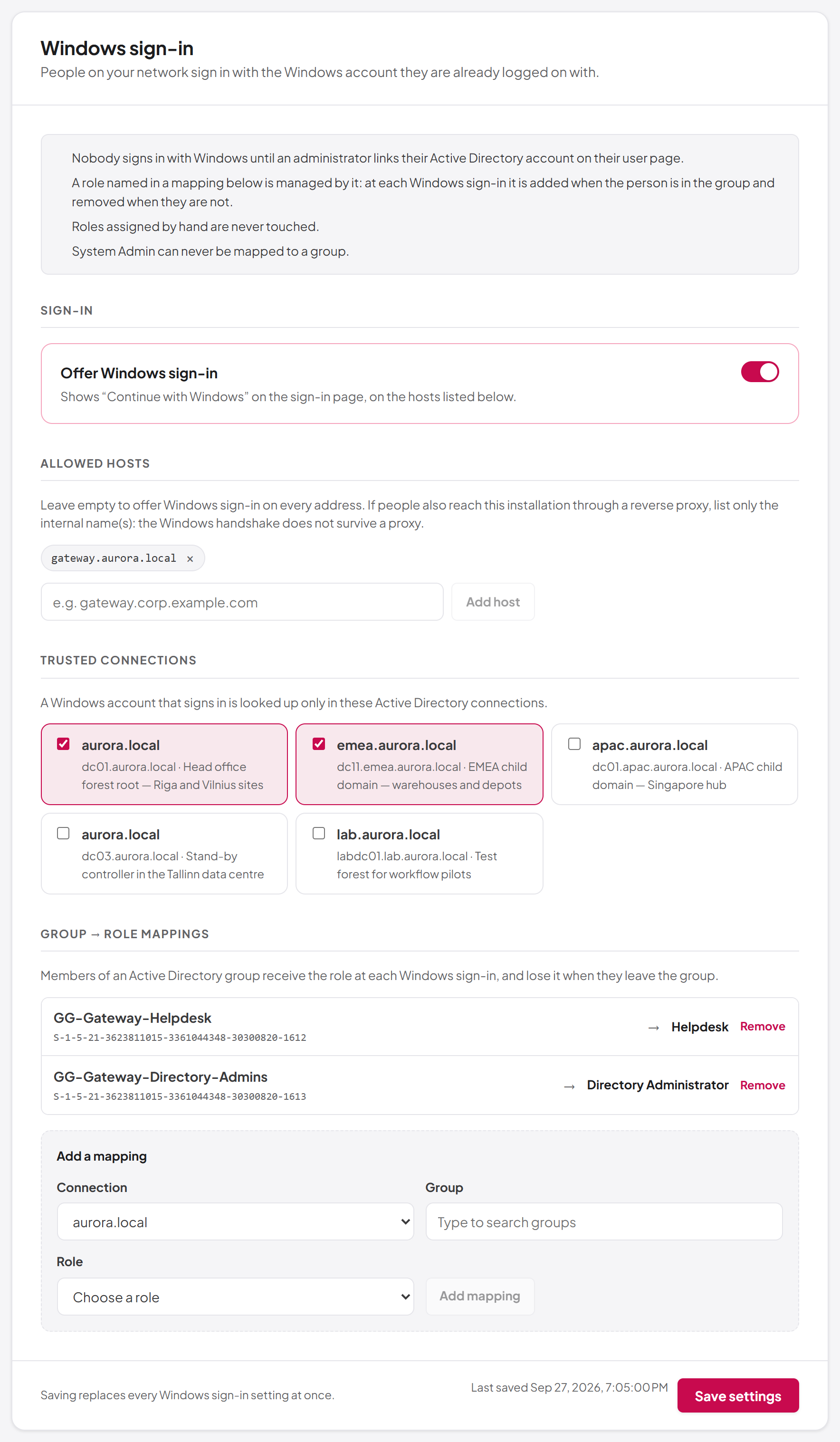
Select Windows on the Single sign-on page. The form begins with a short explanation of how linking and mapped roles work, followed by these sections.
Sign-in
- Offer Windows sign-in — shows "Continue with Windows" on the sign-in page, on the hosts listed below. Saving with it switched on is refused until at least one trusted connection is chosen.
Allowed hosts
The host names on which the Windows button is offered. Leave the list empty to offer it on every address. If people also reach the installation through a reverse proxy, list only the internal name(s), because the Windows handshake does not survive a proxy. Type a name in Host name (for example gateway.corp.example.com) and select Add host. The platform checks the host again when someone signs in, so a bookmarked link on the external name does not work either.
Trusted connections
The Active Directory connections in which a signing-in Windows account is looked up. Tick each connection whose users may sign in with Windows. A connection that has since been deleted is listed as "Connection no longer exists"; untick it before saving. The account is searched across the whole domain of the connection, not only under the connection's base DN — the base DN limits what is managed, not who may sign in. If a trusted connection cannot be reached, the others are still searched, so an outage in one directory does not lock out people from another. For connections, see Chapter 5, Directory connections.
Group → role mappings
Each mapping gives the members of an Active Directory group a platform role at each Windows sign-in, and removes it when they leave the group. With no mappings, Windows sign-in changes nobody's roles.
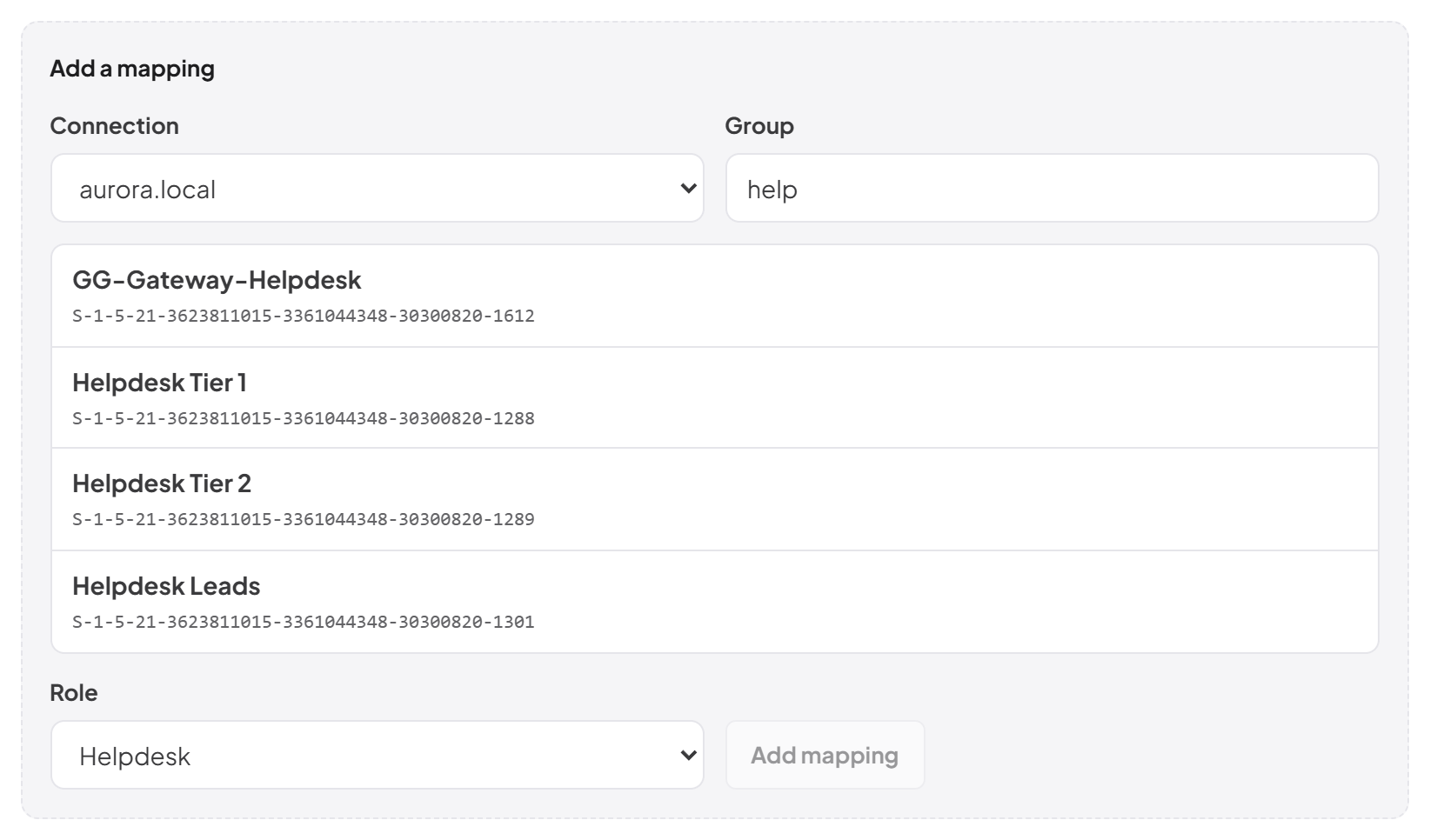
To add a mapping, under Add a mapping:
- Choose the Connection to search (one of the trusted connections).
- Under Group, type part of the group name and choose the group from the results.
- Under Role, choose the platform role.
- Select Add mapping.
Remove a mapping with Remove on its row. A mapping whose role has since been deleted shows "Role no longer exists" and must be removed before the settings can be saved. If you have picked a group but not yet a role, the page asks you to choose a role or clear the selection before saving.
Only domain groups can be mapped. Built-in and well-known groups (such as Everyone, Authenticated Users or the BUILTIN groups) are refused: the well-known ones are in every token, and the BUILTIN ones describe the IIS server's own local groups. The System Admin role can never be mapped.
Selecting Save settings replaces all Windows sign-in settings at once.
How mapped roles behave
- A role named in any mapping is managed by the mappings: at every Windows sign-in it is set to exactly what the person's group memberships say. Leaving the group removes the role.
- A role that no mapping names, assigned by hand, is never added or removed by Windows sign-in.
- System Admin is never added or removed by Windows sign-in, and an account that holds System Admin is not synchronised at all.
- Changes in Active Directory take effect at the person's next Windows sign-in. Refreshing an existing session does not re-read the groups.
- Each change to a person's roles made this way is recorded in the operations log. A sign-in that changes nothing writes no record.
Linking Windows accounts to users
Before someone can sign in with Windows, an administrator links their Active Directory account to their platform account. The link is stored against the Active Directory account's unique identifier (objectGUID), so it survives renames and moves within the forest.
The Windows sign-in section of a user's page (Identity & Access > Users, open the user) shows the linked account, or Not linked. It is shown when the sso licence is active and you can read users.
To link an account:
- Open the user's page.
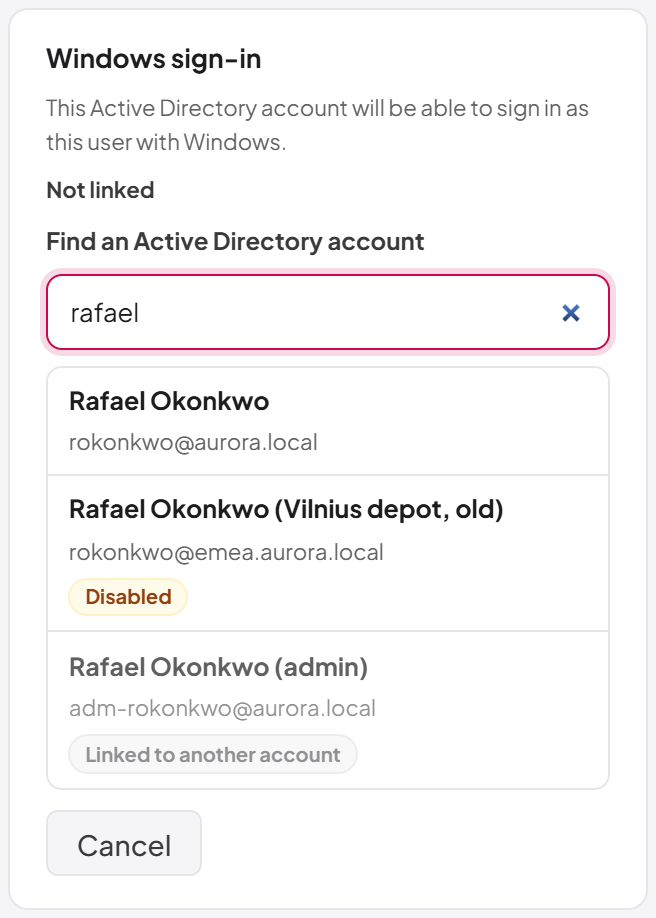
- In the Windows sign-in section, select Link Windows account (or Link a different account).
- Under Find an Active Directory account, type a name, logon name or email.
- Choose the account from the results. Accounts are tagged Disabled, Linked to another account or Linked here where that applies; an account linked to another user cannot be chosen.
- The message "Windows account linked." confirms it.
To remove a link, select Remove link and confirm. The account can no longer sign in with Windows.
- You need
users:update, and you must be signed in to the console in a browser (an API key cannot link accounts). - You cannot link your own account unless your active role is System Admin. Otherwise the page says "Ask another administrator to link your own account."
- Only someone working in the System Admin role can change an account that holds System Admin.
- You cannot link an account that holds permissions you do not have — including the roles its Active Directory groups would give it at its first Windows sign-in through the mappings.
- The Active Directory account must be in a trusted connection that your role may use. The search only covers those connections.
- Each Active Directory account can be linked to only one platform user, and each user to one Active Directory account.
The section warns you when a link can no longer work:
- "The linked account can no longer be found in a trusted connection, so it cannot sign in."
- "The linked account is disabled in Active Directory, so it cannot sign in."
- "No trusted Active Directory connection could be reached, so the linked account could not be checked. The link itself is unchanged."
Linking and unlinking are recorded in the user's change history.
How people sign in with Windows
- The person opens the sign-in page on an allowed host, over HTTPS.
- They select Continue with Windows.
- The browser completes the Windows handshake — silently, if the site is in the Local intranet zone.
- The platform finds their Active Directory account in a trusted connection, checks that it is enabled and linked, applies the group → role mappings, and signs them in.
If anything fails — no link, a disabled account, a browser that will not complete the handshake — they return to the sign-in page with the message: "Windows sign-in did not complete. Your Windows account may not be linked to an account here yet, or your browser may not be set up to sign in with it. You can sign in with your password below, or ask your administrator."
Last updated
Thank you for your feedback.