
17.3SAML with Keycloak
Last updated
This section walks through connecting a Keycloak server (version 24 or later) as the SAML identity provider. When it is done, a person selects Continue with company SSO, signs in to Keycloak, and arrives in the console without a second password. If their Keycloak session is already open, they arrive straight away.
You copy values in both directions: the Entity ID and ACS address from the platform into Keycloak, then the realm's metadata address from Keycloak back into the platform. Allow about 20 minutes.
In Keycloak, a realm is a separate space with its own users and applications, and a client is Keycloak's record of one application it signs people in to. You create one SAML client for the platform.
The screenshots come from a test setup: replace the realm name and the addresses in them with your own. Screens can differ slightly between Keycloak versions.
Before you start
- Administrator access to Keycloak, with permission to create clients in the realm you will use.
- System Admin as your active role in the console, and the installation reachable over HTTPS.
- A realm name with no space at the beginning or end. Keycloak rejects every sign-in request to a realm named, for example,
" contoso"with 400 Bad Request. If your realm has such a name, create a new realm without it. - A Keycloak user with the Email field filled in for each person who will sign in.
Step 1 — Copy the platform's values
- In the console, open Integrations > Single sign-on and select SAML 2.0.
- In Step 1 — Register this service provider, copy the Redirect URL — Assertion Consumer Service (ACS) and the Entity ID (see Step 1 — Register this service provider).
| Value | Example |
|---|---|
| ACS | https://gateway.contoso.com/backend/api/auth/sso/acs |
| Entity ID | https://gateway.contoso.com/backend/api/auth/sso/metadata |
Step 2 — Create the client in Keycloak
- Open the Keycloak Administration Console and select your realm in the top-left corner.
- Go to Clients and select Create client.
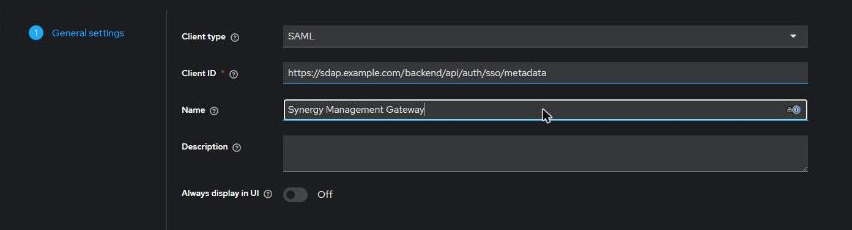
- Set Client type to SAML.
- Paste the platform's Entity ID into Client ID. It must match character for character, including capital letters, with no trailing slash.
- Enter a Name people will recognise, for example
SYNERGY Management Gateway, and select Next.
- In Root URL, enter the address of the installation, for example
https://gateway.contoso.com. - In Valid redirect URIs, enter the ACS address up to
/sso/followed by a star:https://gateway.contoso.com/backend/api/auth/sso/*. - In Master SAML Processing URL, paste the full ACS address.
- Select Save.
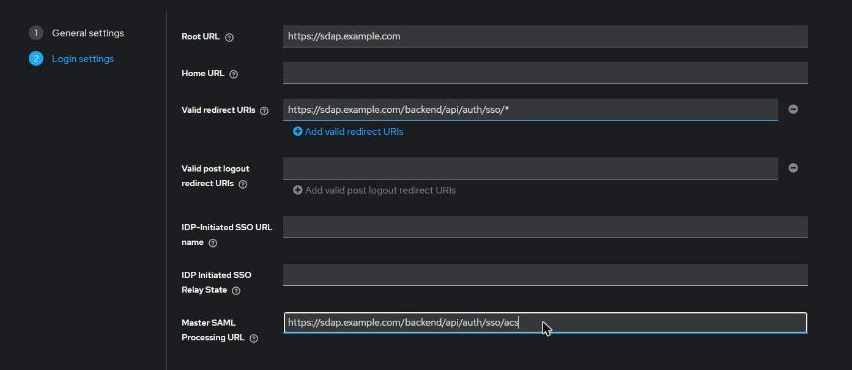
Important: The Client ID (the Entity ID) and the Master SAML Processing URL (the ACS) are the two values most often mistyped. If sign-in fails later, compare them with the Single sign-on page first.
Step 3 — Set the SAML options
After saving, Keycloak opens the client. On its Settings tab:
- Under SAML capabilities, set Name ID format to email and switch Force name ID format on. Leave Force POST binding on.
- Under Signature and Encryption, keep Sign documents and Sign assertions on, with the signature algorithm RSA_SHA256. The platform uses the signature to verify that the response really came from your Keycloak and was not changed.
- Select Save at the bottom of the page.
- Open the Keys tab and switch Client signature required off. The platform does not sign its sign-in requests, so with this on Keycloak refuses every request.
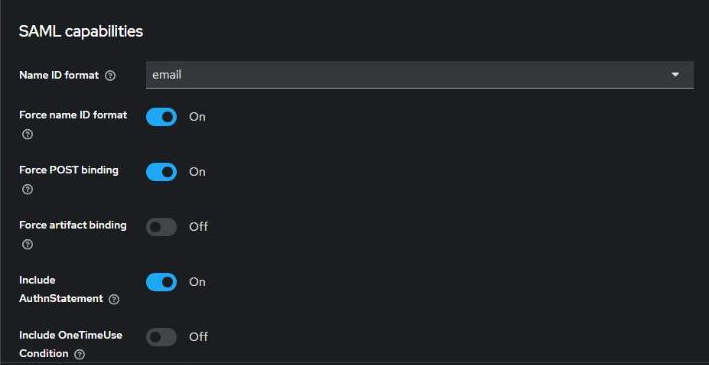
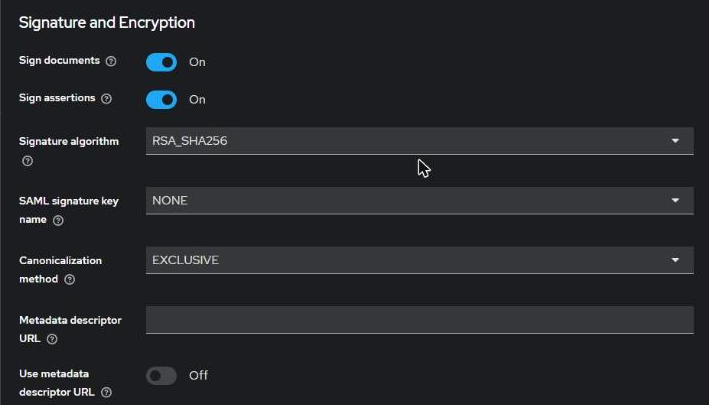
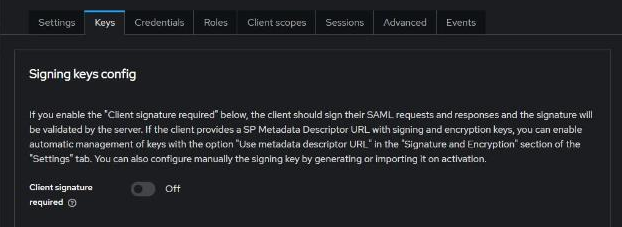
The NameID is what the platform links the person's account to on later sign-ins (see First sign-in: matching or creating the account). With the email format, changing a person's email address in Keycloak makes them a new identity to the platform.
Step 4 — Send the email attribute
The platform reads the person's email address from an attribute such as email (see What the identity provider must send). Keycloak sends none unless you add a mapper. Without it, every sign-in is refused and the platform's log records "SAML assertion is missing a NameID or email; cannot sign in."
- In the client, open Client scopes and select the scope whose name ends in -dedicated.
- Select Add mapper > By configuration > User Property.
- Enter Name
email, Propertyemail, SAML Attribute Nameemail, SAML Attribute NameFormat Basic, and select Save.
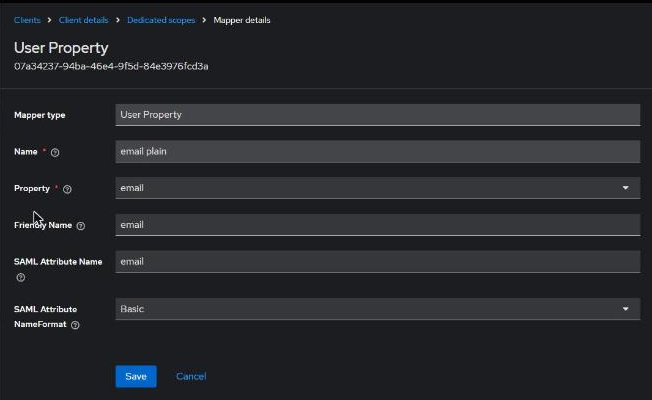
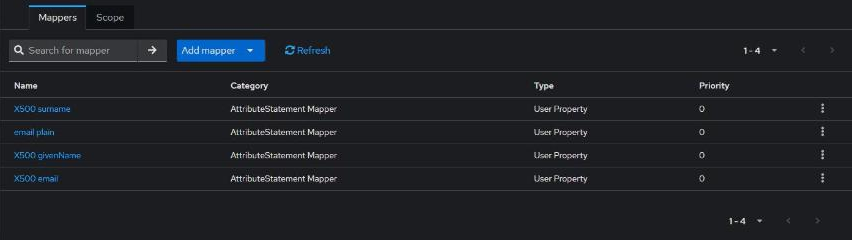
Optionally, add two more User Property mappers in the same way, for firstName → givenName and lastName → sn, so that new accounts get the person's real names. Without them, the platform derives names from the email address.
Step 5 — Connect Keycloak in the platform
- In Keycloak, open Realm settings. On the General tab, under Endpoints, copy the link address of SAML 2.0 Identity Provider Metadata. It looks like
https://keycloak.contoso.com/realms/contoso/protocol/saml/descriptor. - In the console, on Integrations > Single sign-on, SAML 2.0, under Step 2 — Connect your identity provider, keep Metadata URL and paste the link.
- Select Test connection and wait for "Connection verified".
- Turn on Enable SAML single sign-on and choose the Default role for new SSO users. That role is given to everyone who signs in for the first time without an account, so choose it carefully.
- Select Save configuration.

Step 6 — Check accounts and test
Which platform account a Keycloak user reaches follows the rules in First sign-in: matching or creating the account. In short, for Anna Petrova with the Keycloak email anna.petrova@contoso.com:
- If no platform account has that address, one is created with the default role.
- If an account with that address exists and signs in only through single sign-on, her identity is linked to it.
- If that account can sign in with a password, sign-in is refused. Turn off password sign-in on the account first if she should use Keycloak from now on.
Addresses are compared without regard to capital letters, but otherwise must be the same: a.petrova@contoso.com is a different person.
To test, open a private browser window, go to the sign-in page, select Continue with company SSO and sign in to Keycloak with a test user.
Tip: Keep at least one System Admin able to sign in with a password until you have confirmed that single sign-on works for administrators.
Keycloak troubleshooting
| What you see | Likely cause | What to do |
|---|---|---|
| Keycloak shows 400 Bad Request right after Continue with company SSO | The realm name starts or ends with a space | Create a realm whose name has no spaces, repeat the steps there and paste its metadata link into the platform |
| Keycloak shows Invalid requester | The Client ID does not match the platform's Entity ID | Copy the Entity ID again into Client ID; check for a trailing slash or a different path |
| Keycloak refuses the request with a signature error | Client signature required is on | Switch it off on the client's Keys tab |
| "Your account has no access to this application", and the log says "missing a NameID or email" | Keycloak sends no email attribute | Add the email mapper (Step 4) and check that Name ID format is email (Step 3) |
| "Your account has no access to this application", with no such log line | The matching account can sign in with a password, is deactivated or holds System Admin, among the other cases listed under Troubleshooting | Adjust the account, see First sign-in: matching or creating the account |
| Test connection fails | The server cannot open the metadata link, or it is not the SAML link | Open the link in a browser on the server: it should show XML beginning with EntityDescriptor |
Log lines that name the failing step can be found under Live Logs; search for SAML.
Summary of Keycloak settings
| Keycloak setting | Value |
|---|---|
| Client type | SAML |
| Client ID | The platform's Entity ID |
| Root URL | The address of the installation |
| Valid redirect URIs | The ACS address up to /sso/, followed by * |
| Master SAML Processing URL | The platform's ACS address |
| Name ID format / Force name ID format | email / On |
| Sign documents / Sign assertions | On / On, RSA_SHA256 |
| Client signature required (Keys tab) | Off |
| Mapper | User Property email → SAML attribute email (Basic) |
| Metadata URL in the platform | https://<keycloak>/realms/<realm>/protocol/saml/descriptor |
Last updated
Thank you for your feedback.