
6.3The object inspector
Last updated
Select any row to read the object into the right-hand pane. The object is read fresh from the domain controller each time you select it. Before anything is selected, the pane says "No entry selected".
Header and summary
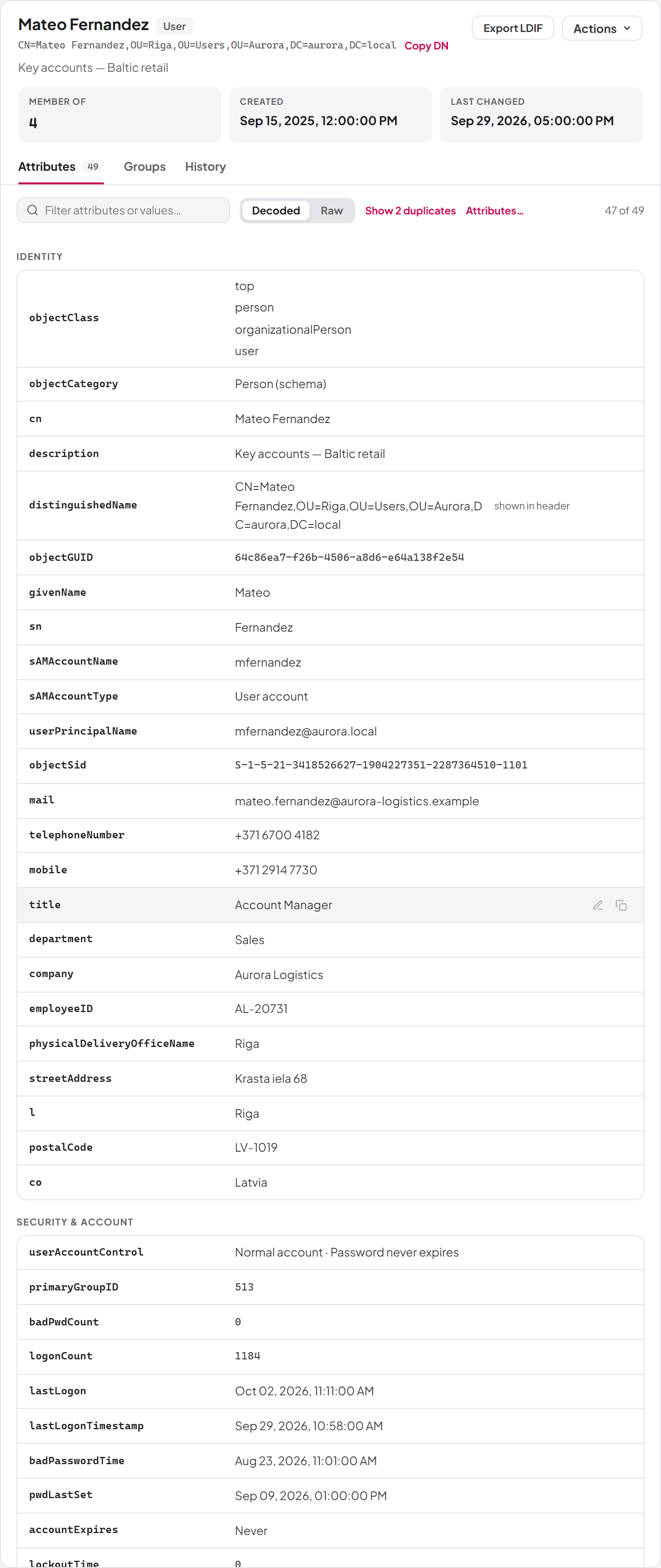
The header shows:
- The object's name, with a chip naming its kind — for example User, Computer, Contact, Organizational unit, Container, Domain, or for a group its type and scope, such as Security group · Global.
- Its full distinguished name, with a Copy DN button.
- Its
description, when it has one. - Export LDIF, which downloads the attributes currently on screen as an LDIF file, using raw values (binary and unsafe values are base64-encoded as the LDIF standard requires).
- The Actions menu, for users, groups, organizational units and computers when you may manage them (see sections 6.6 to 6.9).
Below the header, summary tiles show what people usually open an object for: Members (groups), Member of (users, computers and groups), Created and Last changed ("never since creation" when the two are the same).
Tabs
The inspector has up to four tabs. Each appears only when it applies and you have the permission for it:
| Tab | Appears for | Shows |
|---|---|---|
| Attributes | Every object | Every attribute stored on the object. |
| Members | Groups (needs ad:users:read) | The group's members — see 6.7. |
| Groups | Users (needs ad:groups:read) | The groups the user belongs to — see 6.6. |
| History | Every object (needs audit:list) | Changes made to this object through SYNERGY Management Gateway — see 6.5. |
The tab you choose stays selected as you move from object to object, so you can compare the history of several objects in turn.
The Attributes tab
The Attributes tab lists every attribute stored on the object, grouped into sections: Identity, Security & account, Membership, Timestamps, Replication & metadata and Other attributes.
The toolbar above the list offers:
- Filter attributes or values… — narrows the list to attributes whose name or value contains the text you type.
- Decoded / Raw — switches between readable values and the values exactly as the directory returned them.
- Show n duplicates / Hide duplicates — attributes whose only value repeats the object's
cn(such asnameor oftendisplayName) are hidden by default to reduce noise; this link shows them, marked "same as cn". - Attributes… — opens the attribute picker so you can set any attribute of the object, including ones that are not yet set (see 6.10). Shown only when you may update the object.
- A count, such as "42 of 57", followed by "read-only" when you cannot edit this object.
In Decoded view, values are made readable:
- Timestamps are shown as dates in your locale, with the exact UTC value in the tooltip. "Never" is shown for the directory's "never" values.
- Durations (such as password ages in a domain policy) are shown as days, hours and minutes, or "No limit" / "Never expires".
- Flag fields such as
userAccountControlandgroupTypeare spelled out, for example "Account disabled", "Password never expires", "Security group". - Coded values such as
sAMAccountTypeand the domain functional level are named, for example "User account" or "Windows Server 2016 or later". - Binary values are not displayed; their size is shown instead (for example "28 bytes").
Each row has a copy button that copies the value (all values, one per line, for a multi-valued attribute) and, where the attribute can be edited, a pencil button (see 6.10).
Note: Password and credential attributes — such as LAPS local administrator passwords, managed service account passwords, password hashes and key credentials — are never returned by SYNERGY Management Gateway, whatever your permissions. They do not appear in the inspector.
Last updated
Thank you for your feedback.