
4.3Choosing the directory you work in
Last updated
Most pages that read or change Active Directory work against one Active Directory connection at a time: the workspace directory. It is shown at the top of the navigation panel, labelled Directory, so you always know which directory your actions affect. A connection is one Active Directory domain that an administrator has connected to the platform; see Chapter 5, Directory connections.
The list of directories offered is decided by your active role: you see only the connections your role is allowed to act on.
- If your role can reach one directory, it is shown as a label. There is nothing to choose.
- If your role can reach several, it is shown as a drop-down list. Hover over it to see the selected directory's tags or description, which help tell similar directories apart.
- If your role can reach none, the picker is not shown, and pages that need a directory (the Directory Browser, the Recycle Bin) are hidden.
To switch to another directory:
- At the top of the navigation panel, open the Directory drop-down list.
- Select the directory you want.
- A message "Switching to …" covers the screen briefly while the console reloads.
- The page you were on reopens, now showing data from the newly selected directory.
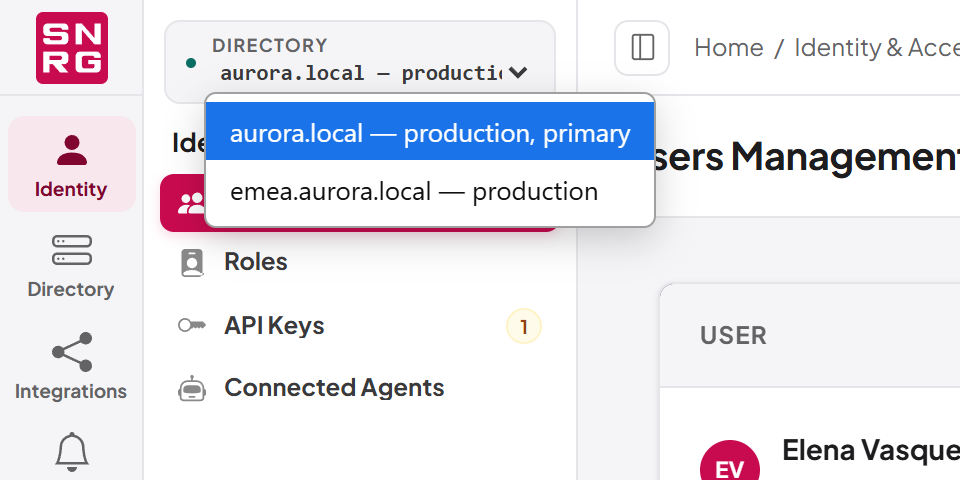
Your choice is remembered in this browser, and changes automatically if you switch to a role that cannot use the selected directory.
Note: Some administration pages, such as Directory Policies, Attribute Policies, Notification Rules and MCP Tools, can hold settings that apply to all directories or to one directory. Those pages follow the workspace directory and offer a choice between the global setting and the setting for that directory. They are described in their own chapters.
Switching your role
If you hold more than one role, you can change your active role at any time without signing out. Your active role decides your permissions, which pages you see and which directories you can work in. See Chapter 11, Users, roles and permissions, for what roles are.
- Select your initials at the top right to open the account menu.
- Under Switch active role, select the role you want. The current role is marked with a tick.
- A message confirms "Switched to …", the navigation updates, and you are taken to that role's home page.
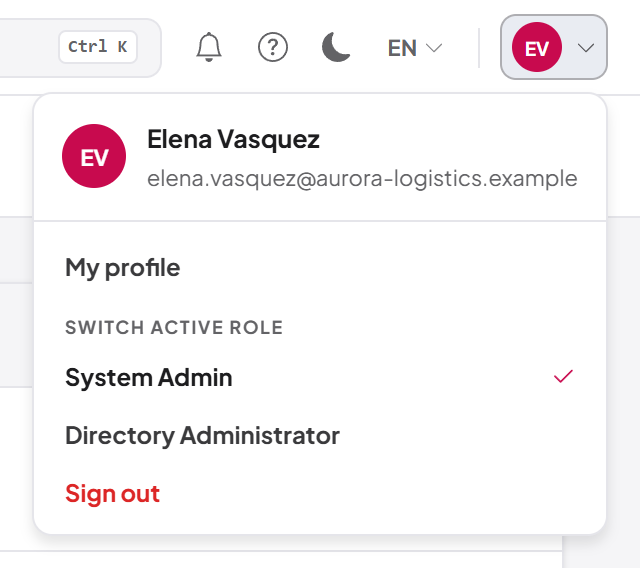
If the role you choose requires two-factor sign-in and your account does not have it set up, the switch is refused with "That role requires two-factor sign-in. Set it up in your profile, then switch to it again." You stay in your current role and are taken to My profile, where you can set it up (see Chapter 3, Signing in and your account). Then switch again.
Language
The console is available in English and Lithuanian (Lietuvių).
- In the toolbar, select the globe icon. It shows the current language as EN or LT.
- Select English or Lietuvių. The current one is ticked.
The change applies immediately to every menu, page and message, without reloading. Your choice is remembered in this browser. If you have never chosen, the console follows your browser's language when it is Lithuanian, and otherwise uses English.
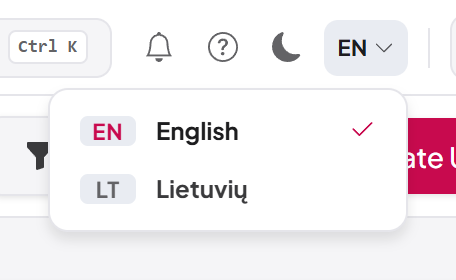
Note: The language setting changes the console's own text only. Names and values that come from Active Directory and the names administrators gave to roles and connections are not translated, and some messages that come from the server (for example "Invalid email or password" on the sign-in page) are always in English.
Light and dark theme
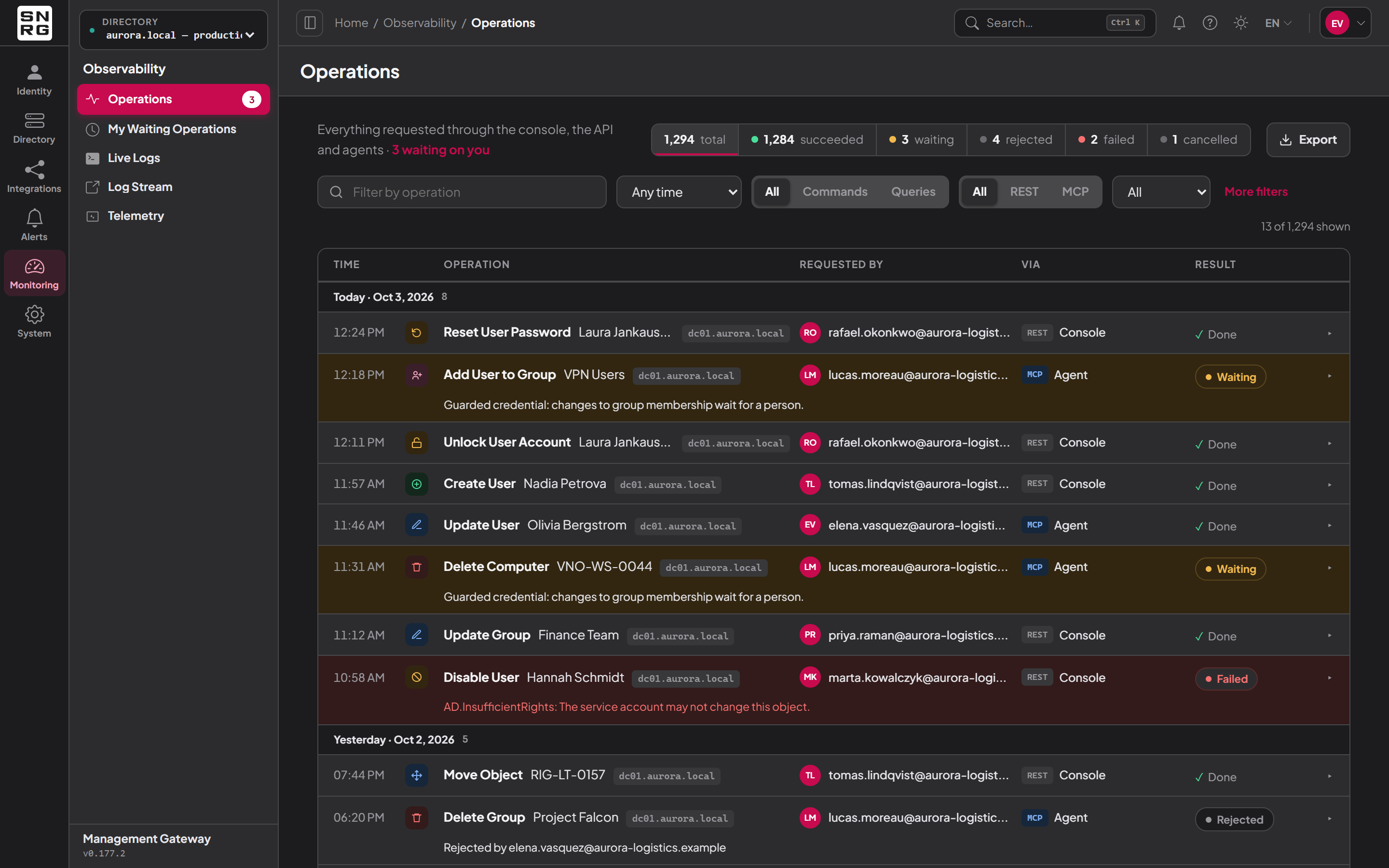
The console has a light and a dark theme. Select the moon icon in the toolbar to switch to the dark theme (Switch to dark theme), or the sun icon to switch back (Switch to light theme).
Until you choose, the console follows your operating system's light or dark setting, and keeps following it if that changes. Once you choose, your choice is remembered in this browser.
Keyboard shortcuts
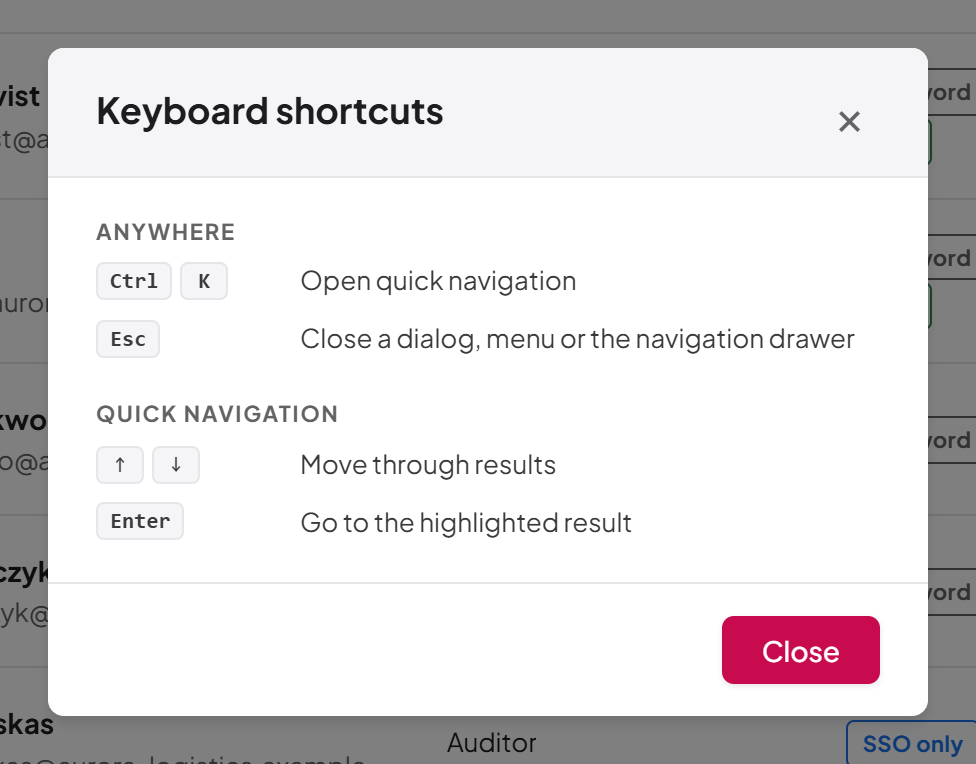
To see the list of shortcuts in the console, open the Help menu and select Keyboard shortcuts.
| Keys | Where | Action |
|---|---|---|
| Ctrl K (⌘ K on a Mac) | Anywhere | Open or close quick navigation |
| Esc | Anywhere | Close a dialog, a menu or the navigation drawer |
| Up / Down arrows | Quick navigation | Move through the results |
| Enter | Quick navigation | Go to the highlighted result |
The help menu
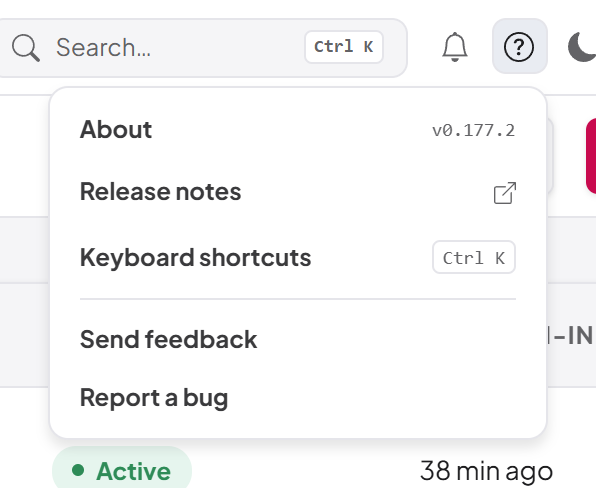
Select the question mark icon in the toolbar to open the Help menu. It contains:
| Item | What it does |
|---|---|
| About | Opens the About dialog. The version is shown beside it |
| Release notes | Opens the release notes in a new browser tab. The address is part of the product build, so standard releases always show it |
| Keyboard shortcuts | Opens the list of shortcuts |
| Send feedback | Opens the feedback dialog, ready for general feedback |
| Report a bug | Opens the same dialog, ready for a bug report |
The About dialog
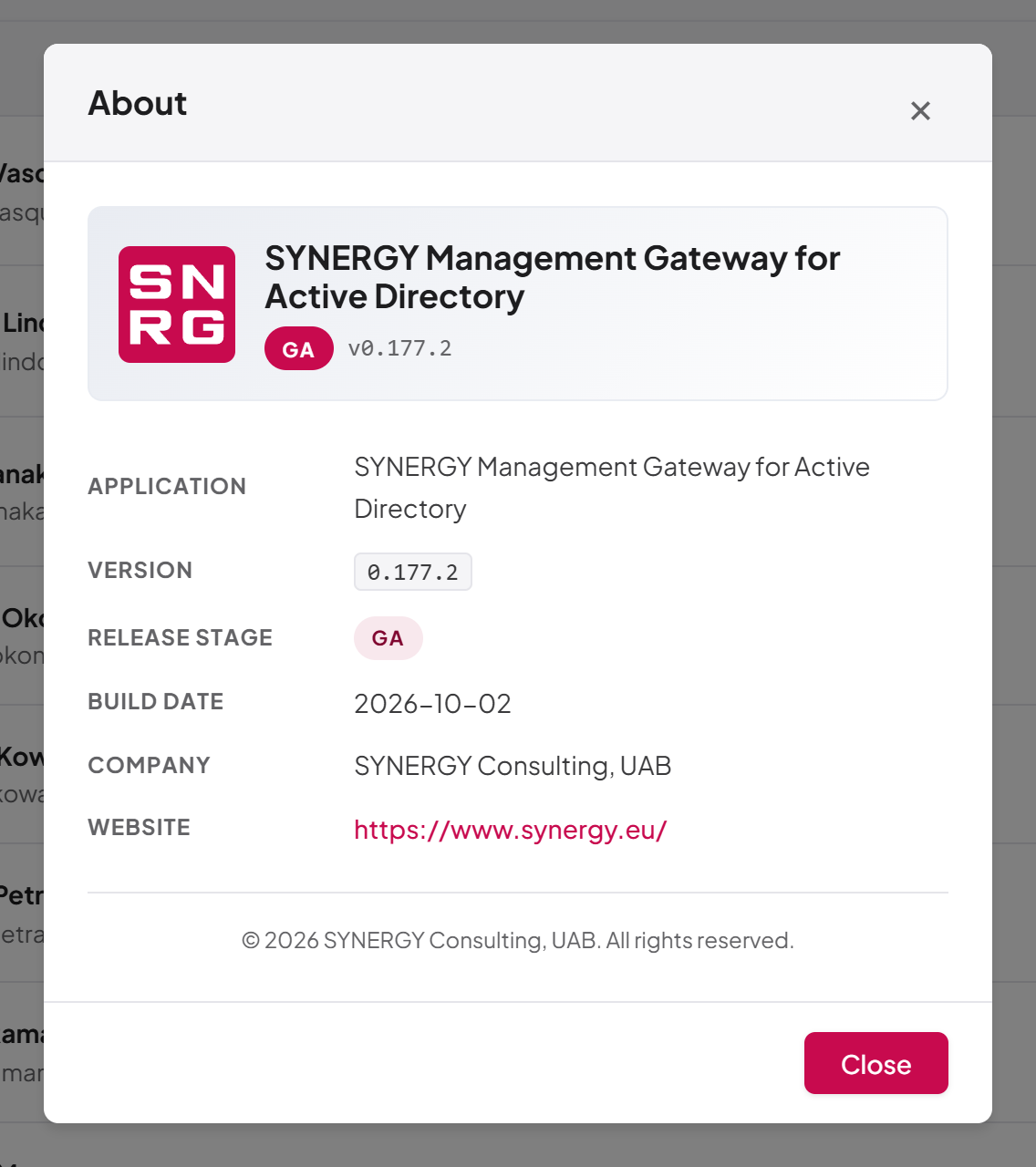
About shows what you are running. Quote these details when you contact support.
| Field | Content |
|---|---|
| Application | SYNERGY Management Gateway |
| Version | The installed version, for example 0.177.2 |
| Release stage | The release channel of the build |
| Build date | The date the build was made (shown when known) |
| Company | Synergy |
| Website | https://www.synergy.eu/ |
Select Close to dismiss it.
Last updated
Thank you for your feedback.