
18.3Telemetry (OpenTelemetry export)
Last updated
The Telemetry page (route /dashboard/telemetry) configures the export of the platform's own traces and metrics to an OpenTelemetry (OTLP) collector, such as an OpenTelemetry Collector, Grafana Alloy, Jaeger, or an observability service that accepts OTLP. Traces show where time is spent inside each request; metrics give counts and timings over time.
Who can use it
- The page needs the Observability module in your licence (licence key
observability). Without it the page is hidden from the menu and the server refuses its routes. See Chapter 19, Licence, updates and backups. - Viewing the settings needs
telemetry:read. - Testing the collector and saving the settings need
telemetry:manage. Without it the page is read-only.
Important: Export is also tied to the licence at run time. If the licence lapses or the Observability module is removed, the platform stops sending traces and metrics within minutes, even though the settings stay saved. Export resumes when the licence is active again.
Reading the page
The page header shows the export state:
| State | Meaning |
|---|---|
| Exporting | The instance is sending traces and metrics to the collector shown. |
| Saved — restart pending | The settings are saved but not yet in force. They apply at the next restart of the platform or recycle of its application pool. |
| Not exporting | Nothing is collected or sent. No instrumentation runs while export is off. |
Under the title you see who last changed the settings and when, and the reminder that changes apply at the next restart.
On the right, two panels help you check the configuration:
- Collector repeats the state, explains it, and shows the result of the last Test collector run from this screen: whether it was accepted, how long it took, and the status code the collector returned.
- What gets sent, and where shows, computed from the form as you edit it, the exact addresses traces and metrics will be sent to, the authentication used, the service name and environment, which sources produce spans, and the share of traces kept. This is what the next restart would put in force.
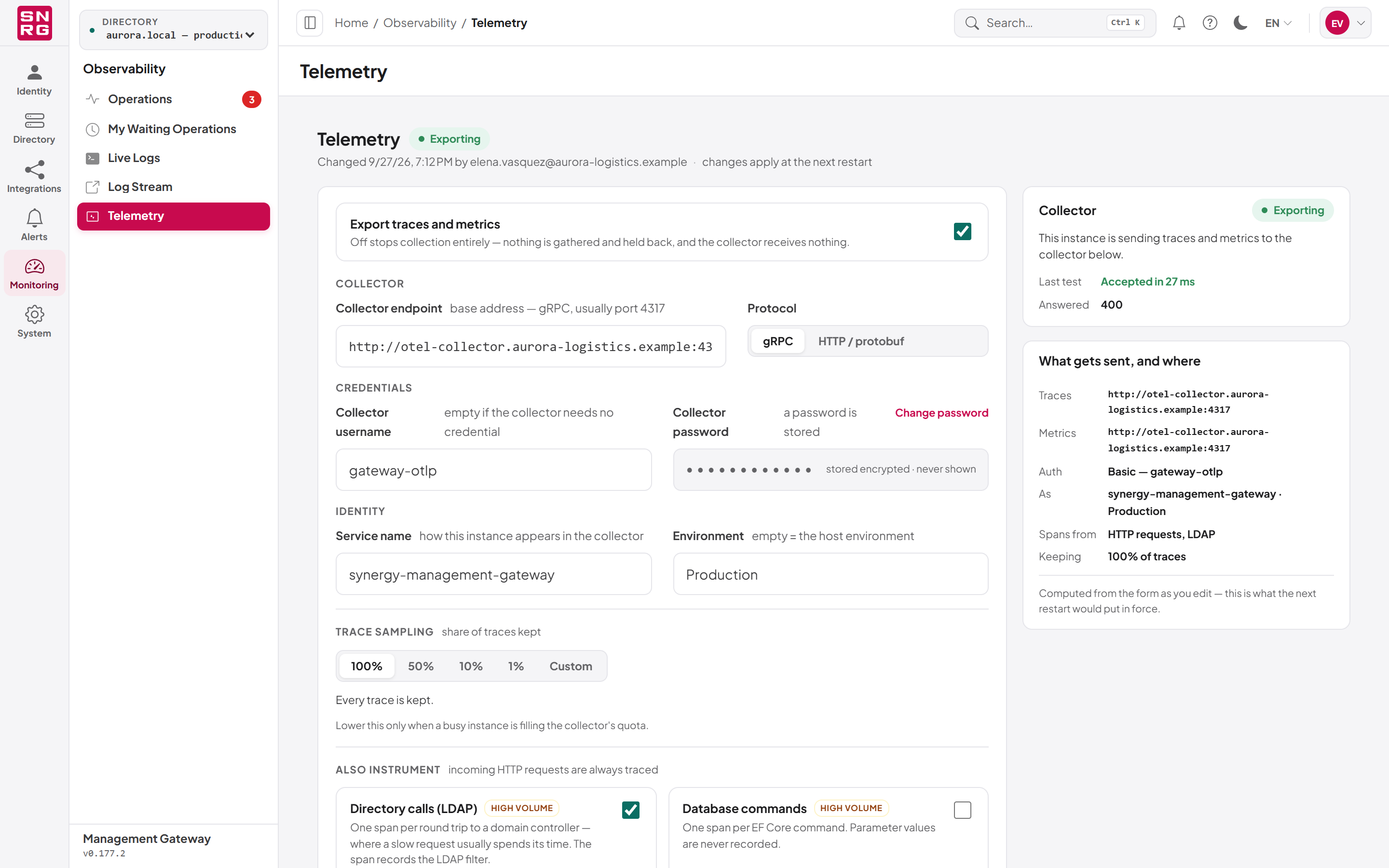
appsettings.json, the export was configured in the configuration file before this screen existed. The form is then empty; saving here stores the settings in the database, and they take over from the file at the next restart.
Configuring export
To set up export:
- Open Monitoring › Telemetry.
- Switch on Export traces and metrics.
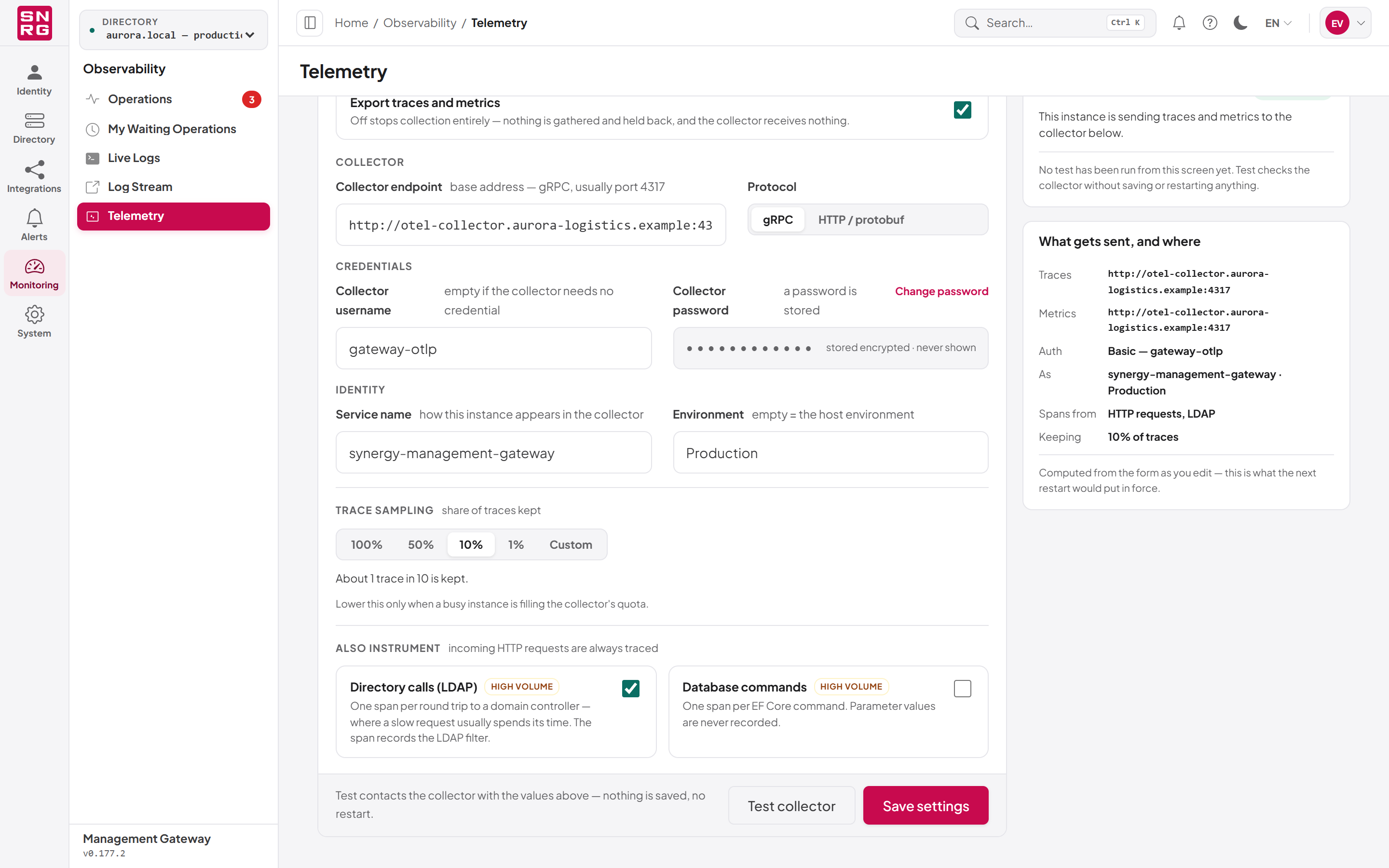
- Fill in the fields described in the reference table below.
- Click Test collector to check that the collector is reachable with these values. The test saves nothing and needs no restart.
- Click Save settings.
- Restart the platform (or recycle its application pool in IIS) when convenient. Until then the header shows Saved — restart pending.
| Field | Description |
|---|---|
| Export traces and metrics | The master switch. Off stops collection entirely: nothing is gathered or held back, and the collector receives nothing. |
| Collector endpoint | The collector's base address, an absolute http:// or https:// URL. For gRPC this is usually port 4317. For HTTP give the base address only; /v1/traces and /v1/metrics are added for you. Required when export is on. |
| Protocol | gRPC (default) or HTTP / protobuf. Use whichever your collector listens on. |
| Collector username | Leave empty if the collector needs no credential. When set, the platform authenticates with Basic authentication. |
| Collector password | Stored encrypted and never shown again. Use Set a password or Change password to enter one, and Keep current to cancel a change. |
| Service name | How this instance appears in the collector. Default synergy-management-gateway. |
| Environment | For example Production. Leave empty to use the host environment. |
| Trace sampling | The share of traces kept: 100%, 50%, 10%, 1% or Custom (0.01–100%). The text below explains the choice, for example "About 1 trace in 10 is kept." |
| Directory calls (LDAP) | Adds one span per round trip to a domain controller, which is usually where a slow request spends its time. The span records the LDAP filter. Marked high volume. |
| Database commands | Adds one span per database command. Parameter values are never recorded. Marked high volume. |
Incoming HTTP requests are always traced when export is on.
Tip: Lower trace sampling only when a busy instance is filling your collector's quota. At 100% every trace is kept, which is the most useful setting for troubleshooting.
Testing the collector
Test collector contacts the collector with the endpoint, protocol and credentials currently in the form. The result appears in the footer and in the Collector panel, with the time taken and the status code.
A collector that answers the test with 400 is reachable and healthy: an OTLP receiver typically answers a test request that carries no data with that status. What matters is that the collector answered.
The test follows two safety rules:
- The stored password is sent only to the endpoint it was saved for. To test a different endpoint with a password, type the password again.
- Some addresses are refused. Link-local addresses are always refused. Loopback and private addresses (for example a collector on the same server or on
10.x.x.x) are refused unlessTelemetry:AllowPrivateCollectoris set totruein the API's configuration file.
Why changes need a restart
The platform builds its telemetry pipeline when it starts, and the pipeline cannot be repointed while running. That is why a saved change shows Saved — restart pending until the next restart. If nothing arrives at your collector after you saved, check the header first: a pending restart and a wrong endpoint look the same from the collector's side, and Test collector tells you which one it is.
Changes to the telemetry settings are recorded in the operations log as a platform change. The collector password is never recorded.
Last updated
Thank you for your feedback.