
9.6My Waiting Operations
Last updated
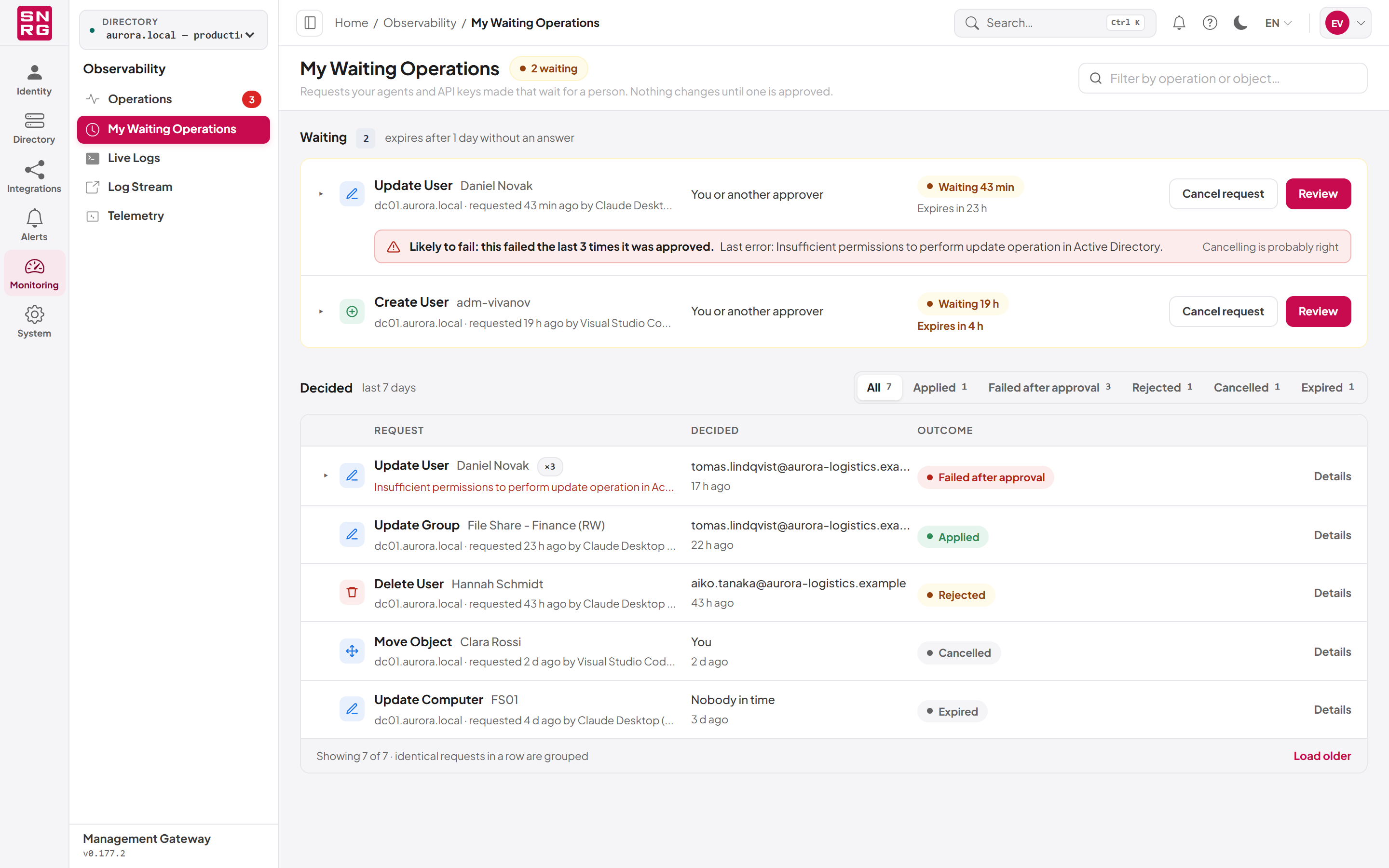
My Waiting Operations is the requester's page. It lists the requests that your own API keys and connected AI agents have made and that are waiting for a person, and the ones settled recently. Because a person is never held, every row here was made by one of your machine credentials.
Open it from the navigation: Monitoring on the navigation rail (the Observability panel), then My Waiting Operations (/dashboard/waiting-operations). It requires operations:waiting:list. You see only your own requests, and only in directories your role may use.
The page has two sections, Waiting and Decided, under a header band:
- Beside the title, a pill gives the number waiting (for example "2 waiting"), or "Nothing waiting" when there is none.
- Under the title: "Requests your agents and API keys made that wait for a person. Nothing changes until one is approved."
- On the right, the Filter by operation or object… box narrows both sections as you type. It matches the operation name, the internal command name, the object's name, distinguished name or ID, and the agent or API key name. The × in the box clears it.
The page refreshes by itself when anything changes, and the times on it update every minute.
The waiting list
The Waiting heading shows how many requests wait. When every waiting request has the same time limit, it also says how long that is, for example "expires after 1 day without an answer".
Each row shows, from left to right:
| Part | Content |
|---|---|
| Request | An icon for the kind of operation, the operation (for example Update User) and the object's name. Below: the directory, how long ago it was requested and by which agent or API key, for example "dc01.aurora.local · requested 43 min ago by Claude Desktop (agent)". |
| Who may decide | You or another approver if your role may approve operations, otherwise An approver. |
| Status | A "Waiting [time]" pill and, below it, when it expires: "Expires in [time]" or "Expires in under an hour". The expiry turns to a warning colour within six hours. |
| Actions | Cancel request and Review (see below). |
Review depends on your permissions. If your role holds both operations:approve and audit:list, it opens the operation in the Operations log, where you can decide it yourself (see 9.4.1). Otherwise it opens the row's details on this page.
Expired requests drop out of this list. If the page stays open past a request's expiry, its row reads "Expired" until the next refresh.
If you have more than 100 waiting requests, the page loads the first 100 and says, for example, "Showing 100 of 130 — narrow them with the filter."
"Likely to fail"
A waiting request can carry a red strip under its row, for example "Likely to fail: this failed the last 3 times it was approved. Last error: Insufficient permissions to perform update operation in Active Directory.", with the hint "Cancelling is probably right".
The page shows it when, among your recently decided requests (see Decided below), the same operation on the same object in the same directory was approved and then failed, each of the most recent times it ran. The number counts those failures back to the last time it succeeded. Requests that were rejected, cancelled or expired are not counted, because they never ran. A request that names no object never carries the strip.
The warning is a hint taken from your own history on this page, not a check against the directory: it does not mean the change cannot succeed (an administrator may have fixed the cause since), and it only looks at the requests the Decided section has loaded. Typical causes are a missing right of the directory connection's service account, or an object that has been deleted or moved. Fix the cause or cancel the request; approving it unchanged will most likely fail again.
To cancel one of your waiting requests
You can withdraw a request that is still waiting, for example because your agent misunderstood what you asked.
- In My Waiting Operations, find the request.
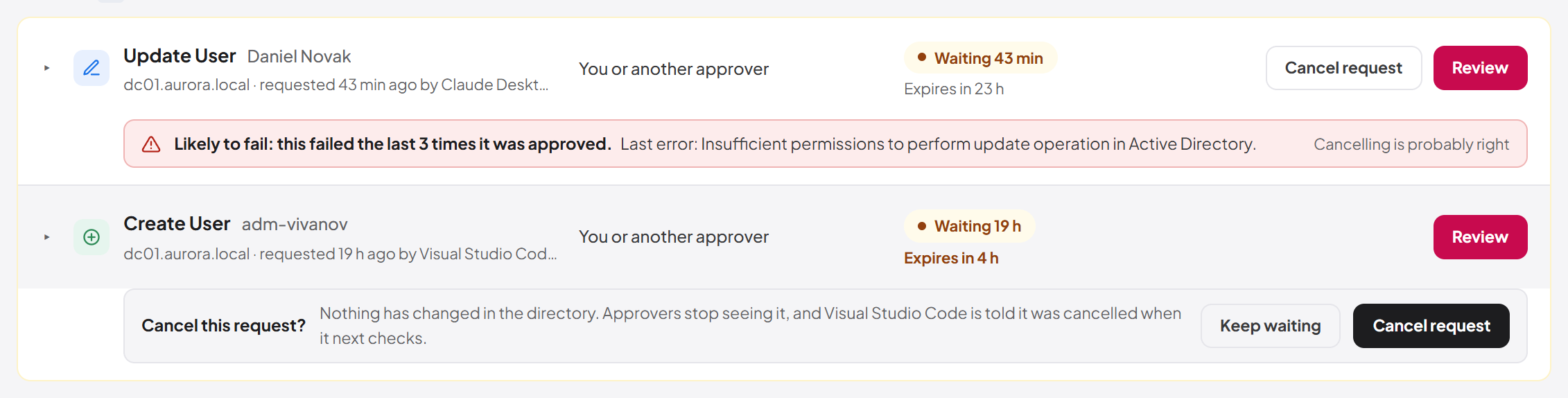
- Select Cancel request on its row. A confirmation opens under the row and the row's own Cancel request button is hidden.
- Read the confirmation: Cancel this request? "Nothing has changed in the directory. Approvers stop seeing it, and [agent or key] is told it was cancelled when it next checks."
- Select Cancel request to confirm, or Keep waiting to leave it.
The request moves to the Decided section as Cancelled, with you as the person who decided it, and the message "Request cancelled. Nothing was changed." appears. If an approver decided it a moment before you, the cancellation fails with a message, and the page reloads to show what happened.
POST /rest/operations/waiting/{id}/cancel.
The details of a waiting request
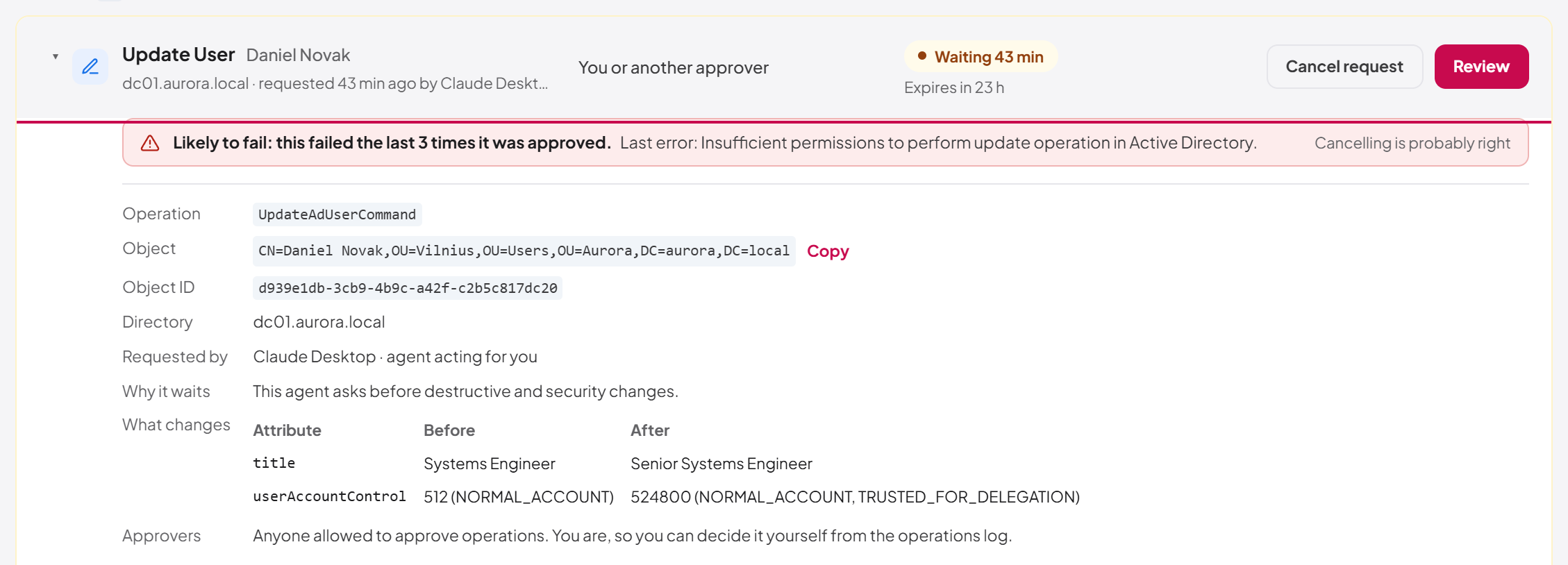
Select a row (anywhere except its buttons) to expand it; select it again to close it. The details show:
| Field | Content |
|---|---|
| Operation | The internal command name, for example UpdateAdUserCommand. |
| Object | The full distinguished name, with Copy. |
| Object ID | The object's ID in Active Directory, when known. |
| Directory | The domain controller of the directory the request is for. |
| Requested by | The agent or API key, for example "Claude Desktop · agent acting for you" or "n8n · API key owned by you". |
| Why it waits | The reason the request was held (see 9.1). |
| What it affects | The impact summary, when there is one, for example how many members a group has. |
| What changes | A table of the attributes with their Before and After values. A create shows only After, a delete only Before. |
| Approvers | Who can decide it. If you may approve, the page says you can decide it yourself from the operations log; otherwise it suggests asking an approver if it is urgent. |
Decided
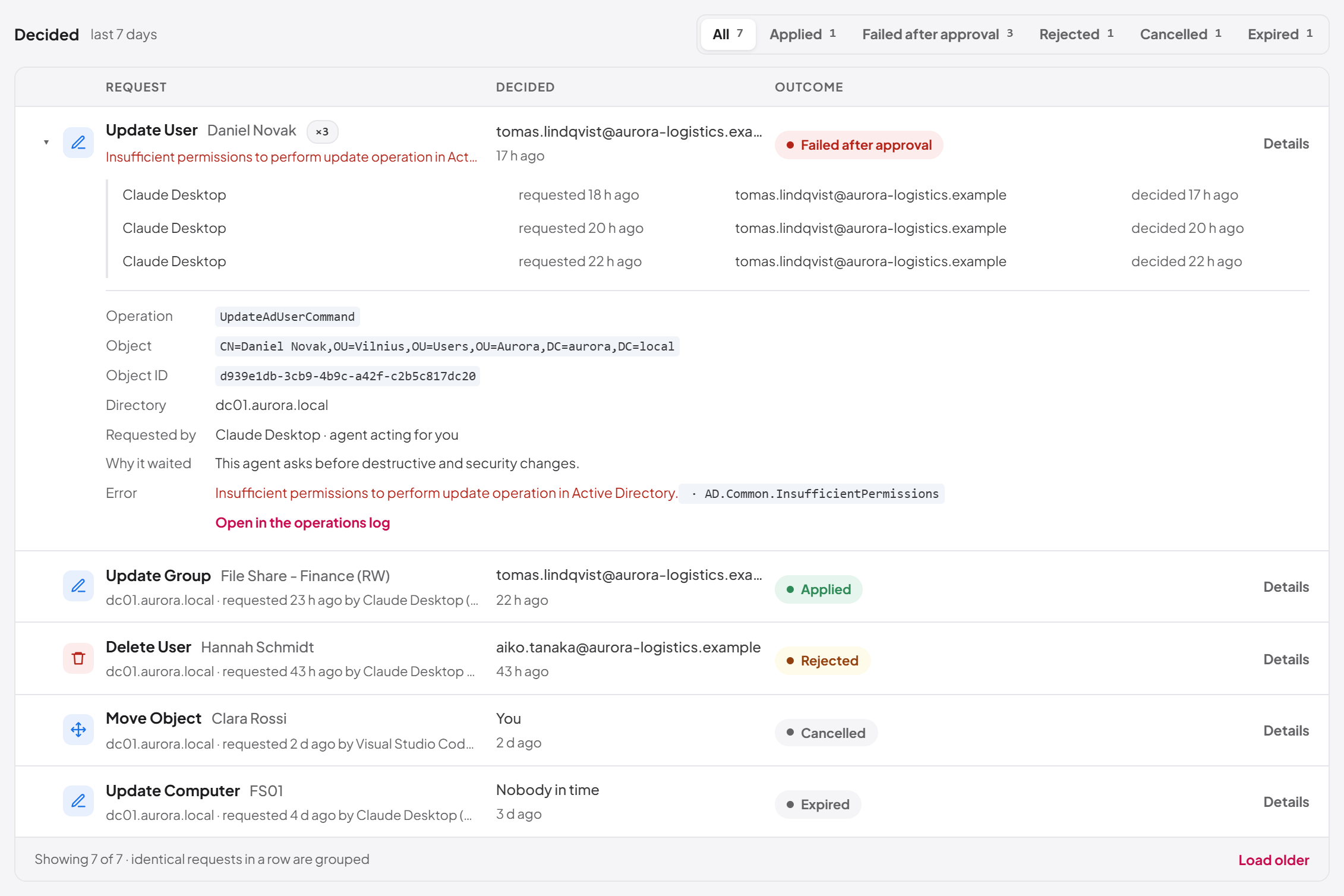
The Decided section lists your requests settled in the last 7 days ("last 7 days" beside the heading). It appears whenever that history can be read; if nothing was settled, it says "Nothing was decided in the last 7 days."
The table has these columns:
| Column | Content |
|---|---|
| Request | The operation and object. For a request that failed after approval, the error in one line beneath it. A single request also shows the directory, when it was requested and by which agent or key; for a group (see below) these appear for each request when you open it. |
| Decided | Who settled it (the approver's email address, You for a request you cancelled, Nobody in time for one that expired) and how long ago. |
| Outcome | One of the outcomes below. |
| Details, which opens the full record of the request. |
| Outcome | Meaning |
|---|---|
| Applied | An approver approved it and it ran successfully. |
| Failed after approval | An approver approved it, but the directory refused the change when it ran. The error is shown under the request and in full in Details. |
| Rejected | An approver refused it. Nothing ran. |
| Cancelled | You withdrew it. Nothing ran. |
| Expired | Nobody decided it within its time limit, including a request somebody tried to approve after it had expired. Nothing ran. |
Note the difference between Failed after approval and Rejected: a rejected request was turned down by a person and never reached the directory; a failed one was approved and then tried, and Active Directory refused it. Only failures after approval count towards the "Likely to fail" warning.
Filter by outcome. The chips beside the heading (All, Applied, Failed after approval, Rejected, Cancelled, Expired) show how many requests have each outcome; select one to show only those, and All to show every outcome again. A chip appears only for outcomes that occur in the loaded history. The counts follow the text filter in the header band.
Identical requests are grouped. When the same operation on the same object in the same directory ended the same way, with the same error, several times in a row, the section shows it once with a count, for example ×3. Select the arrow at the start of the row to list each request, with the agent or key that made it, when it was requested, who decided it and when. A request that ended differently in between splits the group.
Details shows the operation, object, object ID, directory, who requested it, Why it waited, and for a failure the full Error with its error code. If your role holds audit:list, Open in the operations log opens the request there.
The footer says how many requests are shown, for example "Showing 7 of 7 · identical requests in a row are grouped". Load older widens the section to the last 30 days (up to 100 requests); the heading then reads "last 30 days".
GET /api/operations/waiting/decided?days=N (with an API key) or under /rest (in a browser session), with a default of 7 days and a maximum of 30. It returns up to 50 requests by default (limit, at most 100). The waiting list itself is GET /api/operations/waiting.
Real-time operations stream
The live cards and the self-refreshing pages are fed by a real-time stream that the console keeps open while it needs it. The stream is available only to sessions whose active role holds audit:list, and each session receives only:
- events for the directories its role may use (or all directories, for a role that reaches every directory);
- platform events, which touch no directory.
Each event carries the operation's id, name, action, status, source, requester, time, target distinguished name, whether it requires approval, and the reason it is waiting. A request that needs no approval is announced once; a held request is announced when it is queued and again when it is decided.
Last updated
Thank you for your feedback.