
3.6Two-factor sign-in
Last updated
Two-factor sign-in adds a second step to password sign-in: after your password, you enter a six-digit code from an authenticator app on your phone, such as Microsoft Authenticator or Google Authenticator. Someone who learns your password still cannot sign in without your phone.
Key facts:
- It protects password sign-in only. Single sign-on and Windows sign-in rely on your identity provider's own multi-factor sign-in. API keys and AI agents are not affected.
- You can turn it on yourself from My profile. An administrator can also make a role require it; then every holder of that role who signs in with a password must use it.
- When you set it up you receive ten recovery codes, each in the form
XXXXX-XXXXX. Each one signs you in once if you cannot use your authenticator app. - Each authenticator code can be used only once, and a small amount of clock drift between your phone and the server is tolerated.
Signing in with an authenticator code
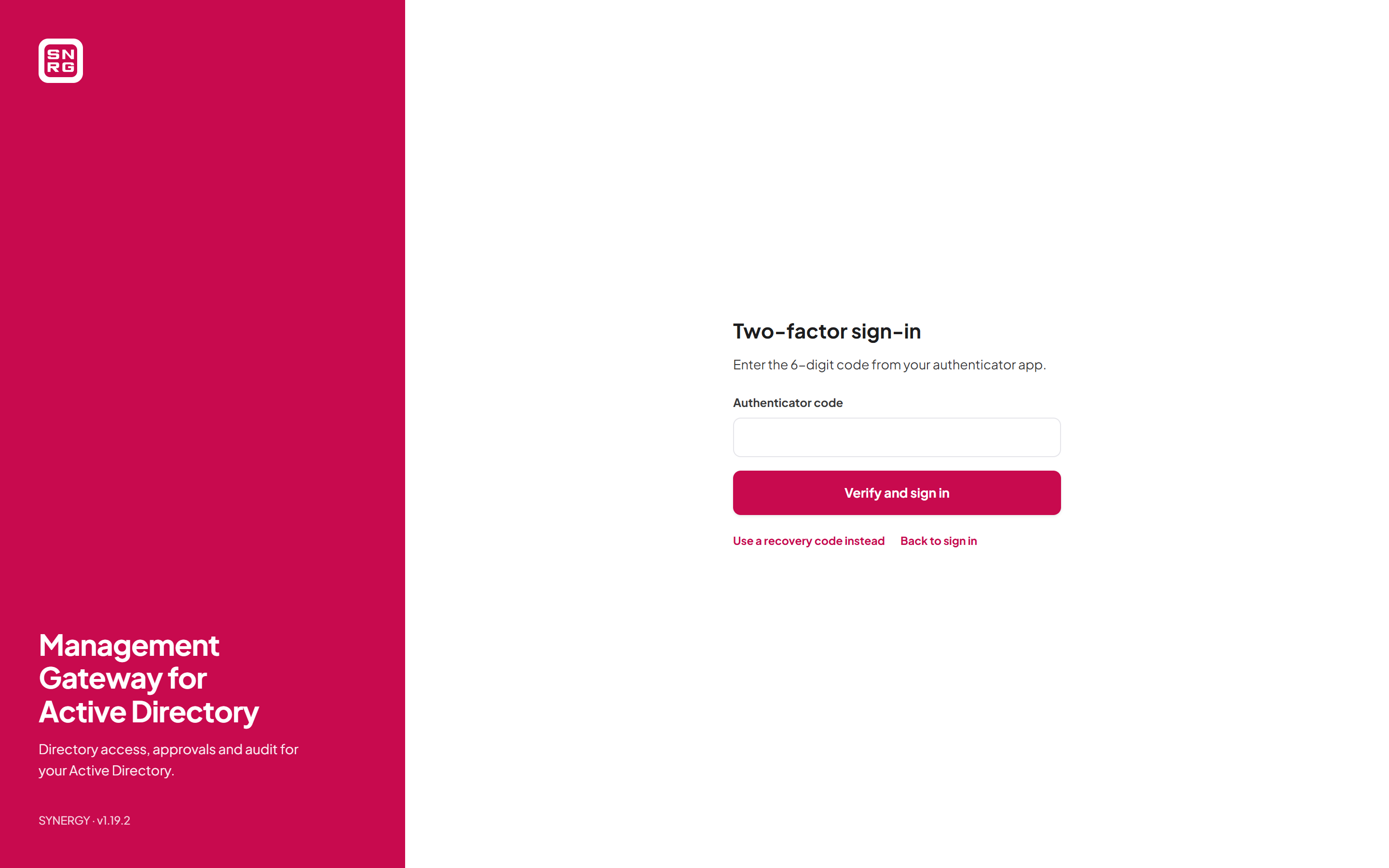
After you enter your email and password and select Sign in, the page changes to Two-factor sign-in.
- Open your authenticator app and find the entry for SYNERGY Management Gateway.
- In Authenticator code, type the six-digit code shown.
- Select Verify and sign in. The button reads Checking… while the code is verified.
| Message | Meaning |
|---|---|
| Enter the 6-digit code. | What you typed is not six digits |
| That code is not valid. Check your authenticator app and try again. | The code is wrong, already used, or your phone's clock is far out |
| Your sign-in took too long. Enter your password again. | The second step has a five-minute limit; you return to the password form |
| Too many failed attempts. Try again in a few minutes. | Wrong codes count towards the account lockout |
Select Back to sign in at any time to return to the password form. Your password is not kept while you are on the second step.
Signing in with a recovery code
If you do not have your phone:
- On the Two-factor sign-in step, select Use a recovery code instead.
- In Recovery code, type one of your saved codes, for example
AB23C-D45EF. Recovery codes never contain the characters 0, 1, I or O, so they are easy to read off paper. - Select Verify and sign in.
Each recovery code works once. After you sign in with one, a message tells you how many codes you have left, for example "3 recovery codes left — generate new ones in your profile." Generate a new set from your profile before you run out (see below). To go back to entering an authenticator code, select Use the authenticator app instead.
If a recovery code is wrong or has already been used, the page says "That recovery code is not valid, or it has already been used."
Important: If you lose both your phone and your recovery codes, you cannot sign in with your password. Ask an administrator to reset your two-factor sign-in (see Chapter 11, Users, roles and permissions). You will then sign in with your password alone, and set up two-factor sign-in again if a role requires it.
Setting up two-factor sign-in at sign-in (required by your role)
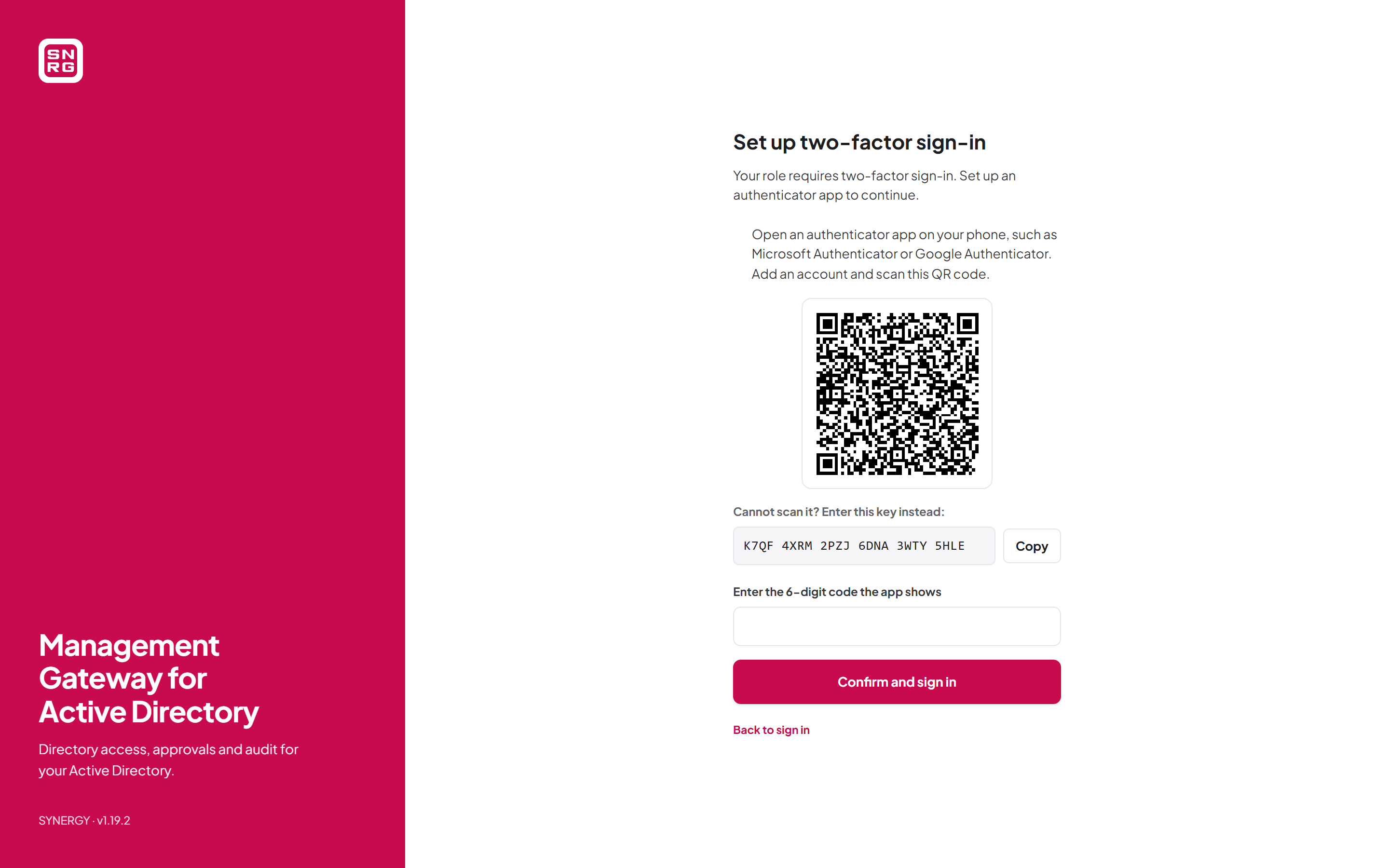
If one of your roles requires two-factor sign-in and you have not set it up, the page asks you to do so right after your password is accepted. The heading is Set up two-factor sign-in, with the text "Your role requires two-factor sign-in. Set up an authenticator app to continue."
The requirement is judged across all roles assigned to you, not just the one you are about to use. Otherwise you could choose a lesser role at sign-in and then switch up without the second factor.
- Open an authenticator app on your phone.
- In the app, add an account and scan the QR code shown on the page. If you cannot scan it, select Copy beside "Cannot scan it? Enter this key instead:" and type the key into the app.
- In Enter the 6-digit code the app shows, type the current code from the app.
- Select Confirm and sign in.
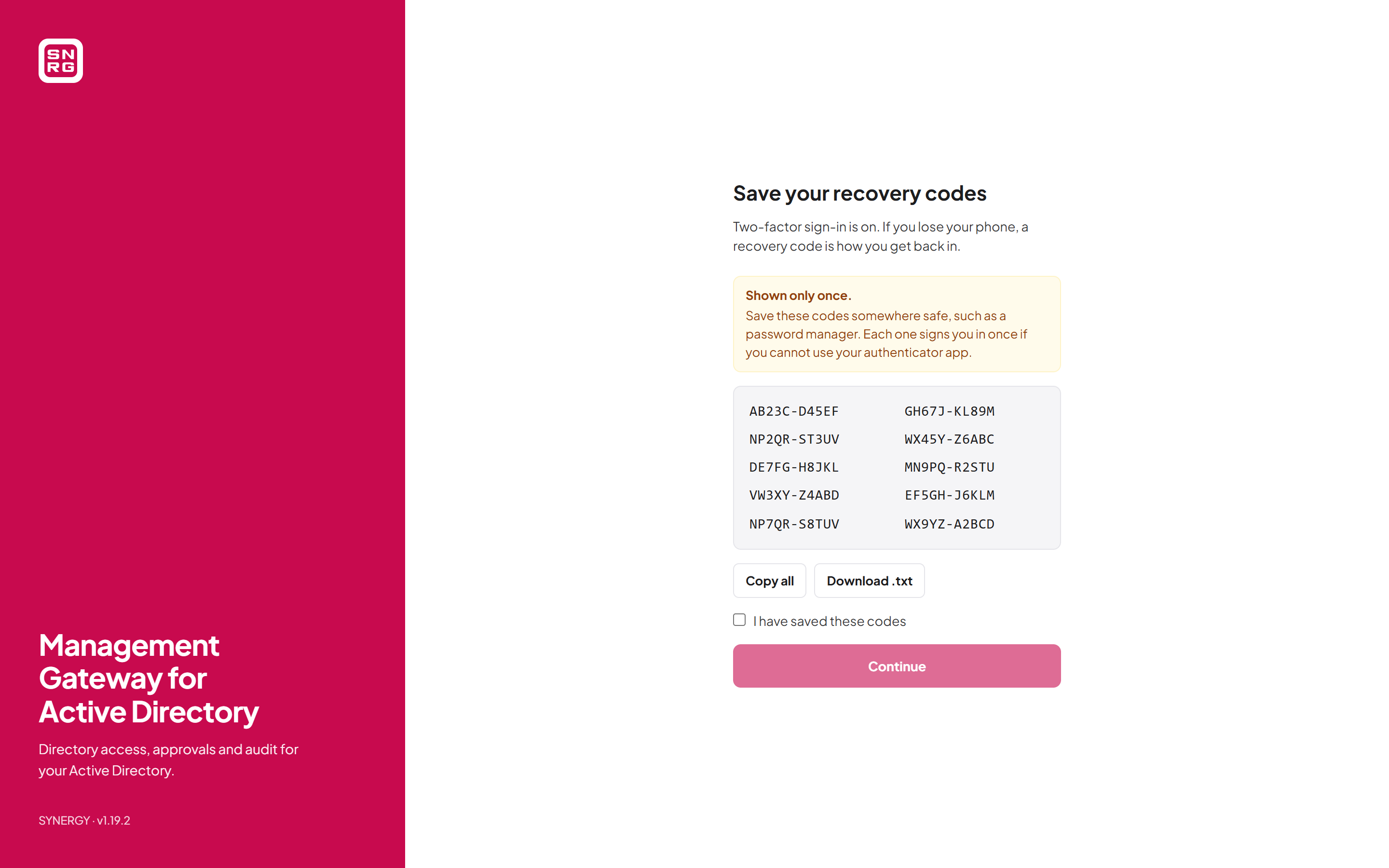
- The page changes to Save your recovery codes. Save the ten codes (see "Saving your recovery codes" below), tick I have saved these codes, and select Continue.
Saving your recovery codes
Recovery codes are shown only once: when you first turn two-factor sign-in on, and each time you generate a new set. The panel reads "Shown only once. Save these codes somewhere safe, such as a password manager."
- Copy all copies the ten codes to the clipboard. If your browser refuses, a message suggests selecting them or downloading them instead.
- Download .txt saves a text file headed "SYNERGY Management Gateway — recovery codes", naming your account.
- The Continue or Done button stays disabled until you tick I have saved these codes.
Last updated
Thank you for your feedback.