
16Notifications
Last updated
SYNERGY Management Gateway can tell people by email when something they need to know about happens: an operation that waits for their approval, an API key that is about to expire, a domain controller that has started refusing the stored service-account password, an AI agent that someone has just connected, a licence that is running out or nearly using up its user accounts. This chapter explains how email delivery is set up, how you decide who is told about what, how you change the wording of the messages, and how you check what was sent.
Notifications are made of four parts, each with its own page:
| Page | What it controls | Who can use it |
|---|---|---|
| Email Provider | How mail leaves the platform (SMTP, Microsoft Graph or Google Workspace) | System Admin role only, with notifications:manage |
| Rules | Which events send an email, and to whom | notifications:manage |
| Templates | The subject and wording of each email | notifications:manage |
| History | A record of every email the platform tried to send | notifications:history |
All four pages require the notifications module on your licence. If your licence does not include it, the pages are not shown in the navigation. For licence details, see Chapter 19, Licence, updates and backups.
Note: Email notifications are separate from the live, in-console notifications that pop up while you work (for example when an operation you started completes). Each person turns those on or off on their own profile; see Chapter 3, Signing in and your account.
Where to find the notification pages
The Email Provider page is in the Integrations section of the navigation, next to Single sign-on. It is shown only while your active role is System Admin.
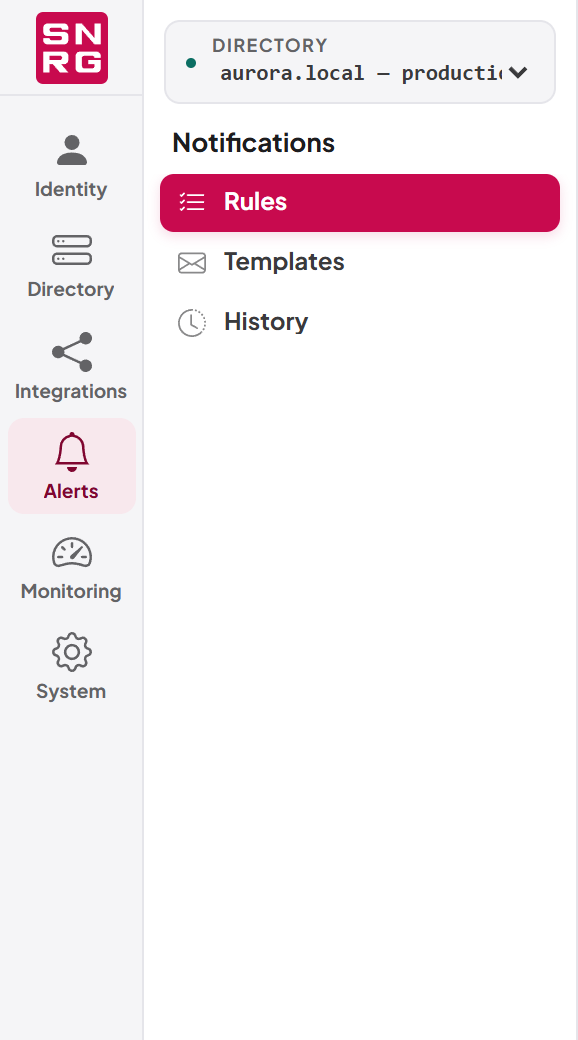
The other three pages are in the Notifications section (shown as Alerts when the navigation panel is collapsed):
- Rules — Notification Rules
- Templates — Notification Templates
- History — Notification History
How notifications work
Every notification goes through the same path:
- Something happens in the platform — an operation runs, an operation is queued for approval, a scheduled check finds an API key close to expiry, and so on.
- The platform looks up the notification rule for that kind of event. If the rule is switched off, or has no recipients, nothing is sent.
- The platform fills in the template for that kind of event with the details of what happened.
- The message is handed to the active email provider, which delivers it.
- The attempt — sent, failed or skipped — is written to Notification History.
If there is no active email provider, notifications are not queued for later. They are recorded in the history as Skipped with the reason "No active email provider is configured." and are not sent.
Important: Several platform features depend on an active email provider, not only notification rules. Self-service password reset ("Forgot password?"), creating a user account by email and the "your password was changed" and "your email address was changed" messages all need a working provider. See Chapter 3, Signing in and your account, and Chapter 11, Users, roles and permissions.
In this chapter
Last updated
Thank you for your feedback.