
17.2SAML 2.0
Last updated
With SAML, the platform is the service provider and your identity provider (for example a Microsoft Entra enterprise application) is the party that authenticates people. Setting it up takes two steps, shown as two cards on the page.
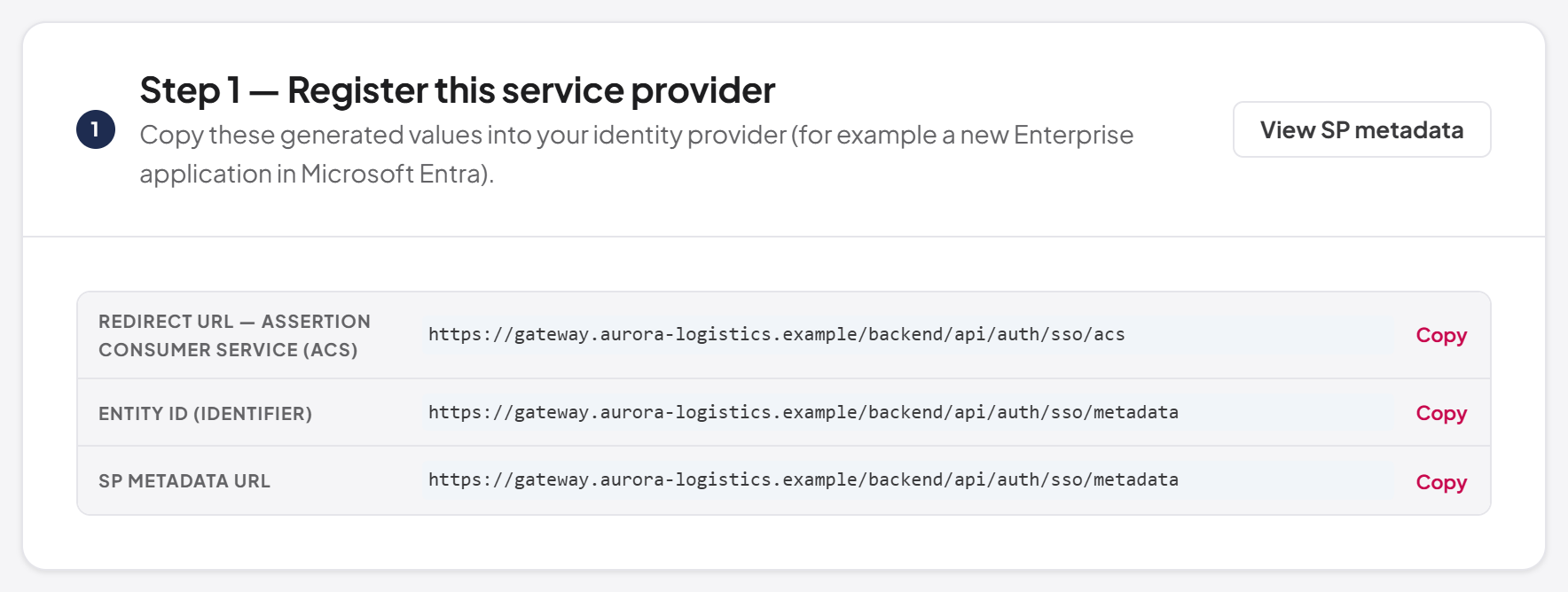
Step 1 — Register this service provider
The first card, Step 1 — Register this service provider, shows the values to enter in your identity provider. Each has a Copy button.
| Value | What it is | Where it goes in the identity provider |
|---|---|---|
| Redirect URL — Assertion Consumer Service (ACS) | The address the identity provider posts the sign-in response to: <public base>/api/auth/sso/acs | Reply URL, ACS URL |
| Entity ID (identifier) | The unique name of this service provider. By default it is the SP metadata URL | Identifier, Entity ID, Audience |
| SP metadata URL | <public base>/api/auth/sso/metadata, an XML document describing this service provider | Optional: many providers can import it instead of typing the other values |
Select View SP metadata to open the metadata document in a new tab.
The values are built from the address you are viewing the console on. If your installation has several public addresses, open the console on the address your users will sign in through before copying them, or import the SP metadata, which lists every configured address.
Step 2 — Connect your identity provider
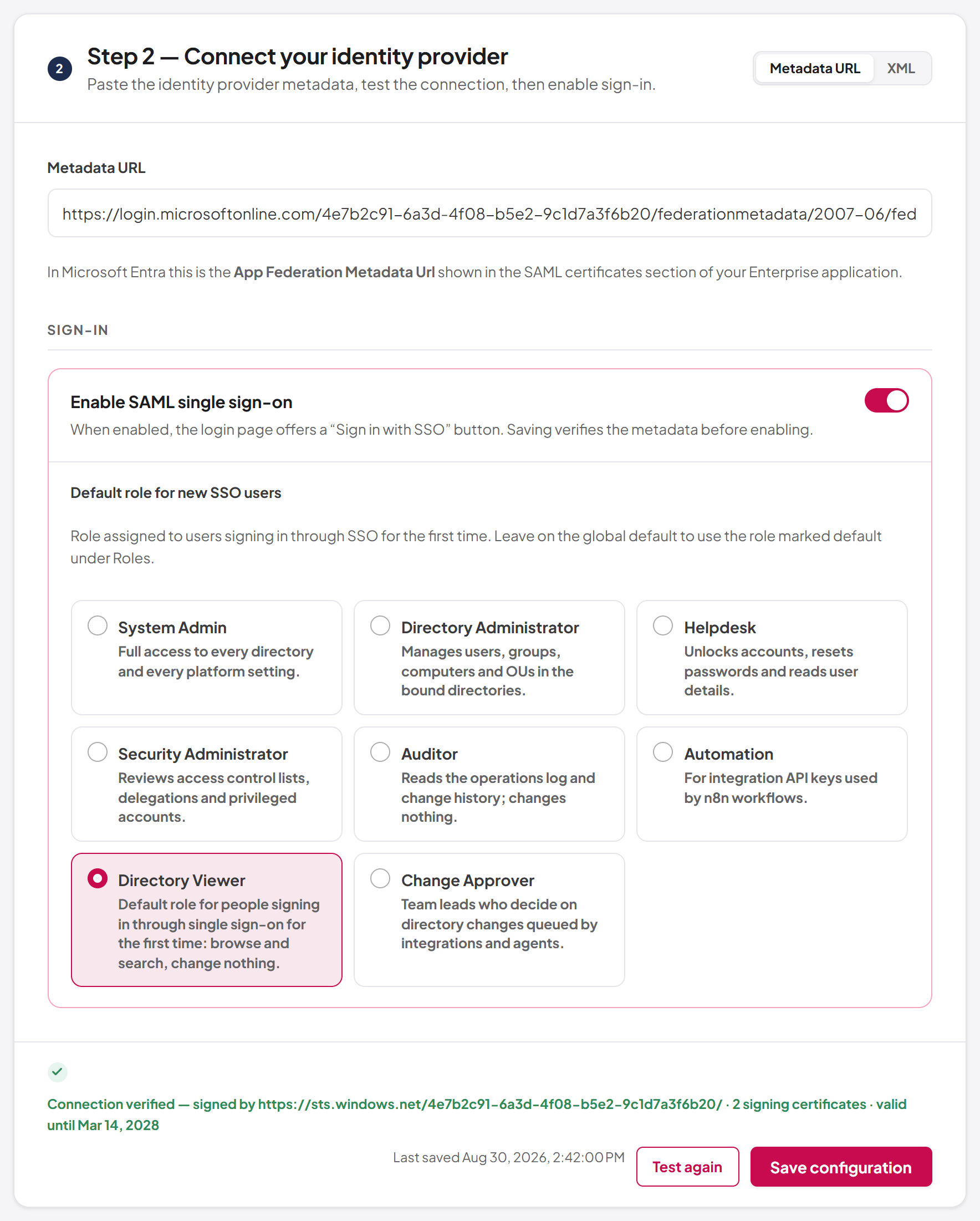
The second card, Step 2 — Connect your identity provider, takes your identity provider's metadata and turns sign-in on. Choose how to provide the metadata with the switch in the card's header:
- Metadata URL — the address of the identity provider's federation metadata. In Microsoft Entra this is the App Federation Metadata Url in the SAML certificates section of the enterprise application. This is the recommended choice: when the identity provider rotates its signing certificates, the platform picks up the new ones from the URL.
- XML — paste the metadata XML. Use this only when your identity provider has no metadata URL; you will need to paste it again whenever the provider's certificate changes.
Under Sign-in:
| Setting | Description |
|---|---|
| Enable SAML single sign-on | Shows the single sign-on button on the sign-in page. Saving verifies the metadata before enabling |
| Default role for new SSO users | Shown once sign-in is enabled, as a list of roles to choose from. The role given to a person who signs in through SAML for the first time and has no account yet. If you choose none, or the chosen role is later deleted, the role marked as default under Roles is used |
Testing the connection
Test connection fetches the identity provider metadata from the server and checks it. No sign-in takes place. When the check passes, the bar shows "Connection verified" with a summary — who signed the metadata, how many signing certificates it contains and until when they are valid. When it fails, a Connection failed panel explains why (for example, the server could not reach the URL, or the XML is not valid SAML metadata).
The test runs on the server, so it also proves that the server — not just your browser — can reach the metadata URL.
To configure SAML single sign-on
- In the console, with System Admin active, open Integrations > Single sign-on and select SAML 2.0.
- In your identity provider, create a SAML application (in Microsoft Entra: Enterprise applications > New application > Create your own application, then Single sign-on > SAML).
- Copy the Entity ID and the ACS URL from Step 1 into the identity provider's Identifier and Reply URL fields.
- Make sure the identity provider sends the person's email address (see What the identity provider must send below), and assign the users or groups who may sign in.
- Copy the identity provider's metadata URL (or download its metadata XML).
- Back in the console, under Step 2, choose Metadata URL and paste it (or choose XML and paste the XML).
- Select Test connection and wait for "Connection verified".
- Turn on Enable SAML single sign-on.
- Choose the Default role for new SSO users.
- Select Save configuration.
- In a private browser window, open the sign-in page and select Continue with company SSO to try it.
What the identity provider must send
The platform needs a stable identifier for the person (the SAML NameID) and their email address. It reads the following attributes, using the first one present:
| Information | Accepted attribute names |
|---|---|
| Email address (required) | http://schemas.xmlsoap.org/ws/2005/05/identity/claims/emailaddress, urn:oid:0.9.2342.19200300.100.1.3, email, mail |
| First name | .../claims/givenname, urn:oid:2.5.4.42, given_name, givenName |
| Last name | .../claims/surname, urn:oid:2.5.4.4, family_name, sn |
| Display name | .../claims/name, urn:oid:2.16.840.1.113730.3.1.241, displayName, name |
Microsoft Entra sends the emailaddress, givenname, surname and name claims by default. If the response has no NameID or no email address, sign-in is refused. If first or last name is missing, the platform derives names from the display name or the email address.
Last updated
Thank you for your feedback.