
10.2The Directory Policies screen
Last updated
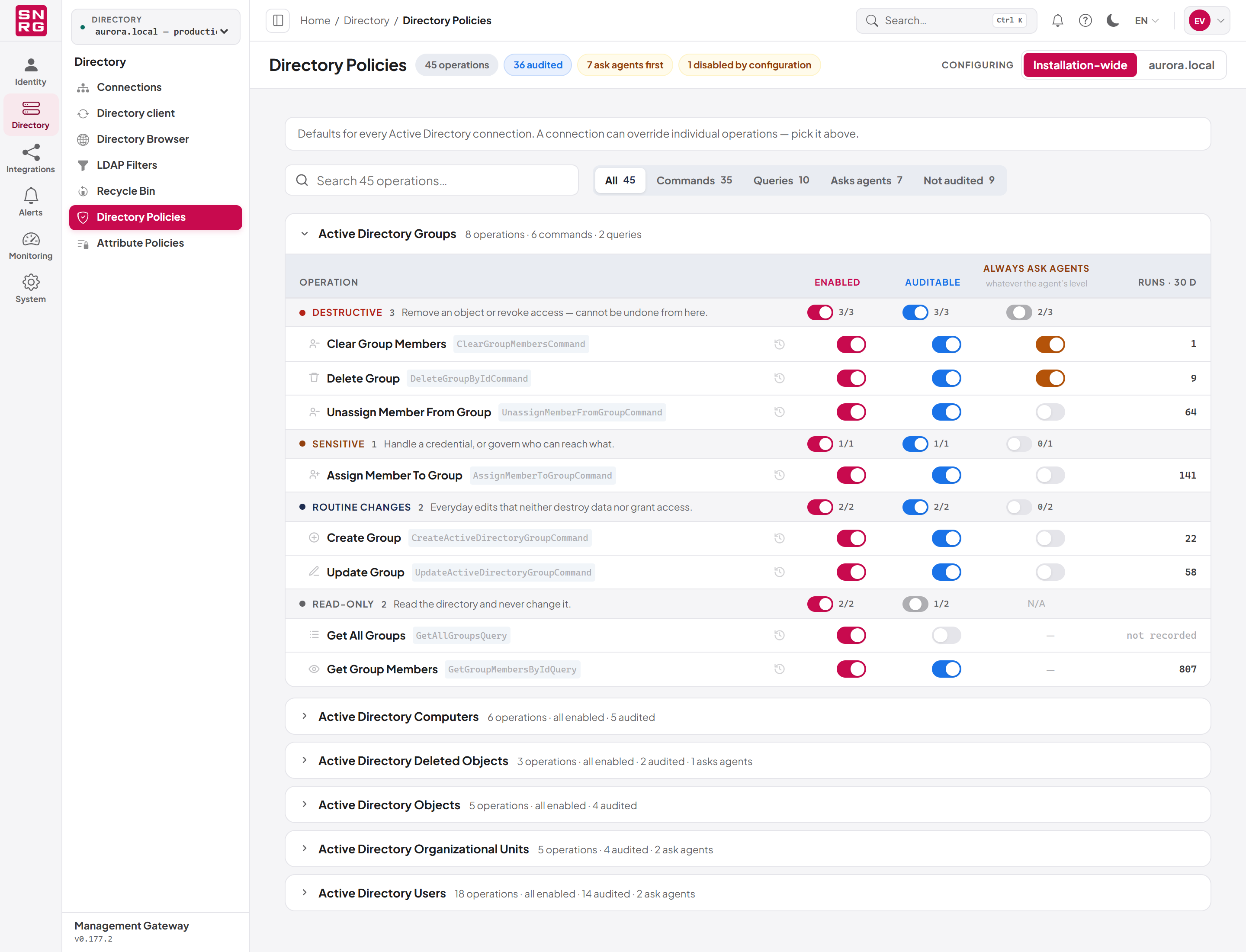
The screen for operation policies is called Directory Policies and is found in the navigation under Directory. Its address is /dashboard/operation-policies.
Who can use it:
- You need
audit:policies:listto open the screen and see the settings. - You need
audit:policies:updateto change any switch. Without it, the switches are shown read-only. - You need
audit:listto see the Change history button on each row.
Layout
The header band at the top of the screen shows the page title and summary pills: the number of operations, how many are audited, how many ask agents first, and — if any exist — how many are disabled by configuration. On the right is the Configuring switch that chooses the scope (see Installation-wide and per-directory policies). The switch appears only once at least one directory connection exists.
In installation-wide scope, a grey note above the list reads "Defaults for every Active Directory connection. A connection can override individual operations — pick it above."
Below the header:
- A search field ("Search N operations…") filters the list by name.
- Filter buttons narrow the list: All, Commands, Queries, Asks agents and Not audited. Each shows how many operations it matches.
- Each category is shown as a card. Click the card's header to collapse it; collapsed categories are shown as compact cards at the bottom of the page with a short summary, and the screen remembers which categories you collapsed.
Inside an expanded category card, the columns are:
| Column | Content |
|---|---|
| Operation | The icon, display name and command name. |
| Enabled | A switch for whether the operation may run. |
| Auditable | A switch for whether runs are recorded. |
| Always ask agents | A switch for the agent pin; shown as "—" for queries. |
| Runs · 30 d | How many times the operation was recorded in the last 30 days, in the scope shown. |
The Runs · 30 d column counts only audited runs. An operation whose auditing is switched off shows not recorded rather than zero, because nothing is being counted. Switch Auditable on to start measuring it.
Locked switches
Sometimes a switch is replaced by a padlock. A padlock means the outcome is settled somewhere this screen cannot change. Hover over it to see why:
- Disabled by configuration — the installation's configuration file switches the operation off (see The configuration kill switch). It cannot run and cannot be enabled here. The tooltip names the configuration rule that matched.
- The global policy already decides this — in per-directory scope only. A directory can only be stricter than the installation default, so if the global setting already produces the strictest outcome there is nothing to change for one directory.
- This operation never runs against an Active Directory connection — in per-directory scope only. Such an operation can be configured only globally.
Padlocks are shown to read-only users too, because "this cannot be changed here" is useful information.
Changing one operation
To change a setting for one operation:
- Open Directory Policies.
- Choose the scope with the Configuring switch: Installation-wide, or the name of the directory selected in the top bar (for example aurora.local) to change only that directory.
- Find the operation, using the search field or the filter buttons if needed.
- Click the switch in the Enabled, Auditable or Always ask agents column.
The change is saved immediately; there is no separate save button. If it fails, a message such as "Failed to update directory policy" is shown and the switch returns to its previous position.
Changing a whole risk tier at once
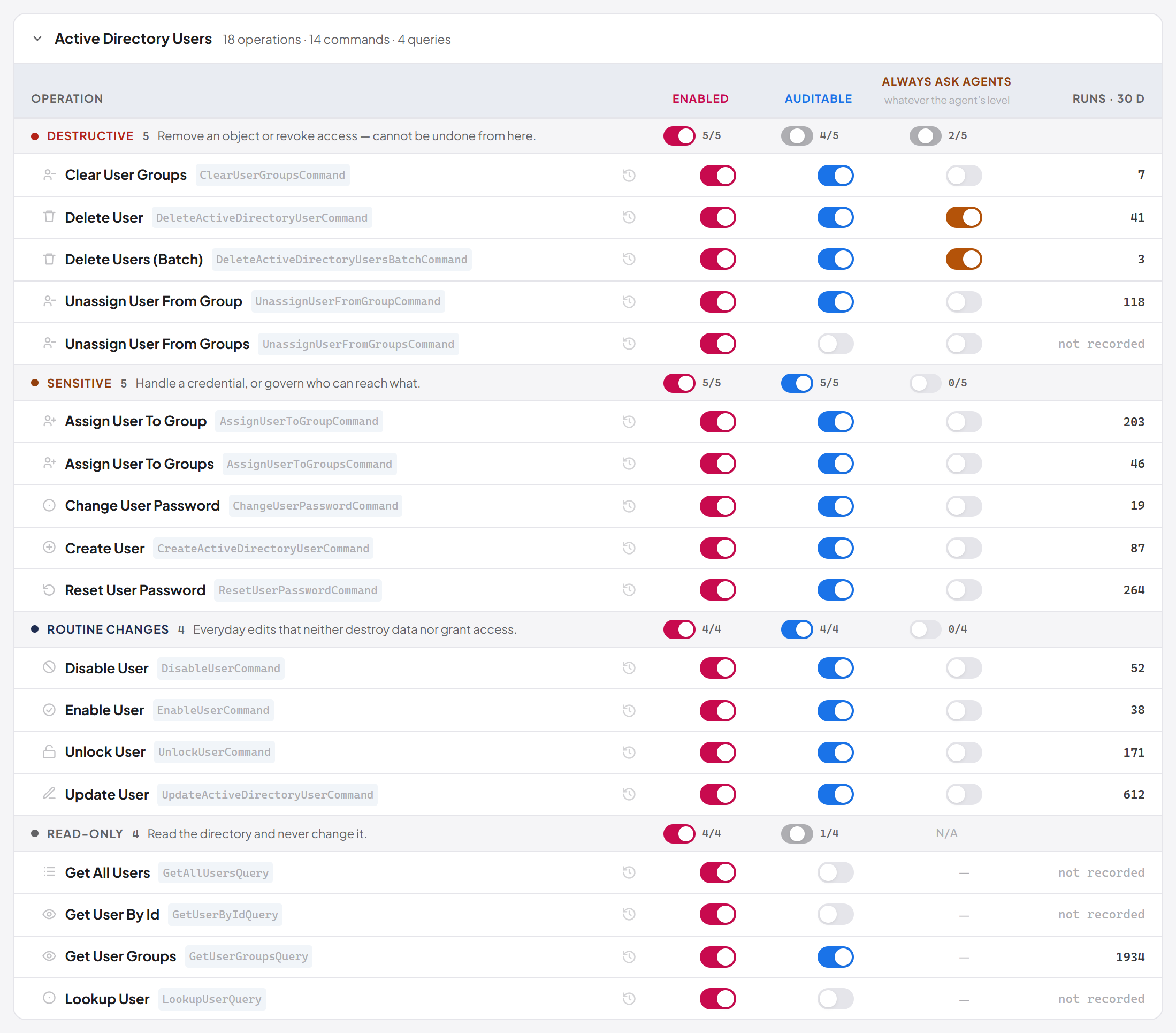
Each tier header has its own switch in each column, with a count such as "7/9" showing how many operations in the tier are currently on. The tier switch has three states: on, off and mixed.
To switch every operation in a tier:
- Find the tier header (for example Destructive) inside the category card.
- Click the tier's switch in the column you want to change.
If the tier is wholly on, the click turns every operation in it off. If it is off or mixed, the click turns every operation on. Locked operations are skipped, and the Always ask agents tier switch covers commands only; the Read-only tier, which holds only queries, shows N/A in that column. A message reports how many operations were updated, and if some failed, how many.
Tip: Turning Auditable on for the Destructive and Sensitive tiers of every category is a quick way to make sure every deletion and every access change is recorded.
Change history of a policy
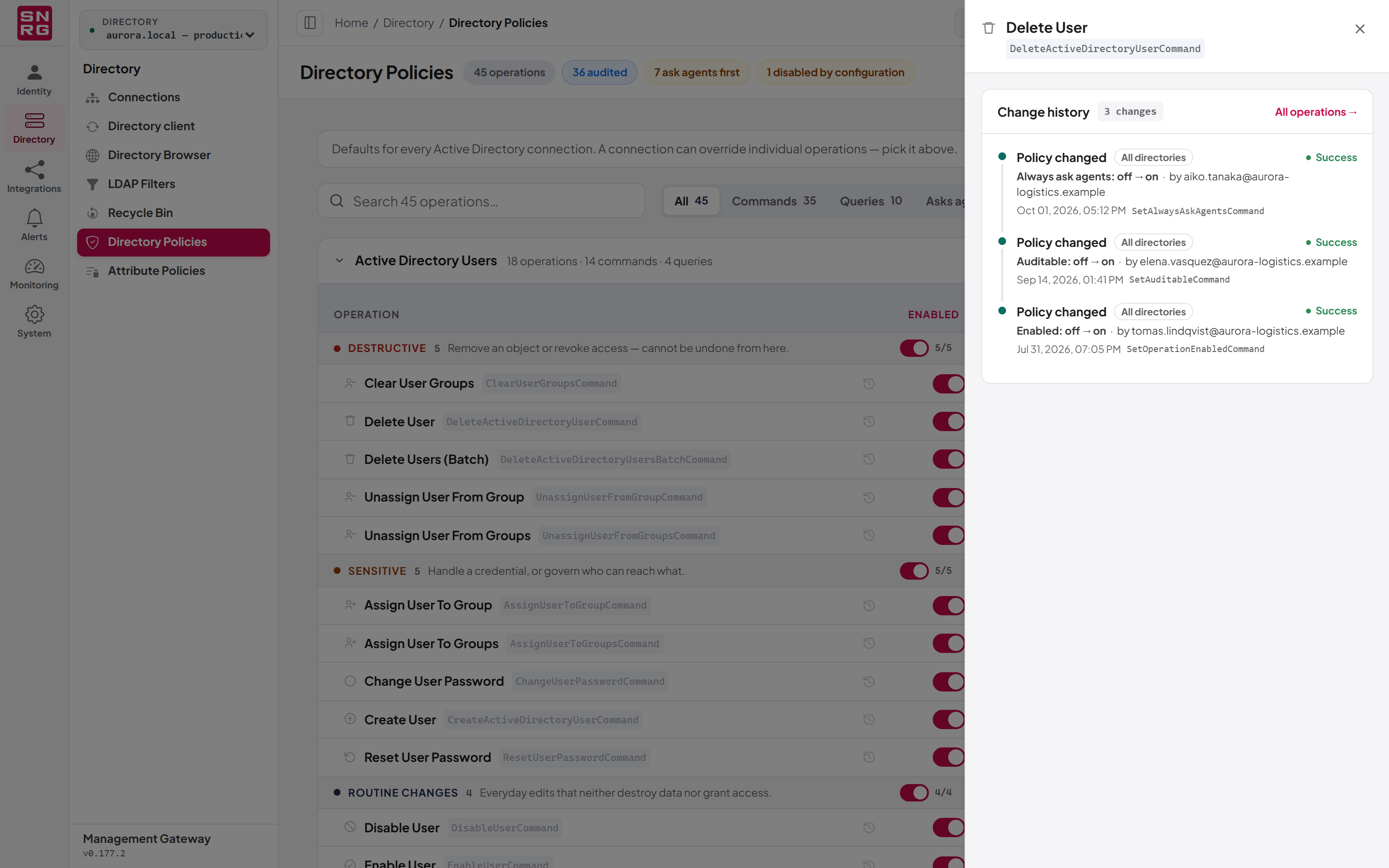
Every change to a policy is itself recorded. To see who changed an operation's policy and when:
- Click the Change history button (the clock icon) on the operation's row.
- A drawer opens listing each change with its date, the person who made it, the field (Enabled, Auditable or Always ask agents), the old and new value, and whether it applied to All directories or to one directory.
- Use All, Changes or Failures to narrow the list, or All operations → to open the full operations log.
Last updated
Thank you for your feedback.