
13.2Connecting an agent with OAuth
Last updated
What happens when an agent connects
You only need the endpoint address. The rest is automatic:
- You add the server address to your MCP client.
- The client contacts
/mcp, is told it must sign in, and discovers the platform's sign-in service from its published metadata (/.well-known/oauth-protected-resourceand/.well-known/oauth-authorization-server). - The client registers itself with the platform. Registration grants nothing on its own.
- Your browser opens the platform's consent page,
/oauth/authorize. If you are not signed in, you sign in first — with a password, single sign-on or Windows sign-in, whichever you normally use — and are then returned to the consent page. - You choose the role, directory, access and supervision level, and select Allow.
- The client receives its tokens and the agent is connected.
Note: Agent sign-in must be switched on in MCP Settings, and — for clients that register themselves, which is nearly all of them — so must self-registration. Both are on by default. See MCP settings below.
Adding the server to a client
Each client has its own way of adding a remote MCP server; consult its documentation. Typical examples:
- Claude Desktop and claude.ai — add a custom connector with the server address. These clients receive their sign-in result on
claude.aiorclaude.com, which are always allowed. - Claude Code — add the server from the command line, for example:
claude mcp add --transport http synergy https://gateway.example.com/backend/mcp- Visual Studio Code, Cursor, Windsurf, Zed and VSCodium — add an HTTP MCP server with the address. These editors receive their sign-in result on this computer and need no configuration on the platform.
- Microsoft Copilot Studio and other web-hosted agents — these receive their sign-in result on a web site. A System Admin must first add that site's host name to the allowed list in MCP Settings, otherwise the consent page refuses the connection.
The consent screen
The consent screen is where you decide what the agent may do. It shows who you are signed in as, and the name of the agent that is asking.
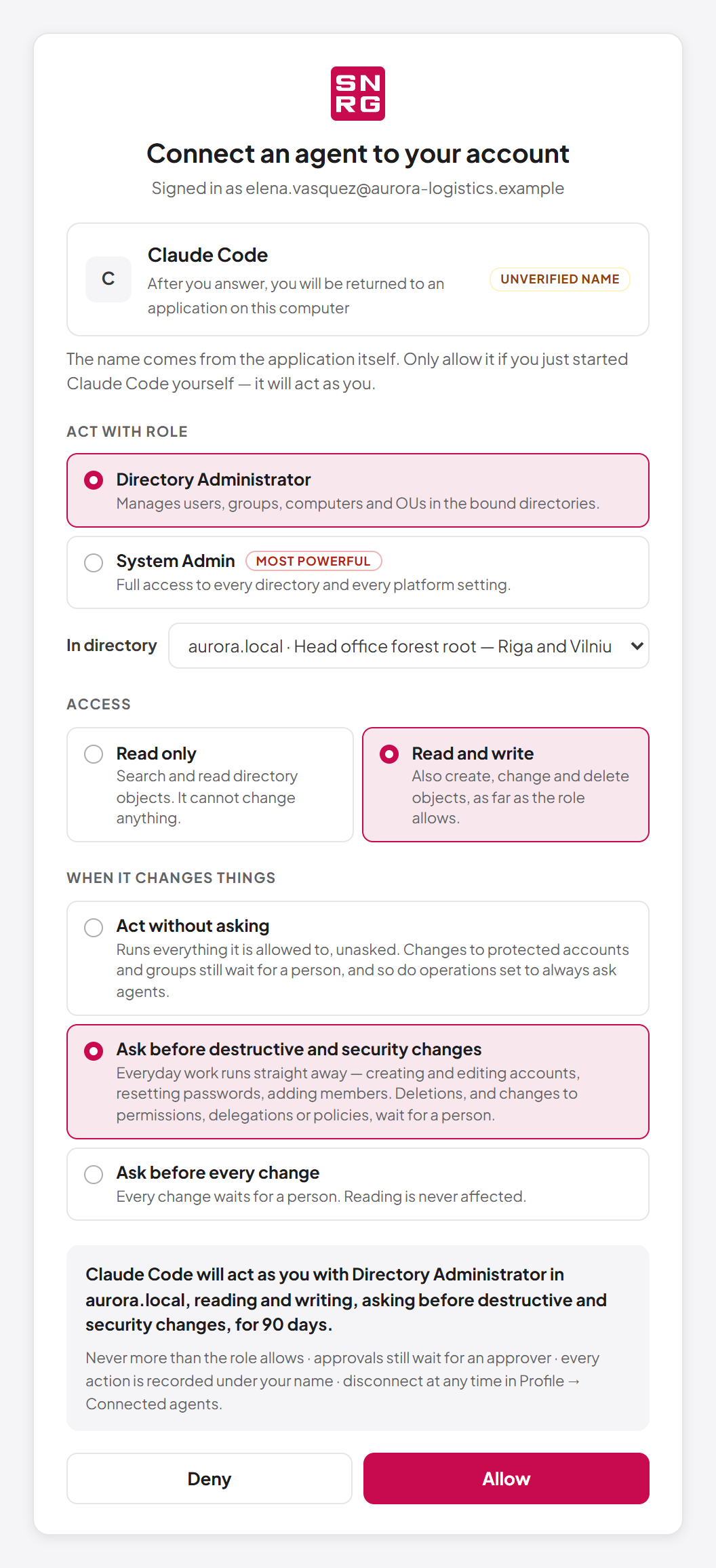
| Section | What you choose |
|---|---|
| Act with role | Which of your roles the agent uses. Only roles that reach at least one directory are listed. Each card says whether the role can change the directory and how many directory permissions it carries. The least-privileged role is preselected. The System Admin role is marked Most powerful. |
| In directory | The one directory the agent may act on. Only directories the chosen role can reach are offered. If there are several, none is preselected. |
| Access | Read only — search and read directory objects; it cannot change anything. Read and write — also create, change and delete objects, as far as the role allows. |
| When it changes things | The supervision level for a read-and-write connection (see Supervision below). |
To connect an agent:
- Start the connection from the agent. Your browser opens the consent page.
- Check the agent's name and where it will return to. The name is supplied by the application itself and is not verified — only allow it if you have just started that agent yourself.
- Under Act with role, select the role the agent should use.
- Under In directory, choose the directory.
- Under Access, choose Read only or Read and write.
- If you chose Read and write, choose a level under When it changes things.
- Read the summary sentence, for example: "Claude Code will act as you with Helpdesk in corp.example.com, reading and writing, asking before destructive and security changes, for 90 days."
- Select Allow. The page confirms "(agent name) is connected" and you can close the tab.
To refuse, select Deny. The agent gets no access. If you did not start the connection yourself, tell your administrator.
Things the consent screen does to protect you:
- Read only is preselected, whatever the agent asked for. If the agent did not ask to write, the page reminds you: "This agent did not ask to write."
- If the selected role can only read, Read and write is unavailable.
- When the agent receives its answer on a web site rather than on your computer, a warning names that site: allow it only if you started the connection from that site yourself.
- Allow becomes active only after the page has been visible for a moment, so it cannot be clicked by accident or by a hidden page.
- The page refuses to work inside another page (a frame). Open the link directly in your browser.
- If you choose the System Admin role, read and write, and Act without asking, a red warning says that the agent could change anything in the directory without asking.
- If none of your roles can reach a directory, the page says so; ask an administrator to bind one of your roles to a directory (see Chapter 11, Users, roles and permissions).
If the request itself is faulty — an unknown agent, an unregistered return address, a return address the platform does not allow — the page shows "This agent cannot be connected" with the reason. Where the agent can safely be told about the fault, Return to the application hands the error back to it; for an unknown agent or a return address the platform does not trust, the page never sends you there. Start the connection again from the agent; if it keeps failing, the agent may need to be set up again.
Supervision
Supervision decides which of an agent's directory changes wait for a person to approve them. It only matters for a read and write connection.
| Level | What happens |
|---|---|
| Act without asking | Runs everything it is allowed to, unasked. Changes to protected accounts and groups still wait for a person, and so do operations set to always ask agents. |
| Ask before destructive and security changes | The default. Everyday work — creating and editing accounts, resetting passwords, adding members — runs straight away. Deletions, and changes to permissions, delegations or policies, wait for a person. |
| Ask before every change | Every change waits for a person. Reading is never affected. Password resets are refused rather than queued. |
Act without asking is offered only to a person who holds operations:approve, and it lasts only as long as they do. Protected targets and operations pinned to always ask agents wait at every level. A change that would have to wait but carries a password (for example, a password reset on a protected account) is refused outright, because a password cannot be held in an approval queue. For the full rules, see Chapter 10, Operation policies, attribute policies and agent supervision.
How long a connection lasts
A connection lasts the number of days set in MCP Settings (90 days by default); after that you consent again. The agent's access tokens are short-lived and refreshed automatically. The grant is checked on every request, so a connection stops on the agent's next call when:
- you or an administrator disconnect it;
- your account is deactivated;
- your password is reset, or you change your password yourself;
- you turn on two-factor sign-in for your account;
- an administrator ends all of your sessions;
- the role you chose no longer reaches the directory;
- agent sign-in is switched off in MCP Settings.
If a client ever presents a refresh token that has already been used, the platform treats it as stolen and ends the connection.
Connecting an agent with an API key
Use an API key for an automation that has no person present, or for a client that does not support OAuth sign-in.
- Create an API key for the person the agent should act as, with a suitable role and supervision level (see Chapter 12, API keys).
- On the key's settings page, link it to a directory and note its Client ID.
- In the MCP client, configure the server address and two request headers,
X-API-Keywith the key andX-Client-Idwith the Client ID:
X-API-Key: ak_live_XXXXXXXXXXXXXXXXXXXXXXXXXXXXXXXXXXXXXXXXXXXXXXXX
X-Client-Id: claude-automation
API keys work whether agent sign-in (OAuth) is switched on or off. A key's Skip the always-ask wait exemption never applies when the key is used over MCP.
Last updated
Thank you for your feedback.