
6.2The directory tree
Last updated
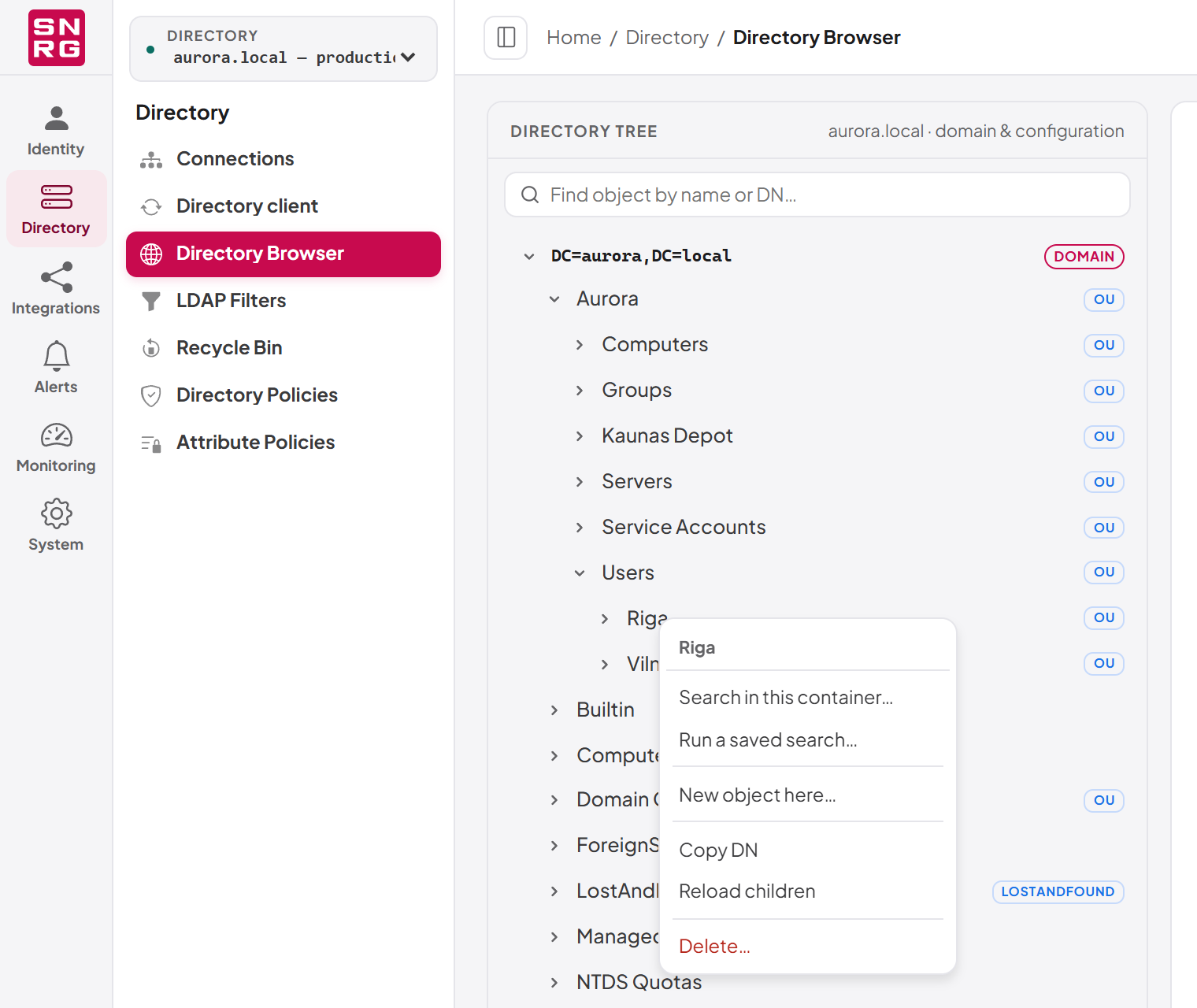
The left-hand pane, labelled Directory tree, shows the directory as a hierarchy. Its header shows the name of the current connection and the note "domain & configuration".
What the tree contains
The tree starts from two roots:
- The Domain partition — your domain's users, groups, computers, organizational units and containers. It is marked with a Domain pill.
- The Configuration partition, when the domain controller has one — forest-wide configuration such as sites and services. It is marked with a Config pill.
The schema partition is deliberately out of scope and cannot be browsed. The server enforces these boundaries itself, so a link or a typed distinguished name outside them is refused with the message "That object is not in a directory partition this browser can read".
Reading the tree
When you expand a container, its contents are listed in this order:
- Sub-containers (organizational units, containers and other objects that can hold children) first.
- Then the remaining objects, grouped under small headings that state the type and count once, for example Users · 12, Groups · 4, Computers · 30, Contacts · 2 or Other objects · 1.
Some rows carry an extra marker where it tells you something:
| Marker | Meaning |
|---|---|
| A class chip such as OU on a folder | The folder is an organizational unit (or another class that is not a plain container). |
| Privileged | Active Directory protects this account or group as privileged (its adminCount is 1). |
| disabled (and a greyed row) | The account is disabled. |
A container is read in pages of 100 entries. When a container holds more, a Load more… row appears at the end of its list; select it to read the next page.
The tree remembers what it has read for as long as the page is open. If someone else changes the directory while you are looking at it, right-click the container and choose Reload children to read it again.
Finding something in the loaded tree
The box at the top of the tree, Find object by name or DN…, filters the rows that have already been loaded. It matches on the name and on the distinguished name, and keeps the parent containers of every match visible so you can see where each one sits.
Tip: This box does not search the directory — it only filters what you have already expanded. If the object you want is in a container you have not opened, use Search in this container… instead (see 6.4, Searching the directory).
Keyboard use
The tree can be used entirely from the keyboard:
| Key | Action |
|---|---|
| Up / Down arrow | Move to the previous or next row. |
| Right arrow | Expand a collapsed container, or move into an expanded one. |
| Left arrow | Collapse an expanded container, or move to the parent. |
| Enter or Space | Select the row (or load more, on a Load more… row). |
| Shift+F10 or the Menu key | Open the row's context menu. |
| Escape | Close the context menu. |
The row context menu
Right-click any row to open its context menu. The entries depend on the row and on your permissions:
| Entry | Shown for | What it does |
|---|---|---|
| Search in this container… | Containers | Opens the search form scoped to this container. |
| Run a saved search… | Containers | Opens the search form on the saved searches. |
| New object here… | Containers, with a create permission and the management licence | Opens the create dialog for this container. |
| Copy DN | All rows | Copies the distinguished name to the clipboard. |
| Reload children | Containers | Discards the cached contents and reads them again. |
| Delete… | Rows you may delete, with the management licence | Selects the object and opens its own delete confirmation. |
Opening the browser at a specific object
The browser can be opened directly at an object by adding its distinguished name to the address as a dn query parameter, for example /dashboard/directory-browser?dn=CN=Jane%20Doe,OU=Staff,DC=example,DC=com. The tree expands down to the object and selects it. This is how links from elsewhere in the console lead you to an object.
Last updated
Thank you for your feedback.