
5.3Creating a connection
Last updated
You need the adconnections:create permission.
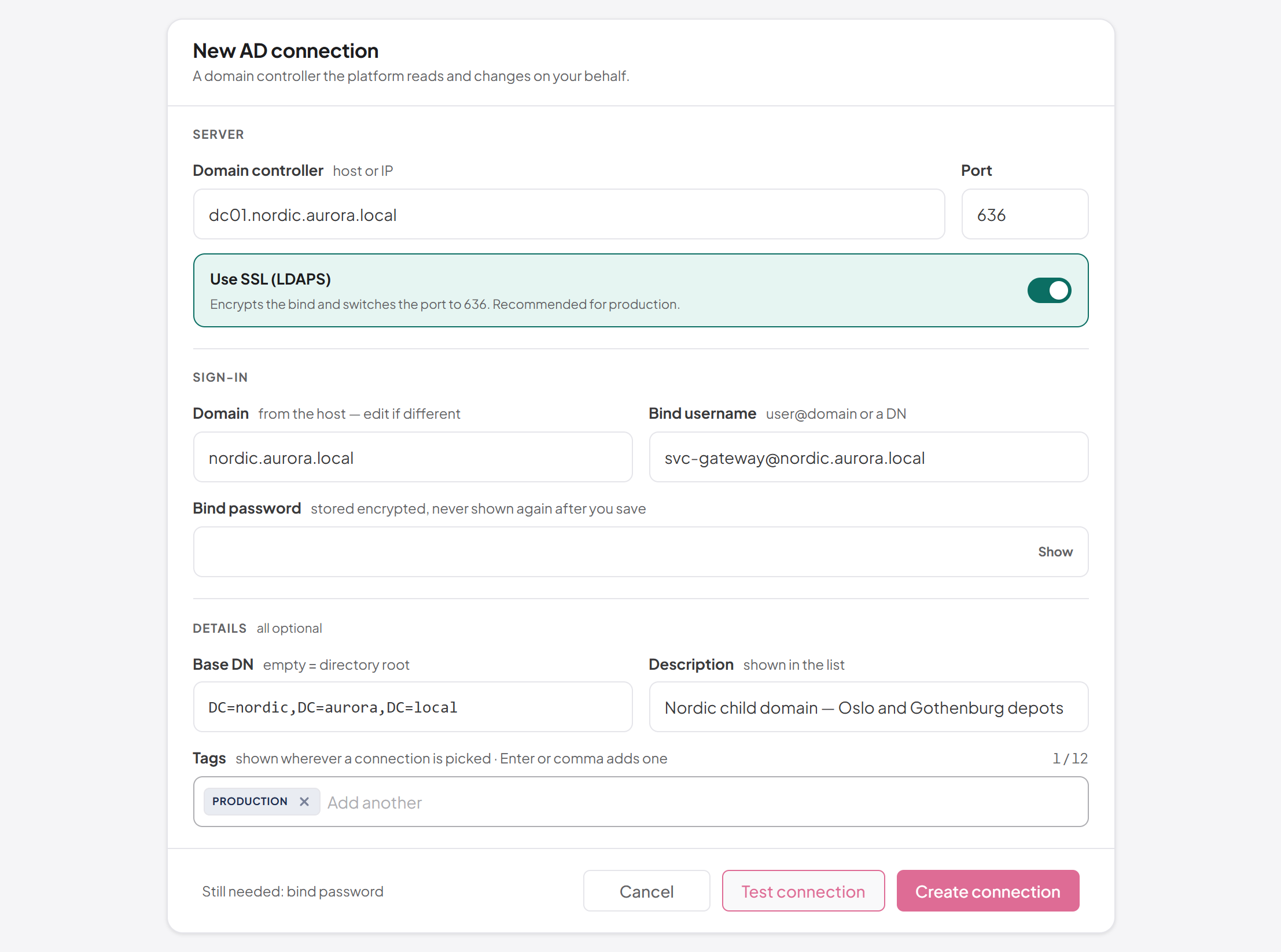
- Go to Directory › Connections and select + Create Connection. The New AD connection form opens.
- In the Server group, enter the Domain controller (host or IP) and check the Port.
- Switch Use SSL (LDAPS) on for an encrypted connection. The port changes from 389 to 636 automatically.
- In the Sign-in group, check the Domain, then enter the Bind username and Bind password. Select Show inside the password field if you want to check what you typed.
- Optionally, in the Details group, enter a Base DN, a Description and Tags.
- Select Test connection to check that the platform can sign in with these values. The result appears in the bar at the bottom of the form.
- Select Create connection.
The bar at the bottom of the form tells you what is still missing — for example "Still needed: domain controller, bind password" — until every required field is filled in. Test connection and Create connection stay disabled until then.
After the connection is created you see "Connection created successfully", and the platform opens the new connection's edit screen (or returns to the list if you cannot edit connections). From the edit screen you can go on to protect sensitive containers (see 5.8 Agent safeguards: protected containers).
Field reference
| Field | Required | Description |
|---|---|---|
| Domain controller | Yes | Host name or IP address of the domain controller. Up to 255 characters. |
| Port | Yes | 1–65535. Defaults to 389, or 636 with SSL on. |
| Use SSL (LDAPS) | — | Encrypts the bind and all traffic. |
| Domain | Yes | The DNS name of the domain, for example corp.local. Up to 255 characters. |
| Bind username | Yes | The service account, as user@domain or as a distinguished name. Up to 255 characters. |
| Bind password | Yes | At least 8 and at most 255 characters. Stored encrypted. |
| Base DN | No | Limits what the platform manages. Empty means the root of the domain. Up to 512 characters. |
| Description | No | A one-line note shown in the list. Up to 1000 characters. |
| Tags | No | Up to 12 short labels of up to 32 characters each. |
How the form helps you
- Domain from the host. When you type a fully qualified domain controller name of at least three parts, the form fills in Domain with everything after the first label:
dc1.corp.localgivescorp.local. The hint "from the host — edit if different" shows while the value is derived. As soon as you type your own domain, the form stops changing it. Nothing is derived from an IP address. - Placeholders that match your domain. Once the domain is known, the Bind username placeholder suggests
admin@<domain>and the Base DN placeholder shows the domain root, for exampleDC=corp,DC=local. - Port follows SSL. Switching Use SSL (LDAPS) on changes port 389 to 636, and switching it off changes 636 back to 389. If you typed a different port on purpose — for example 3269 for the Global Catalog over SSL — the switch leaves it alone.
Port and SSL must agree
The platform refuses two combinations that can never work and tells you so with the message "Use SSL does not match the port: 389 and 3268 are plain LDAP, 636 and 3269 are LDAP over SSL."
| Port | Use SSL off | Use SSL on |
|---|---|---|
| 389, 3268 | Allowed | Refused |
| 636, 3269 | Refused | Allowed |
| Any other port | Allowed | Allowed |
Any other port is accepted with either setting, so a domain controller or an Active Directory Lightweight Directory Services instance on a custom port works.
The base DN
The base DN sets where the platform starts when it works in the directory. Leave it empty to manage the whole domain. Enter a container such as OU=Corp,DC=corp,DC=local to keep the platform's view to that part of the directory.
Note: The base DN scopes what is managed, not who may sign in. Windows sign-in looks accounts up from the root of the domain regardless of the base DN (see 5.9 Connections trusted for Windows sign-in).
Tags
Tags describe what a directory is for — for example production, standby, lab or hr. They are shown wherever a connection is chosen: the workspace picker, the scope bars on the policy and notification screens, and the directory list on the role form. Where two connections have similar domain names, the tags are often the only way to tell a production forest from its stand-by copy.
To add a tag, type it in the Tags field and press Enter or type a comma. A tag you typed but did not confirm is also added when you leave the field. Press Backspace in the empty field to remove the last tag, or select the cross on a tag to remove it. Tags are compared without regard to case, so HR and hr count as the same tag. A tag cannot contain a semicolon (;), which the platform uses to store tags; if you use one, the save is refused. The counter beside the label shows how many of the 12 tags are used.
Last updated
Thank you for your feedback.