
9.4The emailed approval link
Last updated
When an operation is queued, the platform can email the people set as recipients of the operation-approval notification rule (see Chapter 16, Notifications). Each email is addressed to one recipient. In its standard form it is headed "Approval Required", lists the Operation, Requested By, Affected DN and Request ID, and has two buttons: Approve & Run and Reject. The wording can be changed on the Templates page (see Chapter 16, Notifications).
The link does not decide anything on its own. It opens the SYNERGY Management Gateway approval page, behind sign-in, and the decision is taken there only if all of these are true:
- the link is valid and has not expired;
- you are signed in as the person the email was addressed to;
- your active role holds
operations:approve; - your role may use the directory the operation was queued for.
So a forwarded email, a shared mailbox or a mail archive cannot be used to approve a change. This also applies to links already sitting in inboxes from earlier versions.
To decide from an approval email
- Open the email and select Approve & Run or Reject.
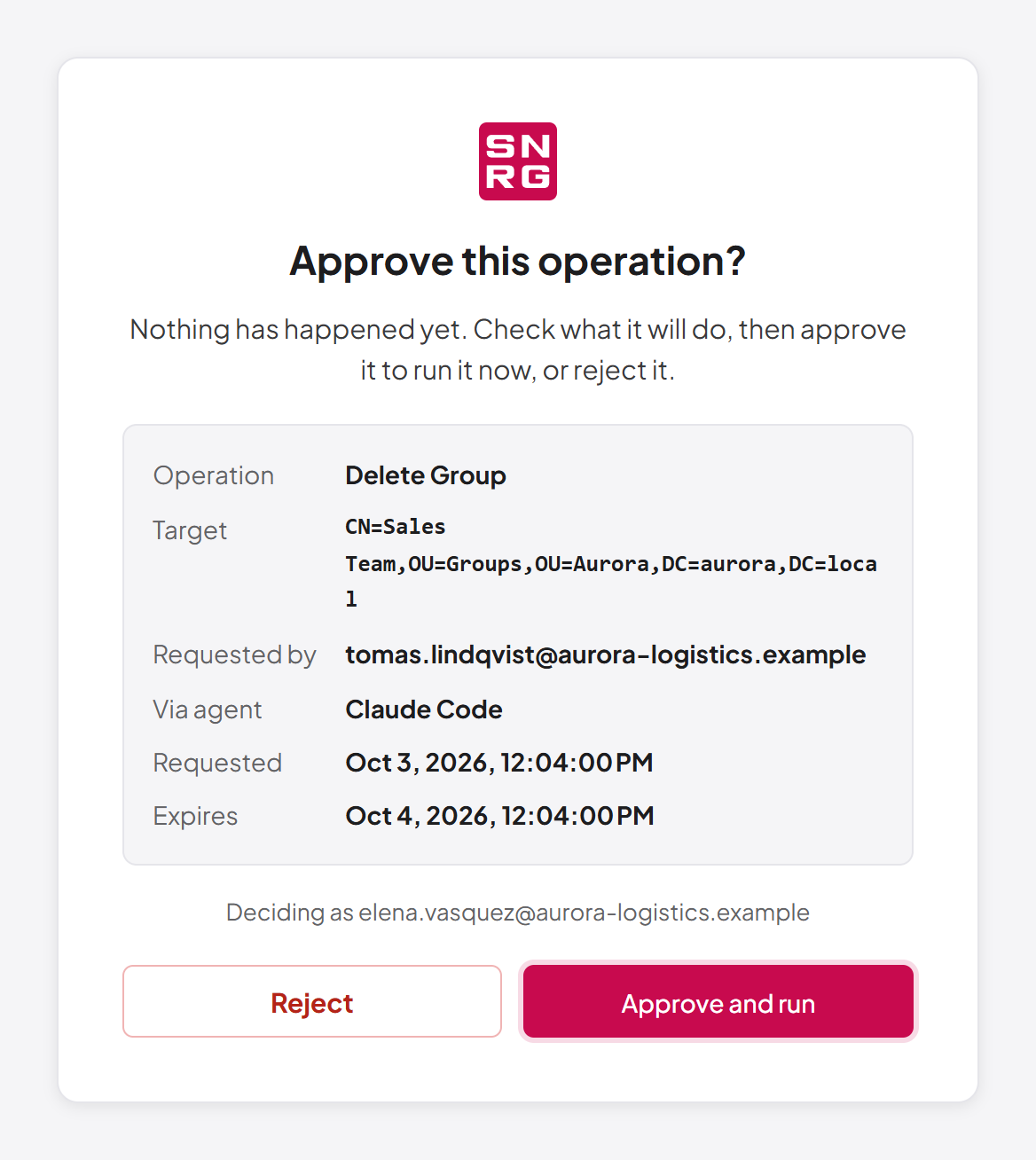
- If you are not signed in, sign in as usual. If you still have to choose a role, choose one that can approve. The approval page then opens, titled "Approve this operation?".
- Read the operation's details: Operation, Target, Requested by, Via agent (if an agent made it), Requested and Expires. The line "Deciding as [your email]" confirms the account you are deciding as.
- Select Approve and run or Reject. The button you chose in the email is highlighted, but nothing happens until you select it here.
- The page confirms the result, for example "Delete Group" was approved and has run. or "Delete Group" was rejected and will not run. Select Go to the dashboard to continue.
Note: For your protection, the approval page will not work inside another website's frame. If you see "Open this page directly", open the link from your email in its own browser tab.
Messages on the approval page
| Title | Meaning and what to do |
|---|---|
| Already decided | The operation is no longer waiting (the status is shown). Nothing to do. |
| Something went wrong | The decision could not be completed. The message below the title gives the reason. |
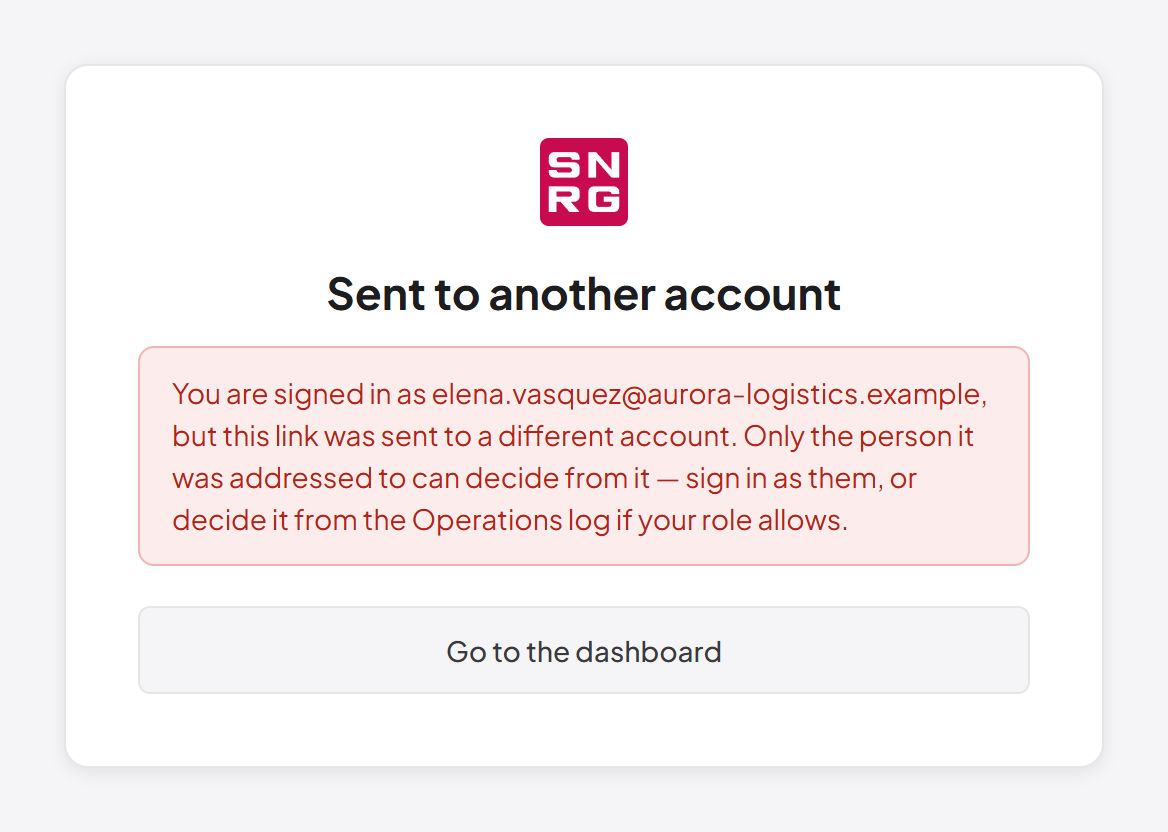
| Sent to another account | You are signed in as someone other than the addressee. Sign in as them, or decide from the Operations log if your role allows. |
| Not allowed | Your active role cannot approve operations. Switch to a role that can and open the link again. |
| Not found | The operation does not exist, or belongs to a directory your role cannot use. |
| Invalid link | The link is invalid or has expired. |
| Link incomplete | The page was opened without its link. Open the link from your email again. |
The impact summary
When a request is held, the platform records a one-sentence impact summary of what the change would affect, in counts. For example, for a group delete: "CN=Sales has 412 member(s), which would lose it".
The summary exists because the operation's name alone ("Delete Group — CN=Sales,OU=…") reads the same whether the group has four members or four hundred. It is shown as What it would affect in the operation detail and What it affects on the requester's page. It contains counts only, never names of other objects, and it is best-effort: if it could not be worked out, the field is simply absent.
Last updated
Thank you for your feedback.