
17.4OpenID Connect
Last updated
With OpenID Connect, the platform signs people in through your provider using the authorization code flow with PKCE. As with SAML, the form has two steps.
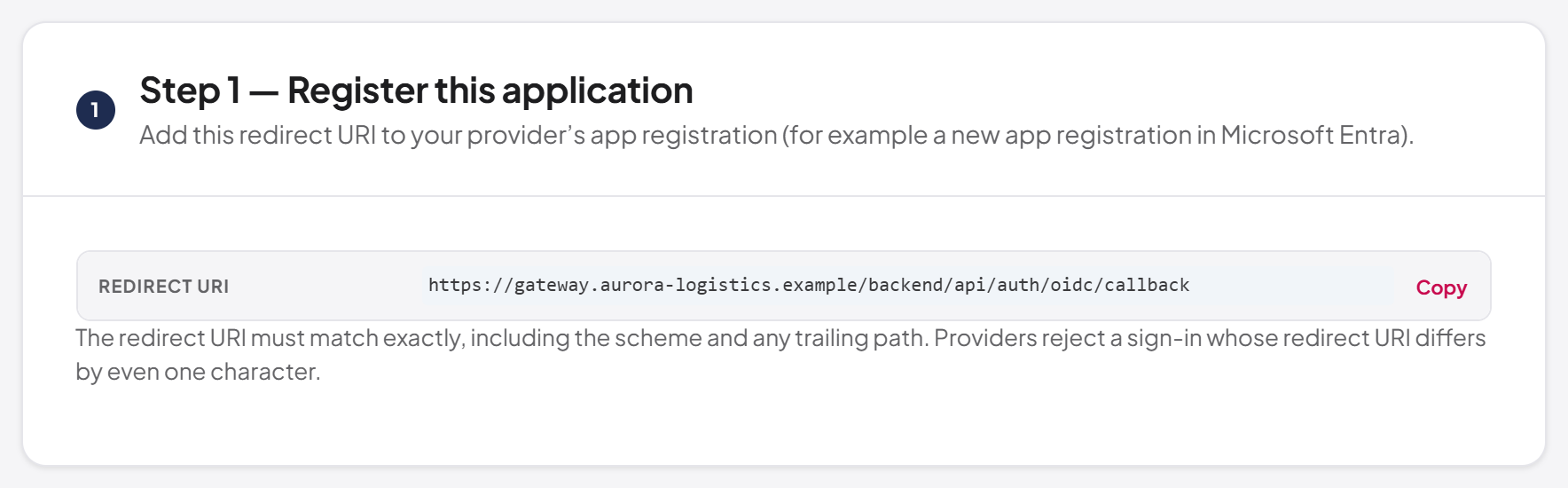
Step 1 — Register this application
Step 1 — Register this application shows the Redirect URI to add to your provider's app registration, with a Copy button. It has the form <public base>/api/auth/oidc/callback.
The redirect URI must match exactly, including the scheme and any trailing path. Providers reject a sign-in whose redirect URI differs by even one character.
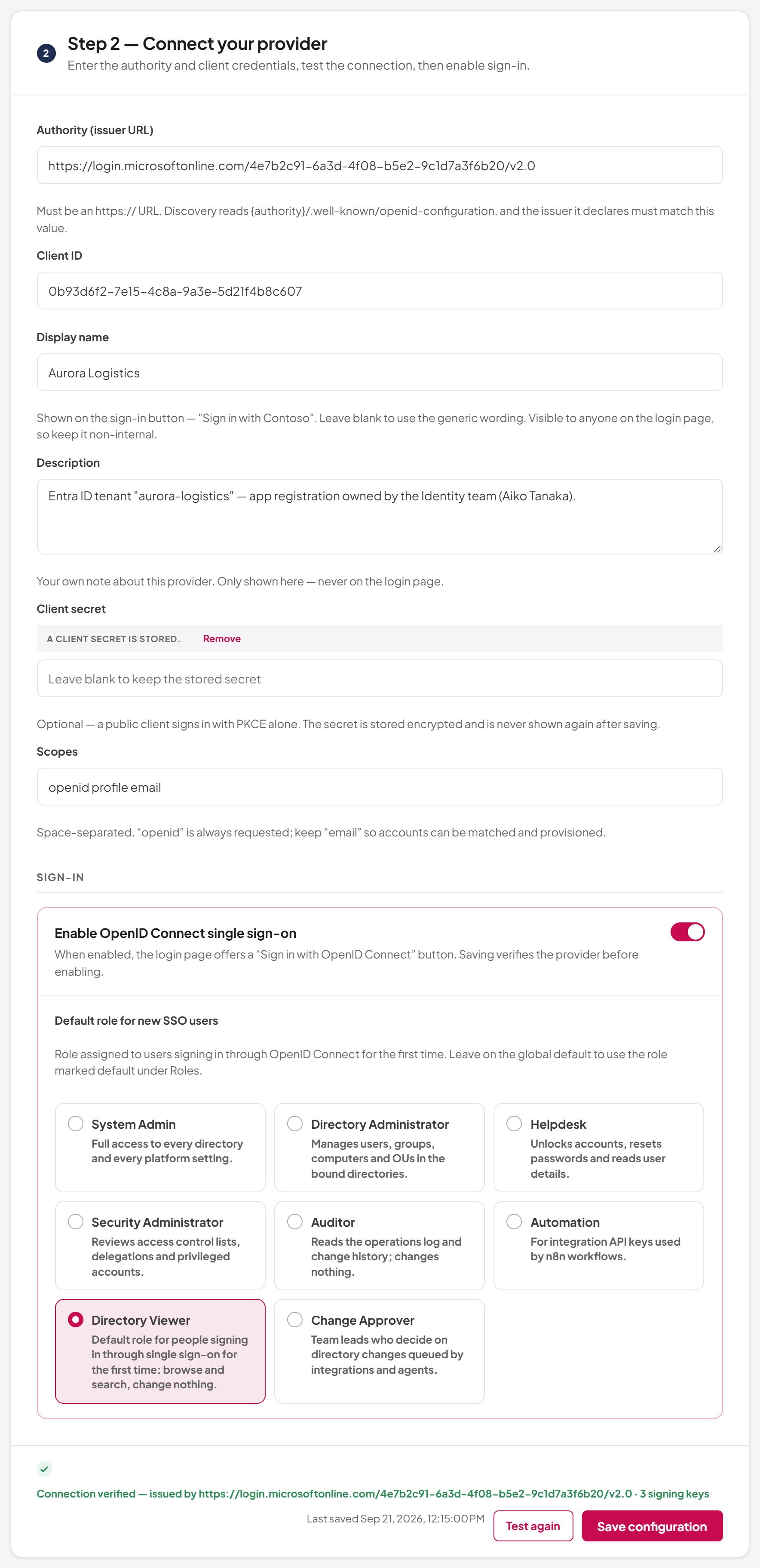
Step 2 — Connect your provider
| Field | Description |
|---|---|
| Authority (issuer URL) | The provider's issuer, for example https://login.microsoftonline.com/<tenant id>/v2.0. Must be an https:// URL. The platform reads <authority>/.well-known/openid-configuration, and the issuer that document declares must match this value |
| Client ID | The application (client) ID from your provider |
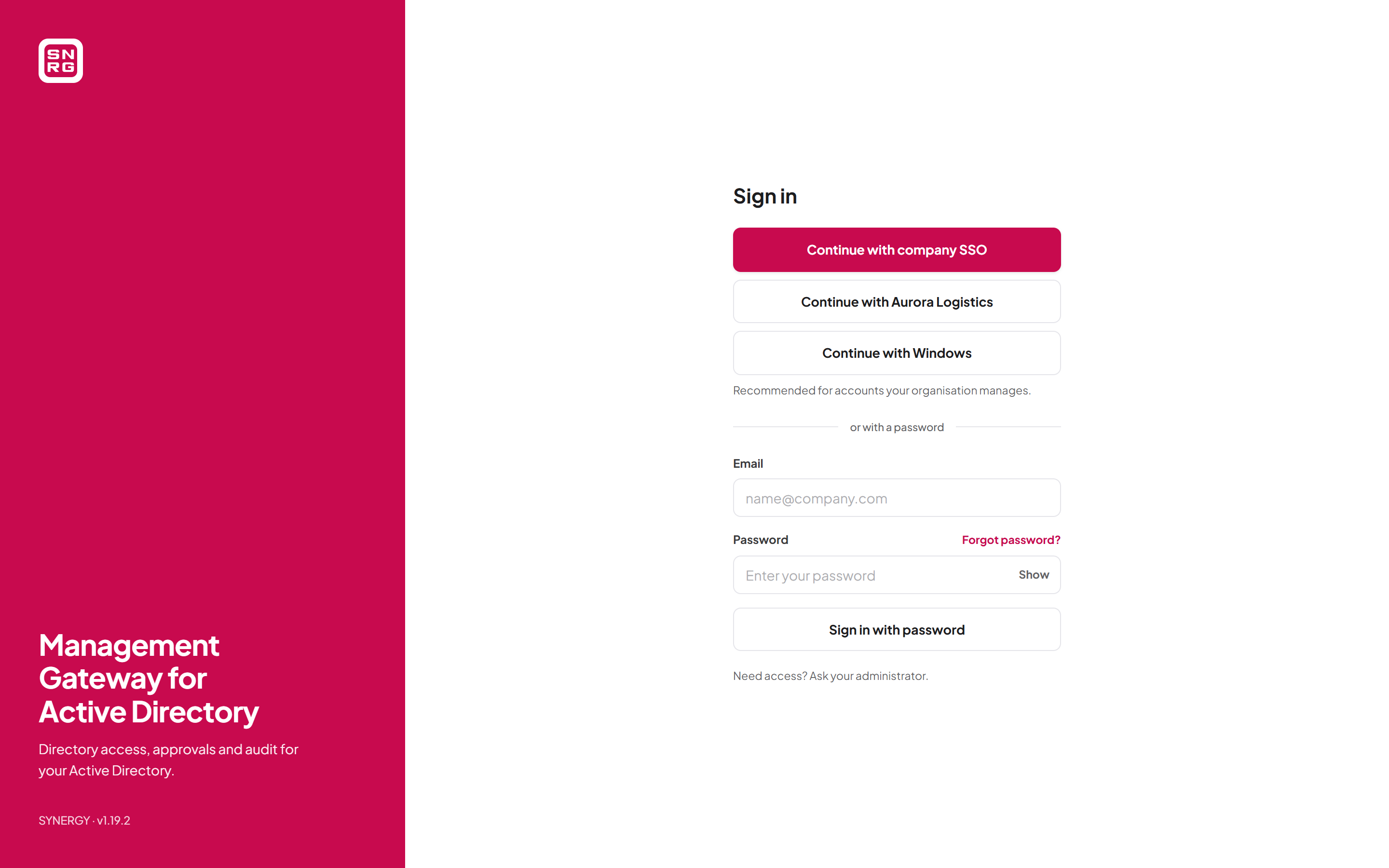
| Display name | Shown on the sign-in button, for example "Aurora Logistics" gives "Continue with Aurora Logistics". Leave blank for the generic "Continue with OpenID Connect". Anyone can see the sign-in page, so do not use an internal name |
| Description | Your own note about this provider, for example who owns the tenant. Only shown on this page, never on the sign-in page |
| Client secret | Optional. A public client signs in with PKCE alone; a confidential client also needs a secret. The secret is stored encrypted and never shown again after saving |
| Scopes | Space-separated. The default is openid profile email. openid is always requested. Keep email so that accounts can be matched and created |
When a secret is stored, the form says "A client secret is stored." Leave the box blank to keep it, type a new one to replace it, or select Remove to delete it when you save (the form then says "The stored secret will be removed when you save."; Keep stored secret cancels that).
Under Sign-in:
| Setting | Description |
|---|---|
| Enable OpenID Connect single sign-on | Shows the OpenID Connect button on the sign-in page. Saving verifies the provider before enabling |
| Default role for new SSO users | Shown once sign-in is enabled. The role given to a person who signs in through OpenID Connect for the first time. If you choose none, or the chosen role is later deleted, the role marked as default under Roles is used |
Testing the connection
Test connection fetches the provider's discovery document from the server and checks it; no sign-in takes place. On success the bar shows "Connection verified" with the issuer and the number of signing keys. If the provider does not advertise PKCE with the S256 method, the summary says "PKCE S256 not advertised". On failure, a Connection failed panel gives the reason.
To configure OpenID Connect single sign-on
- In the console, with System Admin active, open Integrations > Single sign-on and select OpenID Connect.
- In your provider, register an application (in Microsoft Entra: App registrations > New registration) and add the Redirect URI from Step 1 as a Web redirect URI.
- If your provider requires it, create a client secret.
- Make sure the ID token carries the person's email address. In Microsoft Entra, add the
emailoptional claim, and also thexms_edovoptional claim so that the address counts as verified (see First sign-in below). - In the console, under Step 2, enter the Authority (issuer URL) and Client ID, and the Client secret if you created one.
- Optionally enter a Display name and Description, and adjust Scopes.
- Select Test connection and wait for "Connection verified".
- Turn on Enable OpenID Connect single sign-on and choose the Default role for new SSO users.
- Select Save configuration.
- In a private browser window, open the sign-in page and try the new button.
Last updated
Thank you for your feedback.