
3.7Your profile
Last updated
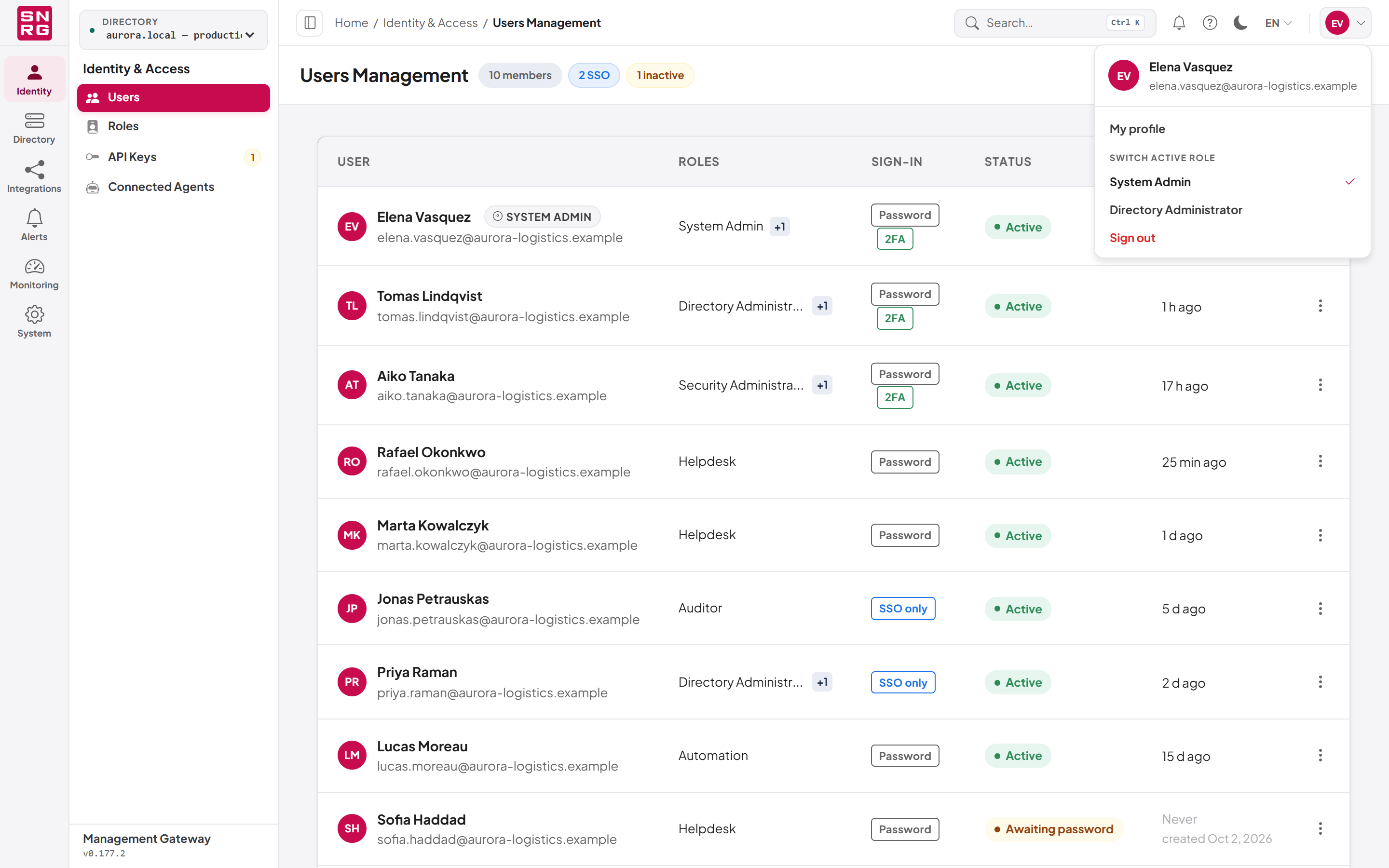
The My profile page (/dashboard/profile) shows who you are in SYNERGY Management Gateway and lets you look after your own account. To open it, select your initials at the top right of the console and choose My profile (see Chapter 4, Working in the console).
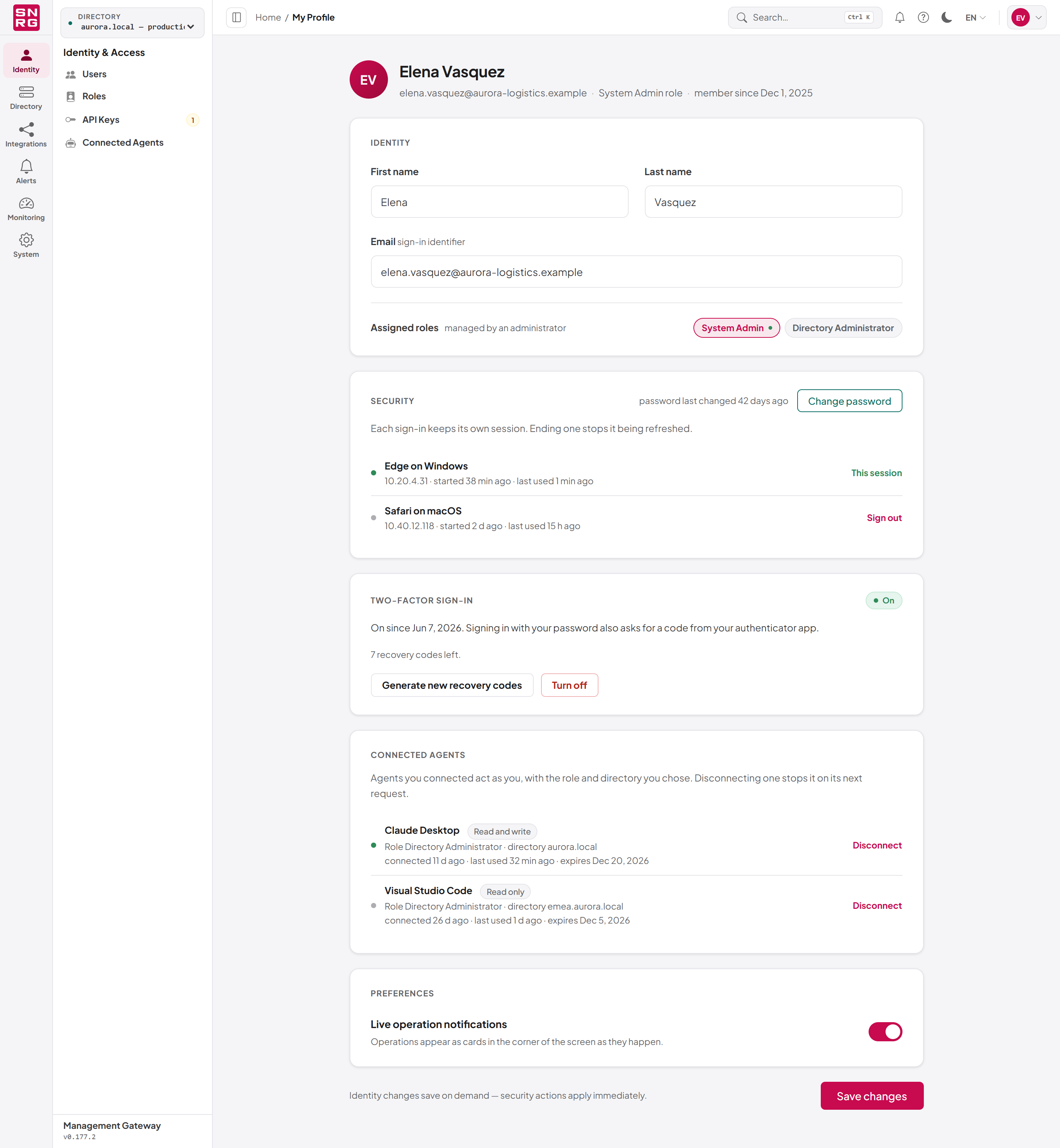
At the top of the page is a summary: your initials, your name, your email address, your active role (for example "System Admin role") and the date your account was created ("member since …").
Below the summary are these sections, each described in turn:
| Section | What it holds |
|---|---|
| Identity | First name, last name, email address, and your assigned roles |
| Security | Password age, Change password, and your signed-in sessions |
| Two-factor sign-in | Turning the authenticator on or off and managing recovery codes (password accounts only) |
| Connected agents | AI agents you have allowed to act as you |
| Preferences | Live operation notifications (only if you can read the operations log) |
Identity
The Identity section shows First name, Last name and Email (labelled as your sign-in identifier), and below them Assigned roles as a set of chips, with a dot marking the role that is currently active. Roles are "managed by an administrator" and cannot be changed here.
To change your name:
- Edit First name or Last name. Both are required.
- Select Save changes at the bottom of the page. A message confirms "Profile updated".
As the note beside the button says, identity changes are saved only when you select Save changes, while security actions (password, sessions, two-factor sign-in, agents) take effect immediately.
SSO-managed accounts. If your account signs in only through single sign-on, the section is labelled SSO-managed and the note reads "Managed by single sign-on — change your name and email where you sign in." The fields are read-only, there is no Save changes button, and there is no Change password button.
Changing your email address
Because password reset links are sent to your email address, whoever controls that mailbox can take over the account. Changing it is therefore treated like a password change.
- Change the address in Email.
- A Current password field appears, with the hint "Password reset links go to this address, so changing it needs your current password." Type your current password.
- Select Save changes.
What to expect:
- A wrong current password is refused and counts towards the account lockout. While your account is locked, you cannot change your email address here.
- A notice is sent to your previous address, so that if someone else changed it, the real owner finds out.
- Any password reset or setup link sent to the old address stops working.
Note: An administrator cannot change their own email address from the user management screen; it must be changed here, with the current password. Administrators changing somebody else's address are covered in Chapter 11, Users, roles and permissions.
Changing your password
The Security section shows how long ago your password was last changed (for example "password last changed 42 days ago" or "password changed today"). If the password is more than 180 days old, the label is highlighted as a reminder.
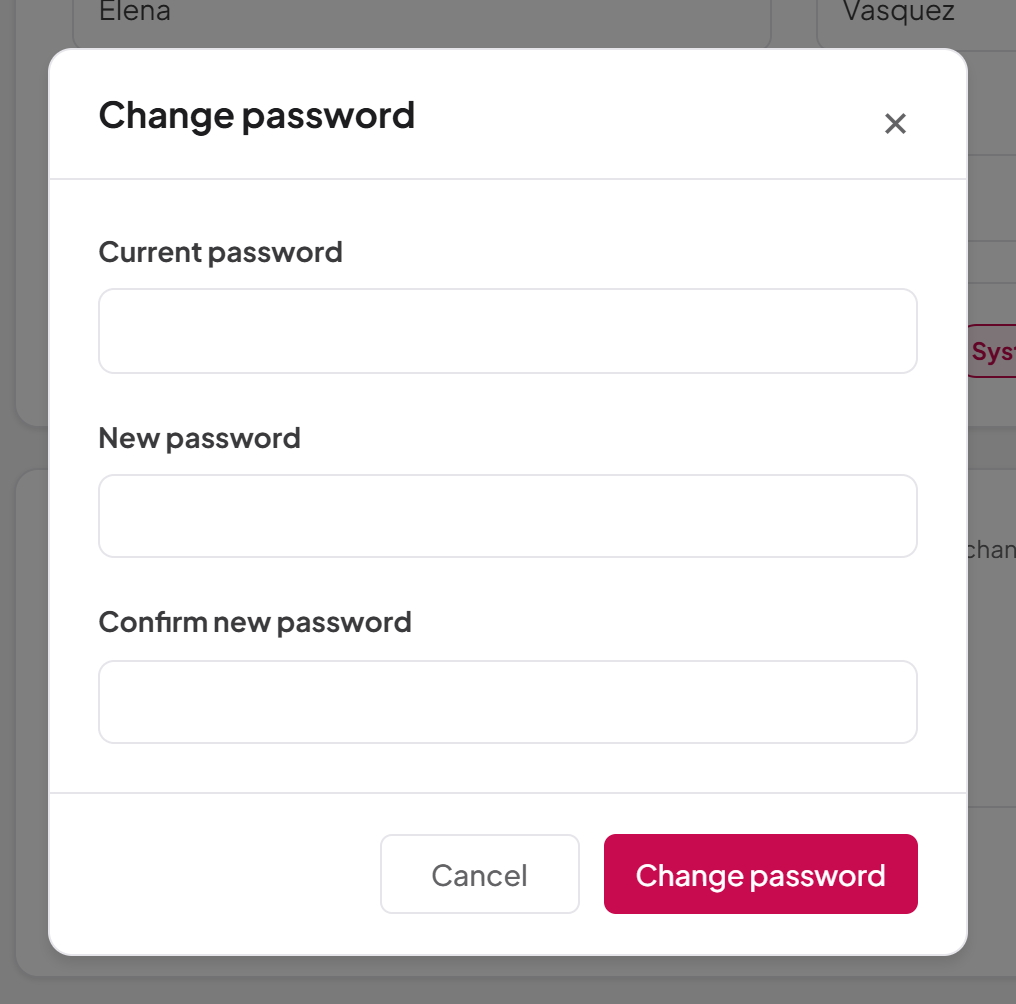
- In the Security section, select Change password.
- In the dialog, enter your Current password.
- Enter your New password (at least 8 characters) and type it again in Confirm new password.
- Select Change password. A message confirms "Password updated".
Your sessions
Each time you sign in, from any browser or device, a separate session is created. The Security section lists your active sessions with:
- the browser and system it came from (or "Unrecognised browser"),
- the network address it was used from, when it started, and when it was last used,
- This session beside the browser you are using now.
To end another session, select Sign out beside it. The button reads Signing out… and a message confirms "Session ended". The ended session can no longer be renewed, so that browser is signed out within a short time, at the latest when its current access expires.
Use this when you have signed in on a shared or lost computer, or if you see a session you do not recognise. If you suspect someone else knows your password, change your password instead: that ends every other session at once.
Two-factor sign-in settings
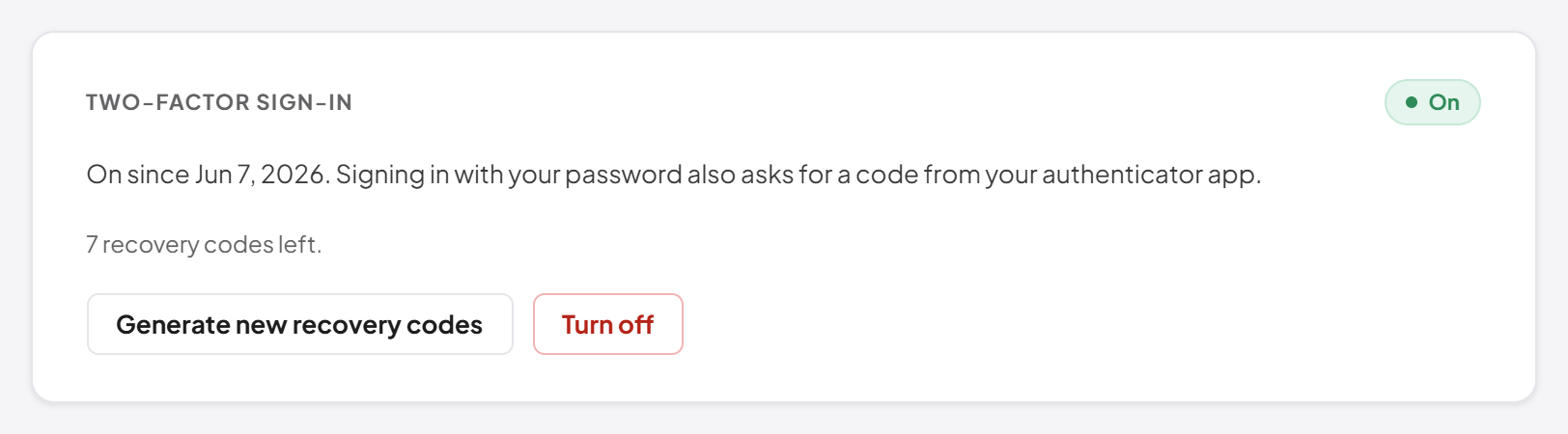
The Two-factor sign-in section appears only for accounts that sign in with a password. It shows On or Off, and when it is on, since when and how many recovery codes you have left. When three or fewer remain, the count is highlighted with the advice "Generate new ones before you run out."
If your role requires two-factor sign-in and it is on, the section shows Required by your role in place of the Turn off button. If it is required but not yet set up, it says "Your role requires it — you will be asked to set it up at your next sign-in."
Setting up two-factor sign-in from your profile
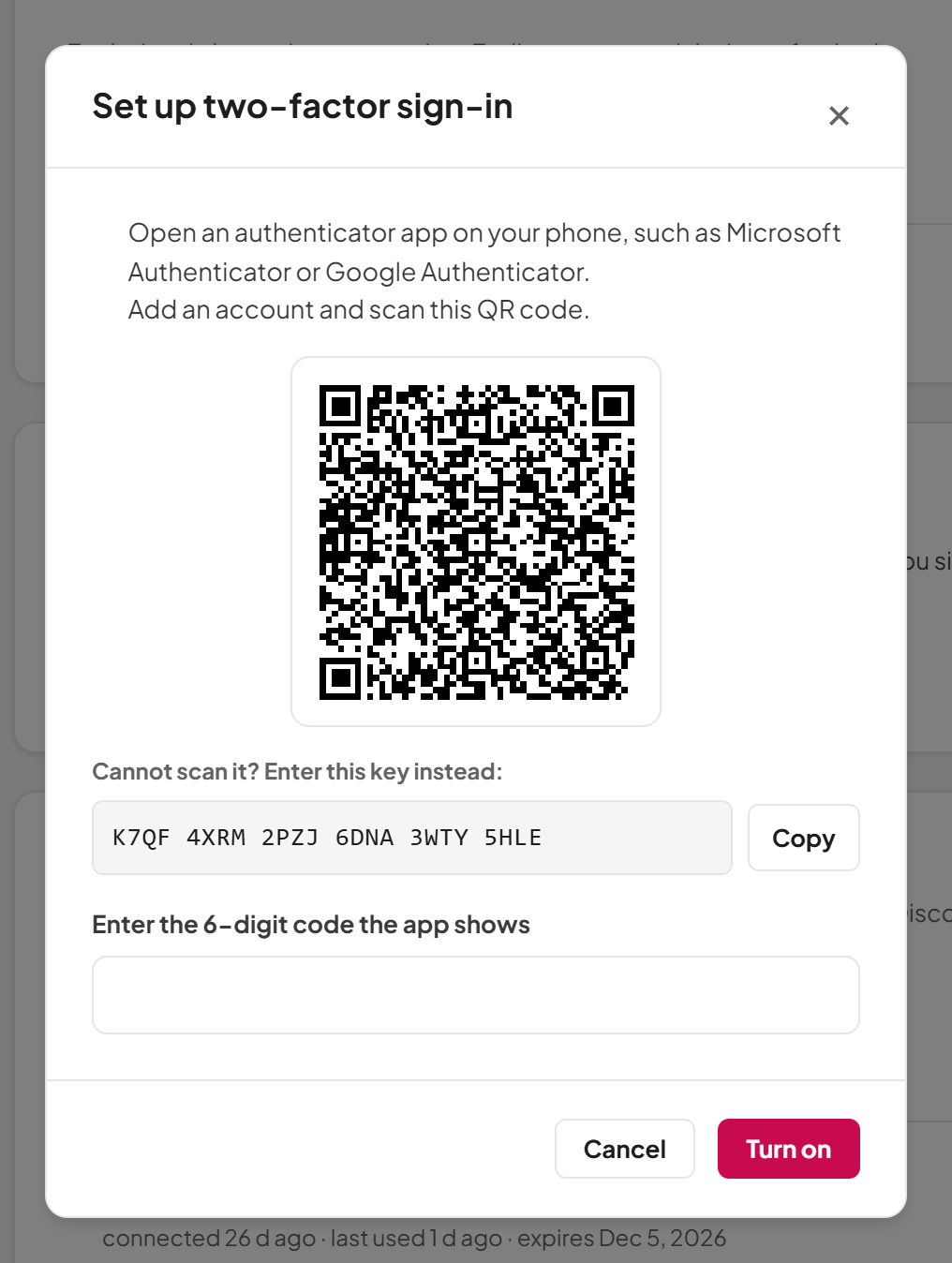
- In Two-factor sign-in, select Set up.
- Enter your Current password and select Continue. This prevents someone who finds your browser unattended from binding their own phone to your account.
- Scan the QR code with your authenticator app, or copy the key shown under "Cannot scan it? Enter this key instead:".
- In Enter the 6-digit code the app shows, type the current code and select Turn on.
- Save the ten recovery codes, tick I have saved these codes, and select Done. A message confirms "Two-factor sign-in is on."
If the setup takes too long, the dialog says "The setup has expired. Enter your password to start again."
Generating new recovery codes
- In Two-factor sign-in, select Generate new recovery codes.
- Enter a current Authenticator code from your app and select Generate.
- Save the new codes, tick I have saved these codes, and select Done.
Your previous recovery codes stop working as soon as the new set is issued.
Turning two-factor sign-in off
- In Two-factor sign-in, select Turn off.
- Enter your Current password and a current Authenticator code. If you do not have your phone, select Use a recovery code instead and enter a recovery code.
- Select Turn off in the dialog. A message confirms "Two-factor sign-in is off."
You cannot turn it off while any of your roles requires it: the Turn off button is replaced by Required by your role, and if the requirement is added while the dialog is open, the dialog says "One of your roles requires two-factor sign-in, so it cannot be turned off."
Note: These settings can only be changed from a signed-in browser session. An API key or an AI agent acting as you cannot switch your two-factor sign-in off or bind its own authenticator.
Connected agents
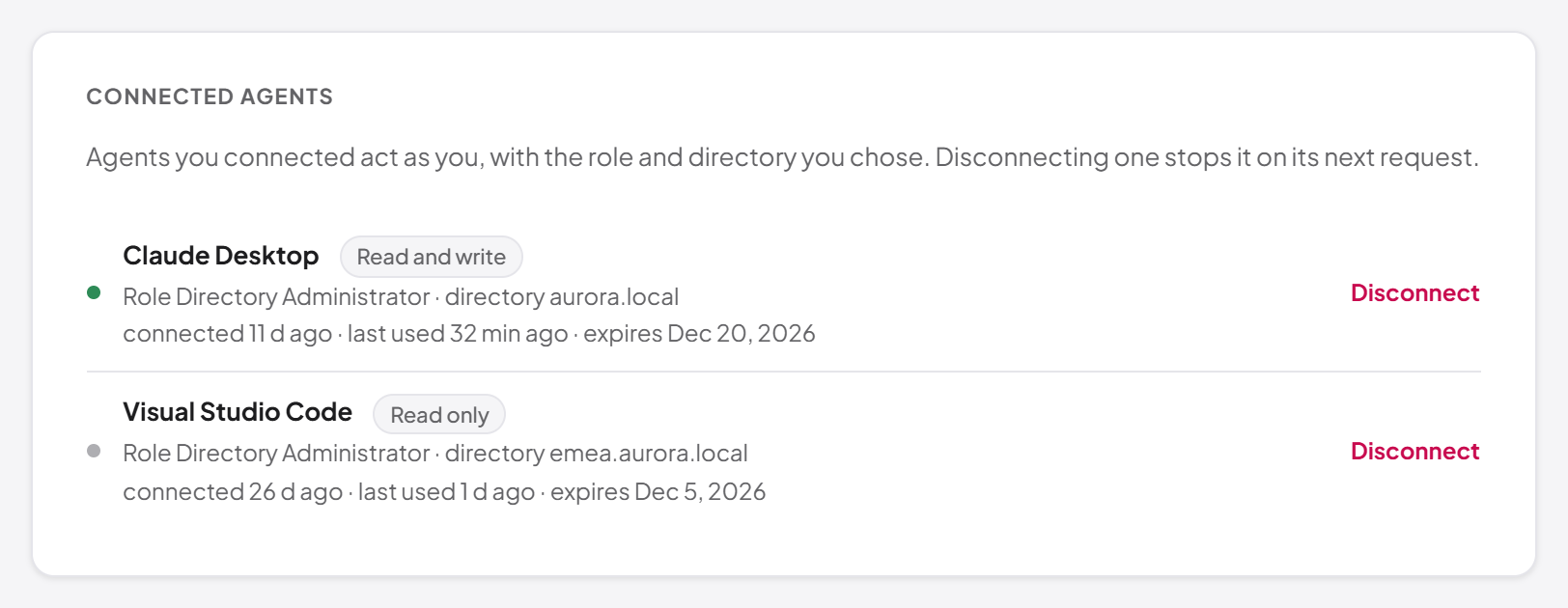
AI agents such as Claude Desktop, Claude Code or an IDE assistant can be connected to your account through the MCP server (see Chapter 13, AI agents (MCP server)). When you connect one, you choose the role and the directory it works in, and whether it may only read or may also make changes. The agent then acts as you, within those limits.
The Connected agents section lists every agent connected to your account. For each one you see:
- the agent's name, and Read only or Read and write,
- the role and directory it was granted (for example "Role Directory Administrator · directory aurora.local"); if the role is no longer assigned to you, it says "no longer assigned",
- when it was connected, when it was last used, and when its connection expires.
To disconnect an agent, select Disconnect beside it. A message confirms "Agent disconnected". The agent is refused on its very next request; it does not keep working until some token expires.
Preferences: live operation notifications
The Preferences section appears if your role holds audit:list (the permission to read the operations log). It has one switch, Live operation notifications.
- On: "Operations appear as cards in the corner of the screen as they happen."
- Off: "Muted. Operations are still recorded and remain in the operations log."
The change takes effect immediately, without reloading the page. The cards themselves are described in Chapter 4, Working in the console.
Staying signed in
Once you are signed in, the console keeps your session alive in the background while you work, so you are not interrupted. If the session can no longer be renewed (because you signed out elsewhere, an administrator deactivated the account or revoked your sessions, or your password was changed), you are returned to the sign-in page.
If you open a link to a particular page while signed out, you are asked to sign in and then taken to that page.
Note: A message saying you are not allowed to do something (an "access denied" or "forbidden" answer) does not sign you out. It means your active role lacks the permission or the licence does not cover that feature. Only an expired session sends you back to the sign-in page.
Signing out
- Select your initials at the top right of the console to open the account menu.
- Select Sign out. The item reads Signing out… briefly.
- You return to the sign-in page.
Signing out ends this browser's session on the server, so it cannot be renewed or reused. Other sessions you have in other browsers stay signed in; end them from My profile if needed.
First-time setup of a new installation
On a new installation with no accounts, opening the sign-in page takes you to the first-run setup page instead, titled Welcome to SYNERGY Management Gateway. There you create the first administrator, who receives the System Admin role.
- The page works only in a browser running on the server itself. From any other computer it says "Setup must be completed on the server".
- The form asks for First name, Last name, Email, Password and Confirm password. The password must be 8 to 32 characters and contain an uppercase letter, a lowercase letter, a digit and a special character.
- After Create administrator, you return to the sign-in page with "Administrator created — sign in with the new account." and the email address filled in.
- Once any account holds the System Admin role, the setup page is closed for good.
The full procedure is in Chapter 2, Installation and first-time setup.
Summary of related settings
These configuration settings, set by the person who installs and runs the server, affect what you see in this chapter:
| Setting | Default | Effect |
|---|---|---|
PasswordRecovery:TokenMinutes | 30 | Lifetime of a password reset link (5 to 120 minutes) |
PasswordRecovery:SetupLinkHours | 72 | Lifetime of a welcome password setup link (1 to 168 hours) |
PasswordRecovery:MaxEmailsPerHour | 3 | Reset and setup emails sent per account per hour |
Account lockout (five failures in a row, each within 15 minutes of the previous one, then locked for 15 minutes) is built in and is not configurable.
Last updated
Thank you for your feedback.