
8.2The LDAP Filters screen
Last updated
To open it, in the navigation open the Directory group and select LDAP Filters. The page is titled Saved Searches, and the header shows the number of filters (for example "12 filters") and, if you may create filters, the New Search button.
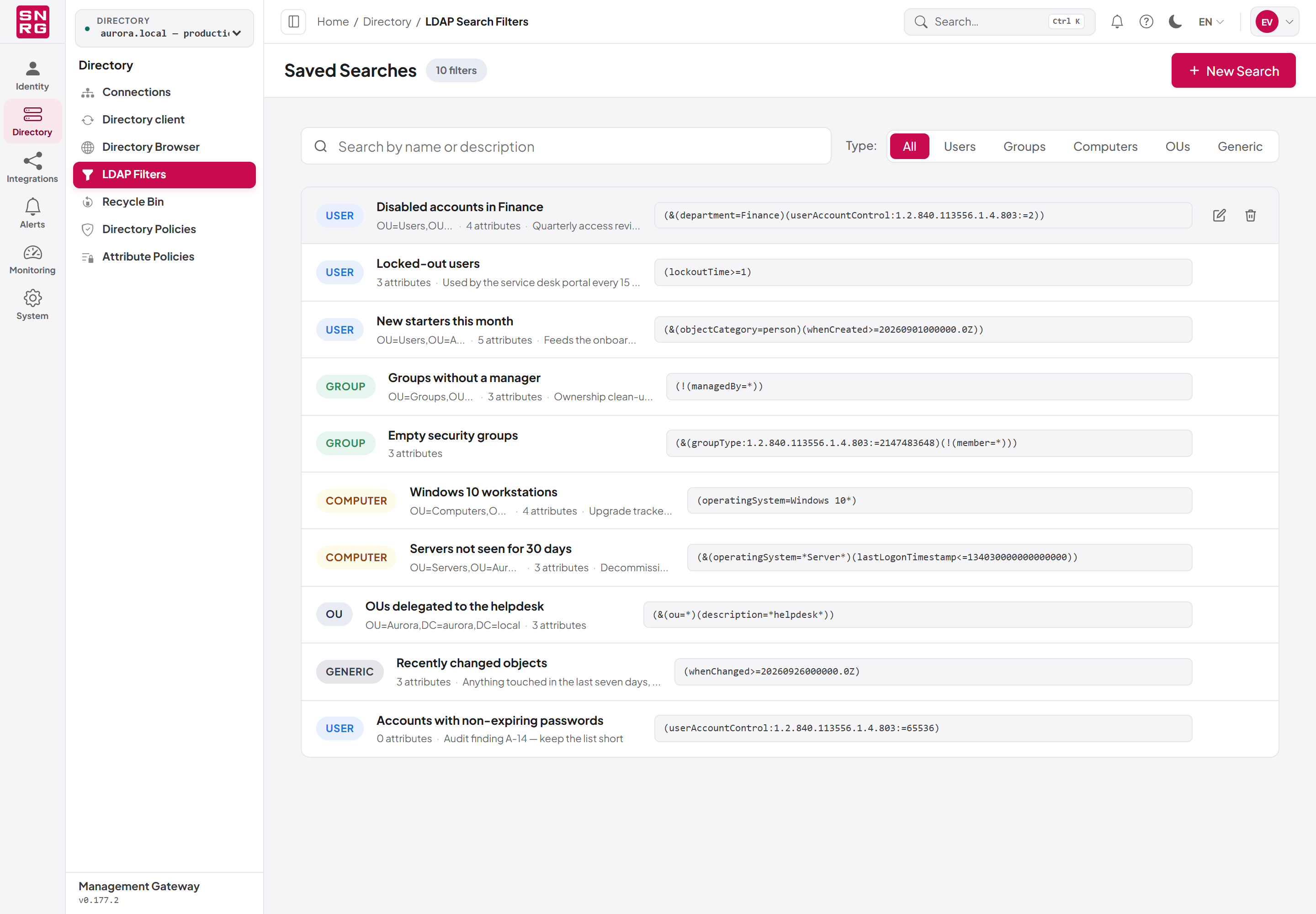
- A coloured type badge: User, Group, Computer, OU or Generic.
- The name, and under it the base DN (when one is set), the number of attributes it returns, and the description.
- The LDAP filter itself, in monospace.
- The Edit (pencil) and Delete (bin) buttons, which appear when you point at the row (or move the keyboard focus into it), according to your permissions.
To find a filter:
- Type in Search by name or description. The list narrows as you type and matches the name, the description or the filter text. The search covers only the filters on the page currently shown; the type pills, by contrast, ask the server and cover every filter.
- Use the Type: pills, All, Users, Groups, Computers, OUs and Generic, to show one object type.
The list shows 50 filters per page; use Previous and Next when there are more.
If no filters exist, the page reads No saved searches yet with a Create your first search button for users who may create them.
Note: If you hold savedfilters:update, selecting anywhere on a row opens it for editing.Last updated
Thank you for your feedback.