
4.1Navigation
Last updated
The rail and the panel
The navigation has two tiers.
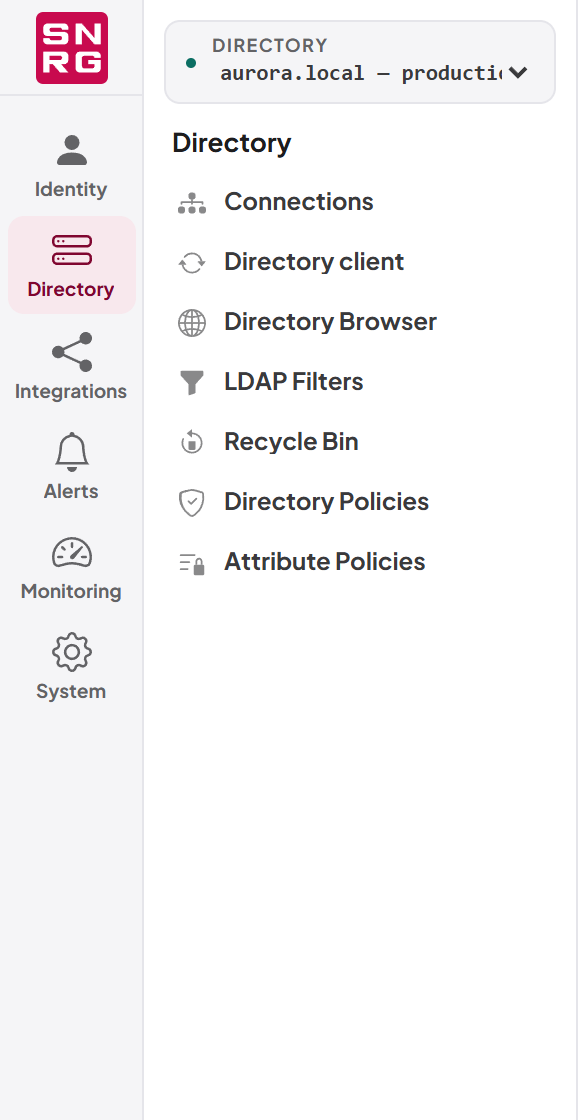
The rail is the narrow column on the far left. At the top is the SYNERGY logo, which takes you to your home page. Below it are up to six group icons, each with a short label. The rail never collapses: it always tells you where you can go.
The panel beside it lists the pages of the group you selected. Selecting a group icon in the rail changes what the panel lists without leaving the page you are on, so you can look at what is under a group without losing work on a half-filled form. When you open a page, the rail highlights the group that page belongs to.
At the top of the panel is the workspace directory picker (see "Choosing the directory you work in" below). At the bottom is the product name, Management Gateway, and the version you are running.
The groups and their pages are:
| Group (rail label) | Pages | Described in |
|---|---|---|
| Identity & Access (Identity) | Users, Roles, API Keys, Connected Agents | Chapters 11, 12 and 13 |
| Directory (Directory) | Connections, Directory client, Directory Browser, LDAP Filters, Recycle Bin, Directory Policies, Attribute Policies | Chapters 5, 6, 7, 8 and 10 |
| Integrations (Integrations) | Single sign-on, Email Provider, MCP Tools, MCP Settings | Chapters 16, 17 and 13 |
| Notifications (Alerts) | Rules, Templates, History | Chapter 16 |
| Observability (Monitoring) | Operations, My Waiting Operations, Live Logs, Log Stream, Telemetry | Chapters 9 and 18 |
| System (System) | Licence, Updates, Backups | Chapter 19 |
What decides whether a page is listed:
- Permissions. Most pages appear only if your active role holds the permission to view them, for example Users needs
users:listand Operations needsaudit:list. - System Admin only. Single sign-on, Email Provider, MCP Settings, Live Logs, Log Stream and Backups appear only while your active role is System Admin. If you hold System Admin and another role, these pages appear and disappear as you switch role.
- Licence. The Directory Browser, Recycle Bin, LDAP Filters and Telemetry need an active licence. Several pages also need a specific licence module: the Directory Browser needs
directory-browser, the Recycle Binrecycle-bin, Single sign-onsso, Email Provider and the three Notifications pagesnotifications, MCP Toolsmcp, and Telemetryobservability. See Chapter 19, Licence, updates and backups. - A directory to work in. The Directory Browser and the Recycle Bin are hidden when your active role cannot reach any Active Directory connection.
- Module health. MCP Tools and MCP Settings are shown greyed out, with a tooltip saying the module "is currently unavailable", when the MCP server is installed but not answering. They cannot be opened until the MCP server is healthy again.
Status badges in the navigation
Some pages carry a small live indicator beside their name in the panel:
| Page | Indicator | Meaning |
|---|---|---|
| Operations | Red number | Operations awaiting approval |
| API Keys | Amber number | API keys that expire soon |
| Live Logs | Green dot | The live log stream is running |
The counts are refreshed each time you move to another page. An indicator appears only if your role can read the information behind it.
Hiding the panel
When a page needs more width, select the panel button (beside the breadcrumb, labelled Hide navigation panel) in the toolbar. The rail stays; the panel is hidden. Select the same button (now Show navigation panel) to bring it back. Selecting any group in the rail also brings the panel back.
Your browser remembers whether the panel was hidden, so the console opens the same way next time.
On a small screen
On a narrow window or a tablet, the navigation becomes a drawer. Select the menu button (three lines, labelled Toggle navigation) at the left of the toolbar to open it. Select outside the drawer, press Esc, or open a page to close it.
The home page
There is no separate dashboard page. When you sign in, or select the SYNERGY logo, you go to your home page:
- If your active role has a default workspace set by an administrator, and you can open it, you go there.
- Otherwise you go to the first page your role can open, preferring a working page over API Keys, Connected Agents and the permissions reference, which are offered only if nothing else is available.
Administrators set a role's default workspace on the role form (see Chapter 11, Users, roles and permissions).
Last updated
Thank you for your feedback.