
12.4Changing a key's settings
Last updated
To open a key's settings, select Edit in its row menu, or double-click the row. The settings page is at /dashboard/api-keys/<id>/edit and needs apikeys:update.
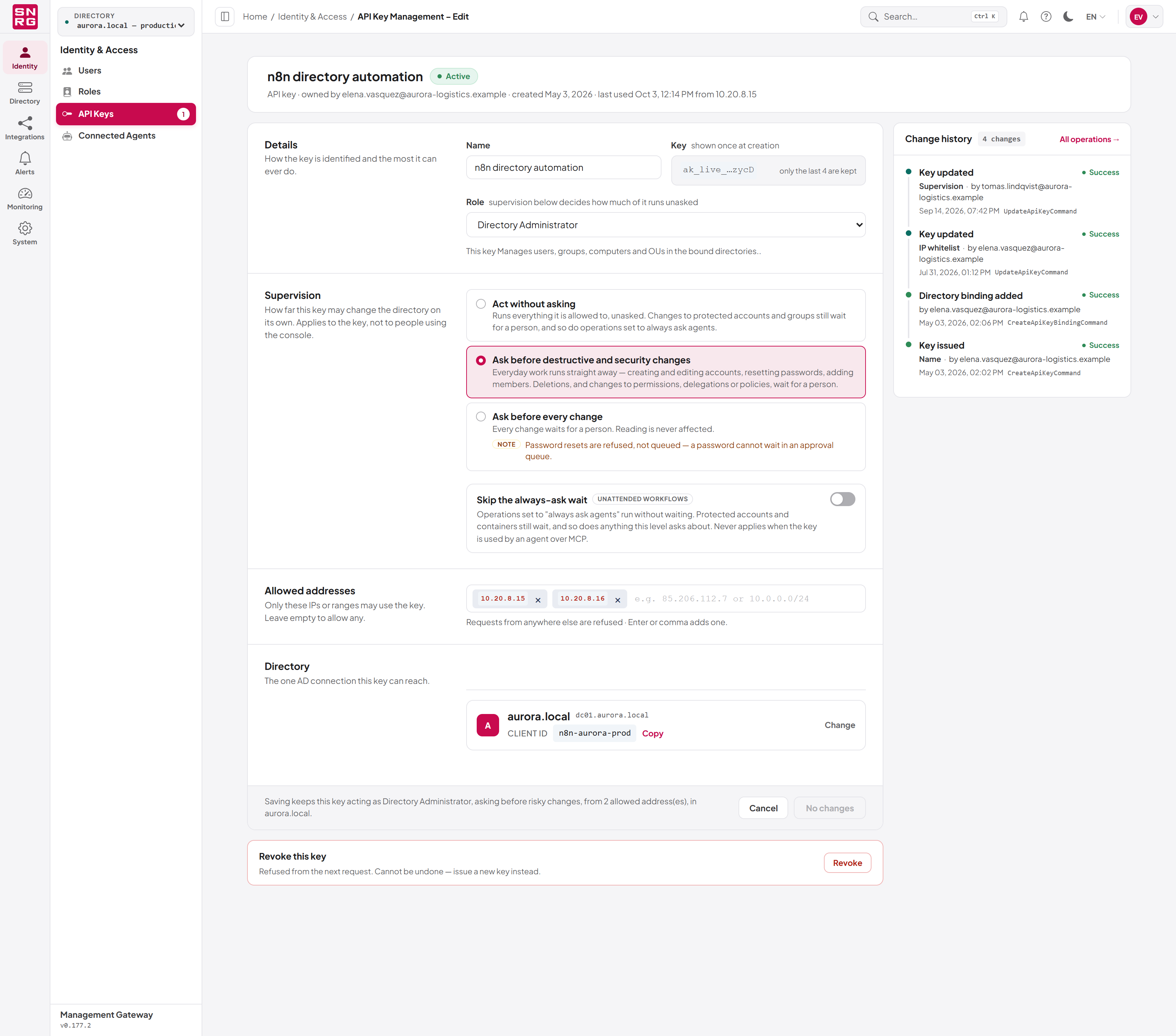
Details
- Name — rename the key.
- Key — the masked value: the prefix and the last four characters, which is all that is kept. The full key is never shown again.
- Role — change which of the owner's roles the key carries. The sentence below the list says what the role allows. A Broadest tag warns when the selected role is the widest one available. If the key holds a role that can no longer be offered (it was removed, or is a system role), the page says so; choosing another role replaces it.
Changing a key's role never reactivates a revoked or expired key.
Supervision
The same three levels and the Skip the always-ask wait switch as on the create form. The same rules apply: Act without asking and the switch need operations:approve.
Allowed addresses
Limit the addresses the key may be used from. Leave the list empty to allow any address.
- Click in the address box and type an IPv4 or IPv6 address, or a range such as
10.0.0.0/24. - Press Enter or type a comma to add it. Repeat for each address.
- To remove one, select the × on its chip, or press Backspace in the empty box to remove the last one.
If the key has been used before, the hint shows the address it was last used from with an add it link. If the list you are building would refuse that address, the page warns: "The address it was last used from would be refused." — read this before saving, because the integration that uses the key will start failing on its next call.
A request from an address that is not on the list is refused. The new list applies once you select Save changes.
Directory
A key can act on exactly one Active Directory connection. The Directory section shows the linked connection and its Client ID, or No directory linked.
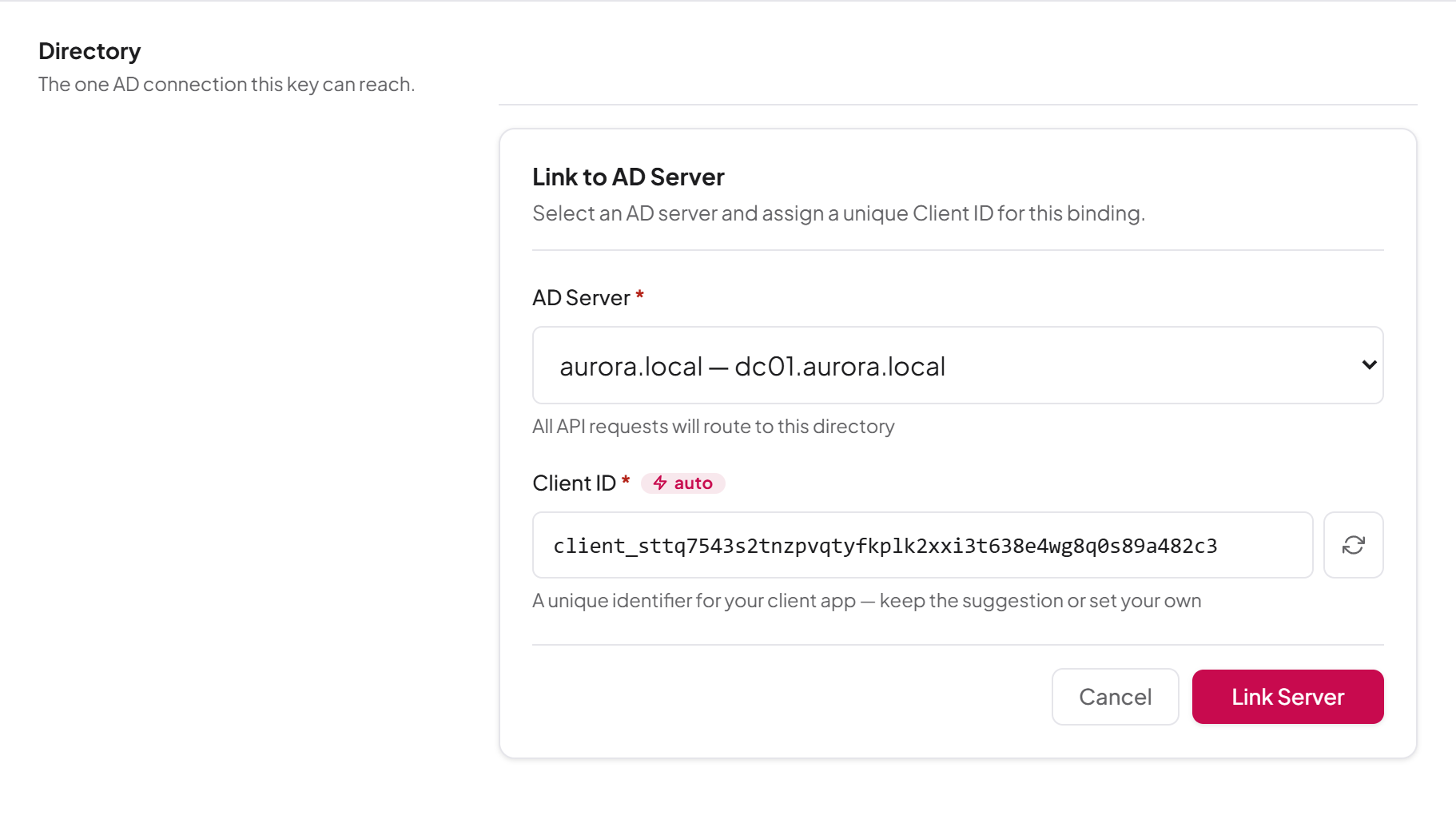
- In the Directory section, select Link AD Server.
- In AD Server, choose the directory. Choose one that your active role may use: a link to any other directory is refused.
- In Client ID, keep the suggested value or enter your own (up to 100 characters). The Client ID must be unique. Use the regenerate button beside the field for a new suggestion.
- Select Link Server.
To change or remove the link, select Change on the linked row. Choose another server or edit the Client ID and select Save Changes, or select Unlink to remove the link. Use Copy to copy the Client ID for the integration's configuration.
Linking, changing and unlinking take effect immediately and are saved on their own; they do not wait for the footer's Save changes button. They need apikeys:binding:manage, and only the key's owner can make them.
Note: When no directory is linked, the panel says "This API key will work with any configured AD server." That is not the case: a key without a link cannot act on Active Directory at all. Link it to the directory it needs.
Note: The Client ID is not a secret. It names the key's directory link and is sent with every directory request in the X-Client-Id header (see Using an API key). The key itself is the secret.Saving
The footer counts your unsaved changes and states, in one sentence, what saving will put in force — for example: "Saving keeps this key acting as Helpdesk, asking before risky changes, from any address, in corp.example.com." When a key would act without asking from any address, the footer adds a warning: "Unattended access from anywhere — consider allowed addresses."
Select Save changes to apply, or Cancel to leave without saving. While nothing has changed, the button reads No changes and is disabled.
Change history
If you hold audit:list, the permission to read the operations log, the right-hand rail lists what has been done to the key: Key issued, Key updated, Key revoked, Directory binding added, Directory binding changed, Directory binding removed, with who did it and which fields changed. Filter it with All, Changes or Failures, and select All operations → to open the operations log.
The history covers changes to the key itself. Operations run with the key are recorded against the objects they touched, in the operations log (see Chapter 9, Operations log, approvals and waiting operations).
Read-only views
The settings page is read-only, with a banner explaining why, when:
- This key is revoked. Its settings are kept, read-only, because the audit trail refers to them.
- This key belongs to someone else. You can see how it is configured, but only its owner can change or revoke it.
Revoking a key
Revoke a key when it may have leaked, when the integration that used it is retired, or when its owner leaves. Revoking is immediate: the next request made with the key is refused. The console offers no way to reactivate a revoked key; issue a new key instead.
To revoke a key:
- Open the key's settings page. The Revoke this key card appears only on an active key that you own.
- Below the settings card, in Revoke this key, select Revoke.
- Read the confirmation. If the key has been used, it names the address it was last seen from.
- Select Revoke now, or Keep key to cancel.

apikeys:revoke and can only be done by the key's owner. It is recorded in the operations log, and the key's settings page then becomes read-only.
When a user account is deactivated, all of that user's keys stop working on their next request, without being revoked one by one.
Deleting a key
Deleting removes the key from the list entirely. It cannot be undone.
- On the API Keys page, open the row's actions menu and select Delete.
- In Delete API key, select Delete to confirm.
You can delete your own keys; a person whose active role is System Admin can delete anyone's. Deleting needs apikeys:delete.
Tip: Prefer Revoke over Delete for a key that has been in use. A revoked key stays on record with its settings, which makes the audit trail easier to read.
Expiry and notifications
A key with an expiry date stops working at that date: a request made with it afterwards is refused. A background check, run once a day, also marks such keys as inactive and sends the expiry notifications. In the list, an expired key shows the status Expired; a key that expires within 14 days carries a Soon badge, and the stat strip counts it under expiring soon.
A key set to Never expires only when it is revoked. The create form warns: "A key that never expires keeps working after its workflow is forgotten — revoke it when that happens."
When an email provider is configured, the platform can send notifications about keys:
| Notification | Type | Sent when |
|---|---|---|
| API key created | api-key-created | A key is issued |
| API key expiring soon | api-key-expiring | A key crosses one of the configured warning thresholds before its expiry date (30, 7 and 1 days before are suggested) |
| API key expired | api-key-expired | A key has expired |
| API key revoked | api-key-revoked | A key is revoked |
Each expiry warning threshold is sent once per key. The recipients and the warning thresholds are set in the notification rules; the expiring, expired and revoked notifications can also have extra recipients per directory. See Chapter 16, Notifications.
Last updated
Thank you for your feedback.