
11.3Roles
Last updated
The Roles screen
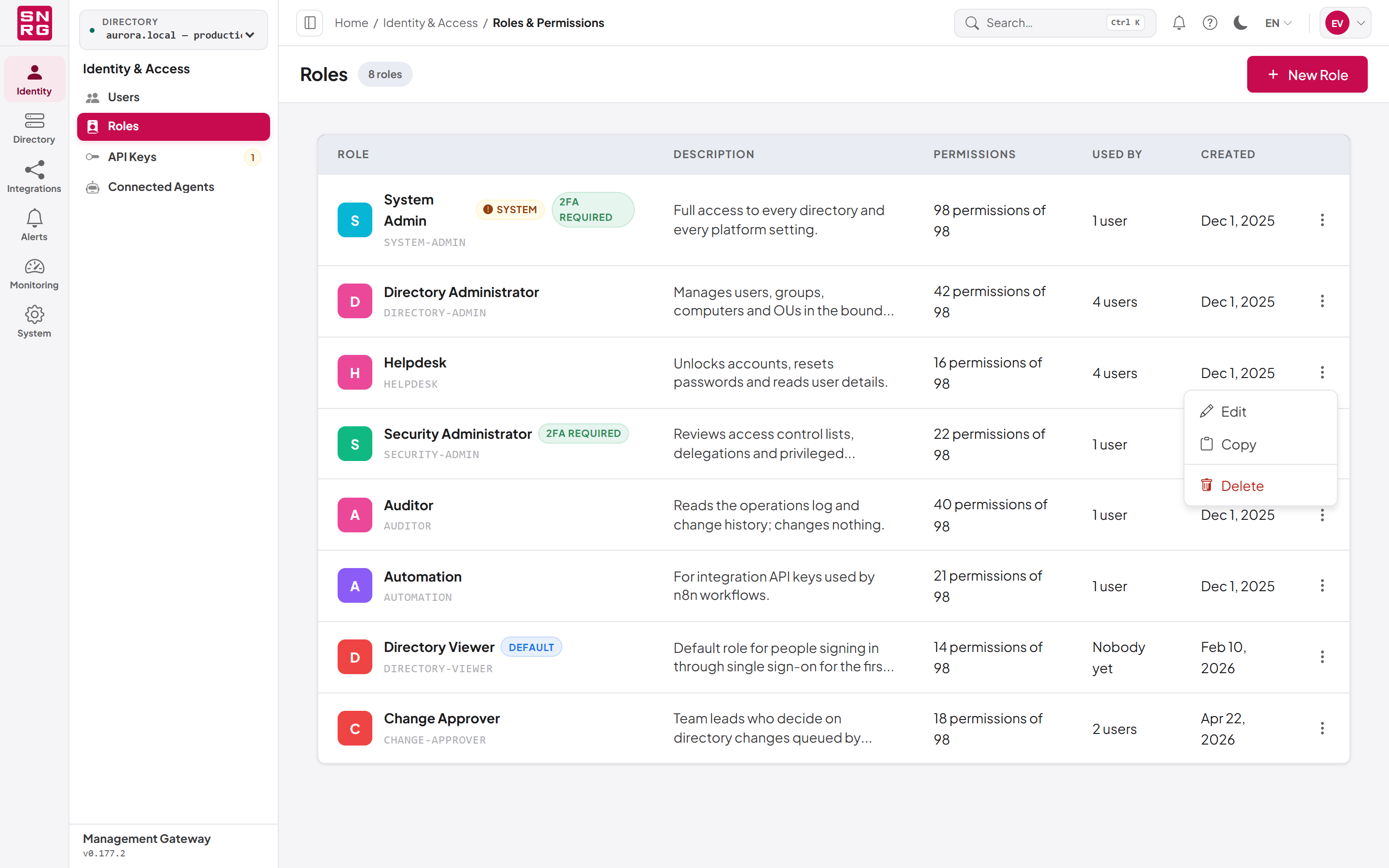
The Roles screen lists every role. It is found under Identity & Access, at /dashboard/roles.
Who can use it: roles:list to open it; roles:create, roles:update and roles:delete for the corresponding actions.
| Column | Content |
|---|---|
| Role | Name, slug and badges: System (built in, cannot be deleted), Default (assigned automatically at a first single sign-on), 2FA required. |
| Description | The role's description. |
| Permissions | How many permissions it grants, out of the total (for example "16 permissions of 97"). |
| Used by | How many users hold it, or Nobody yet. |
| Created | The date the role was created. |
The row menu offers Edit (needs roles:update), Copy (needs roles:create) and Delete (needs roles:delete). With roles:update you can also double-click a row to open the role.
Copy creates a new role named "Copy of name" with the same permissions and directories, and opens it for editing if you may edit roles. The copy is refused if it would carry a permission or a directory you do not hold yourself.
Role templates
To save you composing common roles from scratch, the create form offers twelve role templates in three groups. A template only preselects permissions; the role you save is an ordinary role that you can edit freely, and it keeps no link back to the template, so later product updates never change roles you already created.
Two more rules apply to templates:
- Directory access is never part of a template. A role created from a template reaches no directory until you choose one.
- A template is offered in full but applied in part: only the permissions you hold yourself are ticked. The form lists the ones it left out, so you know what to ask for.
Common
| Template | Purpose | Lands on |
|---|---|---|
| Help Desk | First-line account support: find people, fix their accounts (reset passwords, unlock, correct details), change nothing structural. No create or delete. | Directory Browser |
| Directory Administrator | Full control of directory content — accounts, groups, organisational units, computers, other objects, service accounts, password policy, the Recycle Bin and saved searches. Reads access control lists but cannot change them. | Directory Browser |
| Auditor | Read-only across the whole platform, including the directory, the operations log with its verification and export, policies, users, roles, API keys, connected agents, connections, MCP tools, licence, updates and telemetry. | Operations |
| Platform Administrator | Runs the platform — users, roles, API keys, connected agents, connections, operations log, policies, notifications, MCP tools, licence, updates and telemetry — with no access to directory content. It cannot approve operations. | Users |
Separated duties
| Template | Purpose | Lands on |
|---|---|---|
| User Administrator | The account and group lifecycle — joiners, movers, leavers — including restoring deleted objects, without changing directory structure. | Directory Browser |
| Security Administrator | Who can do what in the directory: access control lists, delegation, service principal names, password policies, restoring privileged accounts, and reading the operations log. | Directory Browser |
| Approver | Decides on operations held for approval, with the read access needed to judge them: the directory, the operations log, policies, users and roles. | Operations |
| Automation / Integration | For an API key driving n8n, MCP or a script: directory work only — users, groups, computers and other objects — and nothing administrative. | First page it can open |
Single capability
| Template | Purpose | Lands on |
|---|---|---|
| Recycle Bin Operator | Undoes deletions and nothing else. Cannot restore privileged accounts. | Recycle Bin |
| Delegation Operator | Reads and writes access control on directory objects, including named delegations. | Directory Browser |
| Notification Manager | Owns alerting: notification rules, templates and delivery history. | Notifications |
| MCP Tool Manager | Curates the tools and descriptions AI agents are given, per directory. | MCP Tools |
Note: The permissions that can grant authority in a directory —ad:acl:manage,ad:acl:delegate,ad:spn:manageandad:deleted-objects:restore-privileged— are deliberately kept out of the general templates. All four are in Security Administrator; Delegation Operator has the two access-control ones, and no other template has any of them. Platform Administrator holds no directory permissions, and Automation / Integration holds no platform administration permissions, so a leaked integration key cannot rewrite who has access to the platform.
Creating a role
Who can use it: roles:create. You can only grant permissions and directories you hold yourself.
To create a role:
- Open Roles and click New Role (address
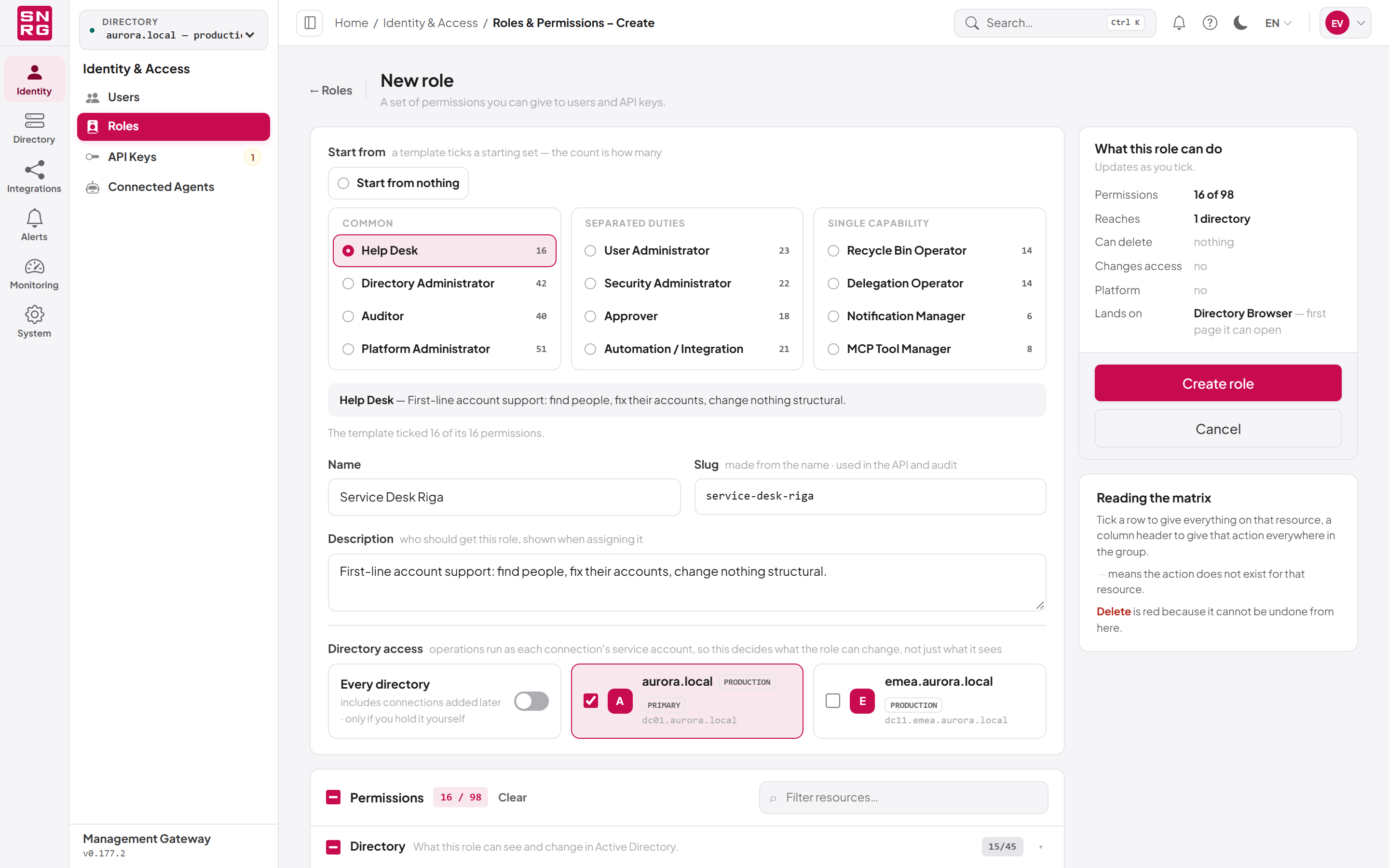
/dashboard/roles/new). - Under Start from, choose a template, or Start from nothing for an empty role. The note under the picker says how many of the template's permissions were ticked. If some were left out because you do not hold them, they are listed.
- Enter a Name. The Slug is made from the name automatically and is used in the API and the audit trail; you can edit it, or click follow the name to go back to the automatic one.
- Optionally enter a Description — who should get this role. It is shown when assigning the role.
- Under Directory access, switch on Every directory, or tick the connections the role may act against. A warning appears if Directory permissions are ticked but no directory is.
- In the permission matrix, tick the permissions the role needs (see Using the permission matrix).
- Check the summary panel What this role can do, which updates as you tick: how many permissions, which directories it reaches, whether it can delete, whether it changes access, what platform areas it covers, and the page holders land on first.
- Click Create role.
The confirmation says "name created — no one has it yet" and offers Assign to users and Open role.
| Field | Notes |
|---|---|
| Start from | A template, or Start from nothing. Choosing another template replaces the ticked permissions. |
| Name | Required, up to 256 characters. |
| Slug | Lowercase letters, digits and single hyphens, up to 256 characters. Used by the API, scripts and the audit trail. |
| Description | Optional, up to 1,024 characters. |
| Directory access | Every directory, or selected connections. Every directory includes connections added later. |
| Permissions | At least one. |
Using the permission matrix
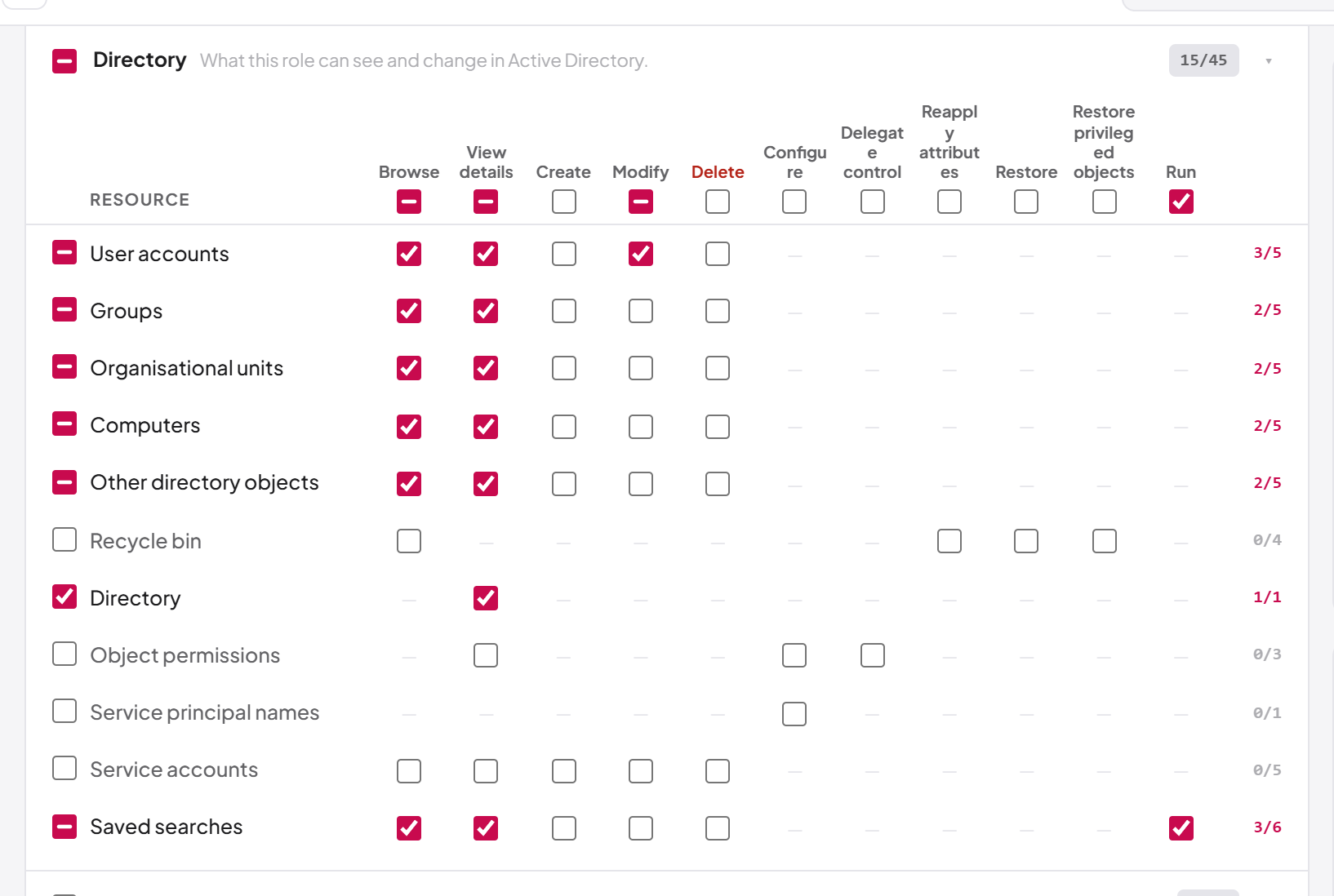
The matrix shows one grid per permission category — Directory, Access governance, Oversight and control, Platform administration — with resources down the side and actions across the top (for example Browse, View details, Create, Modify, Delete).
- Tick a cell to grant that one permission. A dash means the action does not exist for that resource.
- Tick a row's checkbox to grant everything on that resource.
- Tick a column header to grant that action on everything in the group.
- Use Select all for every permission.
- Use Filter resources… to find a resource by name.
- The Delete column is shown in red because a deletion cannot be undone from the console.
- Reading the matrix, below the grids, summarises these rules.
Editing a role
To edit a role, click Edit in its row menu or double-click the row (address /dashboard/roles/{id}/edit). The page header shows how many permissions the role grants and who holds it: users, API keys and connected agents.
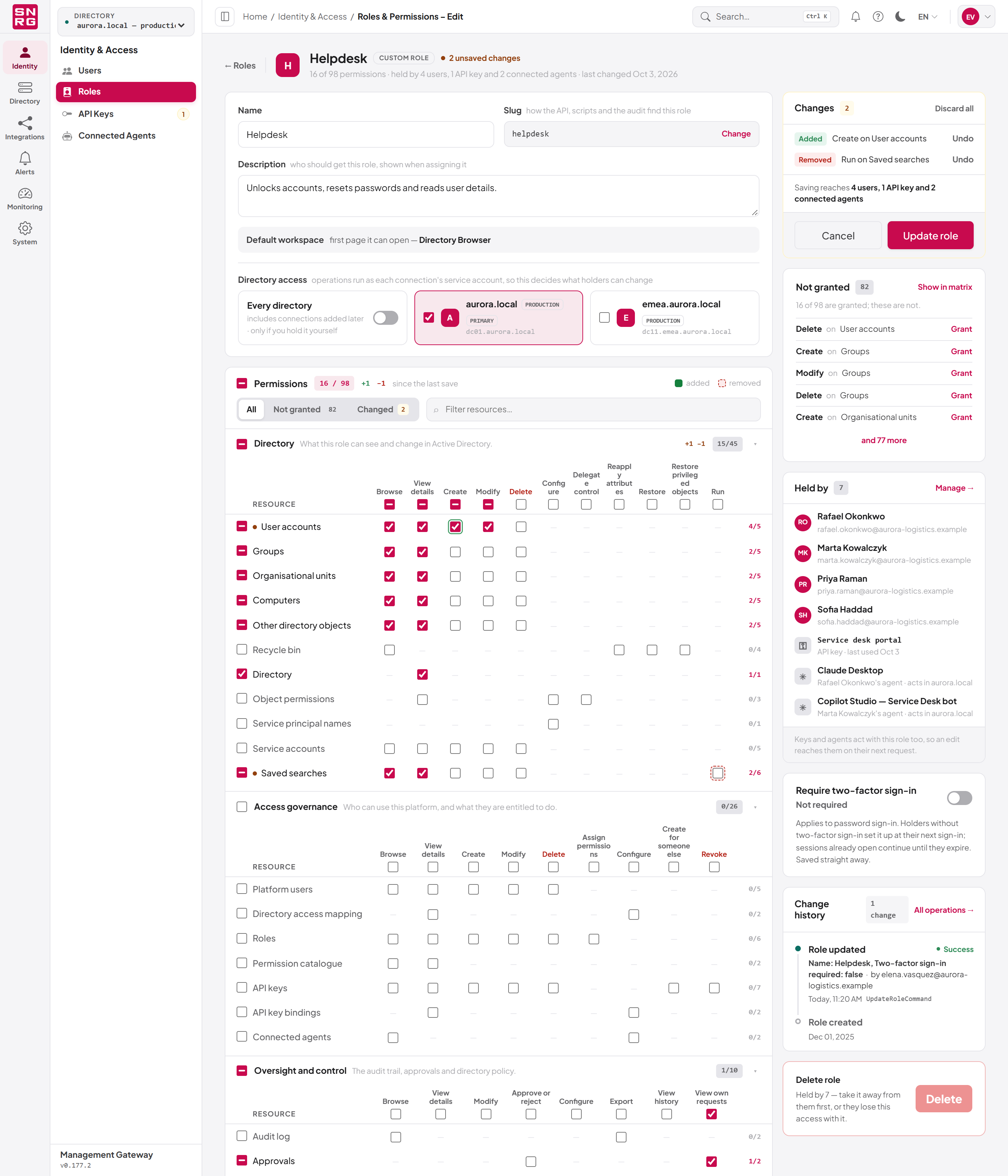
- Permissions you add or remove are marked in the matrix, and the Changes list summarises them. Each change has an Undo link that puts it back; Discard all reverts everything.
- The Show filter narrows the matrix to All, Not granted or Changed permissions.
- The slug is locked behind Change, because anything that looks the role up by its old slug stops matching once you save. Click Keep slug to undo.
- Default workspace shows the first page holders land on when the role becomes active. It is the template's suggestion while the role can still reach it, and otherwise the first page the role can open. It is shown for information and cannot be changed on this page.
- The Change history panel lists every recorded change to the role — its name, slug, description, permissions, directories and two-factor requirement — with who made it. It requires
audit:list.
To save:
- Make your changes.
- Click Update role.
- If the change takes something away, a confirmation "Update name for all N holders?" appears first and summarises the risk: how many permissions are taken away from every holder at once, whether holders lose access to a directory, and whether the slug changes. Click Update now, or Keep editing. A change that only adds permissions is saved without this step.
Changes reach every holder — including API keys and connected agents that act with the role — on their next request. The page then confirms "Updated just now" and that all holders have the new set.
Important: A role edit affects everyone who holds the role at once. Check the Held by panel before you save.
Requiring two-factor sign-in for a role
A role can require its holders to use two-factor sign-in (an authenticator app). The requirement applies to password sign-in; single sign-on and Windows sign-in rely on the identity provider's own controls.
How the requirement behaves:
- It applies if any role the person holds requires it, not only the role they are working in. Otherwise a person could sign in with a lesser role and switch upwards.
- Holders who have not set up two-factor sign-in are asked to set it up at their next sign-in. Sessions already open continue until they expire, but such a person cannot switch into the role until they have enrolled.
Who can use it: roles:update, in a browser session. For the System Admin role, only someone working in system scope can change it. Removing a requirement additionally needs every permission the role grants, because it lowers the bar for every holder.
To change the requirement:
- Open the role's edit page.
- In the Require two-factor sign-in card, click the switch. The card shows Required or Not required.
The setting is saved immediately, separately from the rest of the page, and confirmed with "Two-factor sign-in is now required for this role." Roles with the requirement show a 2FA required badge in the list.
Deleting a role
Who can use it: roles:delete. The System Admin role cannot be deleted.
To delete a role from the list:
- In the Roles list, open the row menu and click Delete. The item is unavailable for the System Admin role.
- The Delete role dialog warns "Users assigned to this role will lose its permissions."
- Confirm with Delete.
The Delete role section at the bottom of a role's edit page is stricter: its Delete button works only once nobody holds the role. While the role is held, the section says "Held by N — take it away from them first, or they lose this access with it."
Last updated
Thank you for your feedback.