
6.10Editing attributes
Last updated
Beyond the dedicated actions, you can edit the attributes of users, groups, organizational units and computers directly. You need the update permission for the object's class (for example ad:users:update) and the management licence.
Which attributes can be edited
A pencil appears on an attribute row only where an edit can succeed. These attributes are never offered for editing:
- Security-sensitive attributes, which could grant privilege or credentials: for example
userAccountControl,adminCount,primaryGroupID,sIDHistory,objectSid,servicePrincipalName, the delegation attributesmsDS-AllowedToDelegateToandmsDS-AllowedToActOnBehalfOfOtherIdentity,msDS-KeyCredentialLink,userCertificate,altSecurityIdentities,scriptPath,nTSecurityDescriptor, and all password attributes. - Attributes the directory maintains itself, such as
objectGUID,whenCreated,whenChanged,distinguishedName,objectClass, logon counters and replication metadata. - Attributes with an action of their own:
cnandname(use Rename…),accountExpires(use the expiry action),pwdLastSet(use the password actions),lockoutTime(use Unlock account),memberandmemberOf(use the Members and Groups tabs). - Binary attributes, and attributes the schema marks as read-only.
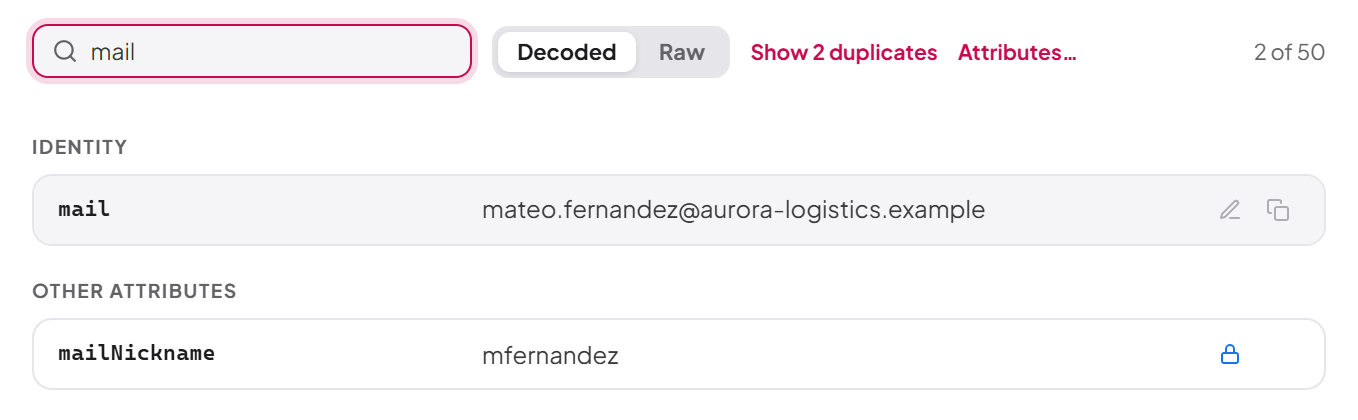
- Attributes an attribute policy protects. An administrator can make an attribute read-only, or block it, for one directory or for all of them (see Chapter 10, Operation policies, attribute policies and agent supervision). A read-only attribute is still listed, but its row shows a padlock instead of the pencil; the padlock's tooltip reads "Read only: an attribute policy protects this attribute in this directory." followed by the rule's reason. If you type such an attribute's name in the attribute picker, it says "attribute is read only in this directory: an attribute policy protects it." A blocked attribute is not shown at all.
Flags such as "account disabled" or "password never expires" are changed through the actions menu rather than by editing userAccountControl.
To edit an attribute that is shown
- On the Attributes tab, select the pencil on the attribute's row.
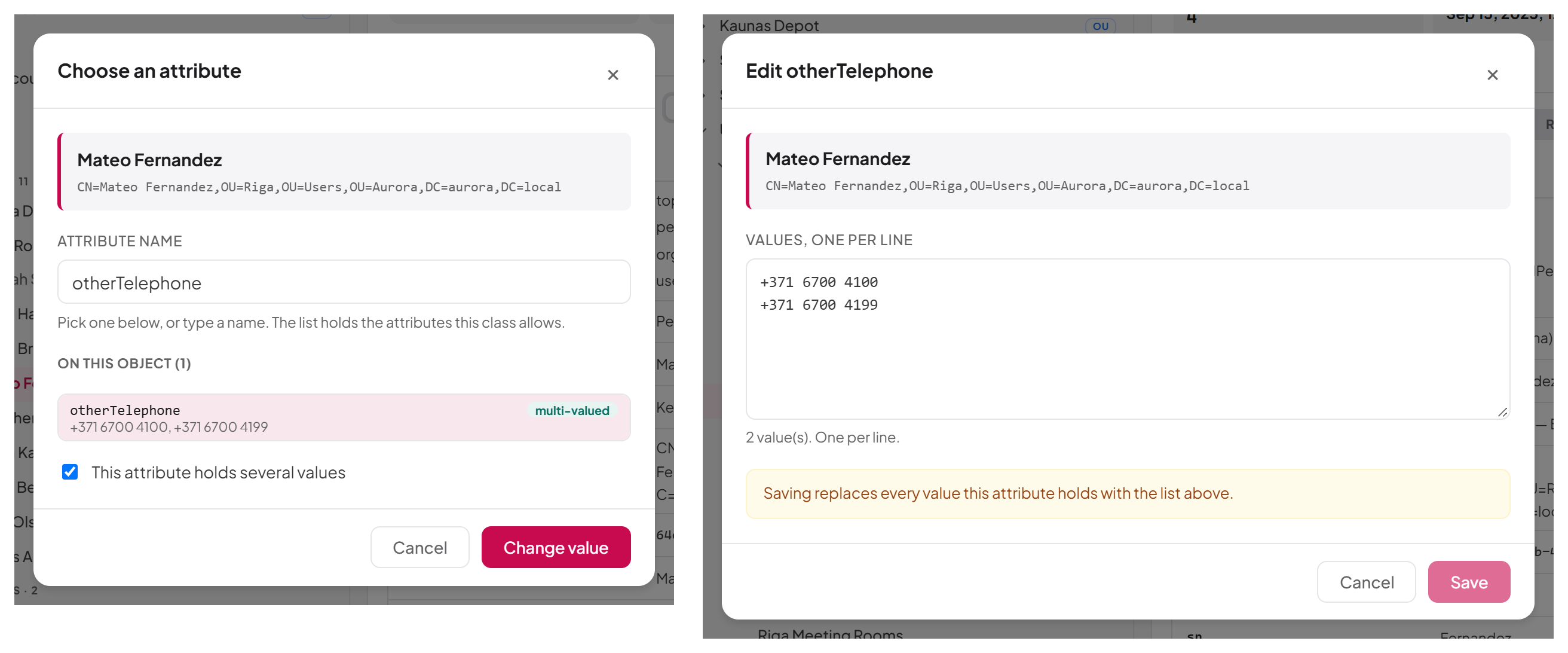
- Edit the value. For a multi-valued attribute, enter one value per line.
- Select Save. To remove the attribute entirely, leave the value empty: the dialog then states "Saving removes … from this object." and the button becomes Clear attribute.
For a multi-valued attribute, saving replaces every value the attribute holds with the list in the dialog.
To set an attribute that is not shown
Attributes that hold no value are not listed on the object, so they have no row to edit. To set one:
- On the Attributes tab, select Attributes….
- In Choose an attribute, pick from the list or type a name in Attribute name. The list holds the attributes this class allows, divided into On this object (n) and Not set; multi-valued attributes are marked "multi-valued".
- Select Set value (or Change value for an attribute already set) and enter the value as above.
If you type a name that is not in the list, you can still send it; the directory accepts or refuses it. If the class's schema could not be read, the picker lists only what the object already holds and says so.
Tip: To change a user's logon name, editsAMAccountNameoruserPrincipalNamehere. Renaming a user in the tree does not change either.
Limits
Each change can carry at most 100 distinct attributes, 1000 values per attribute and 256 KB per value. The attribute editor changes one attribute at a time, so you will not normally reach these limits; they matter mostly to integrations (see Chapter 15, REST API for integrators).
Contacts, containers and other objects
The browser shows every object in the domain and configuration partitions, but only four classes can be managed from it: users, groups, organizational units and computers.
- Contacts appear under a Contacts heading and can be read in full, including their history, but have no Actions menu and no attribute editing in the browser.
- Containers (such as
CN=UsersandCN=Computers), the domain object and other objects (listed under Other objects) can likewise be read but not changed here. You can still create users, groups, OUs and computers inside a container with New object here…. - If you choose Delete… on a row whose class the browser cannot manage, you see "This kind of object cannot be deleted from the browser."
Generic objects of any class can be created, edited, moved, renamed and deleted through the REST API under /api/ad/objects (permissions ad:objects:*); see Chapter 15, REST API for integrators.
Last updated
Thank you for your feedback.