
18.1Live Logs
Last updated
The Live Logs page (route /dashboard/live-logs, page title Live Application Logs) has two views, selected with the Live / Files switch in the page header:
- Live shows entries as the server writes them, streamed to your browser.
- Files lets you read and download the log files the server keeps on disk.
Watching the live stream
To open the live stream:
- Make sure your active role is System Admin.
- In the navigation menu, open Monitoring and choose Live Logs.
- If the Files view is selected, click Live in the page header.
The status pill in the header shows the state of the stream: Connected, Connecting… or Disconnected. The browser reconnects by itself when the connection drops, for example after the server restarts.
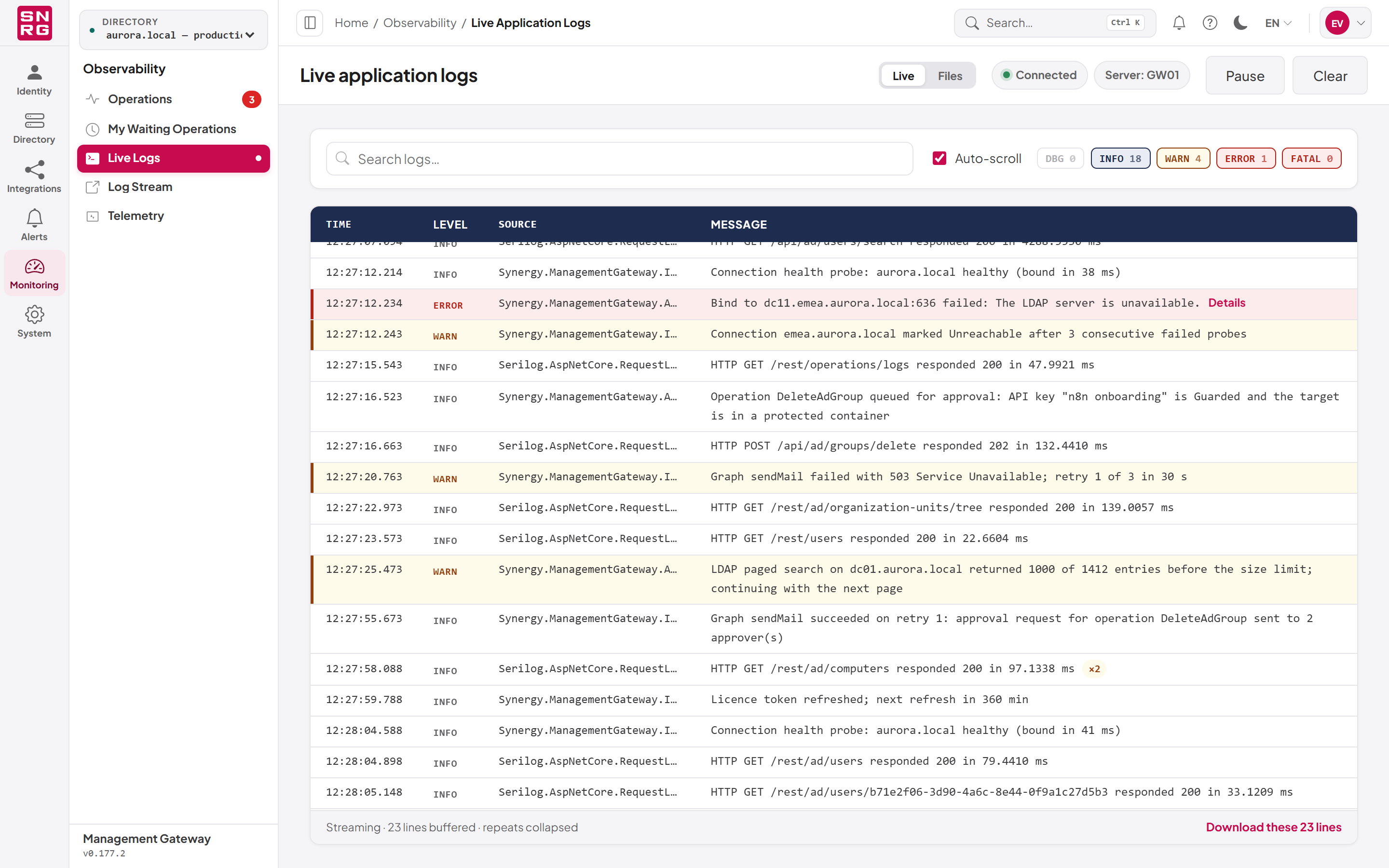
Two behaviours keep the stream readable:
- Repeats are collapsed. When the same message is written several times in a row, it is shown once with a repeat badge such as ×12. Hover over the badge to see how many times it repeated and when it first appeared.
- Exception details are folded away. A row that carries an exception has a Details button. Click it to show the full exception text and stack trace under the message, and Hide to fold it again.
The footer reports how many lines are buffered in your browser and that repeats are collapsed.
Filtering the live stream
The filter bar above the table has three controls:
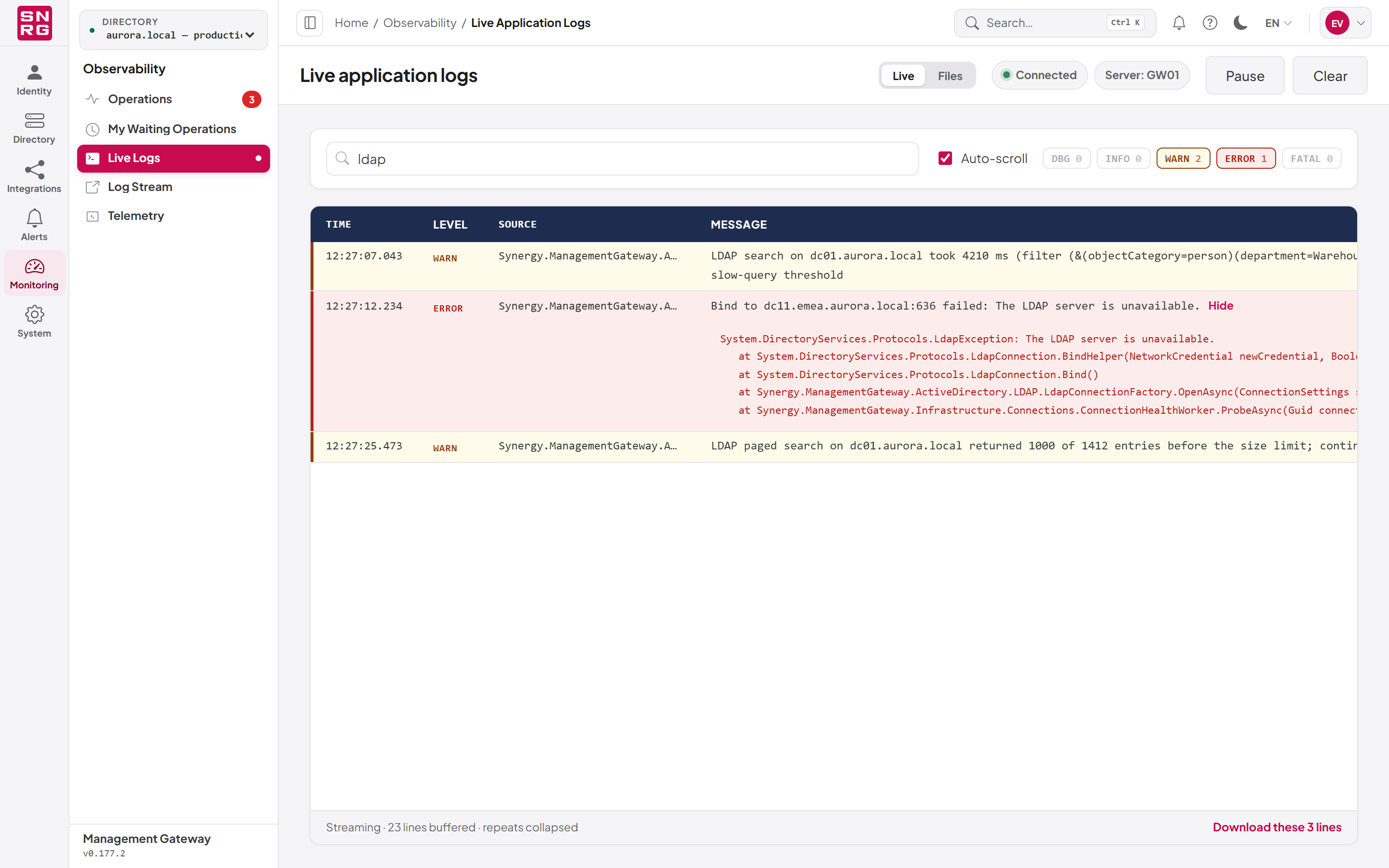
- Search logs… – type to show only entries whose message or source contains the text. The search is not case-sensitive.
- Auto-scroll – when ticked, the view follows new entries as they arrive. Untick it to stay at the place you are reading.
- Level chips – one chip per level, labelled DBG, INFO, WARN, ERROR and FATAL (Debug, Information, Warning, Error and Fatal). Click a chip to show or hide that level. Information, Warning, Error and Fatal are on by default. Each chip shows a count of the matching entries at that level, including levels you have hidden, so a quiet view still tells you that, for example, three errors are waiting if you switch Error on.
Pausing, clearing and downloading
- Pause stops the table from changing so you can read it. Entries that arrive while paused are held, and the button changes to Resume (N), where N is the number of held entries. Click Resume to add them to the table.
- Clear empties the table and any held entries in your browser. It does not delete anything on the server.
- Download these N lines in the footer saves the entries currently shown (after your search and level filters) to a file on your computer.
Note: The live view shows only what has been written since you opened the page, and your browser keeps at most the 2,000 most recent entries. To look further back, use the Files view.
Reading the log files
The server also writes the application log to files on disk. By default these are in C:\Logs on the server that runs the API, one file per day, named log-YYYYMMDD.logs. A new file is started each day, and also when a file reaches 100 MB. The 31 most recent files are kept; older ones are deleted automatically. The location, file size and number of files kept can be chosen in the setup wizard, and are stored in the Serilog section of the API's configuration file.
To read a log file:
- On the Live Logs page, click Files in the page header.
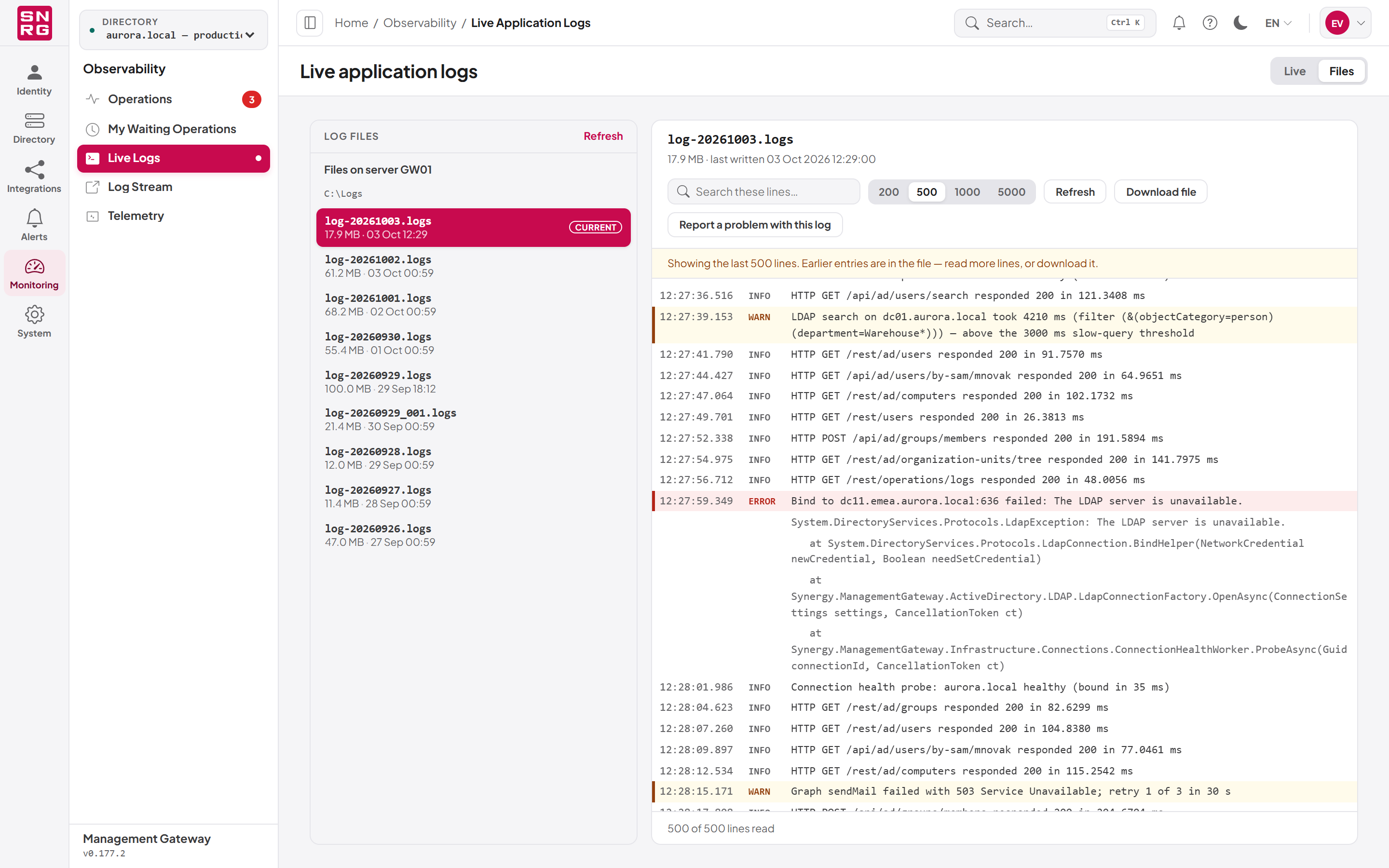
- The Log files list on the left shows the log directory and each file with its size and the time it was last written. The file currently being written is tagged Current. Click Refresh to update the list.
- Click a file. The right-hand pane reads the end of the file and shows its size and the time it was last written.
- Use the line-count buttons (200, 500, 1000 or 5000) to choose how many lines from the end of the file are loaded. A larger number reaches further back.
- Type in Search these lines… to filter the loaded lines. The footer shows how many lines are shown, how many were read, and how many are hidden by the search.
- Click Refresh to read the end of the file again, or Download file to save the whole file to your computer.
If the list says This host writes no log files — no Serilog file sink is configured, the file logging section has been removed from the server's configuration and only the live stream is available.
Reporting a problem with a log
In the Files view, Report a problem with this log opens the bug report dialog with the selected log file attached. The server attaches the file itself when the report is sent. The dialog warns you that a log can contain sensitive server details and lets you remove the attachment before sending.
Important: Log files are kept on the server's disk and can contain directory names, LDAP filters and exception details. Protect the C:\Logs folder with the same care as the server itself, and check a log before sending it outside your organisation.Last updated
Thank you for your feedback.