
15.8Limits
Last updated
Request size
| Route | Largest request body |
|---|---|
| The twelve batch endpoints | 10 MB |
| Every other route | 1 MB |
A larger body is refused with 413 and the problem-details code Request.BodyTooLarge, with maxBodyBytes naming the limit. Administrators can change both values with RequestLimits:MaxBodyBytes and RequestLimits:MaxBatchBodyBytes.
Attributes in one write
Every create or update of a directory object is limited, across its attributes, replace, add, remove and clear bags together:
| Limit | Value | Error code |
|---|---|---|
| Different attribute names in one request | 100 | AD.Attributes.TooMany |
| Values for one attribute in one bag | 1000 | AD.Attributes.TooManyValues |
| Length of one value (binary values measured as base64) | 256 KB | AD.Attributes.ValueTooLong |
In a batch, each item is checked against these limits when its turn comes.
Organizational-unit account runs
Enabling or disabling the accounts in an organizational unit (POST /ad/organization-units/{id}/accounts/enable or /disable) changes at most 100 accounts per run. A larger selection is refused whole with OrganizationUnitAccounts.TooMany. Use GET /ad/organization-units/{id}/accounts/plan?action=disable&kinds=users&scope=oneLevel to preview a run without changing anything. A run that partly fails answers 207.
Rate limits
Requests are rate-limited per client IP address. When a limit is reached, the API answers 429 Too Many Requests with a Retry-After header saying how many seconds to wait.
| Limit | Default | Applies to |
|---|---|---|
| Global | 300 requests per 60 seconds | Every request |
| Directory search | 60 requests per 60 seconds | Searches and look-ups: user, group, computer, organizational-unit and object searches, look-ups by distinguished name, account-state searches, service-account lists, deleted objects, access control list and delegation reads, saved-filter runs |
| Password reset | 5 requests per 60 seconds | Active Directory user password resets |
| Password change | 3 requests per 300 seconds, per target account | Active Directory user password changes (/change-password) |
/health is never rate-limited. Administrators can tune these under the RateLimiting configuration section, including per-path overrides. Behind a reverse proxy, the gateway only trusts the forwarded client address from proxies it is configured to know about; otherwise all requests count against the proxy's address.
Tip: Design integrations to search once and work through the results, rather than search once per item. HonourRetry-Afteron a429instead of retrying immediately.
OpenAPI and Swagger
The API is described by OpenAPI documents, one per surface: the machine document describes /api, and the browser document describes /rest. Integrators need only the machine document.
The interactive Swagger page and the OpenAPI documents are served only when the gateway runs in the Development environment, at /swagger. Production installations do not publish them. To generate a client or explore the API, use a development or test installation, or ask your vendor contact for the machine document.
Setting up an integration
To prepare an integration:
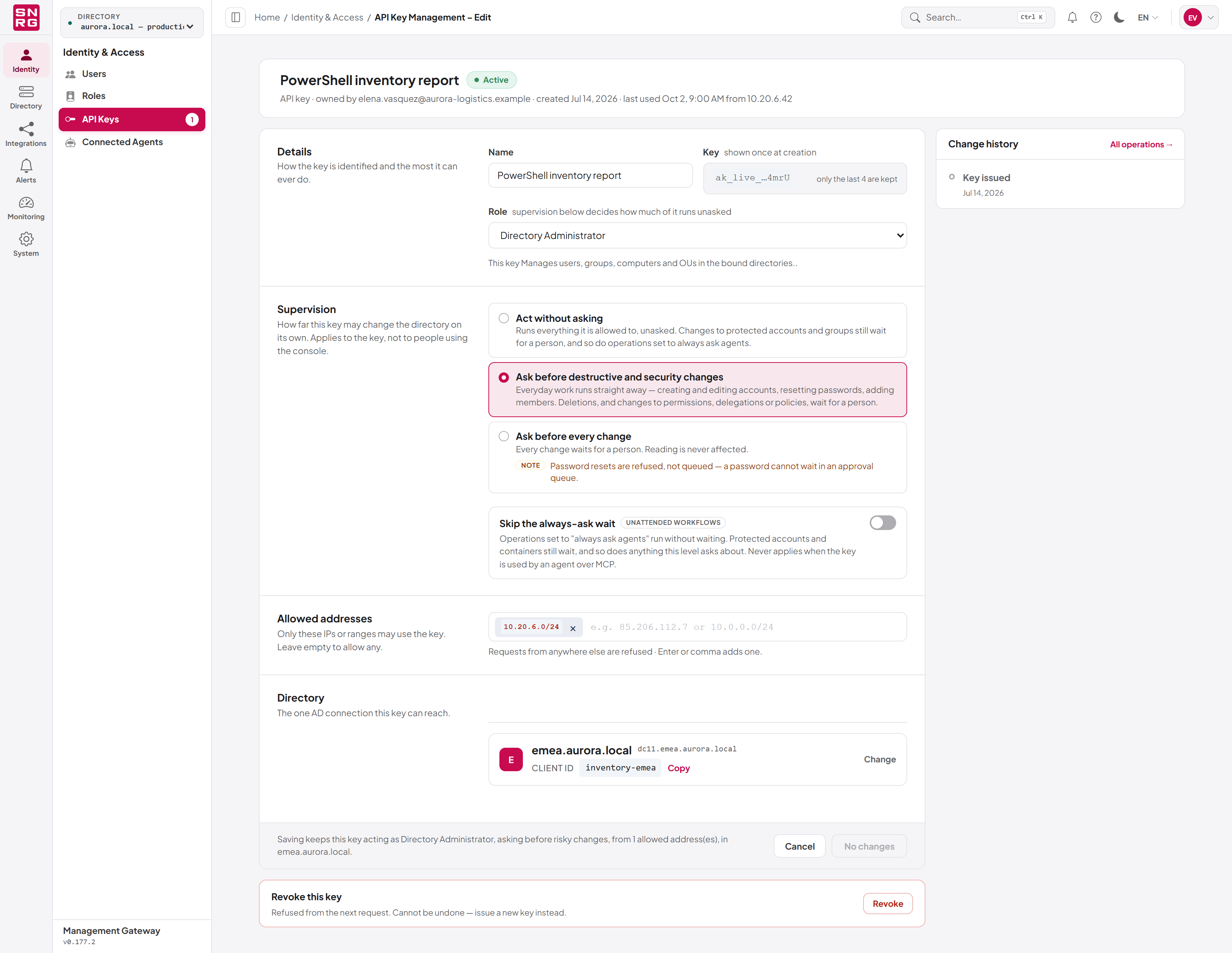
- Ask an administrator to create a role with only the permissions the integration needs (Chapter 11).
- Create an API key with that role (Chapter 12), and copy the key when it is shown.
- On the key's settings page, link it to the Active Directory connection the integration manages (Directory section,
Link AD Server), and copy the link's Client ID. - If the integration runs from known servers, list their addresses under Allowed addresses.
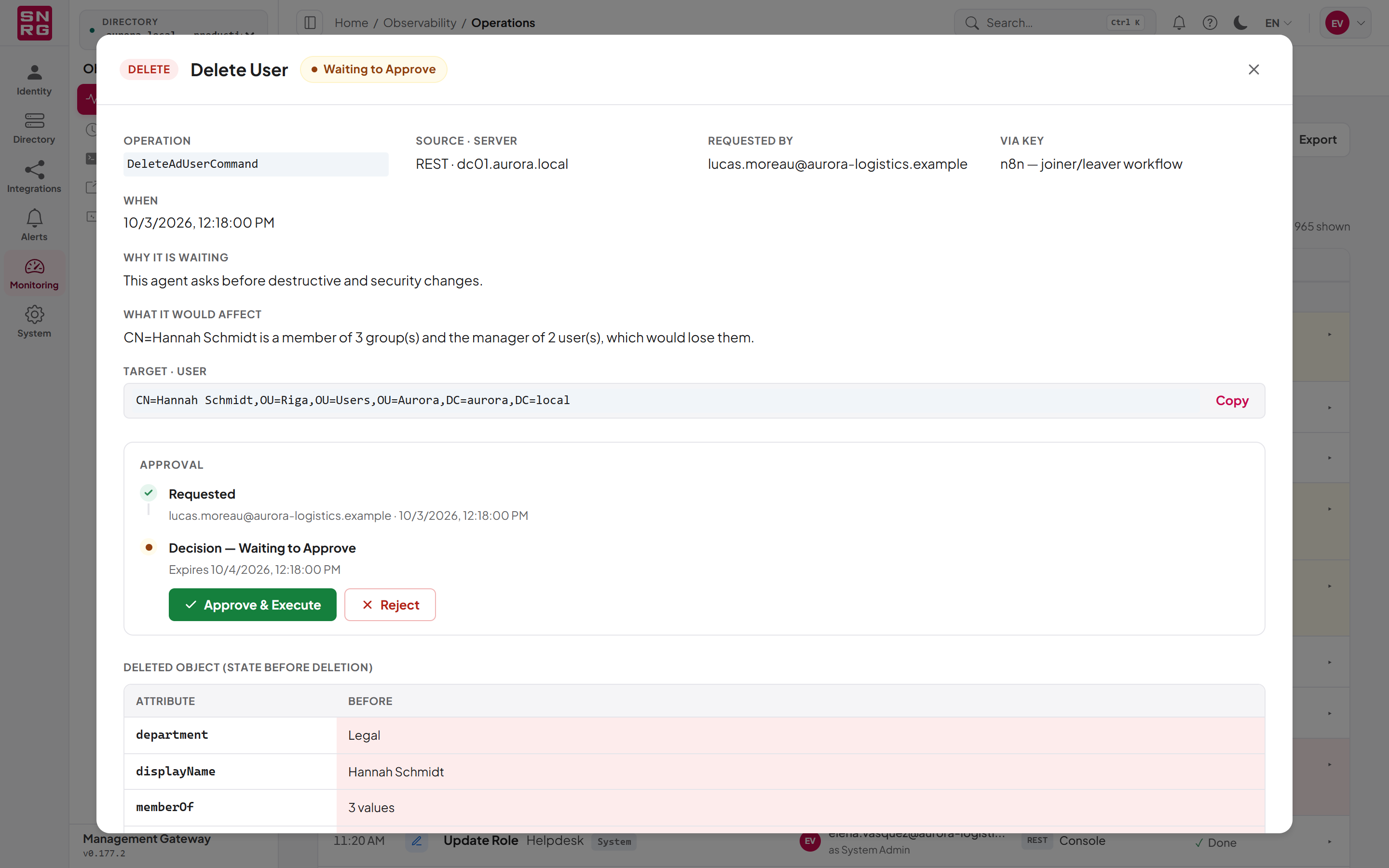
- Decide with an approver which supervision level the key should have. An integration that must run unattended may need Act without asking; everything else should stay at Ask before destructive and security changes.
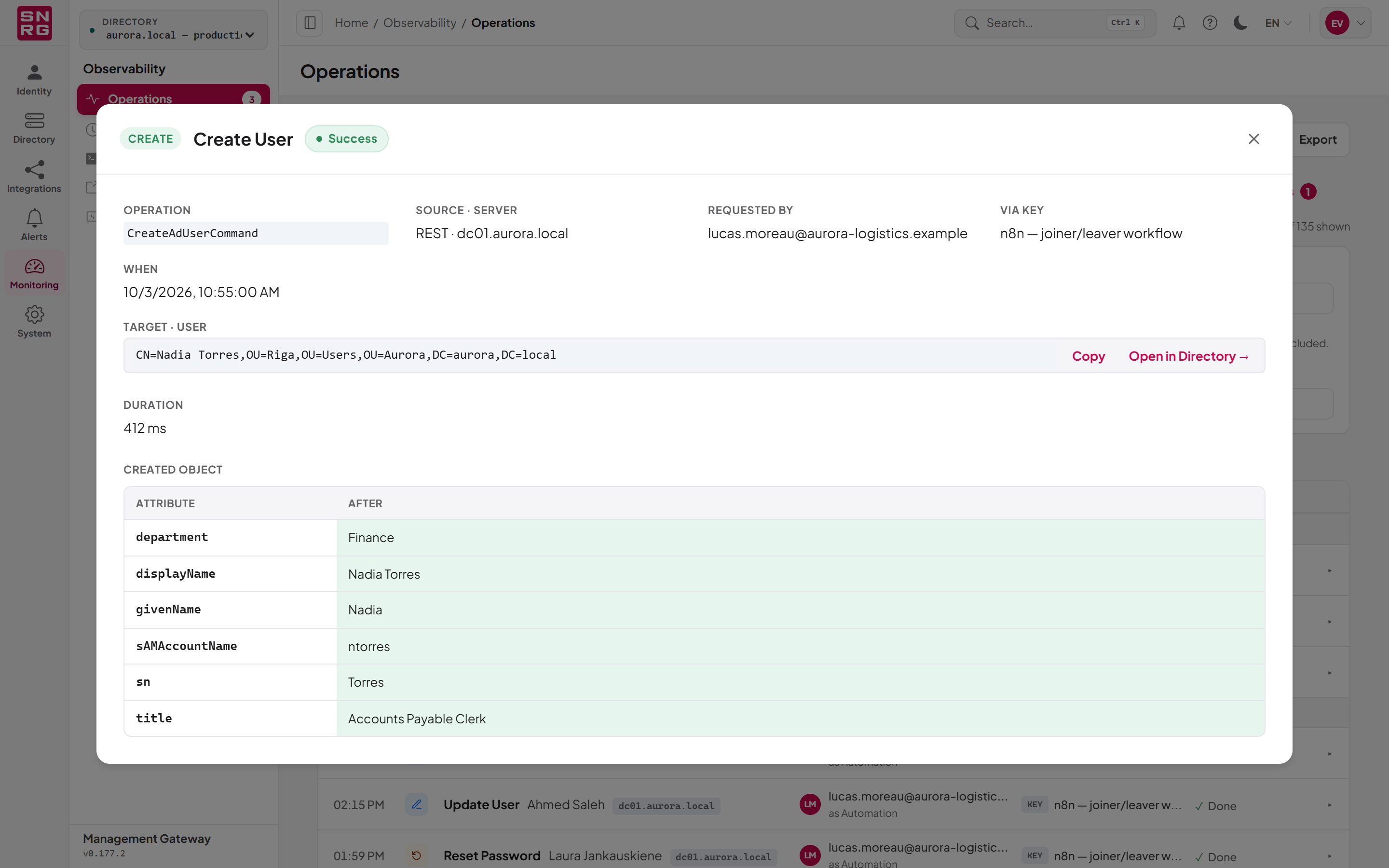
- Test with a read request, then a harmless write, and check both in the operations log.
Last updated
Thank you for your feedback.