
17.1Before you start
Last updated
Licence
All three methods are covered by one licence module, sso. Without it, the Single sign-on page is not shown and the sign-in buttons do not appear. For licence details, see Chapter 19, Licence, updates and backups.
Who can configure single sign-on
Single sign-on decides who can get into the platform, so its configuration is restricted to system scope: your active role must be System Admin. No permission can grant access to it on its own, and it must be done by a person signed in to the console, not with an API key.
Linking individual user accounts to Windows accounts is different: it is done on the user's page by an administrator with users:update, under the rules described in Linking Windows accounts to users in Windows sign-in.
The public address of your installation
Identity providers send people back to fixed addresses that you register with them. Those addresses are built from the public address of your installation, which is set during installation as the Public base URL (configuration key App:PublicBaseUrl). See Chapter 2, Installation and first-time setup.
If people reach the installation under more than one name — for example an internal name on the office network and an external name through a reverse proxy — list the additional addresses in App:AlternatePublicBaseUrls. The platform then:
- returns people to the address they started signing in on;
- lists one SAML Assertion Consumer Service address per configured address in its SAML metadata, with the primary address as the default;
- uses the matching OpenID Connect callback address for each sign-in.
The address a request arrives on only selects from the configured list; it can never introduce a new one. With a single address, nothing changes.
Important: The single sign-on return addresses always start with/api(for examplehttps://gateway.example.com/backend/api/auth/sso/acs). Always copy them from the Single sign-on page rather than typing them, and register them exactly as shown.
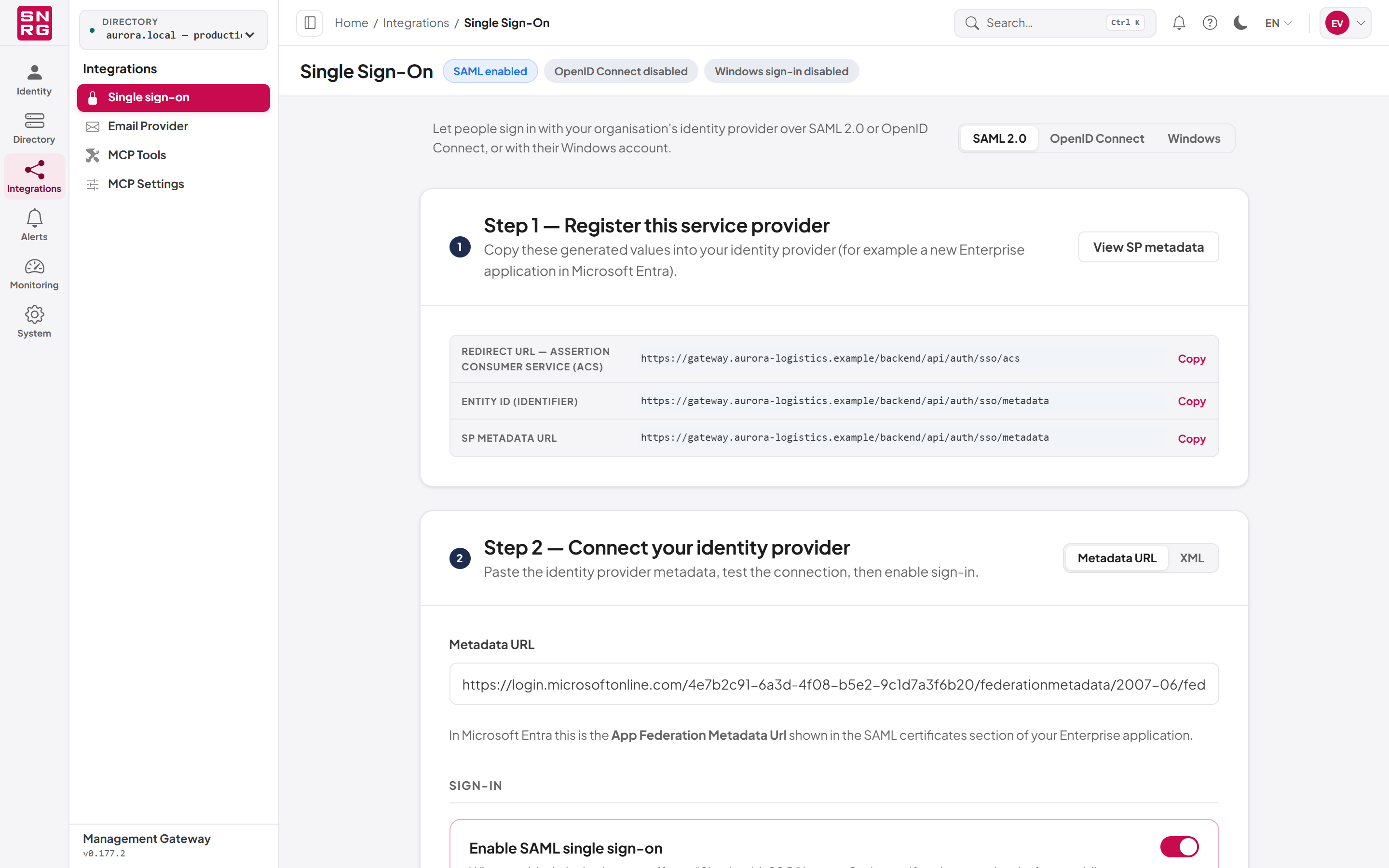
The Single sign-on page
Open Integrations > Single sign-on. The entry is shown only while your active role is System Admin.
At the top of the page a switch selects the method to configure: SAML 2.0, OpenID Connect or Windows. The configuration form for that method appears below. The page header shows a chip such as "SAML enabled" or "Windows sign-in disabled". Rely on the chip only for the method you are viewing: open each method to check whether it is enabled. The selected method is kept in the address (?protocol=saml, oidc or windows), so a reload or a shared link opens the same form.
Last updated
Thank you for your feedback.