
16.1Configuring the email provider
Last updated
The email provider is the service the platform uses to send mail. Exactly one provider is active at a time. You can store settings for more than one provider, but only the active one sends mail.
Who can configure the provider
Email provider settings contain sending credentials, so they are restricted to system scope: your active role must be System Admin, and you also need the notifications:manage permission (System Admin holds every permission). Anyone else who tries to read or change the provider settings, including through the REST API, is refused with "Only the system administrator can manage email providers."
The three providers
| Provider | Description shown on the page | Use it when |
|---|---|---|
| SMTP | Standard SMTP/TLS mail server | You have an internal mail relay or any SMTP service |
| Microsoft Graph | Exchange Online via Graph API (app-only) | Your mail is in Microsoft 365 and Basic authentication for SMTP is not available |
| Google Workspace | Gmail API via service account delegation | Your mail is in Google Workspace |
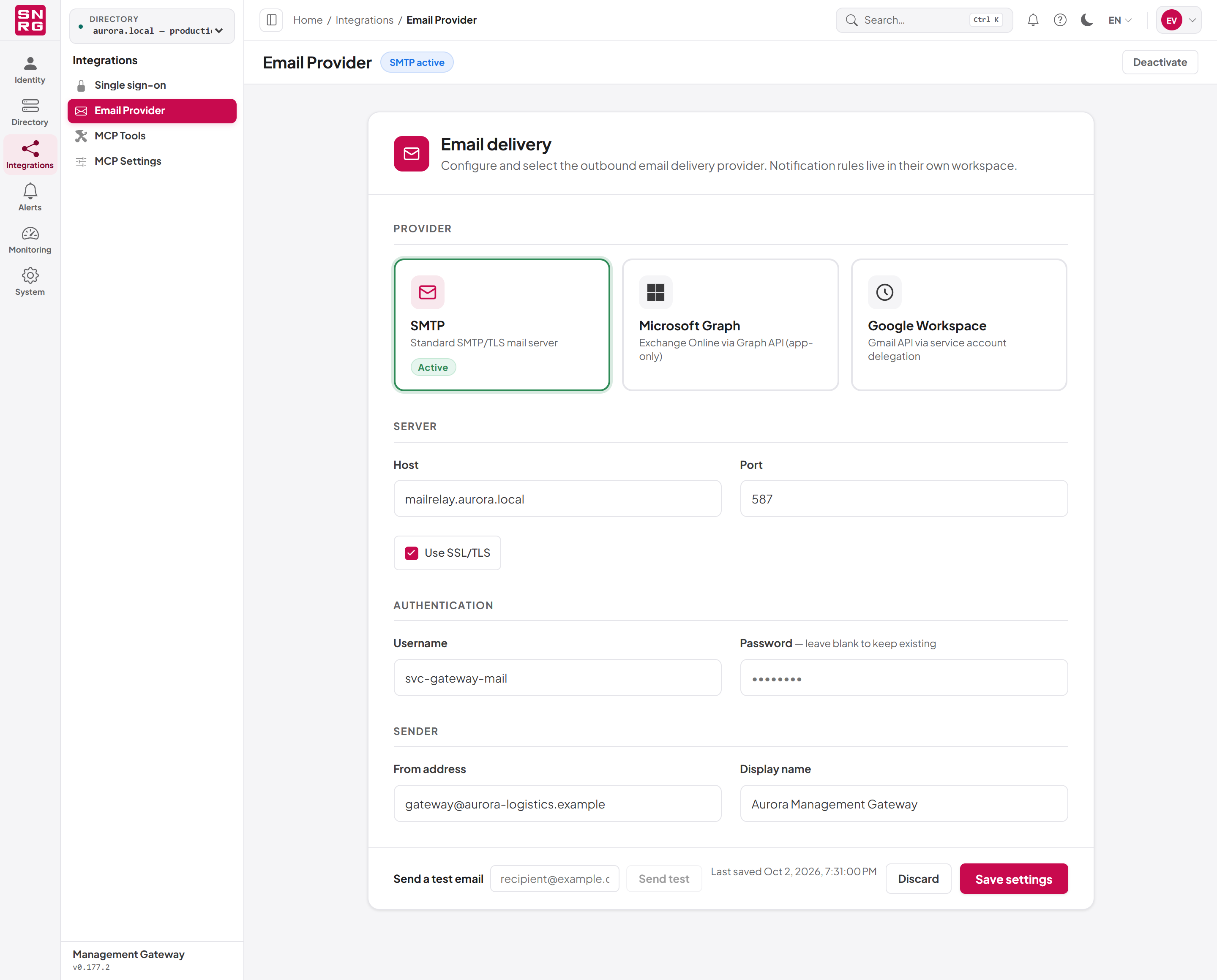
Each provider is shown as a card at the top of the page. A card carries an Active badge when that provider is the one sending mail, or a Configured badge when its settings are stored but it is not active. The page header also shows a chip such as "SMTP active", or "No active provider".
When you open the page, it opens on the provider that is currently active.
Saving is switching
The page has a single Save button whose label tells you what it will do:
- When you are editing the provider that is already active, the button reads Save settings.
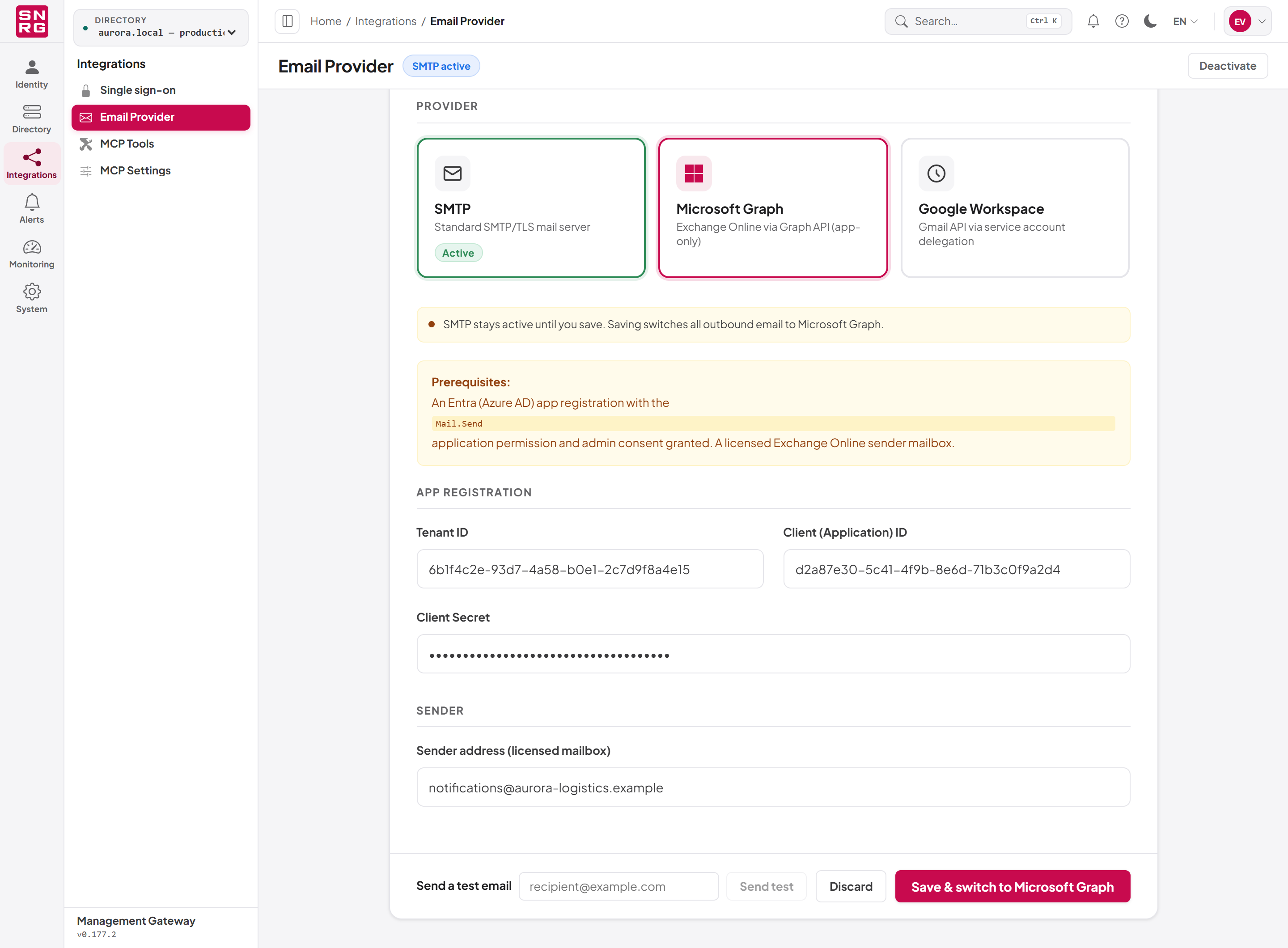
- When you select a different provider, the button reads Save & switch to followed by that provider's name (for example Save & switch to Microsoft Graph), and a notice appears, for example: "SMTP stays active until you save. Saving switches all outbound email to Microsoft Graph."
Saving a provider that is not active therefore also makes it the active provider. If the provider cannot be activated, an error message tells you why and the previous provider stays active.
Use Discard to throw away unsaved changes and reload the stored settings. The time the selected provider was last saved is shown beside the buttons as Last saved.
SMTP settings
| Field | Description |
|---|---|
| Host | The mail server name, for example smtp.example.com |
| Port | The server port, for example 587 |
| Use SSL/TLS | Encrypts the connection to the server. Leave this on unless your relay does not support it |
| Username | The account used to authenticate to the server |
| Password | The password for that account. Once a password is stored, the field shows dots; leave it blank to keep the existing password |
| From address | The sender address, for example no-reply@example.com |
| Display name | The sender name recipients see |
To configure SMTP:
- Make sure your active role is System Admin.
- Open Integrations > Email Provider.
- Select the SMTP card.
- Under Server, enter the Host and Port, and choose whether to Use SSL/TLS.
- Under Authentication, enter the Username and Password.
- Under Sender, enter the From address and Display name.
- Select Save settings (or Save & switch to SMTP if another provider is active).
Microsoft Graph settings
Microsoft Graph sends mail through Exchange Online without SMTP. The page shows the prerequisites:
- A Microsoft Entra app registration with the
Mail.Sendapplication permission, and admin consent granted for it. - A licensed Exchange Online mailbox to send from.
| Field | Description |
|---|---|
| Tenant ID | Your Entra tenant identifier (a GUID) |
| Client (Application) ID | The app registration's application ID (a GUID) |
| Client Secret | A client secret created on the app registration |
| Sender address (licensed mailbox) | The mailbox that sends the mail, for example notifications@tenant.onmicrosoft.com |
A stored client secret is never sent back to the browser. Once one is stored, the field is shown as held (dots, not editable). To change it, select Replace secret beside the field label and type the new secret.
To configure Microsoft Graph:
- In Microsoft Entra, register an application, add the
Mail.Sendapplication permission, grant admin consent, and create a client secret. - In the console, with the System Admin role active, open Integrations > Email Provider.
- Select the Microsoft Graph card.
- Under App registration, enter the Tenant ID, Client (Application) ID and Client Secret.
- Under Sender, enter the Sender address (licensed mailbox).
- Select Save & switch to Microsoft Graph (or Save settings if it is already active).
Tip: The Mail.Send application permission lets the app send as any mailbox in the tenant. Consider restricting the app to the sender mailbox with an Exchange Online application access policy.Google Workspace settings
Google Workspace sends mail through the Gmail API using a service account with domain-wide delegation. The page shows the prerequisites: a Google Cloud service account with the Gmail API enabled and a JSON key downloaded, and, in the Google Admin console, the service account's client ID added under Domain-wide delegation with the scope https://www.googleapis.com/auth/gmail.send.
| Field | Description |
|---|---|
| Service account JSON key | Paste the full JSON key file. Once a key is stored, leave the box blank to keep it |
| Delegated user email | The Google Workspace user the service account sends as, for example notifications@your-domain.com |
| Display name | The sender name recipients see |
To configure Google Workspace:
- Create the service account and JSON key, and set up domain-wide delegation as described above.
- In the console, with the System Admin role active, open Integrations > Email Provider.
- Select the Google Workspace card.
- Under Service account, paste the Service account JSON key.
- Under Sender (delegated user), enter the Delegated user email and Display name.
- Select Save & switch to Google Workspace (or Save settings).
Sending a test email
Once a provider is active, the bottom bar of the page shows Send a test email.
- Type a recipient address in the box (for example
recipient@example.com). - Select Send test.
- The result appears in the bar: a green tick and a confirmation, or a red cross and the error the provider returned.
- Select Send another to test again.
The test always uses the active provider, not the card you are viewing. If you have just changed settings, save them first.

Deactivating email delivery
To stop all outbound email, select Deactivate in the page header. The stored settings are kept, but no provider is active, so every notification and every account email (password reset, account setup) is skipped until you activate a provider again.
Delivery retries
If the provider fails with a temporary error, the platform retries the send. By default it makes up to 3 attempts, waiting about 2 seconds before the first retry and doubling the wait each time, up to 30 seconds. An administrator can change this in the server configuration under EmailNotifications:Retry (MaxAttempts, BaseDelaySeconds, UseExponentialBackoff, MaxDelaySeconds). Setting MaxAttempts to 1 turns retries off. The number of attempts each email took is shown in Notification History.
Last updated
Thank you for your feedback.