
19.1The licence
Last updated
SYNERGY Management Gateway is licensed per installation. A licence key issued by Synergy is entered once; the server then confirms the licence with the Synergy licensing service at https://public-hub.synergy.lt and keeps that confirmation fresh in the background. The server therefore needs outbound HTTPS access to that address.
A licence has a plan (the licence type), a validity period, and a set of modules (features). Each module switches on part of the product.
| Module | Key | What it switches on |
|---|---|---|
| MCP Tools | mcp | Agent access to directory operations over MCP (Chapter 13) |
| Single Sign-On | sso | Sign-in through your identity provider over SAML 2.0 or OpenID Connect, and Windows sign-in (Chapter 17) |
| Directory Browser | directory-browser | Browsing the raw directory tree and reading every attribute of an entry (Chapter 6) |
| Directory Management | directory-management | Creating, editing, moving and deleting objects and changing membership from the Directory Browser (Chapter 6) |
| Observability | observability | Exporting the platform's own traces and metrics, and the Telemetry screen (Chapter 18) |
| Recycle Bin | recycle-bin | Restoring deleted directory objects and reapplying their attributes (Chapter 7) |
| Notifications | notifications | Email provider, notification rules, templates and delivery history (Chapter 16) |
What happens without an active licence
When the licence is missing, expired, invalid or cannot be verified, the platform keeps working as an administration console but stops working with Active Directory:
- Every request that reads or changes Active Directory is refused with
403and the error codeLicense.NotActivated. This applies to the console, the REST API, n8n and integration scripts alike. - AI agents connected over MCP are offered no tools at all.
- Running a saved LDAP filter is refused.
- An approver cannot approve a queued directory operation; it stays waiting until the licence is active again.
- Screens that belong to a module are hidden from the menu, and their routes are refused, unless the licence grants that module.
What stays available is everything needed to put the licence right: signing in, the Licence screen, Updates, Backups, the directory connection picker, creating and testing directory connections, and the platform's own administration (users, roles, API keys and settings).
A warning banner across the top of every page says what is wrong:
| Banner text | Tone |
|---|---|
| This instance is not activated. | Warning (amber) |
| The licence has expired. | Warning (amber) |
| The licence is invalid or was rejected. | Danger (red) |
| Licence status could not be verified. | Danger (red) |
Where the server reports more detail, it is shown after the message. Users with license:manage see a Manage licence link in the banner. The close button (×) hides the banner until the page is reloaded.
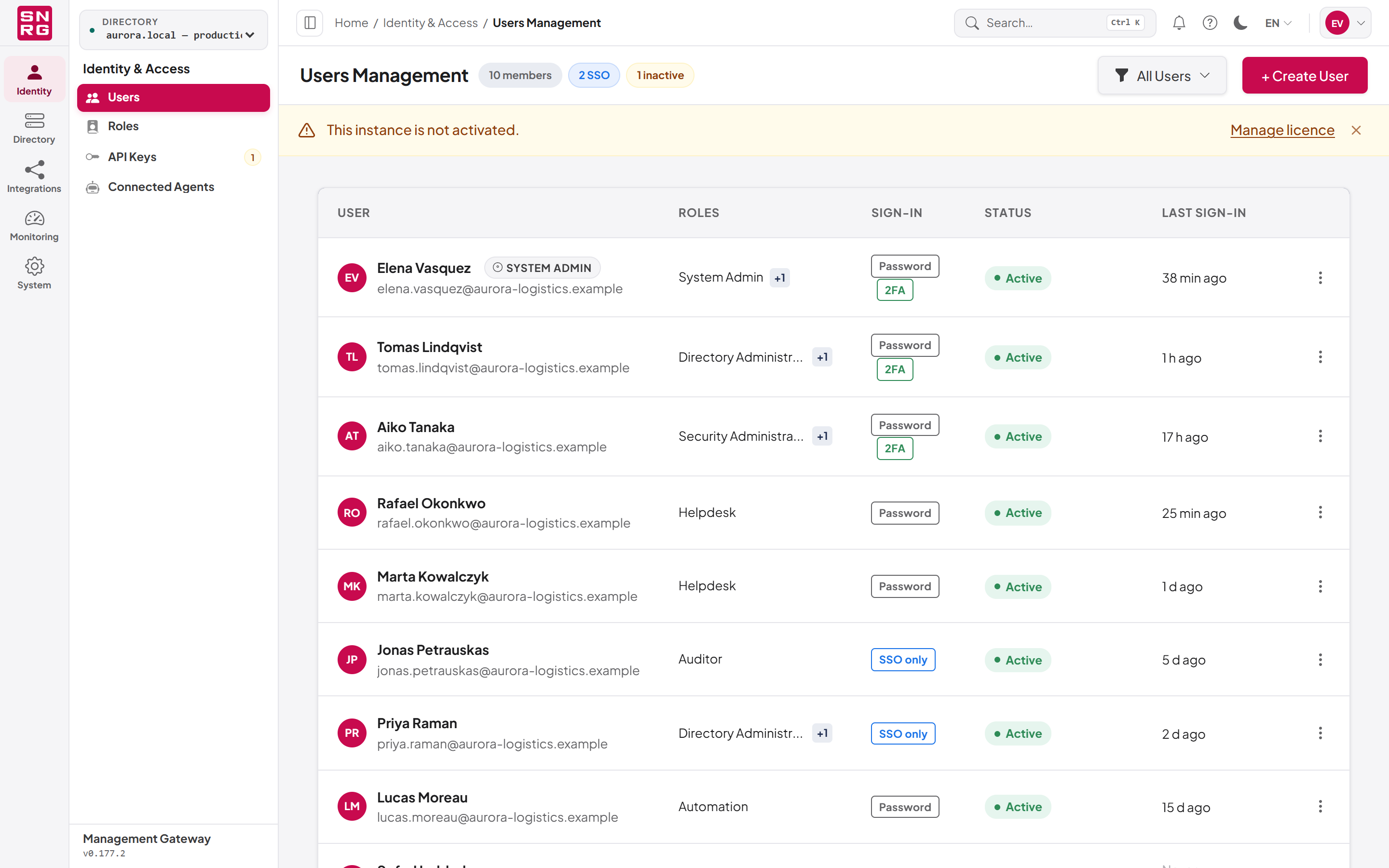
Note: A refused request on an unlicensed instance does not sign you out. If a directory screen shows an error after you sign in, check the banner and the Licence screen before suspecting your account.
The Licence screen
Open System › Licence. The page header shows the title, a status pill, and a line with the plan, any additional entitlements and the date the licence is valid until.
The status pill shows one of these states:
| State | Meaning |
|---|---|
| Active | The licence is valid and confirmed. |
| Not activated | No licence has been activated on this installation. |
| Expired | The licence period has ended. |
| Invalid | The licence was rejected by the licensing service. |
| Error | The licence status could not be verified. |
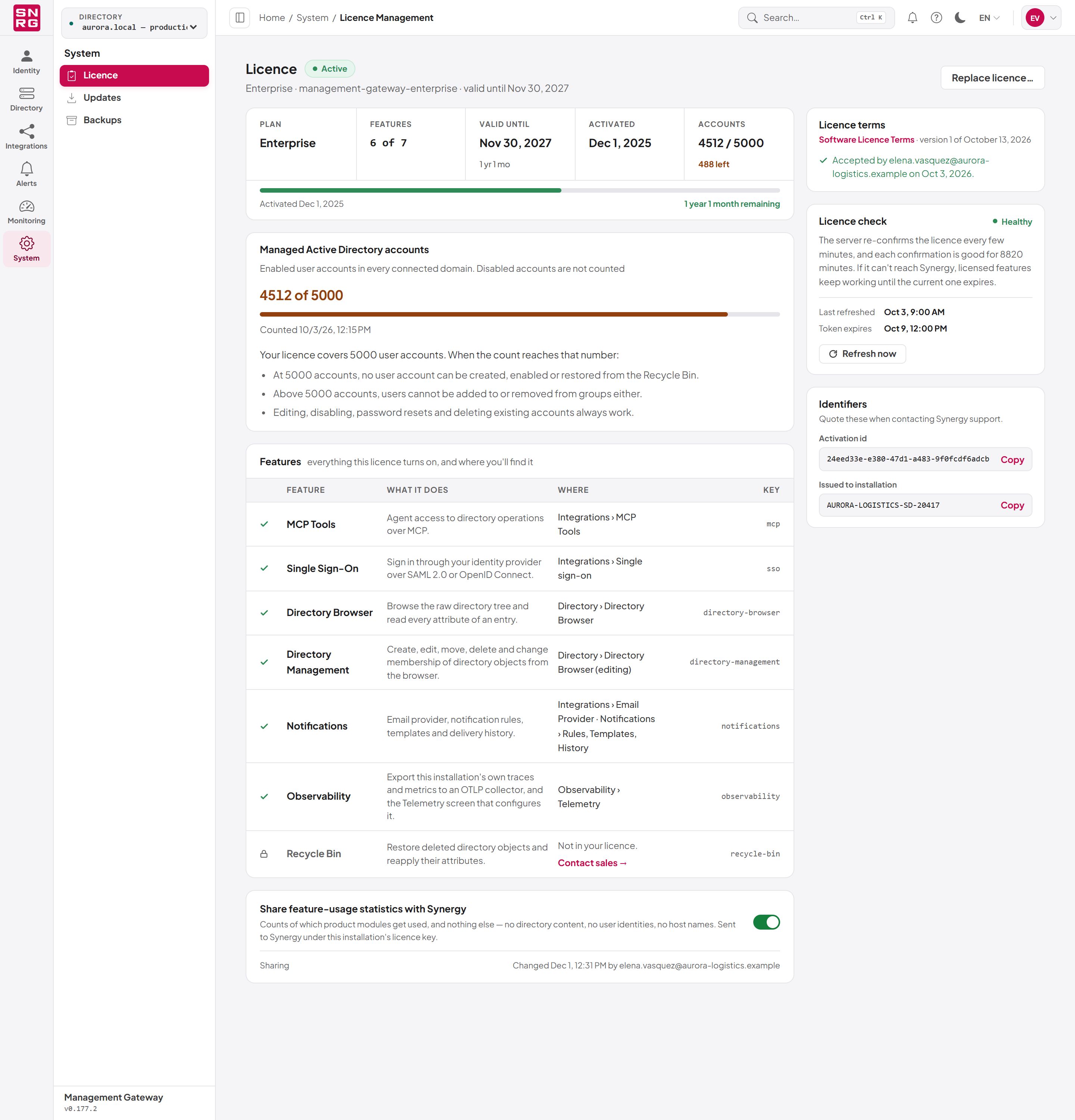
- Tiles – Plan, Features (how many of the modules are included, for example 6 of 7), Valid until with a short remaining time, Activated, and Accounts (the managed user accounts against the licence's limit, for example 4512 / 5000 with 488 left, or the count and no limit).
- Validity bar – how much of the licence period is left, with the activation date and the remaining time, for example 4 months remaining. The bar changes colour as the end approaches.
- Managed Active Directory accounts – the account count and limit, described in The account limit below.
- Features – a table of every module with an Included mark, the Feature name, What it does, Where it appears in the menu, and its Key. A module that is not included shows Not in your licence and a Contact sales link.
- Share feature-usage statistics with Synergy – the usage statistics setting, described later in this chapter.
The right-hand column contains:
- Licence check – whether the latest confirmation is Healthy or Stale, when it was Last refreshed and when the current confirmation (Token expires) runs out. The server re-confirms the licence every few minutes. If it cannot reach Synergy, licensed features keep working until the current confirmation expires. Users with
license:managecan click Refresh now to confirm immediately. - Identifiers – the Activation id and the installation the licence is Issued to installation, each with a Copy button. Quote these when you contact Synergy support.
The account limit
A licence can limit how many Active Directory user accounts the installation manages. Whether yours does, and how many accounts it covers, is shown in the Managed Active Directory accounts card on the Licence screen; a licence without a limit says "Your licence does not limit the number of user accounts this installation manages."
What counts. Every enabled user account in every connected domain — as the card's subtitle says, "Enabled user accounts in every connected domain. Disabled accounts are not counted". The whole domain counts, not only the part under a connection's base DN. An account reached through two connections is counted once. Computers, managed service accounts, contacts and groups do not count. The platform counts when it starts and then every 15 minutes; the card shows when it last counted ("Counted …"). Accounts created or enabled between two counts are added to the figure straight away; deleted and disabled accounts drop out at the next count. If a directory could not be counted, the card adds "One or more directories could not be counted, so the real number may be higher."
What happens at and over the limit:
| Count | What is refused |
|---|---|
| Below the limit | Nothing. |
| At the limit | Creating an enabled user account, enabling a disabled one, and restoring an enabled user account from the Recycle Bin. |
| Over the limit | Also adding users to groups and removing them from groups, clearing a group's members, and restoring a deleted group. |
Editing, disabling, password resets, moving and deleting existing accounts always work, so you can always bring the count back down — disabling an account takes it out of the count. A refused request answers 403 with the error code License.AccountLimitReached and a message such as "This installation already manages 5000 enabled Active Directory user accounts and its licence covers 5000, so no further account can be added or enabled. Disable or delete accounts that are no longer needed, or extend the licence." The refusal is recorded in the operations log with the status Blocked. A count can go over the limit, for example when accounts are created directly in Active Directory or the licence is replaced by one with a lower limit.
The card's meter and the Accounts tile turn amber from 90% of the limit. At the limit the tile says Limit reached and the card "Your licence covers 5000 accounts and all of them are in use. …"; over it, the tile says Over limit and the card's message turns red.
Tip: To be told by email before the limit is reached, switch on the Account Limit Approaching and Account Limit Reached notification rules and give them recipients. See Account limit emails in Chapter 16, Notifications.
Activating a licence
To activate the product for the first time:
- Sign in with a role that holds
license:manage(the System Admin role does). - Open System › Licence.
- Click Activate.
- In the Activate licence dialog, paste the key into Licence key. The field hides what you type.
- Click Activate.
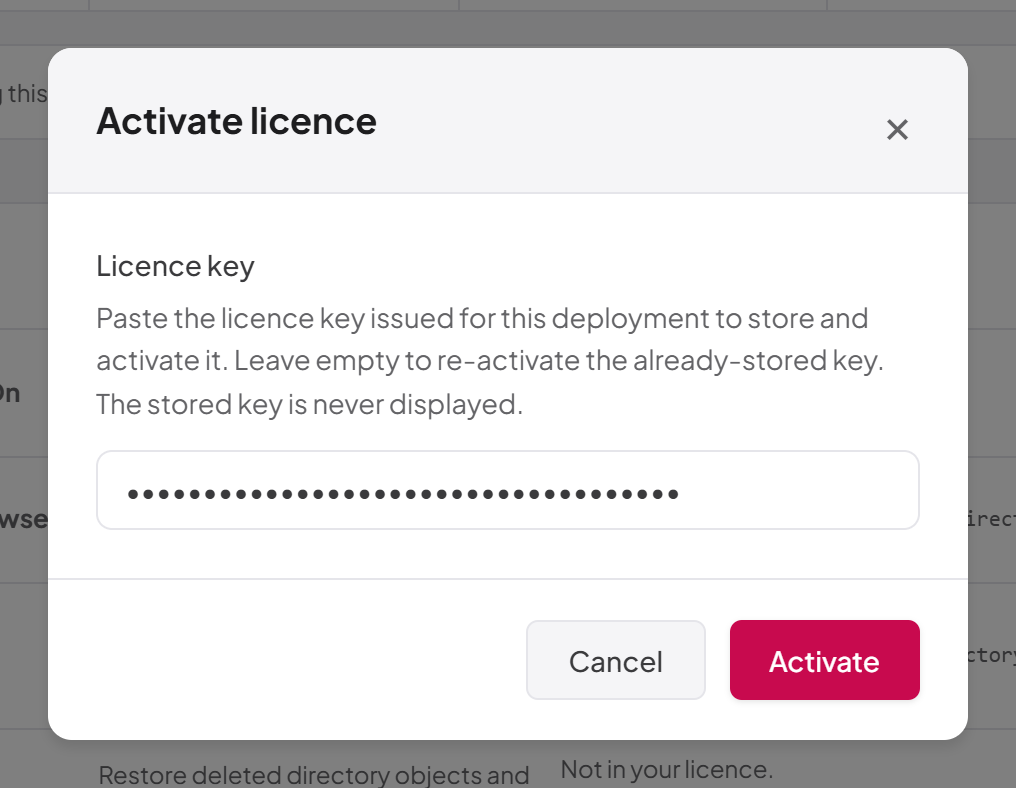
If activation fails, check that the key was copied completely and that the server can reach https://public-hub.synergy.lt over HTTPS.
Tip: To re-activate with the key already stored on the server, for example after the server was offline for a long time and the licence shows Error, click Activate and confirm with the Licence key field left empty. The stored key is never displayed. The Activate button is shown only while the licence is not active; with an active licence the header offers Replace licence… instead.
Replacing a licence
When Synergy issues a new key, for example for a renewal or additional modules:
- Open System › Licence and click Replace licence….
- Read the note A new key replaces this one immediately — features follow the new key. Click Keep current to back out, or Enter new key to continue.
- In the Replace licence dialog, paste the new key and click Activate.
The new key takes effect immediately. Modules the new licence does not include disappear from the menu.
Usage statistics
The Licence screen also holds the setting Share feature-usage statistics with Synergy. When it is on, the installation reports to Synergy how often each product module is used. Only counts of feature names are sent: no directory content, no user identities and no host names. Reports are sent under this installation's licence key.
To change the setting, click the switch beside it. You need telemetry:read to see the current setting and telemetry:manage to change it. The change takes effect immediately, without a restart.
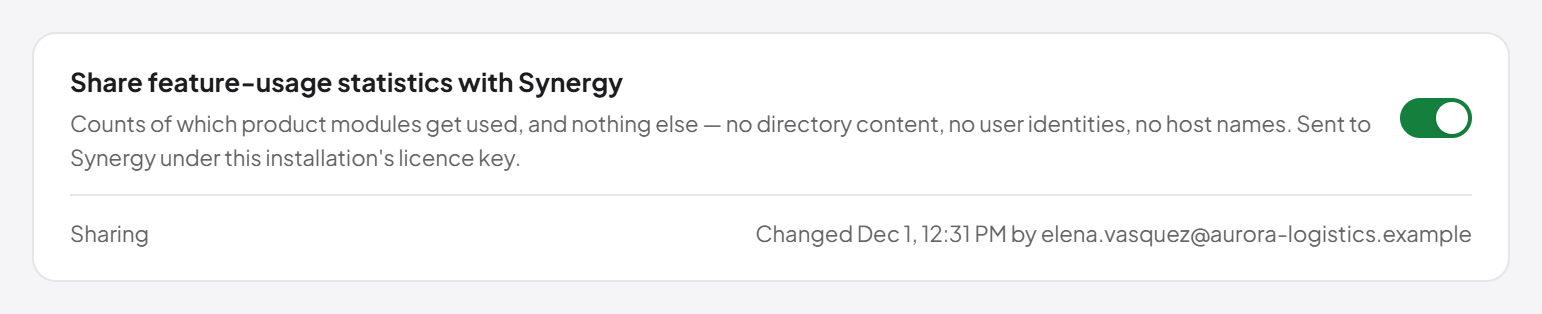
Telemetry:Enabled setting in the configuration file, or the product default. Once you save a choice here, the configuration file setting is no longer consulted.
Important behaviours:
- Off means nothing is collected, not collected and held back. Switching the setting off also discards counts that had not yet been sent.
- The setting is available even when the licence is not active, so you can always withdraw consent.
- Changes to the setting are recorded in the operations log.
Last updated
Thank you for your feedback.