
12.2The API Keys page
Last updated
To open it, select Identity in the navigation rail, then API Keys in the Identity & Access panel. The page lives at /dashboard/api-keys. When API keys are about to expire, the API Keys entry in the navigation carries a badge with their number.
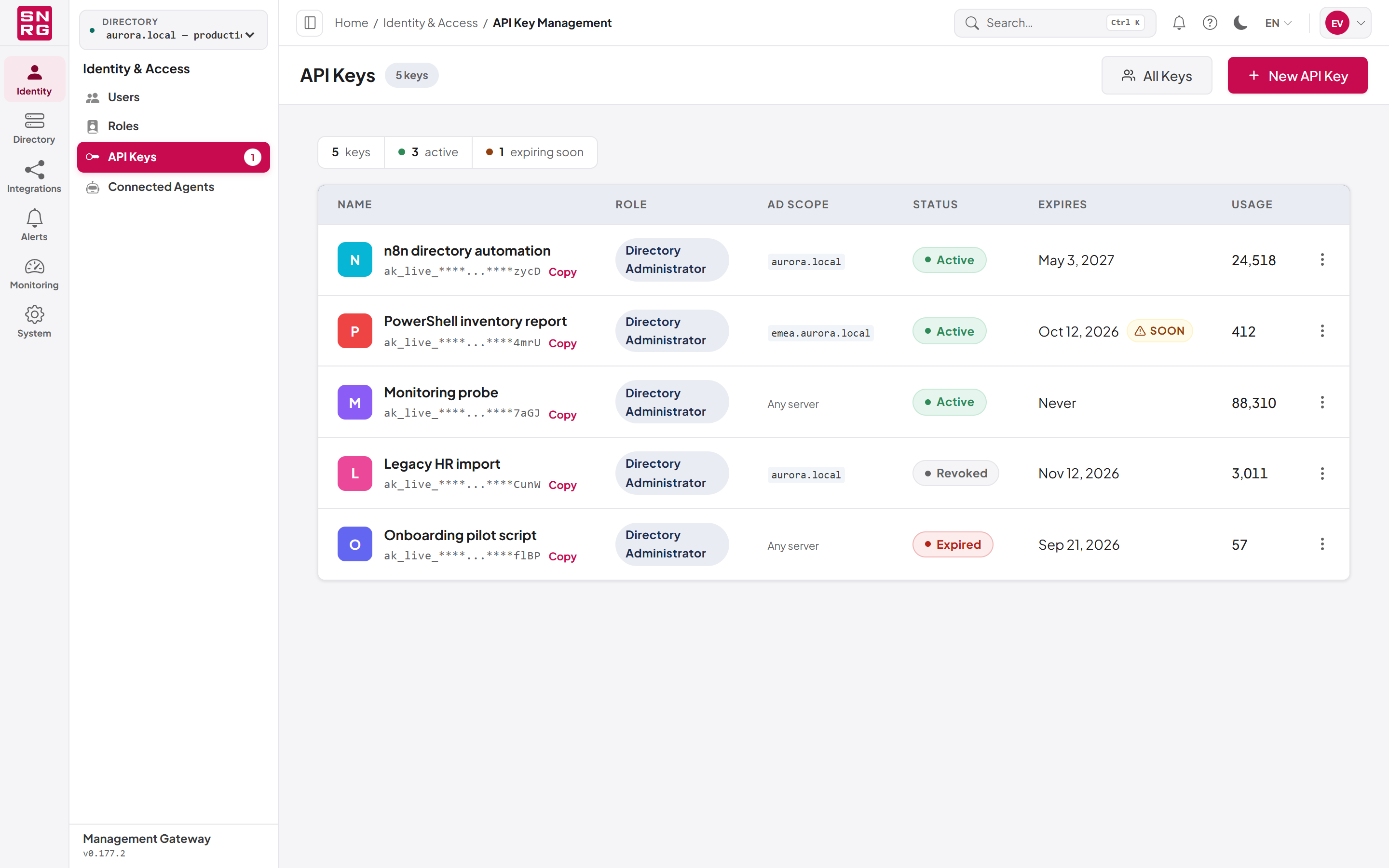
The table columns are:
| Column | Shows |
|---|---|
| Name | The key's name, its masked value and a Copy link for the masked value |
| Owner | Who the key belongs to (only in the All Keys view) |
| Role | The role the key carries |
| AD scope | The domain of the linked directory, or Any server when no directory is linked |
| Status | Active, Expired or Revoked |
| Expires | The expiry date, Never, and a Soon badge when the key expires within 14 days |
| Usage | How many requests have used the key, or Never used |
Important: Any server does not mean the key can reach every directory. A key with no directory link cannot act on Active Directory at all; it can only call routes that need no directory. Link the key to a directory on its settings page (see Directory in Changing a key's settings).
Select Copy beside a key's masked value to copy that masked value, for example to search for the key in logs. The full key is never available here.
The buttons at the top of the page are:
- New API Key — opens the create form (needs
apikeys:create). - All Keys / My Keys — switches between every key in the installation and only the keys you own (needs
apikeys:list).
Each row has an actions menu with Edit (needs apikeys:update) and Delete (needs apikeys:delete). If you hold apikeys:update, you can also double-click a row to open it.
If there are no keys yet, the page says No API keys yet and offers Create your first API key.
Last updated
Thank you for your feedback.