
3.4Forgotten password
Last updated
How Forgot password? behaves depends on whether reset by email is available on your installation. It is available only while a System Admin has configured an active email provider (see Chapter 16, Notifications).
- When reset by email is not available, selecting Forgot password? shows a hint under the password field: "Ask your administrator to reset it. If your organisation uses SSO, sign in with that instead." An administrator can reset your password from the user list (see Chapter 11, Users, roles and permissions).
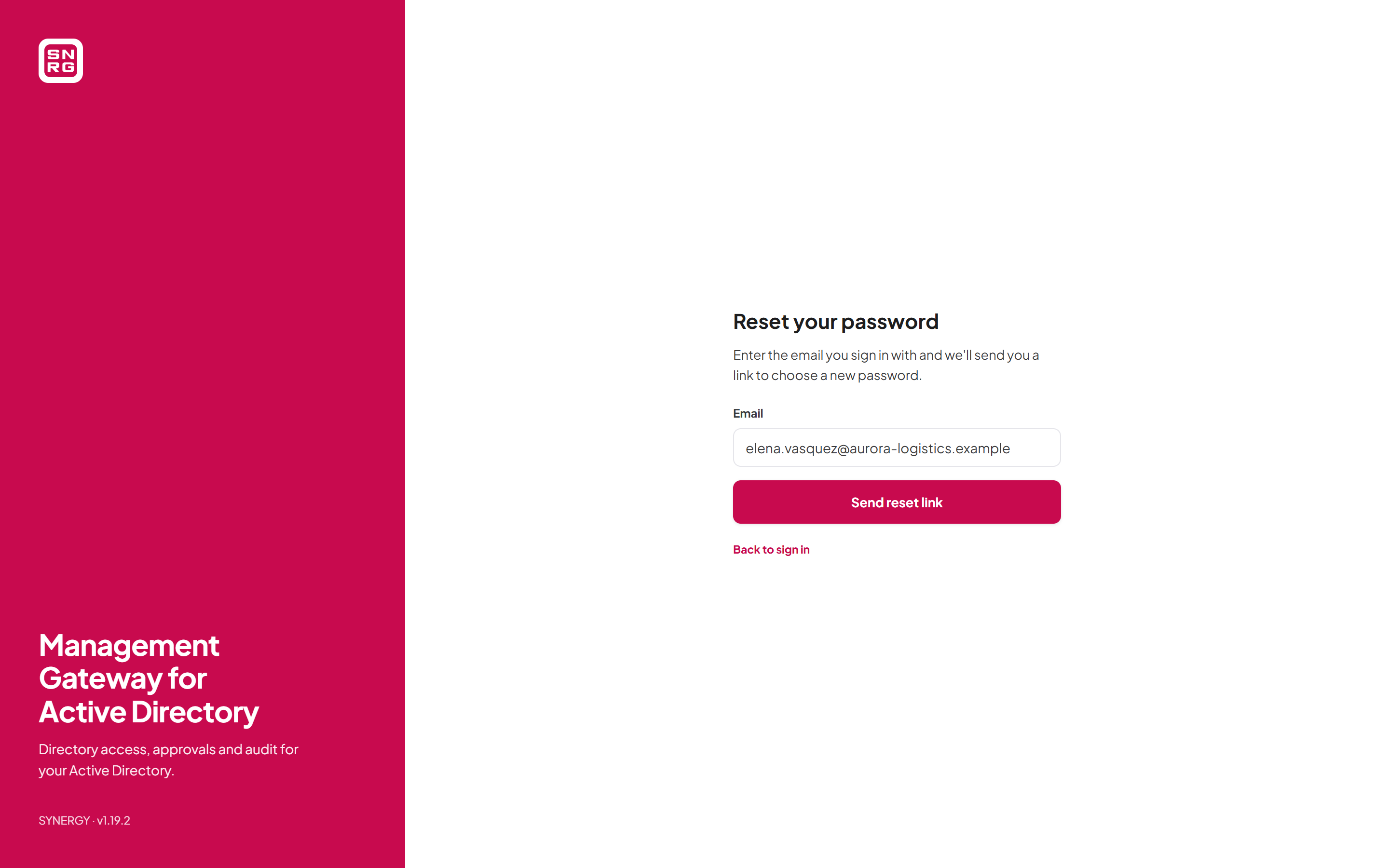
- When reset by email is available, selecting Forgot password? opens the Reset your password page (
/forgot-password). Anything you typed in the Email field on the sign-in page is carried over.
Requesting a reset link
- On the sign-in page, select Forgot password?.
- On Reset your password, check or type the email address you sign in with.
- Select Send reset link. The button reads Sending… while the request runs.
- The page changes to Check your email, saying that if an account for that address can sign in with a password, a link has been sent, that it works once, and how many minutes it is valid for.
- Open the email and select the link. If nothing arrives, check your spam folder. The page says "Didn't get it? Check spam, or ask your administrator."
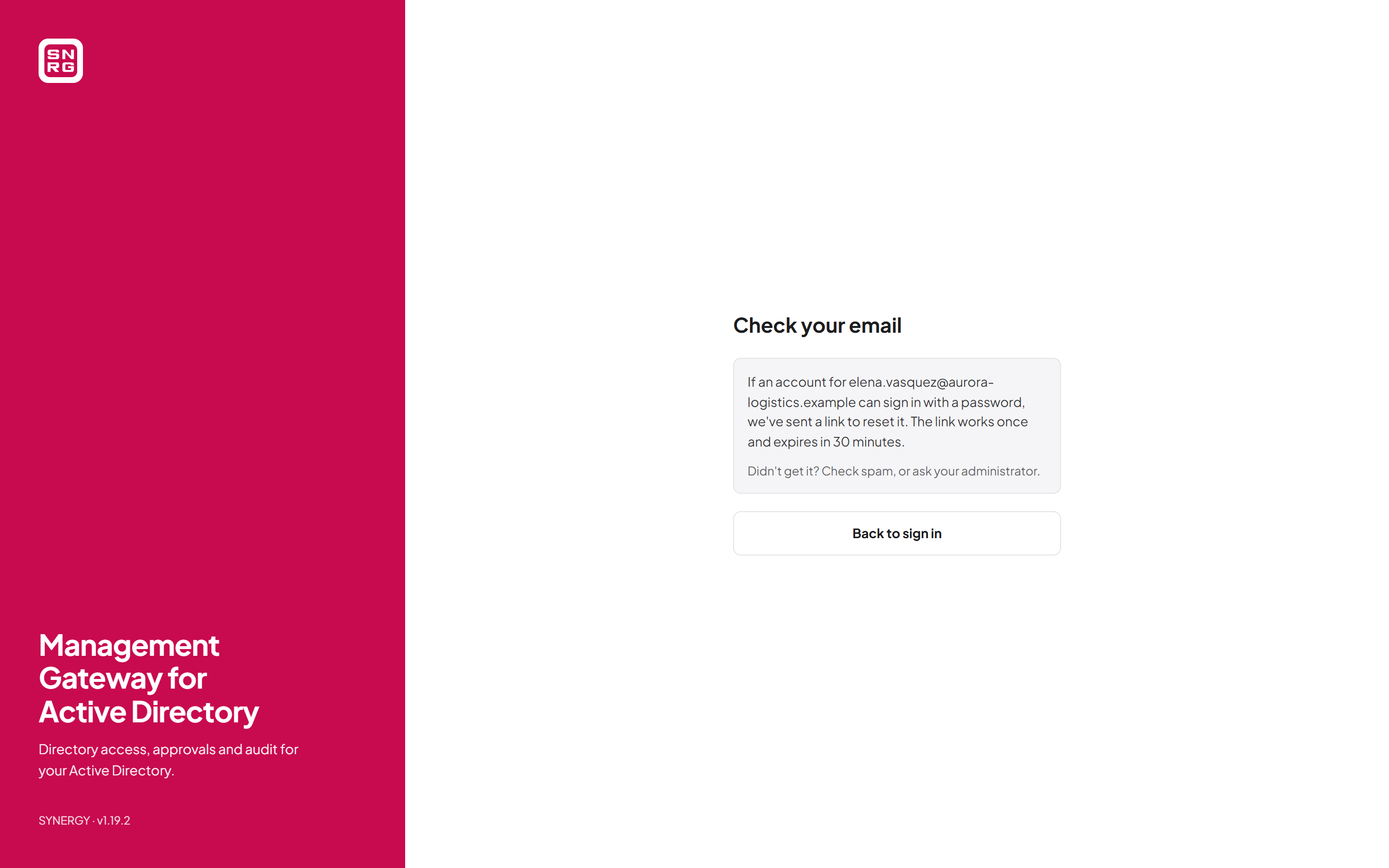
- The page never tells you whether an account exists. It shows the same confirmation for every address. No email is sent if the address is unknown, the account is inactive, or the account signs in through single sign-on only.
- Only accounts that sign in with a password can reset one. An SSO-only account is never given a password this way.
- The link expires. By default it is valid for 30 minutes. Your administrator can set this between 5 and 120 minutes with the
PasswordRecovery:TokenMinutessetting. - At most three reset emails per account per hour are sent (setting
PasswordRecovery:MaxEmailsPerHour), so the form cannot be used to flood your inbox. Requests over that limit are silently ignored. - Requests from one network address are rate-limited. If you send too many, the page says "Too many requests. Please try again in N s."
Choosing a new password from the link
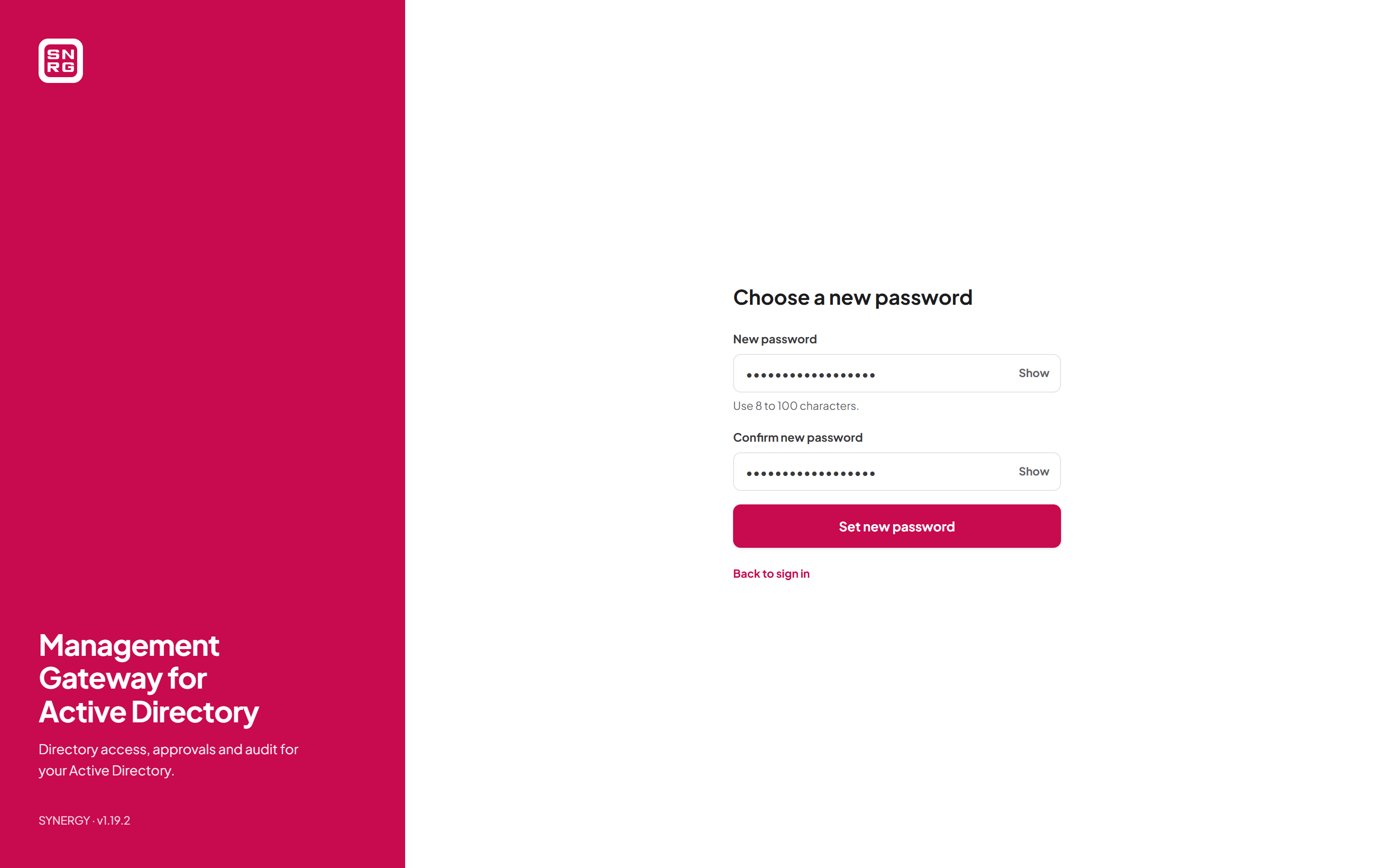
- Select the link in the email. The Choose a new password page opens.
- In New password, type a password of 8 to 100 characters.
- In Confirm new password, type it again. Use the Show buttons if you want to check what you typed.
- Select Set new password. The button reads Saving… while the request runs.
- You return to the sign-in page, which says "Password changed — sign in with your new password." Sign in with the new password.
What happens when you complete the reset:
- Your password is replaced, any account lockout is cleared, and every existing session and every connected AI agent on your account is signed out. Anyone who had your old password, or a session in another browser, loses access.
- You receive an email telling you that your password was changed. If you did not make the change, contact your administrator at once.
A reset link works only once. It also stops working if anything that makes the account yours changes before you use it: your password is changed, your email address is changed, the account is deactivated, or the account is switched to single sign-on only. If the link is no longer valid, the page shows Link not valid: "This reset link is invalid or has expired. Links work once and expire after a short time." Select Request a new link to start again.
Note: The reset token travels in the part of the link after the # sign, which browsers never send to any server, and the page removes it from the address bar as soon as it opens. Do not forward reset emails to anyone.Last updated
Thank you for your feedback.