
4.2The toolbar
Last updated
The toolbar runs across the top of every page. From left to right:
- Menu button (small screens only) and the panel button.
- Breadcrumb: Home / the group / the page, for example "Home / Directory / Directory Browser". When you are creating or editing something, the page part says so.
- Search…: opens quick navigation (see below). It shows the keyboard shortcut, Ctrl K (or ⌘ K on a Mac).
- Notification history (bell icon): opens the history of notifications the platform has sent. See Chapter 16, Notifications.
- Help (question mark icon): the help menu.
- Theme (moon or sun icon): switches between light and dark.
- Language (globe icon with EN or LT): the language menu.
- Account menu (your initials): your name and email address, My profile, your role, and Sign out.

Quick navigation
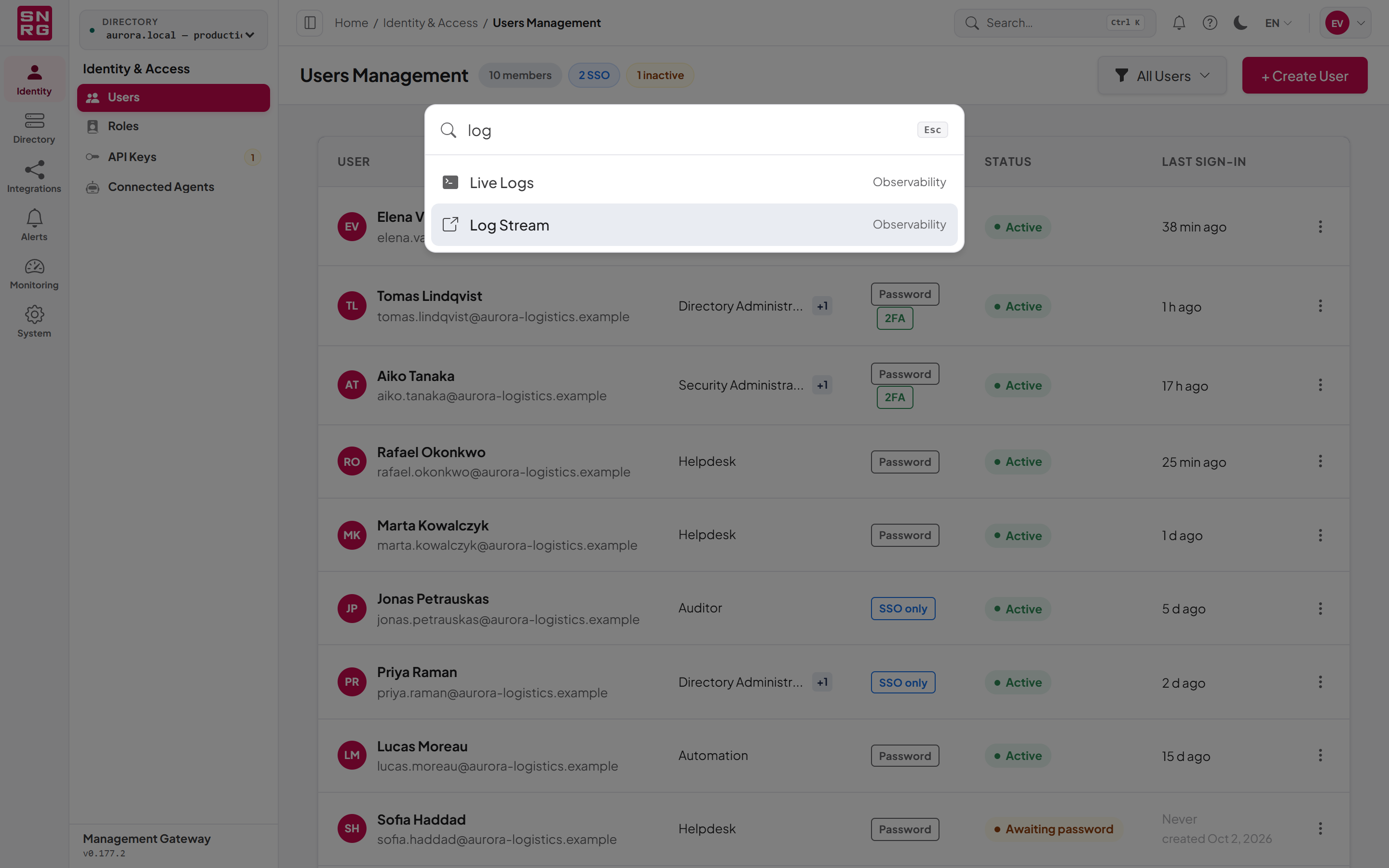
Quick navigation lets you jump to any page you can open by typing part of its name, without using the menus.
- Press Ctrl K (⌘ K on a Mac), or select Search… in the toolbar.
- Type part of a page name in Jump to…, for example
recyfor Recycle Bin. The list under Destinations narrows as you type and shows each page's group. - Use the Up and Down arrow keys to highlight a result, and press Enter to open it. You can also select a result with the mouse.
- Press Esc to close without going anywhere.
If nothing matches, the list says "No matching areas". Quick navigation lists exactly the pages the navigation would show you, in your current language; greyed-out pages are not offered.
Last updated
Thank you for your feedback.