
13.6MCP Settings
Last updated
The MCP Settings screen holds the server's own settings: how tool results are written, and how agents sign in.
To open it, select Integrations in the navigation rail, then MCP Settings. The page is at /dashboard/mcp-settings.
Important: The whole screen — reading it and saving either section — requires that your active role is System Admin, in a browser session. These are installation-wide decisions about every agent, so no ordinary permission grants them.
Changes apply as soon as they are saved; no restart is needed. The header shows when and by whom the settings were last changed. Each section carries a chip saying where its values come from: Saved here, From appsettings.json or Default.
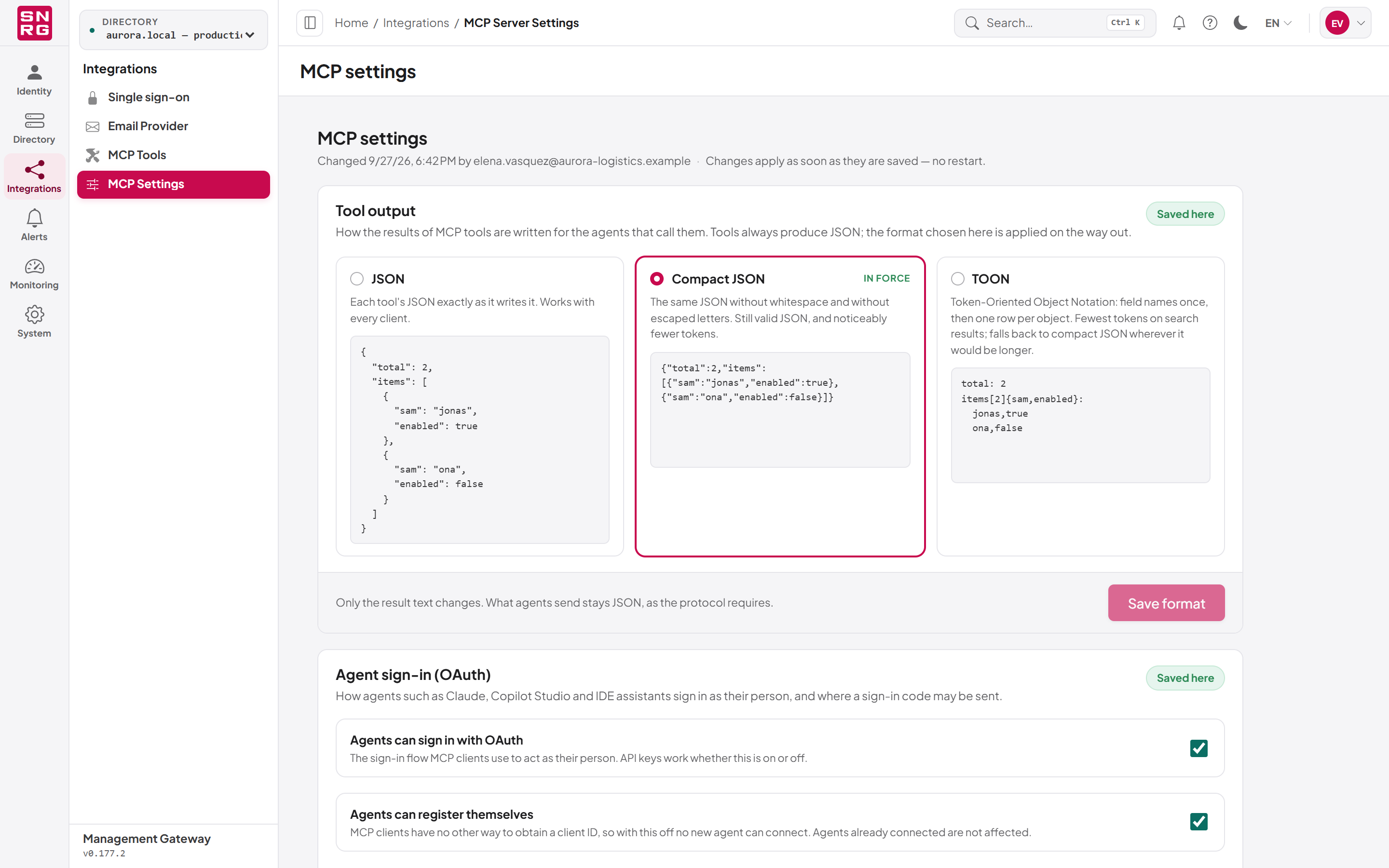
Tool output
Tools always produce JSON. This setting decides how that result is written for the agents that receive it:
| Format | Description |
|---|---|
| JSON | Each tool's JSON exactly as written. Works with every client. |
| Compact JSON | The same JSON without whitespace and without escaped letters. Still valid JSON, with noticeably fewer tokens. |
| TOON | Token-Oriented Object Notation: field names once, then one row per object. Fewest tokens on search results; falls back to compact JSON wherever TOON would be longer. |
Only the result text changes; what agents send stays JSON, as the protocol requires. Results that are not JSON pass through unchanged, and the pending-approval handle survives every format.
To change the format:
- Under Tool output, select the format.
- If you chose TOON, read the warning and tick the confirmation that every client connected to this server passes tool results to a model, not to a JSON parser.
- Select Save format. The new format applies from the next tool call.
Important: TOON is not JSON. It is safe for agents that hand results to a model — Claude, Copilot Studio, IDE assistants. It breaks anything that parses results as JSON, such as workflow steps that read fields from a result or scripts built on an MCP SDK, and they fail on the next call without warning. There is no per-client setting. To undo, choose JSON or Compact JSON and save.
Saving the format requires the MCP Tools licence module.
Agent sign-in (OAuth)
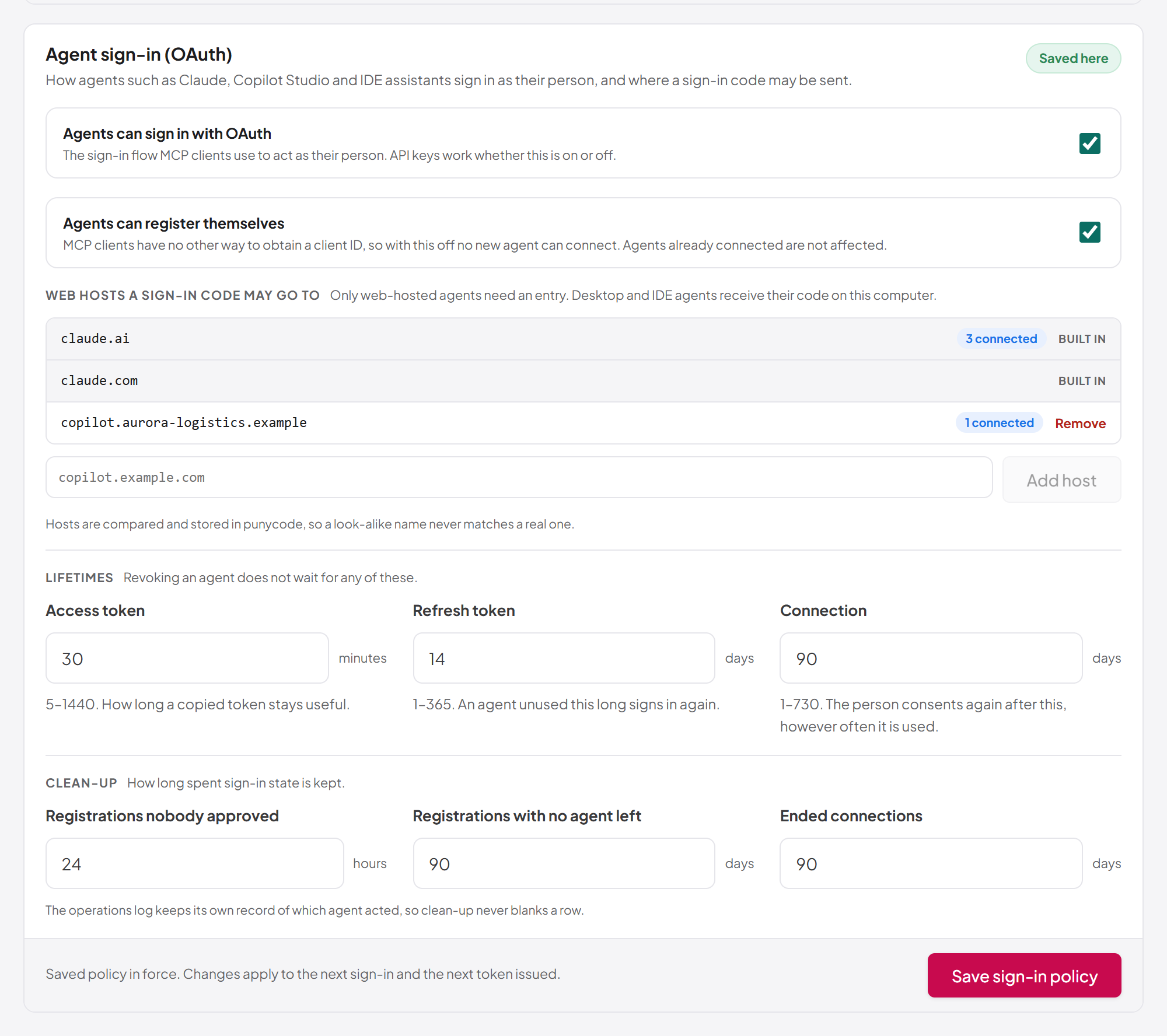
This section controls how agents sign in as their person, and where a sign-in result may be sent.
| Setting | Default | What it does |
|---|---|---|
| Agents can sign in with OAuth | On | Switches the whole sign-in flow. Off stops every OAuth agent on its next call and lets none sign in. API keys keep working. |
| Agents can register themselves | On | MCP clients have no other way to obtain a client ID, so with this off no new agent can connect. Agents already connected are not affected. |
| Web hosts a sign-in code may go to | claude.ai, claude.com | Web-hosted agents that may receive a sign-in result. Desktop and IDE agents need no entry. |
| Access token | 30 minutes (5–1440) | How long a copied token stays useful |
| Refresh token | 14 days (1–365) | An agent unused this long signs in again |
| Connection | 90 days (1–730) | The person consents again after this, however often it is used |
| Registrations nobody approved | 24 hours (1–720) | How long an unused registration is kept |
| Registrations with no agent left | 90 days (1–3650) | How long a registration without connections is kept |
| Ended connections | 90 days (1–3650) | How long an ended connection is kept on record |
Revoking an agent never waits for any of these lifetimes. Clean-up never blanks a row in the operations log, which keeps its own record of which agent acted.
To allow a web-hosted agent such as Copilot Studio:
- Under Web hosts a sign-in code may go to, type the host name only, for example
copilot.example.com— nohttps://, port or path. - Select Add host.
- Select Save sign-in policy.
Rules for host names:
- Enter a fully qualified host name, not an IP address. A wildcard cannot be saved here.
- At most 32 web hosts can be allowed.
- Hosts are compared and stored in punycode, so a look-alike name never matches a real one.
- The built-in hosts are always allowed and cannot be removed.
- Each host shows how many connected agents sign in through it. If you remove a host in use, the page warns that those agents cannot sign in again once you save.
To change the switches or lifetimes, edit the values and select Save sign-in policy. Changes apply to the next sign-in and the next token issued.
Settings from the configuration file
Until somebody saves this section, the values come from the McpOAuth section of the server's appsettings.json, and the page says so. Saving takes the values over; from then on the file's values are ignored, except the client and API base addresses, which stay in the file.
The file still acts as an outer off switch:
- If
McpOAuth:Enabledis false in the file, agents cannot sign in with OAuth whatever is saved here, until the file is changed on the server. - If
McpOAuth:AllowDynamicClientRegistrationis false in the file, no new agent can register. - If the file allows any web host (
"*"), the page warns that saving here limits agents to the hosts listed.
Which application schemes desktop and IDE agents may return to (for example vscode or cursor) is set only in the configuration file, under McpOAuth:AllowedRedirectSchemes; the common editors are built in.
Security summary
- An agent acts as a person, never as more than that person, with one role, in one directory, and read-only unless the person chose otherwise.
- Every agent action is recorded in the operations log under the person's name, with the agent's name.
- An agent can never approve an operation — not its own, not anyone's.
- Supervision, protected targets and always-ask pins decide which changes wait for a person; see Chapter 10, Operation policies, attribute policies and agent supervision.
- Access can always be withdrawn: disconnect the agent, revoke the API key, deactivate the person, or switch agent sign-in off in MCP Settings. Each takes effect on the agent's next request.
Last updated
Thank you for your feedback.