
6.1Before you start
Last updated
Licence
The Directory Browser is a licensed module, and it uses two separate licence entitlements:
| Licence entitlement | What it unlocks |
|---|---|
directory-browser | The browser itself: the tree, the object inspector, search, change history and the read-only membership tabs. |
directory-management | Everything that changes the directory from the browser: creating, renaming, moving, deleting, editing attributes, account actions and membership changes. |
If your installation is licensed for directory-browser only, the browser is fully usable for reading, but the Actions menus, the attribute edit pencils, the New object here… and Delete… menu entries, and the add and remove buttons on the membership tabs are not shown.
Note: The directory-management entitlement controls what the browser offers. What a person is actually allowed to change is still decided by their permissions and by the operation policies (see Chapter 10, Operation policies, attribute policies and agent supervision). An unlicensed installation refuses directory operations everywhere; see Chapter 19, Licence, updates and backups.Permissions
To open the browser you need the ad:directory:read permission. Every other part of the page is gated on its own permission, and a control you are not allowed to use is simply absent rather than greyed out.
| Task | Permission needed |
|---|---|
| Open the browser, expand the tree, read any object | ad:directory:read |
| Search manually | ad:objects:read |
| Run a saved search | savedfilters:list and savedfilters:execute |
| Save a search | savedfilters:create |
| See the History tab | audit:list |
| See a user's Groups tab | ad:groups:read |
| See a group's Members tab | ad:users:read |
| Create, change or delete users | ad:users:create, ad:users:update, ad:users:delete |
| Create, change or delete groups, and change memberships | ad:groups:create, ad:groups:update, ad:groups:delete |
| Create, change or delete organizational units | ad:ous:create, ad:ous:update, ad:ous:delete |
| Create, change or delete computers | ad:computers:create, ad:computers:update, ad:computers:delete |
| See and change an OU's protection from accidental deletion | ad:acl:read (to see it), ad:acl:manage (to change it) |
Roles and permissions are described in Chapter 11, Users, roles and permissions.
Choosing the directory
The browser always works against the directory selected in the workspace connection picker at the top of the console. To browse a different domain, switch the connection there; the browser reloads for the new directory. The connection picker is described in Chapter 4, Working in the console, and connections themselves in Chapter 5, Directory connections.
Opening the browser
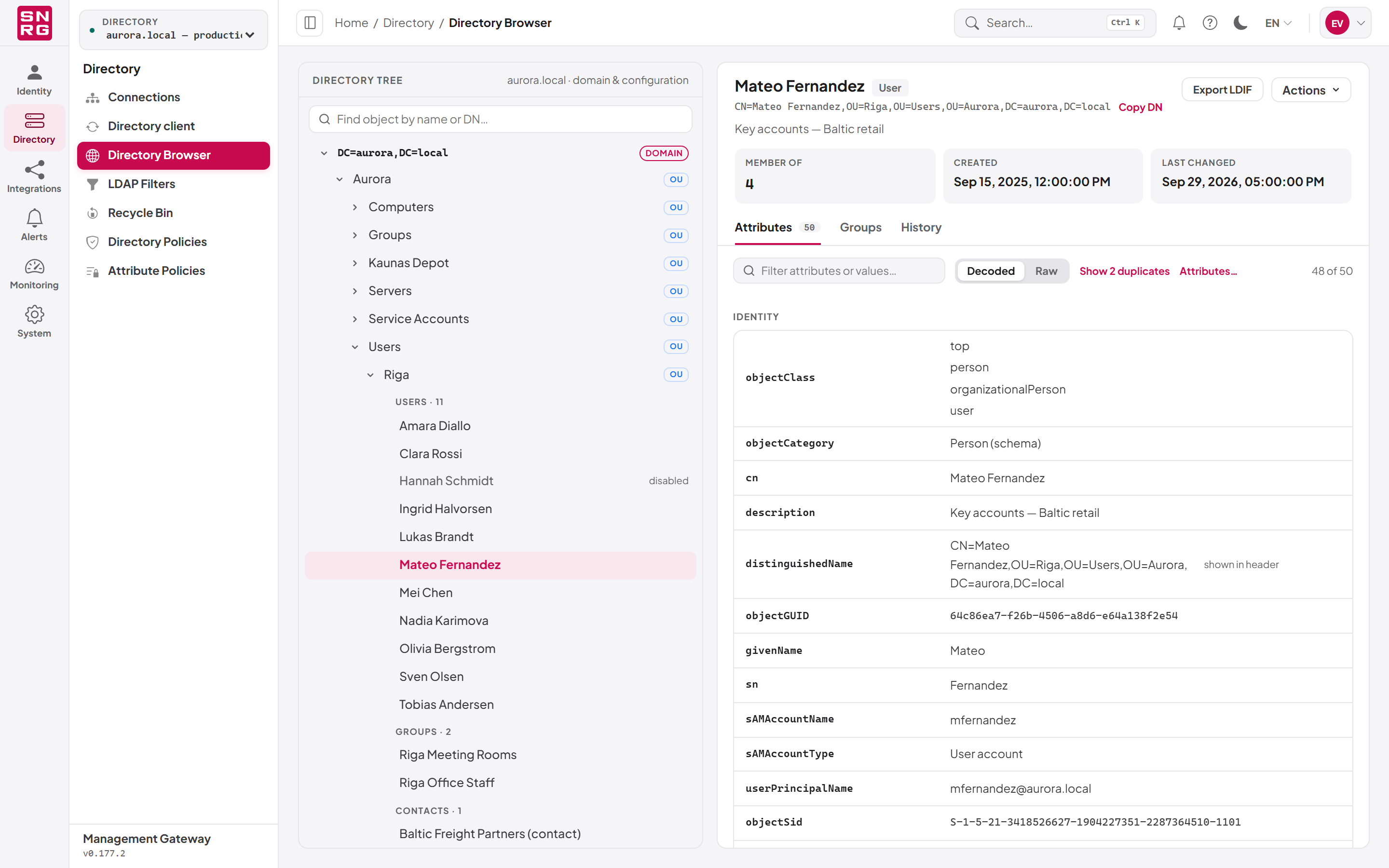
- In the navigation, open the Directory group.
- Select Directory Browser.
The page opens with the domain partition expanded one level.
Last updated
Thank you for your feedback.