
19.2Platform updates
Last updated
SYNERGY Management Gateway can update itself. A separate Windows service, the SYNERGY Management Gateway Update Agent, runs on the server, asks Synergy for new releases, downloads the installer package and installs it. It is a separate service because installing an update stops the API and replaces its files; a part of the API could not do that to itself, nor confirm afterwards that the new version started correctly.
The Updates screen (route /dashboard/updates, page title Platform Updates) configures the agent and shows what it is doing. The screen and the agent communicate through the platform's database, so changes you save are picked up by the agent on its next check-in, which happens every few minutes.
Note: The update feed is authenticated with the licence key, so checking for updates needs an activated licence. The Updates screen itself is not licence-gated: an installation with a licensing problem can still reach it and install a release that fixes the problem.
Who can use it
updates:readshows the screen.updates:manageis needed to Check now, Install now, cancel an approval and save the schedule.
Reading the Updates screen
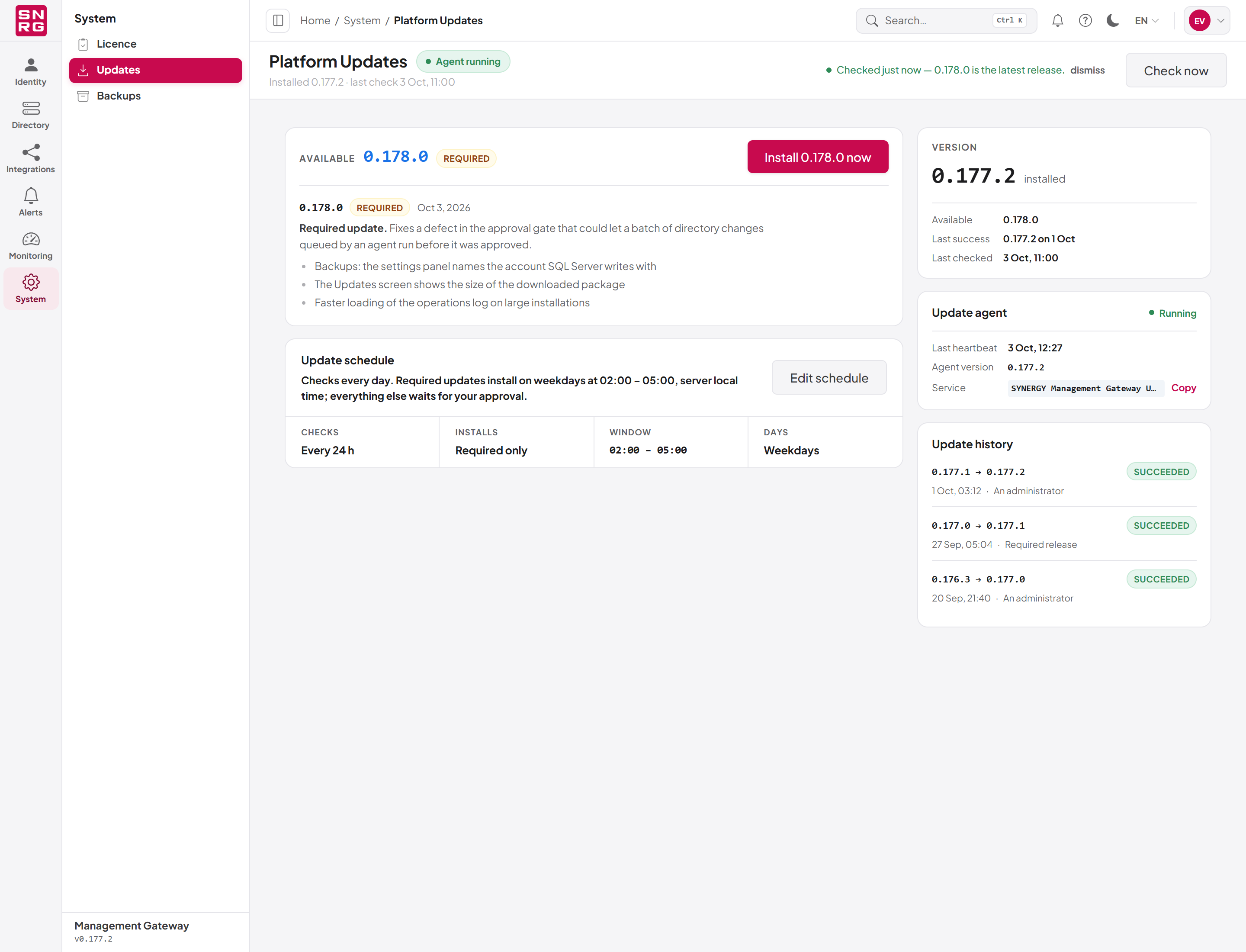
- Installed version – the version running now, the Latest known version (or up to date, or never checked) and when the agent Last checked.
- Update agent – whether the agent is running, the Windows Service name, its Last heartbeat and Agent version. Copy service name copies the service name to the clipboard.
- Update history – every update attempt, newest first, with the versions (from → to), the outcome, when it started and who started it. A failed attempt shows its error and the path of the installer log on the server.
The main column shows:
- A red bar when the agent is not running, saying when it last reported in (or that it never has) and asking you to start the
SYNERGY Management Gateway Update Agentservice on the server. Until the agent runs, the screen is configuration only and nothing is checked. - An amber bar when the last update check did not succeed, with the reason. Anything else on the screen is then from the last successful check.
- An Available card when a newer release is offered, with its version, a Required badge for releases Synergy marks as required (usually security fixes), the release notes for each version since yours, and a Release page link.
- An Installing card while an update is in progress.
- The Update schedule card.
The agent counts as running when it has reported in within the last 30 minutes.
Checking for updates now
The agent checks on its schedule, but you can ask it to check at once:
- Open System › Updates.
- Click Check now in the page header.
The button changes to Check queued… and a hint says the agent picks this up within a few minutes. When the check completes, the version information on the screen is updated. Check now is unavailable while the agent is not running or while an installation is in progress.
Installing an update now
To install an available update immediately:
- Open System › Updates. The Available card shows the version on offer.
- Read the release notes.
- Click Install version now.
The card now says Approved for version — the agent will start it shortly. The agent starts the installation on its next check-in. To withdraw the approval before the installation starts, click Cancel.
An explicit approval ignores the maintenance window: by clicking Install now you accept the interruption now.
Important: While the installer runs, the API is stopped, so the console and every integration are briefly unavailable. The Updates page may stop responding during this time and comes back on its own when the new version has started.
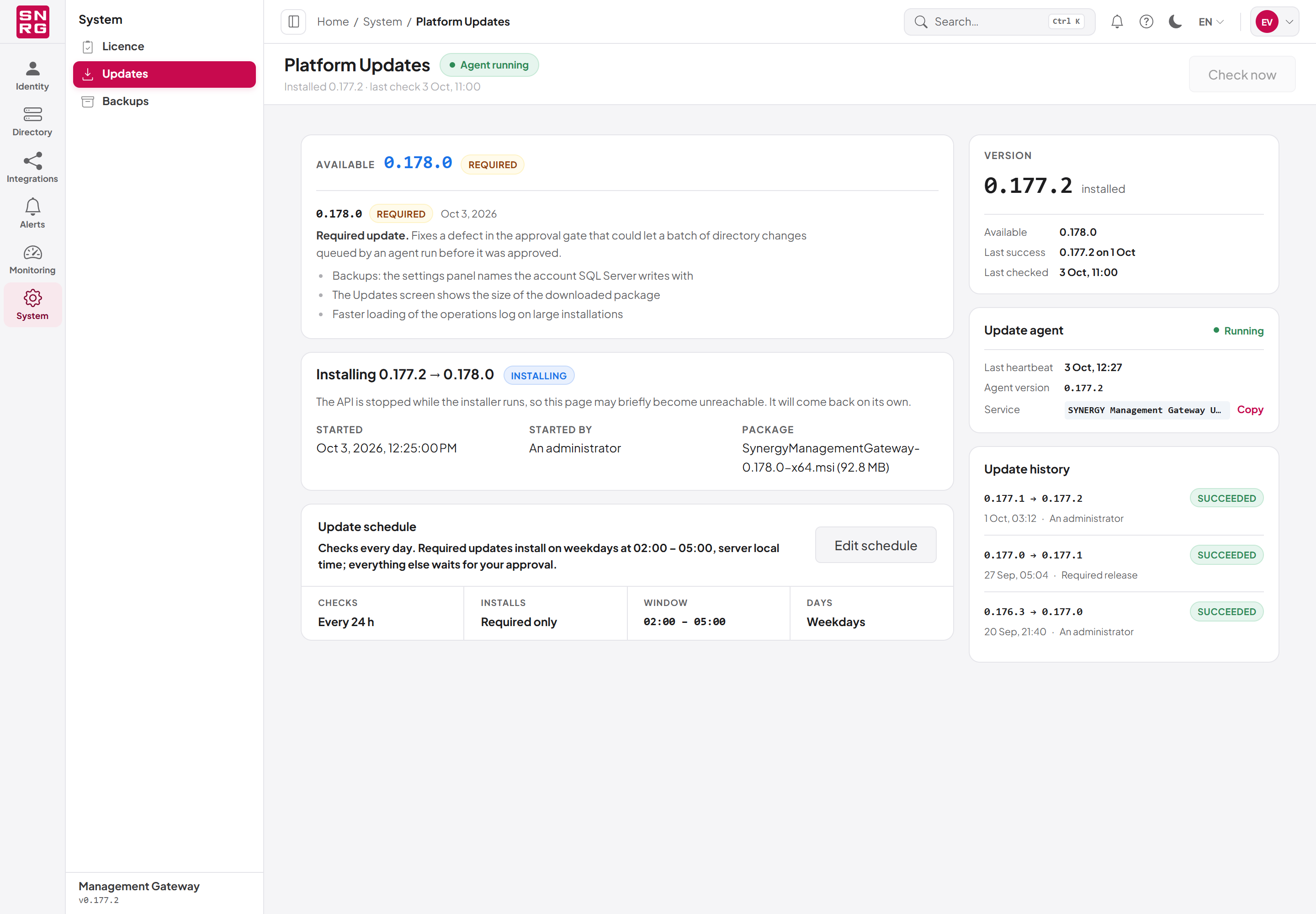
What happens during an installation
- The agent records the attempt in the update history before it starts, so the outcome is known even though the agent itself is stopped and replaced during the installation.
- The agent downloads the installer package and verifies its digital signature (see Package signature checking below).
- A separate installer process stops the API's application pool, runs the installer, and starts the application pool again.
- When the agent starts again, it checks the installed version and calls the platform's readiness probe (
/health/ready) to confirm the new version is working. An installer can report success after rolling itself back, so the version is checked rather than assumed. - The attempt is marked Succeeded or Failed in the update history.
The states shown for an attempt are Queued, Downloading, Downloaded, Installing, Succeeded, Failed and Cancelled. Started by shows An administrator (Install now), The schedule (an automatic install) or Required release (a required release installed automatically).
Setting the update schedule
The Update schedule card decides what the agent does on its own. It ends with a one-sentence summary of the policy the settings add up to, for example Checks every day. Required updates install every day at 02:00 – 05:00, server local time; everything else waits for your approval. Read it before saving.
To set the schedule:
- Open System › Updates and scroll to Update schedule.
- Set the fields described in the table below.
- Click Save schedule. Cancel discards unsaved changes.
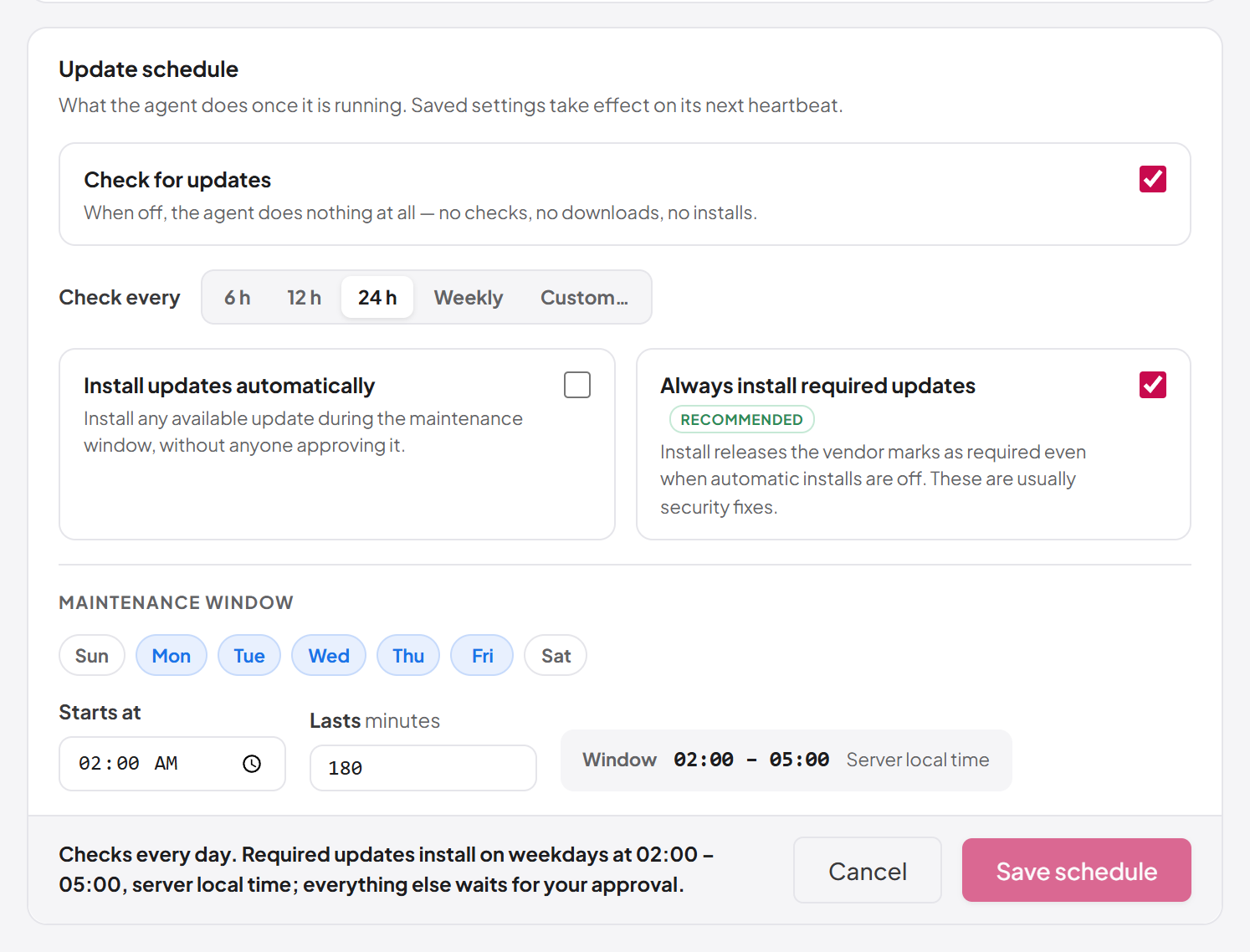
| Setting | Description |
|---|---|
| Check for updates | Master switch. When off, the agent does nothing on its own: no checks, no downloads, no installs. |
| Check every | How often the agent checks: 6 h, 12 h, 24 h (default), Weekly, or Custom… (1–336 hours). |
| Install updates automatically | Installs any available update during the maintenance window without anyone approving it. |
| Always install required updates | Installs releases Synergy marks as required, during the maintenance window, even when automatic installs are off. Marked Recommended. |
| Maintenance window – days | The days of the week on which automatic installs may start. Pick at least one day, or nothing can install. |
| Starts at | The time the window opens, in the server's local time. |
| Lasts | The length of the window in minutes, 30–1440 in steps of 30 (default 180). The Window read-out shows the resulting time span and warns when it ends the next day. |
The maintenance window only matters when something installs automatically. With both automatic switches off it is dimmed and governs nothing, but its settings are kept.
Tip: With Check for updates switched off, Check now and Install now still work. Use them to try an update by hand before you switch automatic installs on.
Package signature checking
Before installing, the agent checks the installer package's digital (Authenticode) signature and that it was signed by the expected publisher. This is the main protection against installing a tampered package, because the installer runs with full system rights on the server.
The check is configured in the UpdateAgent section of the update agent's own appsettings.Production.json:
| Setting | Meaning |
|---|---|
RequireSignedPackage | true (default) refuses any package without a valid signature from the expected signer. |
ExpectedPublisher | The exact subject name of the release signing certificate. |
TrustedSignerThumbprints | A list of certificate thumbprints the signer must match. |
With RequireSignedPackage on, at least one of ExpectedPublisher and TrustedSignerThumbprints must be set, or every package is refused. When both are set, both must match. Switch RequireSignedPackage off only on Synergy's instruction.
Changes to the update schedule, install approvals and their cancellation are recorded in the operations log. Activating a licence is recorded there too.
Last updated
Thank you for your feedback.