
4Working in the console
Last updated
This chapter describes the parts of the SYNERGY Management Gateway console that stay the same on every page: the navigation, the toolbar, the directory you are working in, your role, language and theme, keyboard shortcuts, the help menu, the About dialog, sending feedback and bug reports, the licence banner, and the messages and live operation cards that appear while you work.
Read this chapter once before the chapters about individual pages. Everything here is available to every signed-in user unless a permission is named.
The console at a glance
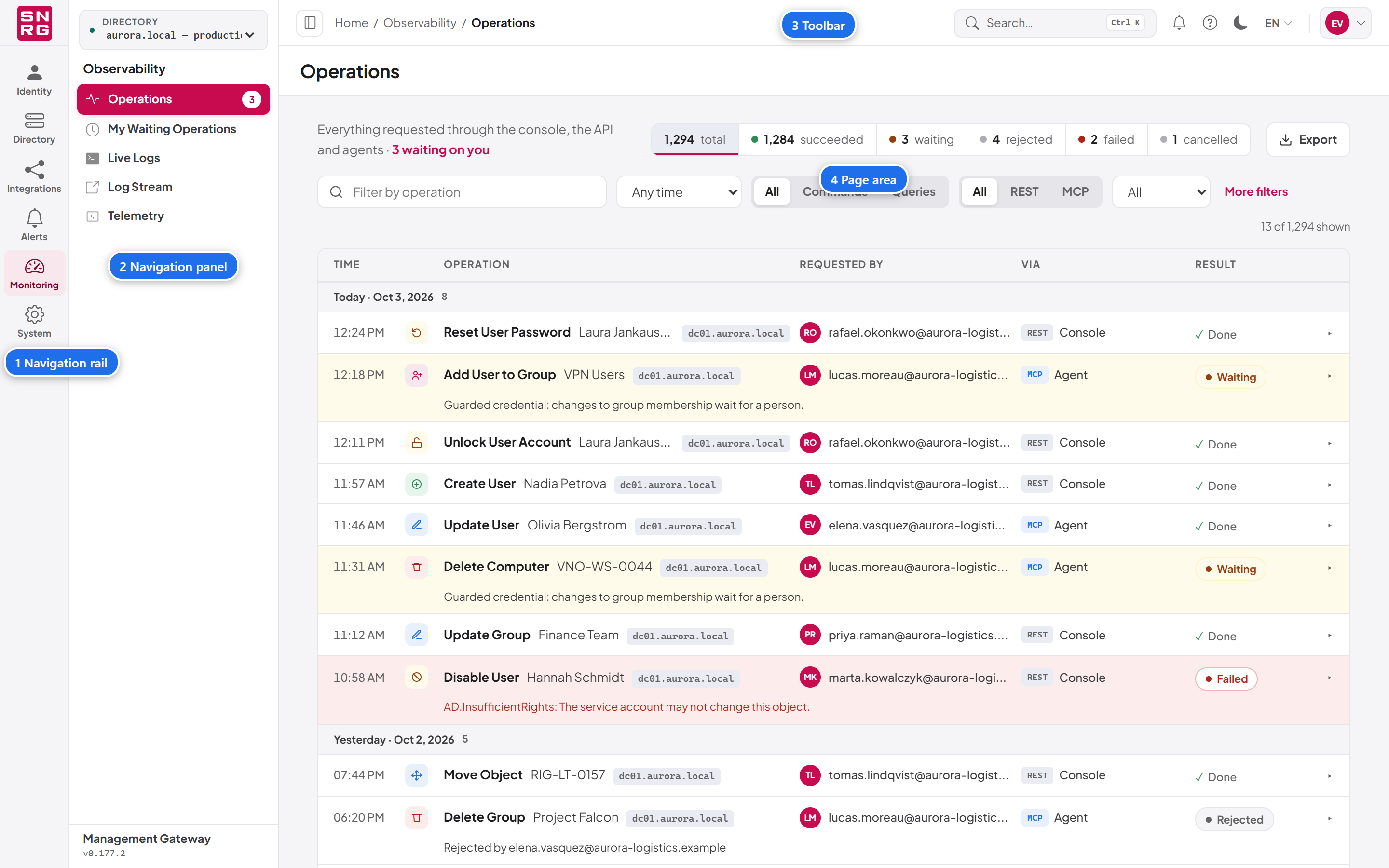
After you sign in (see Chapter 3, Signing in and your account) you land in the console. The screen has four areas:
| Area | Where | What it does |
|---|---|---|
| Navigation rail | Far left, narrow column of icons | Shows the groups of pages you can open |
| Navigation panel | Beside the rail | Shows the directory you are working in and the pages in the selected group |
| Toolbar | Across the top | Breadcrumb, quick navigation, notifications, help, theme, language and your account |
| Page area | The rest of the screen | The page you are working on, with its title and actions at the top |
In this chapter
Last updated
Thank you for your feedback.