
6.7Managing groups
Last updated
Group management requires the directory-management licence entitlement and the relevant ad:groups:* permission.
To create a group
- Right-click the target container and choose New object here….
- Under What to create, select Group.
- Fill in the fields below and select Create.
| Field | Description |
|---|---|
| Group name | The name in the tree. Up to 256 characters. |
| Logon name (sAMAccountName) | Optional, up to 256 characters. Suggested from the group name. Access control entries name the group by this. |
| Type | Security (can be granted permissions, and can receive mail) or Distribution (mail only; cannot grant access). |
| Scope | Global (members from this domain; usable anywhere in the forest), Domain local (members from any domain; usable only in this one) or Universal (members from any domain, usable anywhere; replicated to every global catalogue). |
The group Actions menu
| Action | Permission | What it does |
|---|---|---|
| Change type and scope… | ad:groups:update | Converts between security and distribution, and between scopes. |
| Rename… | ad:groups:update | Changes the name in the tree. |
| Move… | ad:groups:update | Moves the group to another container. |
| Delete group… | ad:groups:delete | Deletes the group after confirmation. |
To change a group's type or scope
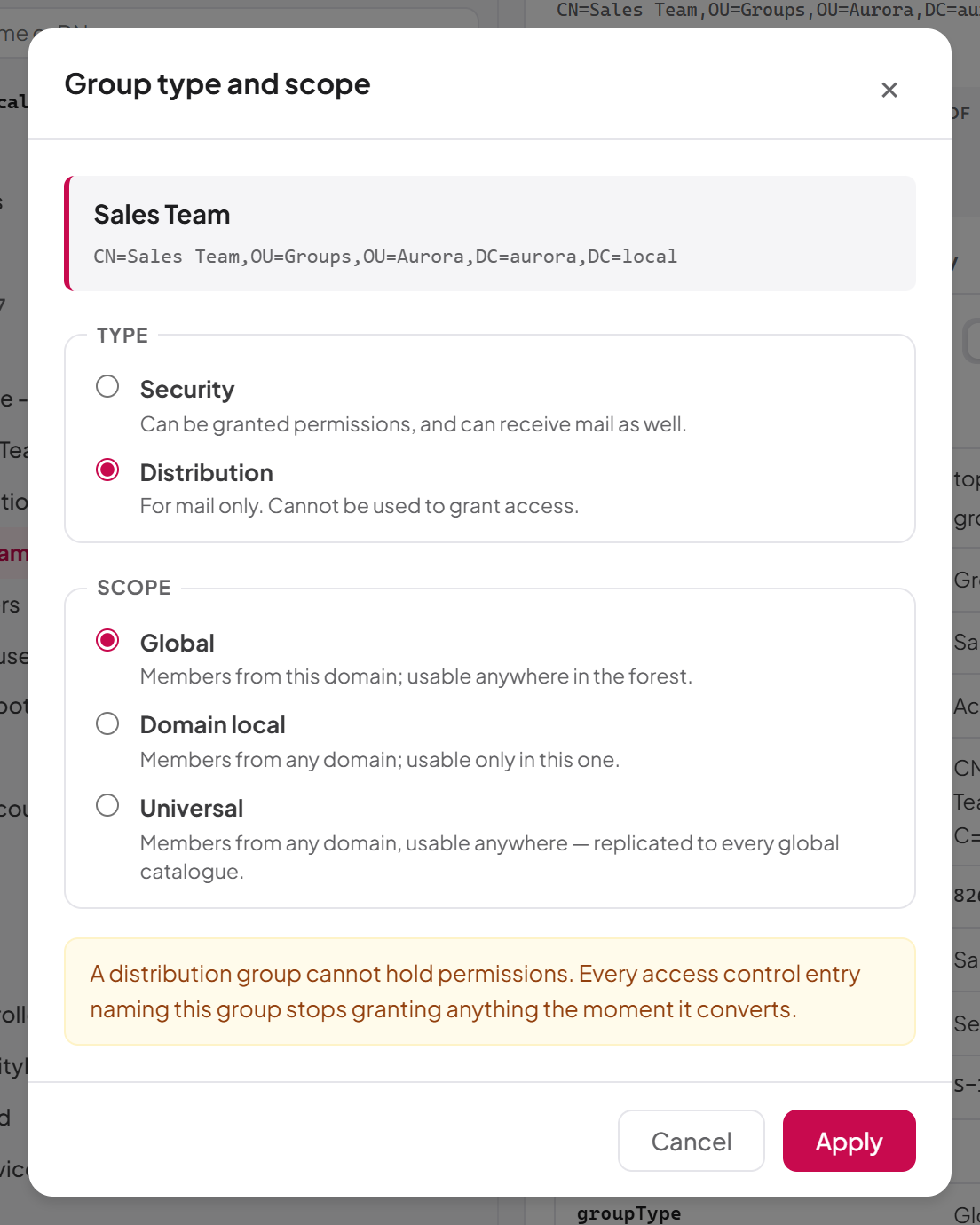
- Select the group, open Actions and choose Change type and scope….
- Choose the Type and the Scope.
- Select Apply.
The dialog warns you about the two cases that need care:
- Active Directory cannot convert directly between Global and Domain local. Change the group to Universal first, then to the scope you want.
- Converting a security group to Distribution means every access control entry naming the group stops granting anything at once.
Renaming, moving and deleting a group
Renaming and moving work as for users (see 6.6). Note:
- Renaming changes the name in the tree only. Access control entries, login scripts and anything else naming the group by its
sAMAccountNamekeep using the old one; change that attribute as well if it should follow. - Moving changes the group's distinguished name; its membership is unaffected.
- Deleting a group leaves its members alone, but every permission granted through the group stops applying. If the directory marks the group as one of its own critical system objects, the confirmation warns that the domain controller is likely to refuse.
A group's members
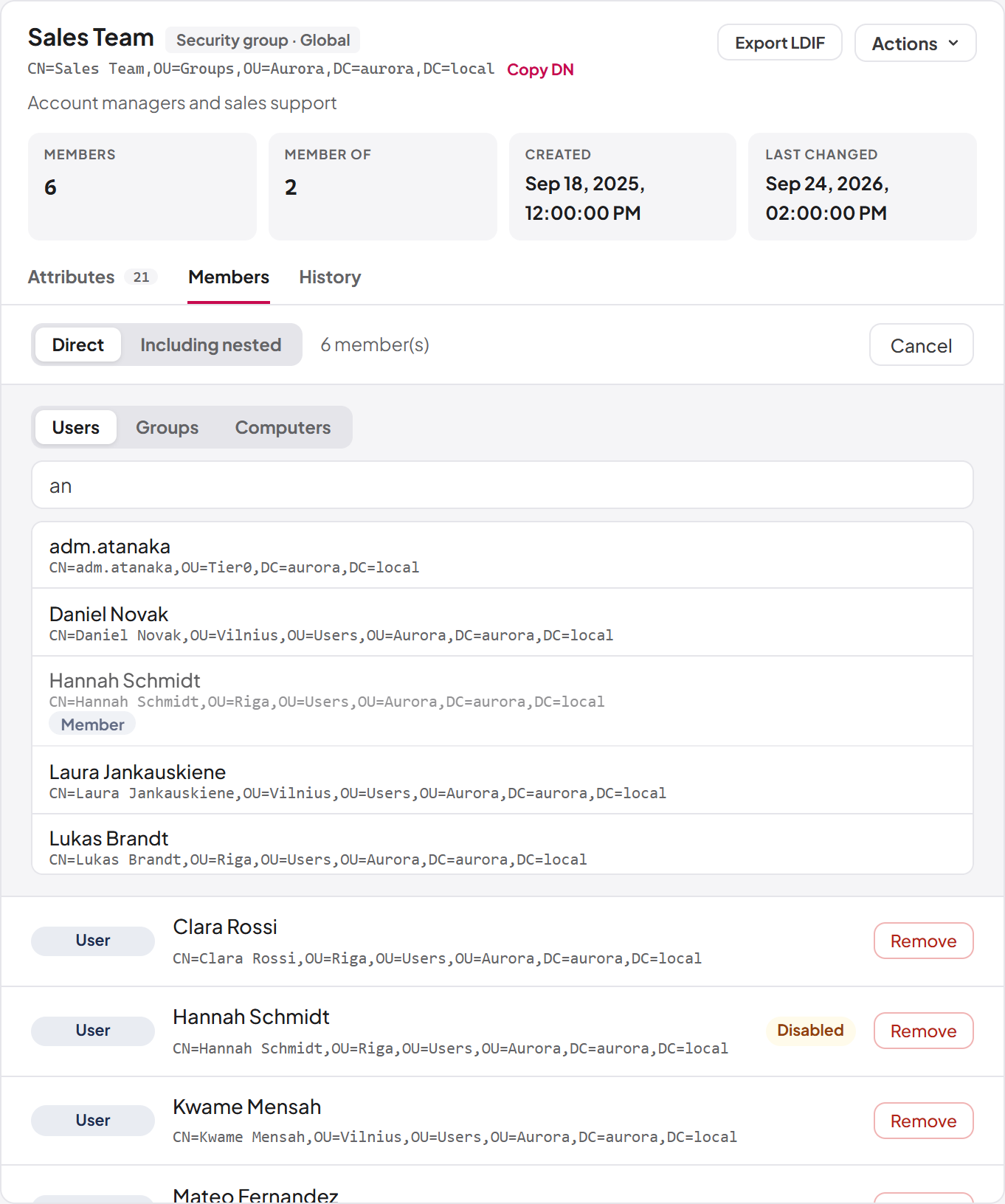
The Members tab lists the selected group's members, each marked User, Group, Computer or Member, and Disabled where the account is disabled. Choose:
- Direct — what the group holds, with nested groups listed as entries in their own right.
- Including nested — follows nesting and lists the accounts at the end of every chain, resolved by the domain controller.
Accounts whose only link to the group is their primary group (normally Domain Users) are not listed.
To add a member (needs ad:groups:update and the management licence):
- Select Add member….
- Under What to search for, choose Users, Groups or Computers. Each option appears only if you may list that kind of object (
ad:users:read,ad:groups:readorad:computers:list). - Type part of the name in Search by name, then select the object in the results. Objects already in the group are marked Member.
Adding a group as a member creates a nested group. To remove a member, switch to Direct and select Remove next to it.
Important: Control of a privileged group's membership is equivalent to holding that group's privileges. Groups protected by Active Directory carry the Privileged marker in the tree.
Last updated
Thank you for your feedback.