
16.3Notification templates
Last updated
Each notification type that you can configure has a template that defines its subject and content. The product ships with standard wording. You can change it to suit your organisation — for example to add instructions, translate it, or change the subject line — and you can go back to the standard wording at any time.
To edit templates you need the notifications:manage permission.
The Templates page
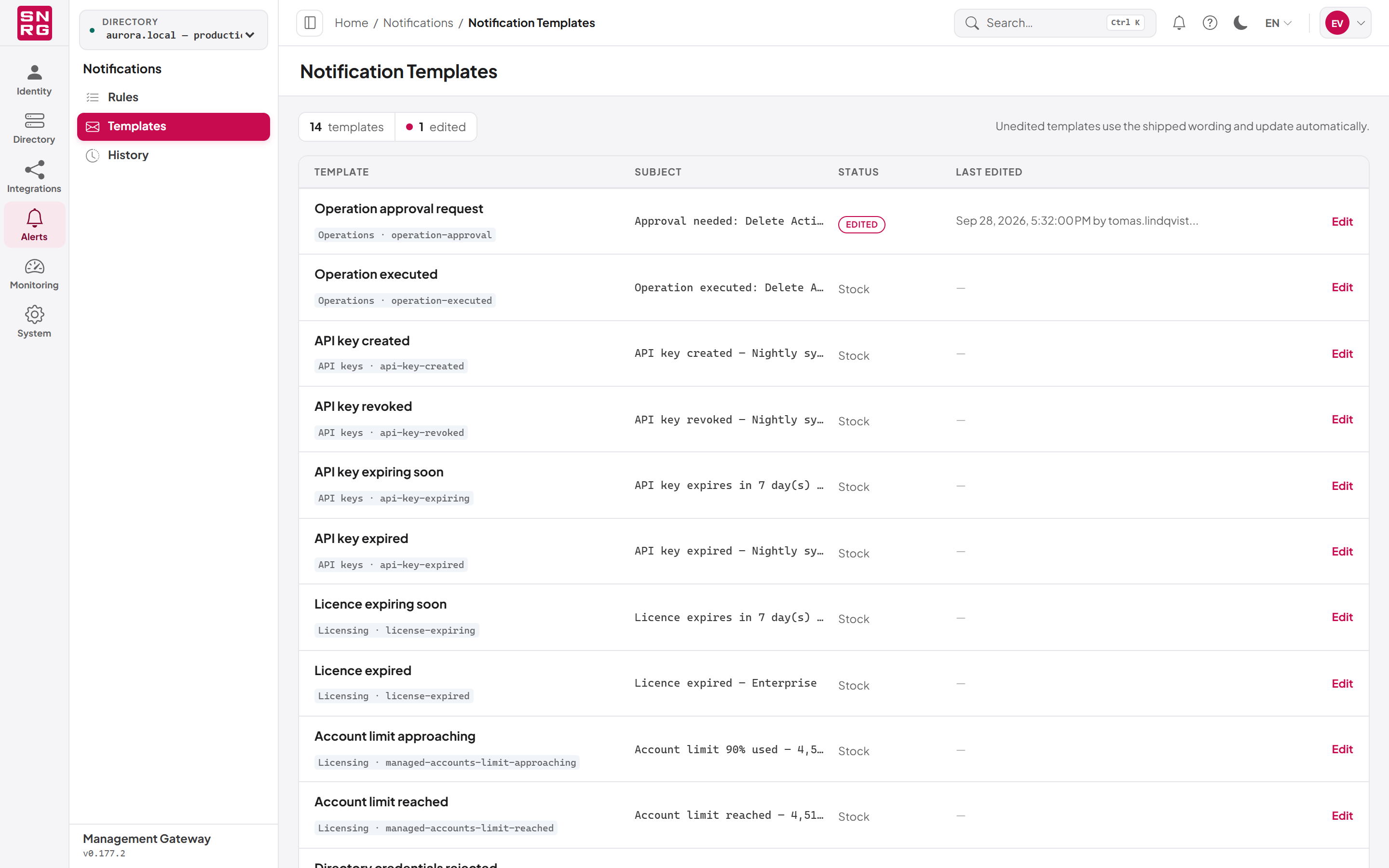
Notifications > Templates lists every editable template. The header shows how many templates there are and how many have been edited, with the note "Unedited templates use the shipped wording and update automatically." Each row shows:
| Column | Description |
|---|---|
| Template | The template's name, with its area (Operations, API keys, Licensing, Directory, Agents or Users) and its code underneath |
| Subject | The current subject line |
| Status | Stock for the shipped wording, or EDITED for a customised template |
| Last edited | When and by whom it was last changed. A dash for a stock template |
Unedited templates use the shipped wording and are updated automatically when the product is upgraded. A template you have edited keeps your wording through upgrades.
Select Edit (or anywhere on the row) to open the template.
The Licensing area holds four templates: Licence expiring soon, Licence expired, Account limit approaching and Account limit reached.
The template editor
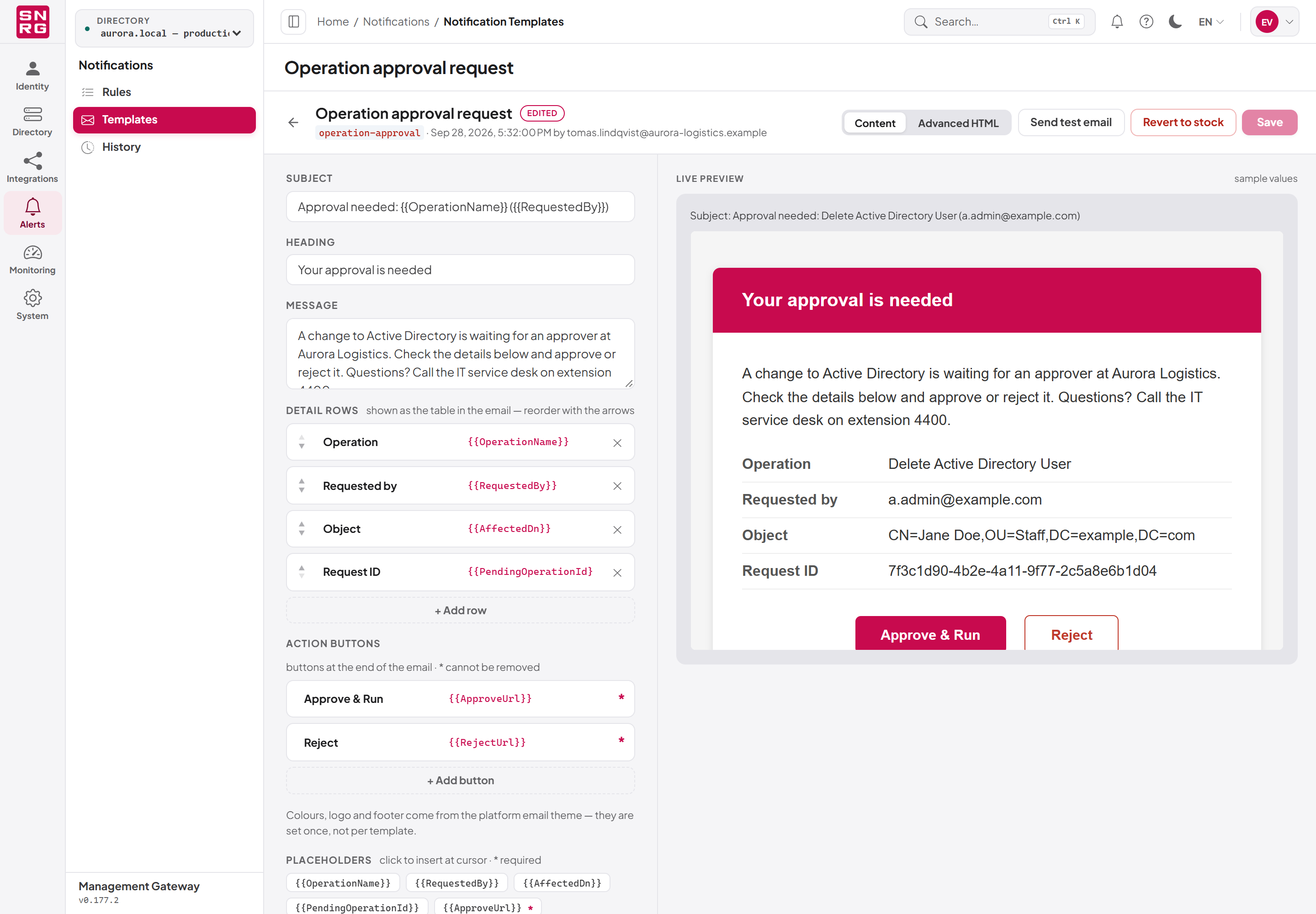
Selecting Edit opens the template on its own page; the back arrow returns to the list. The header shows the template's code and when it was last edited, or "shipped wording". The editor has two panes: the template on the left and a Live preview on the right, filled with sample values so you can see the result as you type. The preview shows the subject line too.
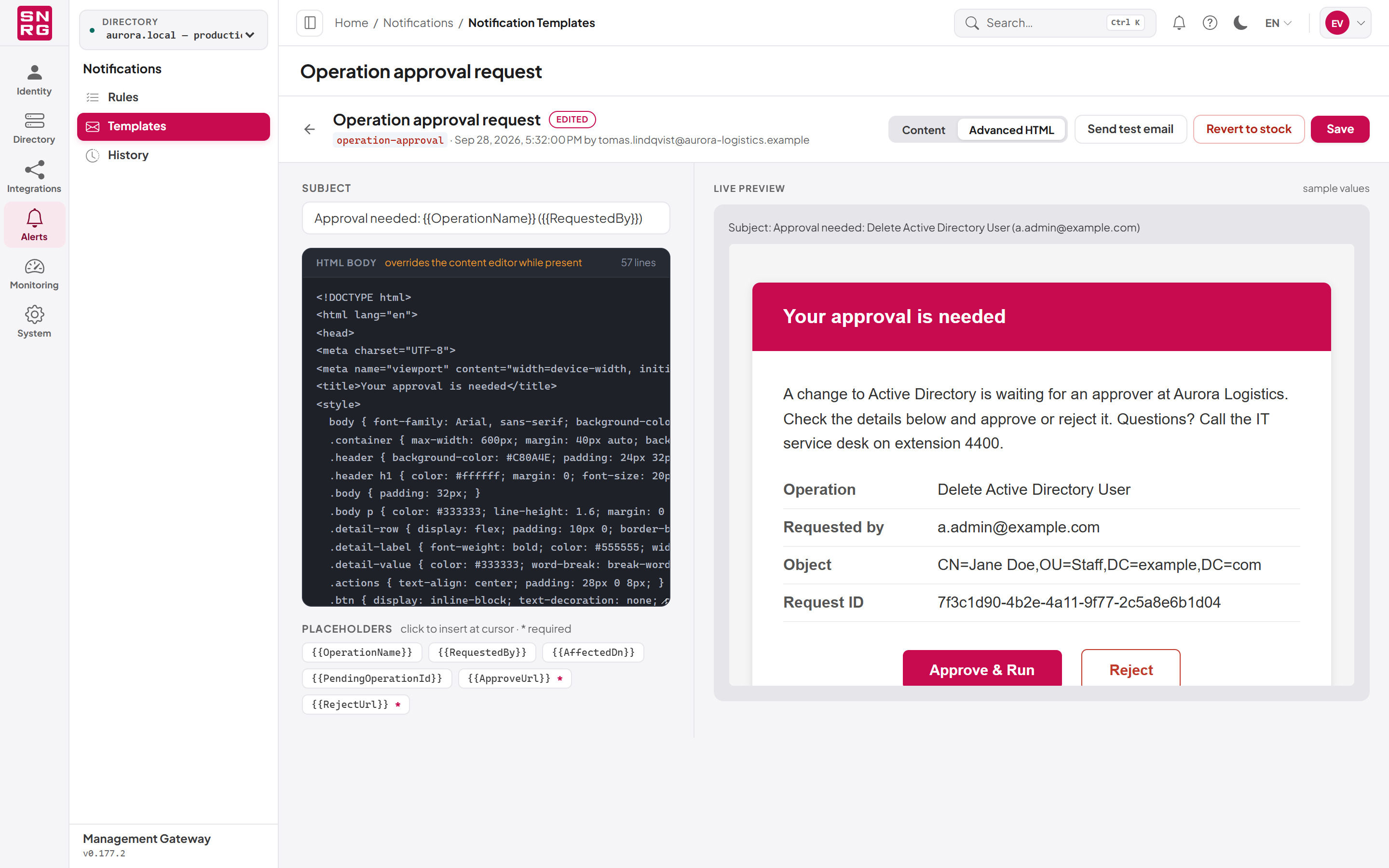
The editor offers two editing modes, chosen with Editing mode:
- Content — the normal mode. You edit the parts of the email, and the platform lays them out in the standard email design.
- Advanced HTML — you edit the full HTML body yourself. While an HTML body is present, it overrides the content editor.
In Content mode the fields are:
| Field | Description |
|---|---|
| Subject | The email's subject line |
| Heading | The title at the top of the email |
| Message | The main text |
| Detail rows | The table of details in the email. Each row has a label and a value (a placeholder or text). Reorder rows with the arrows, add with + Add row, remove with the cross |
| Action buttons | Buttons at the end of the email, each with button text and a link placeholder. Only the approval email has buttons. Buttons marked with an asterisk cannot be removed |
Colours, logo and footer come from the platform's email theme. They are the same for every template and cannot be changed per template.
If a template has an HTML override and you save it in Content mode, the editor warns you that the HTML override will be discarded and the content shown will be sent instead.
Placeholders
Placeholders are names in double braces, for example {{OperationName}}, that the platform replaces with real values when it sends the email. The Placeholders list under the editor shows every placeholder the template supports; click one to insert it at the cursor.
Some placeholders are required and are marked with an asterisk. Without them the email no longer does its job — for example, an approval email without its approve and reject links cannot be acted on. The editor refuses to save a template that drops a required placeholder and tells you which ones are missing: "This template must keep {{ApproveUrl}}, {{RejectUrl}} before it can be saved.", naming the missing ones. The Subject must not be empty; in Content mode neither may the Heading, and in Advanced HTML mode neither may the HTML body.
| Template | Placeholders | Required |
|---|---|---|
| Operation approval request | OperationName, RequestedBy, AffectedDn, PendingOperationId, ApproveUrl, RejectUrl | ApproveUrl, RejectUrl |
| Operation executed | OperationName, RequestedBy, Outcome, AffectedDn, OccurredAt | none |
| API key created | UserDisplayName, UserEmail, ApiKeyName, ApiKeyId, KeyPrefix, ExpiresAt, CreatedAt, CreatedBy | ApiKeyName |
| API key revoked | UserDisplayName, UserEmail, ApiKeyName, ApiKeyId, KeyPrefix, RevokedAt, RevokedBy, Reason | ApiKeyName |
| API key expiring soon | UserDisplayName, UserEmail, ApiKeyName, ApiKeyId, ExpiresAt, DaysRemaining, ThresholdDays | ApiKeyName |
| API key expired | UserDisplayName, UserEmail, ApiKeyName, ApiKeyId, ExpiredAt | ApiKeyName |
| Licence expiring soon | LicenseType, LicenseSubject, ValidUntil, DaysRemaining, ThresholdDays | ValidUntil |
| Licence expired | LicenseType, LicenseSubject, ValidUntil | none |
| Account limit approaching | LicenseSubject, AccountCount, AccountLimit, UsedPercent, AccountsRemaining, ThresholdPercent, CountedAt | AccountCount, AccountLimit |
| Account limit reached | LicenseSubject, AccountCount, AccountLimit, UsedPercent, CountedAt | AccountCount, AccountLimit |
| Directory credentials rejected | Description, DomainController, Domain, Username, FailureReason, DetectedAt, ConnectionId | DomainController |
| Agent connected | UserDisplayName, UserEmail, AgentName, AgentClientId, RoleName, Directory, Access, ConnectedAt, ExpiresAt, SourceIp | AgentName |
| Agent slowed down | CredentialName, CredentialKind, OwnerDisplayName, OwnerEmail, Directory, Count, WindowMinutes, Threshold, TrippedAt | CredentialName |
| User deactivated | UserDisplayName, UserEmail, UserId, DeactivatedAt, DeactivatedBy | UserDisplayName |
In the Live preview and in test emails, placeholders are filled with sample values (for example "Jane Doe" or "Delete Active Directory User"), so you can see the layout without waiting for a real event.
Editing, testing and reverting a template
To change a template:
- Open Notifications > Templates.
- Select Edit on the template.
- Change the Subject, Heading, Message, Detail rows or Action buttons, inserting placeholders where needed.
- Check the Live preview.
- Select Save. The button is available only when you have unsaved changes and the template is complete. The template is now marked EDITED.
To check the result in a real mailbox, select Send test email. It sends the saved version of the template, with sample values, to your own email address through the active email provider. Save your changes first if you want to test them.
To return a template to the shipped wording, open it and select Revert to stock (shown only for an edited template), then confirm "Discard your customised version and go back to the wording shipped with the product?".
Emails that cannot be edited
Some emails are about the security of a person's own account. Their content is fixed in the product and does not appear on the Templates page, and they are not controlled by notification rules: they are always sent to the person concerned, provided an email provider is active.
- Password reset — the link sent when someone uses "Forgot password?" on the sign-in page.
- Your password was changed — sent to the account owner after a password reset.
- Password setup — the link sent when an administrator creates an account by email instead of with a password.
- Email address changed — sent to the previous address when an account's email address is changed, by the person or by an administrator.
These are fixed so that nobody who can edit templates can alter a message that carries a password link — for example by adding a link or image that would send the reset link to their own server. For how these flows work, see Chapter 3, Signing in and your account, and Chapter 11, Users, roles and permissions.
Last updated
Thank you for your feedback.