
13.5MCP Tools
Last updated
The MCP Tools screen controls what agents are told about each tool: its description, the descriptions of its parameters, and its behaviour hints. Descriptions are what an agent reads to decide when and how to call a tool, so good descriptions — naming your organizational units, naming conventions or local rules — make agents noticeably more accurate.
To open it, select Integrations in the navigation rail, then MCP Tools. The page is at /dashboard/mcp-tools. It needs mcptools:list to view and mcptools:update to change anything, and the MCP Tools licence module.
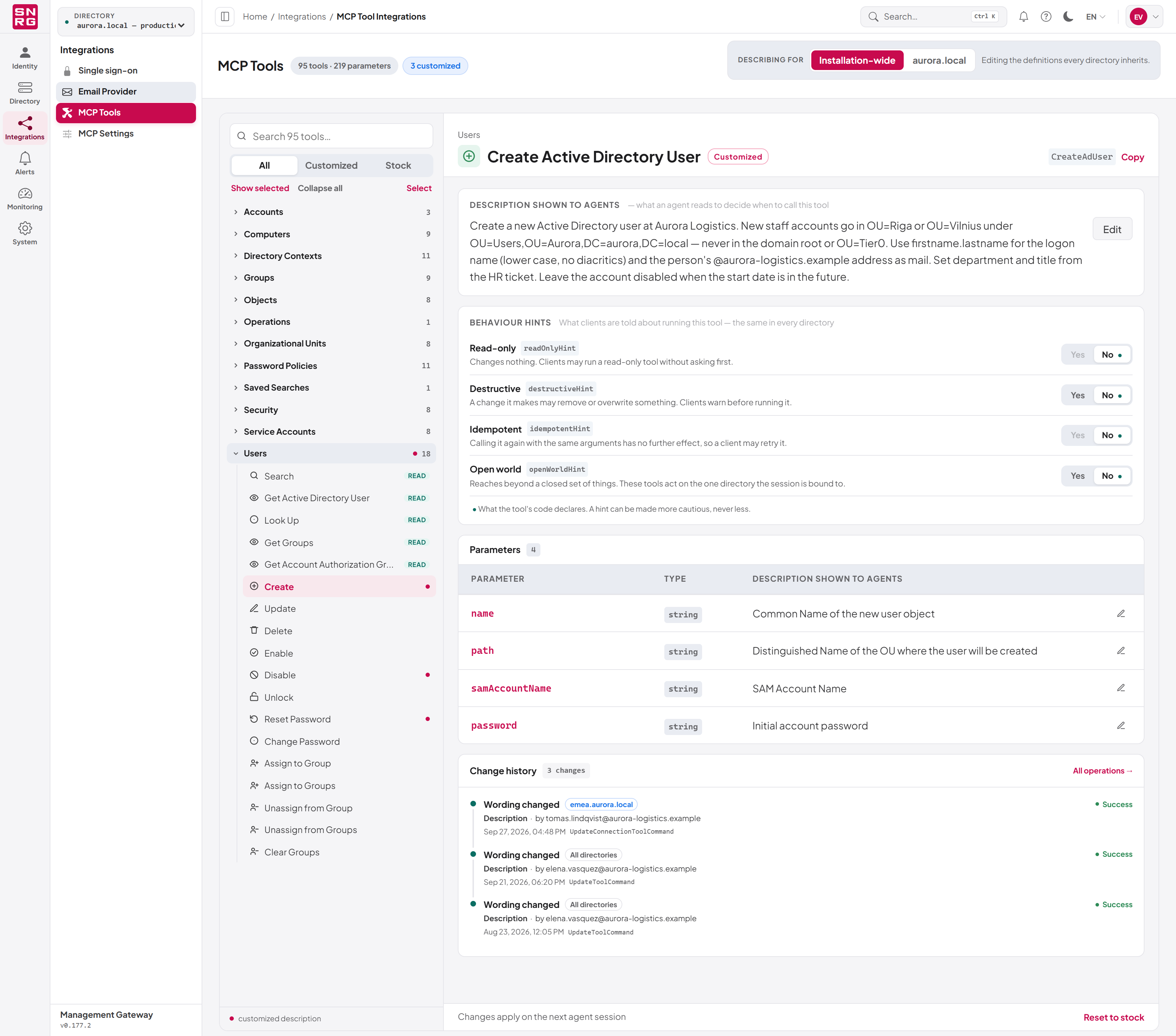
Finding a tool
The navigator on the left lists every tool by category. Use the search box to narrow the list, and All, Customized or Stock to show every tool, only those with changed descriptions, or only those still as shipped. A dot marks a tool with a customized description; a Read chip marks a read-only tool. Show selected scrolls back to the open tool, and Collapse all closes every category.
Selecting a tool opens it on the right, with its display name, its tool name (the name agents call — use Copy to copy it), its description, its behaviour hints, its parameters and, if you hold audit:list, the Change history of its wording. Filter the history with All, Changes or Failures, or select All operations → to open the operations log.
Editing a description
- Select the tool.
- Under Description shown to agents, select Edit.
- Write what the tool does, when an agent should call it and any caveats.
- Select Save description.
To edit a parameter's description, select the edit button in its row in the Parameters table, write the text and select Save description.
A customized tool shows a Customized badge. To return it to the shipped wording, select Reset to stock in the footer and confirm with Reset. To reset one parameter, use the reset button in its row.
Changes apply on the agent's next session. Every change is recorded and shown in the tool's history.
Describing a tool for one directory
Descriptions can be set for all directories, or for one directory only — useful when directories follow different conventions. Use the Describing for control at the top of the page:
- Installation-wide — you edit the definitions every directory inherits.
- the directory's name (for example emea.aurora.local) — you edit what agents connected to the directory selected in the top bar are told. Other directories keep the global wording. Select a directory in the top bar first; without one, there is nothing to edit for.
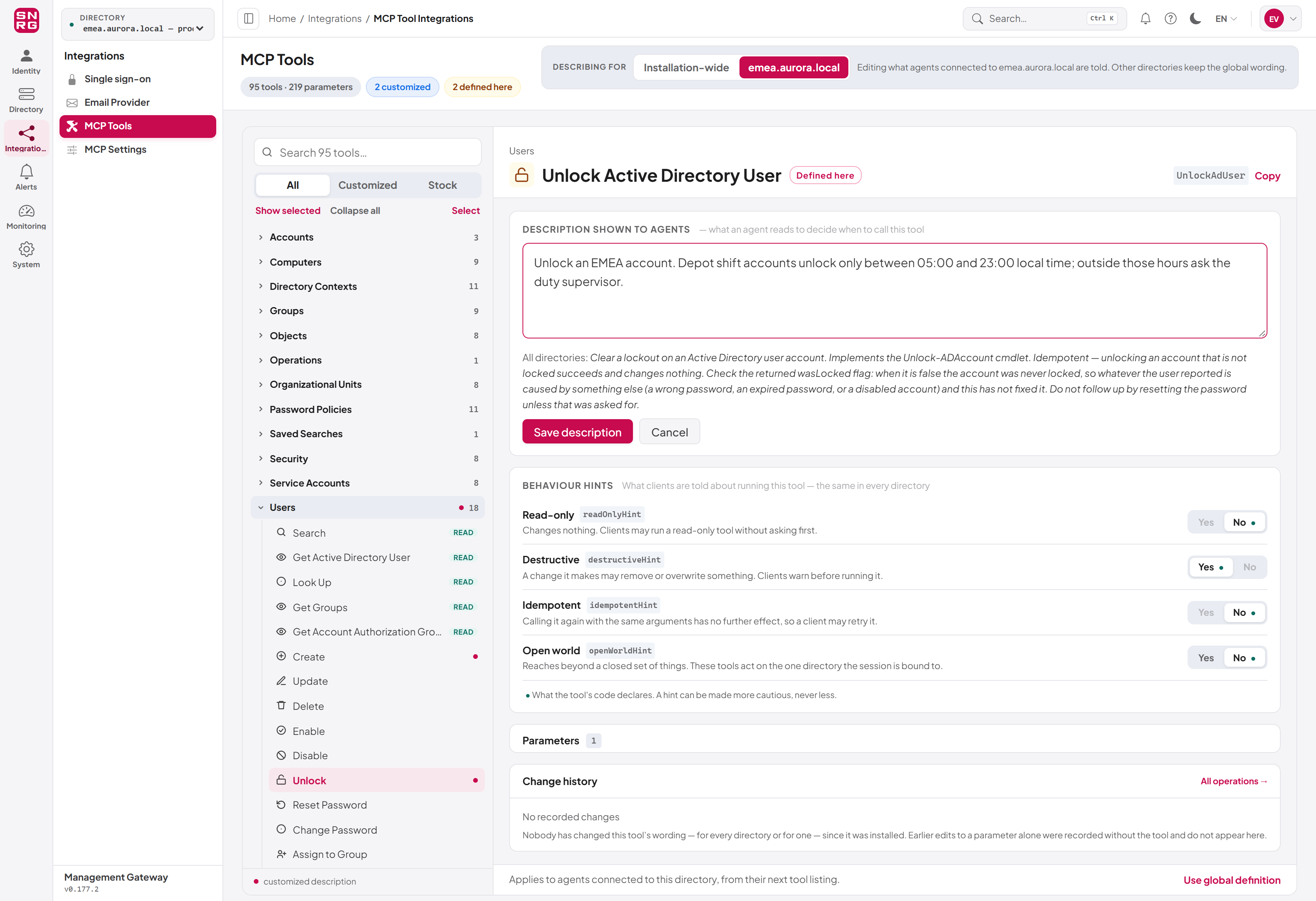
- While editing, the page shows the global wording under "All directories:". Leaving the box empty means "use the global description".
- A tool with its own wording for the directory shows Defined here; one without shows Inherited from all directories.
- Use global definition drops this directory's description and every parameter description written for it. The global definition is unaffected.
- Changes apply to agents connected to this directory from their next tool listing.
A description is guidance for the agent, never a control. What an agent may actually do is decided by its permissions, its supervision and the operation policies.
Behaviour hints
Behaviour hints tell MCP clients how a tool behaves, and clients act on them — for example, a client may run a read-only tool without asking its user first. Each tool's hints are declared by the product, and an administrator can only make them more cautious, never less.
| Hint | Meaning |
|---|---|
Read-only (readOnlyHint) | Changes nothing. Clients may run it without asking first. |
Destructive (destructiveHint) | A change it makes may remove or overwrite something. Clients warn before running it. |
Idempotent (idempotentHint) | Calling it again with the same arguments has no further effect, so a client may retry it. |
Open world (openWorldHint) | Reaches beyond a closed set of things. These tools act on the one directory the session is bound to. |
As shipped, read tools are read-only, not destructive and idempotent; tools that only add (create, add, assign) are not destructive; every other write is destructive; no write is idempotent, because repeating a write under approval queues another request; and no tool is open-world.
To change a tool's hints:
- Select the tool and find Behaviour hints.
- For each hint, select Yes or No. A dot marks the value the product declares. A value that would make the tool look safer than it is cannot be chosen.
- Your choice is saved straight away and the hint is marked Changed.
To undo, select Reset hints to what the code declares. Note that clients ignore the destructive and idempotent hints while a tool is read-only; to make a client ask before running a tool, mark it not read-only.
Hints are the same in every directory and apply from the next tool list an agent requests.
Changing hints for many tools at once
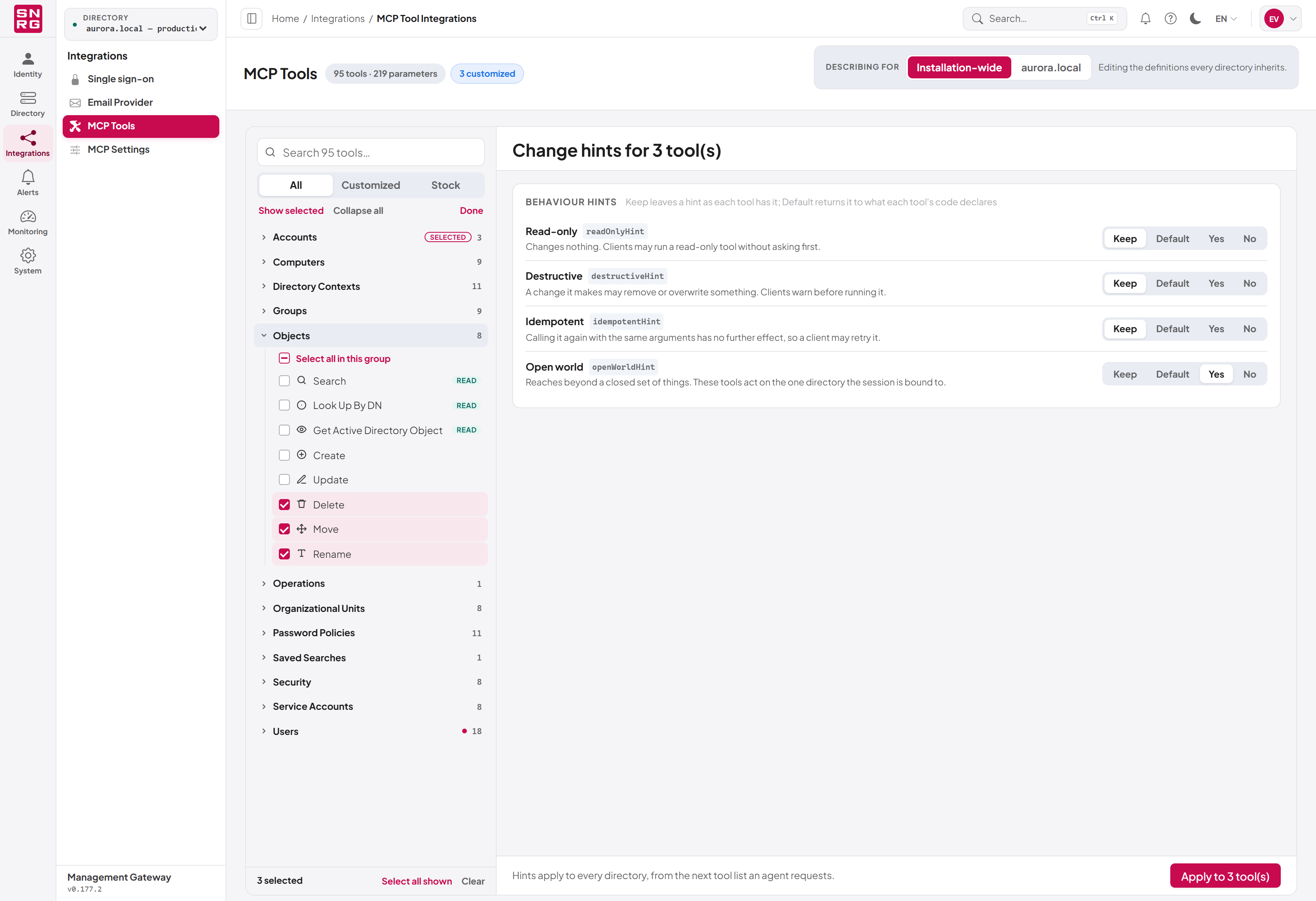
- In the navigator, select Select.
- Tick the tools, use Select all in this group, or search and then Select all shown.
- For each hint, choose Keep (leave it as each tool has it), Default (return to what each tool declares), Yes or No.
- Select Apply to N tool(s).
- Select Done to leave selection mode.
The change applies to all selected tools or to none. If a choice would make some selected tools look safer than they are, the page names them before you apply; untick them or choose another value.
Last updated
Thank you for your feedback.