
10.7Attribute policies
Last updated
Operation policies decide whether an operation may run. Attribute policies decide what may be done with an individual attribute of a directory object, whichever operation touches it. Use them for attributes that another system owns. Exchange is the usual example: it keeps a mailbox's identity in attributes such as msExchMailboxGuid and homeMDB, and a change made to them outside Exchange can disconnect a mailbox from its user. A rule makes such an attribute read-only, or hides it altogether, for everyone who works through SYNERGY Management Gateway.
The three access levels
Each rule gives one of three access levels to the attributes it names.
| Access | What it means |
|---|---|
| Read + write | No protection. Use it only to carve an exception out of a broader rule (see How overlapping rules are decided). An attribute that no rule names can already be read and written. |
| Read only | Shown as usual; every change is refused. |
| Blocked | Neither shown nor changed — left out of reads, searches and the schema. |
Attribute policies apply in the same way to every caller: people in the console, API keys, n8n workflows and connected AI agents. They are not a permission and cannot be granted to a role, and holding the System Admin role does not bypass them. Nothing is queued for approval either: a write that a rule forbids is refused outright, whoever asks.
Attribute policies add to the platform's built-in protections; they cannot weaken them. Security-sensitive attributes such as userAccountControl and credential attributes such as LAPS passwords stay protected whatever the rules say (see Chapter 6, Directory Browser, and Chapter 15, REST API for integrators).
The Attribute Policies screen
The screen is called Attribute Policies and is found in the navigation under Directory, below Directory Policies. Its address is /dashboard/attribute-policies.
Who can use it:
- You need
audit:policies:listto open the screen and see the rules. - You need
audit:policies:readto use the Test box. - You need
audit:policies:updateto add, edit or delete a rule. Without it, the + Add rule and Edit buttons and the delete (bin) icons are not shown. - To see or change one directory's own rules, your active role must be allowed to use that directory.
These are the same permissions that govern Directory Policies. In the role editor they appear under the Directory policies resource (see Chapter 11, Users, roles and permissions).
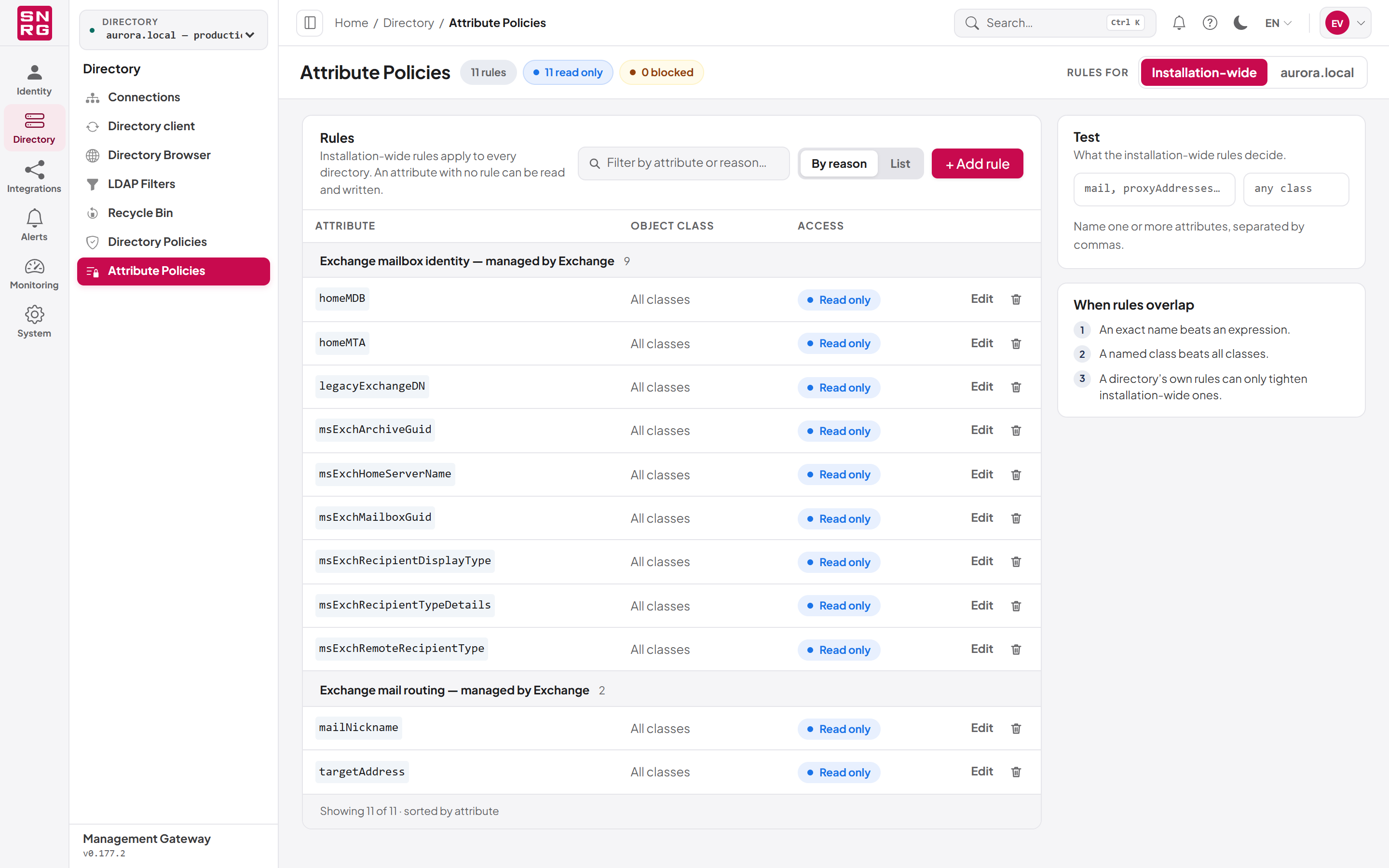
The Rules card lists the rules in the scope you chose:
- Filter by attribute or reason… narrows the list to rules whose attribute, object class or reason contains the text you type.
- By reason groups the rules under their reason, largest group first; rules without a reason are grouped under "No reason given" at the end. List shows one list and adds a Reason column. The screen remembers your choice.
- The footer reads, for example, "Showing 11 of 11 · sorted by attribute".
| Column | Content |
|---|---|
| Attribute | The attribute name, or an expression shown between slashes (for example /msExch.*/) so that it is never mistaken for an attribute of that name. A rule you have just added is marked Added. |
| Object class | The class the rule applies to, or All classes. |
| Access | Read + write, Read only or Blocked. |
| Reason | List view only. The rule's reason, or "—". |
| Source | Directory scope only. Inherited for an installation-wide rule, or for example aurora.local only for the directory's own rule. |
| (actions) | Edit and a delete (bin) icon, on every rule — including, in a directory's view, the inherited installation-wide rules. |
On the right, the Test card (see Testing what the rules decide) and the When rules overlap card, which summarises the order described below.
If there are no rules at all, the card reads "No attribute policies" and "Every attribute can be read and written, within each person's permissions. Add a rule to make an attribute read only or to block it."
Installation-wide and per-directory rules
A rule is either installation-wide, applying to every directory, or belongs to one directory. Which one is decided by the Rules for switch when you create the rule, and cannot be changed afterwards: to move a rule to another scope, create it there and delete the original.
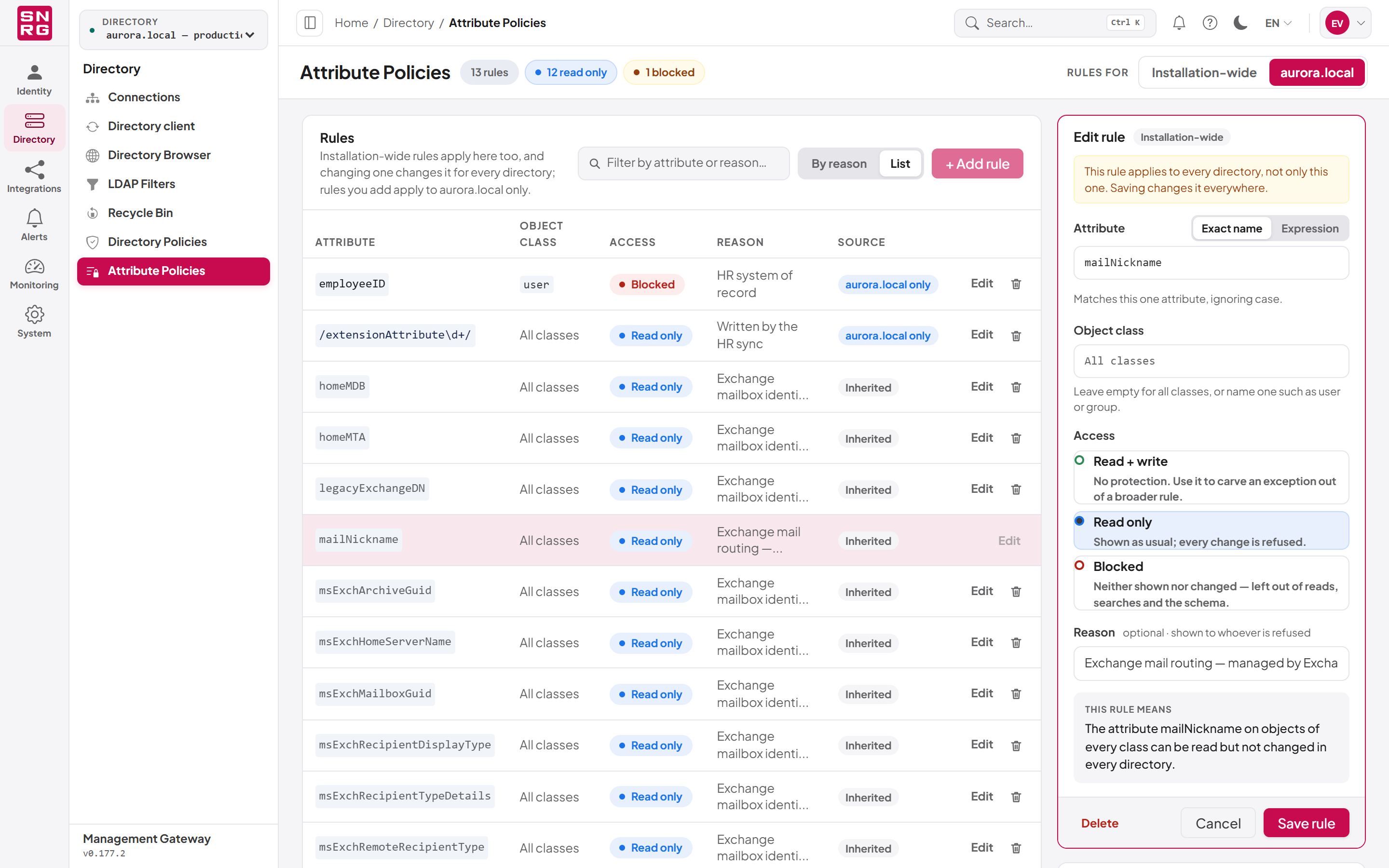
When Rules for names a directory, the list shows the rules in force there: the installation-wide rules, marked Inherited in the Source column, and the directory's own rules, marked for example aurora.local only. Holding the mouse over Inherited shows "An installation-wide rule, in force in this directory and every other one." The note under the card title reads "Installation-wide rules apply here too, and changing one changes it for every directory; rules you add apply to aurora.local only."
Every rule in the list has Edit and a delete (bin) icon, the inherited ones included, so you can correct an installation-wide rule without switching scope. Remember that such a rule is not the directory's own: a change to it applies to every directory.
- When you select Edit on an inherited rule, the Edit rule form is labelled Installation-wide and shows the note "This rule applies to every directory, not only this one. Saving changes it everywhere." The This rule means sentence says "in every directory".
- When you delete an inherited rule, the dialog reads "The rule for attribute applies to every directory, not only this one. Deleting it removes it everywhere, for good, from the next request. The change is recorded in the operations log."
If you meant to change the rule for this directory only, select Cancel and add a rule for this directory instead. A directory's own rule can only make an attribute stricter than an installation-wide rule, never looser (see How overlapping rules are decided).
Adding a rule
To add a rule:
- Open Attribute Policies and set Rules for to Installation-wide, or to the directory the rule is for.
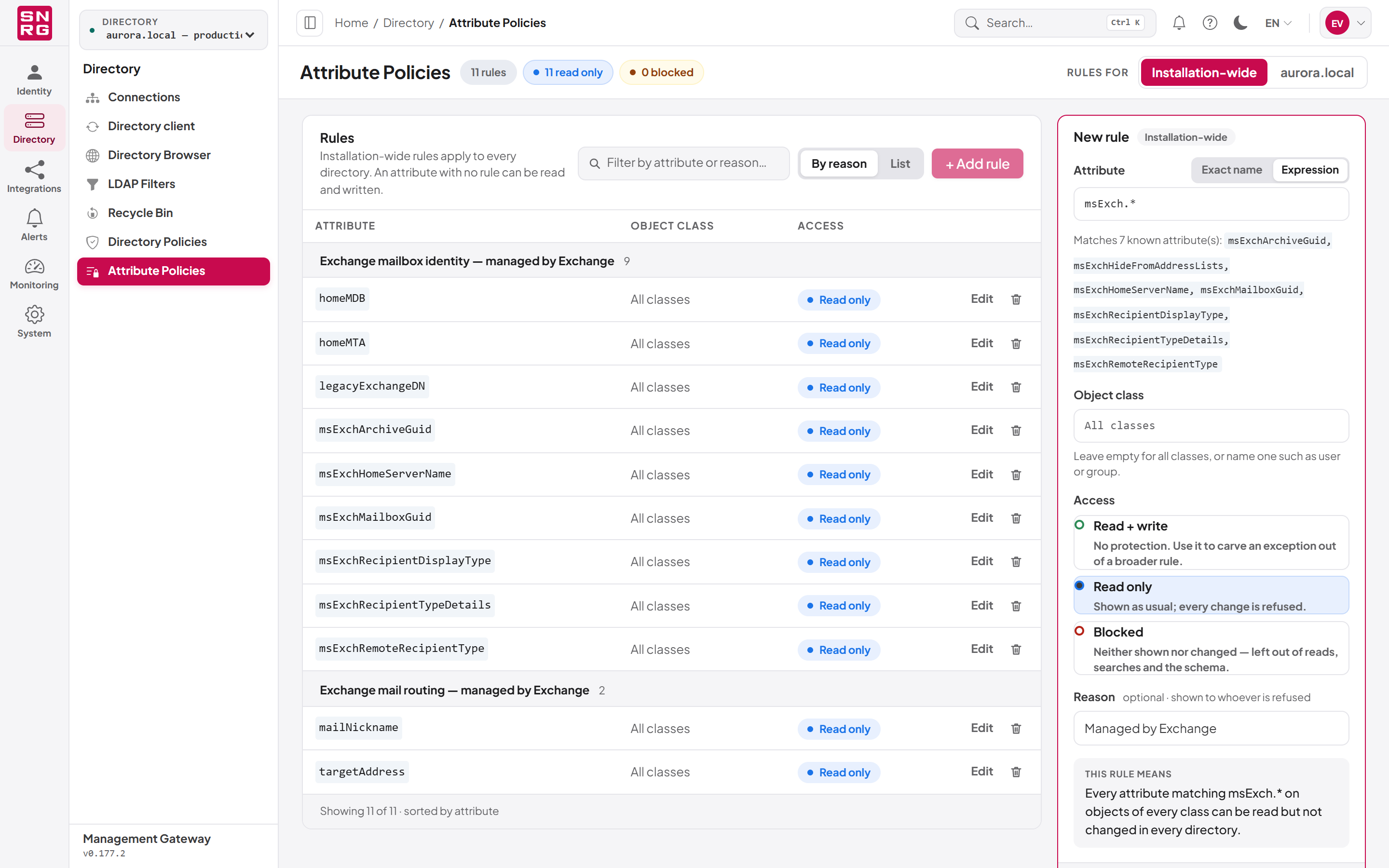
- Select + Add rule. The New rule form opens on the right, labelled with the scope it will be saved in.
- Under Attribute, choose Exact name or Expression, and type the attribute name or the expression (see below).
- Under Object class, leave the box empty to cover All classes, or name one class, such as
userorgroup. The box suggestsuser,group,computer,contact,organizationalUnitandinetOrgPerson, but any class name is accepted. - Under Access, choose Read + write, Read only or Blocked.
- Optionally, enter a Reason — "shown to whoever is refused". A short phrase that tells the reader where to make the change instead works best, for example "Managed by Exchange".
- Check the This rule means box, which spells the rule out as one sentence, for example "Every attribute matching msExch.* on objects of every class can be read but not changed in every directory."
- Select Save rule. The message "Rule added." confirms it.
- For Read + write: "Read + write protects nothing on its own; it carves an exception out of a broader rule." In directory scope it says instead that the exception applies to that directory's own broader rules only and "cannot lift an installation-wide rule."
- For Blocked: "Blocked values are also left out of reads, searches and the schema."
- For an expression that matches nothing the screen knows of: "No known attribute matches this expression — check the spelling."
Limits: an attribute name or expression can be up to 200 characters, an object class up to 100 and a reason up to 300.
Exact names and expressions
An exact name names one attribute. Case does not matter: mailnickname and mailNickname are the same rule. The name must be an attribute name — letters, digits and hyphens, starting with a letter. Anything else is refused with "Not an attribute name: use letters, digits and hyphens, starting with a letter — or switch to Expression for a group of attributes."
An expression is a regular expression that covers a group of attributes. Three things are worth knowing:
- It must match the whole attribute name, ignoring case.
msExch.*covers every attribute whose name starts withmsExch;mailwritten as an expression coversmailand nothing else — notmailNickname. - Some constructs are refused: backreferences and lookarounds ("Backreferences and lookarounds are not supported."), an expression that is not valid ("Not a valid regular expression."), and one that would match an empty name ("The expression matches an empty name; use .+ to mean every attribute.").
- The form lists what it matches. As you type, the line under the box reads, for example, "Matches 7 known attribute(s):" followed by the names, taken from the schema of the directory selected in the top bar. This list is a guide: it shows only attributes the screen could read from that directory's schema.
For example, to make every Exchange attribute read-only except msExchHideFromAddressLists, which your helpdesk sets by hand, add two installation-wide rules: msExch.* as an expression, Read only, and msExchHideFromAddressLists as an exact name, Read + write. The exact name wins for that one attribute, as described next.
When a rule for the same attribute already exists
Only one rule may exist in a scope for the same attribute (or expression) and object class. If you type one that already has a rule there, the form says "A rule for this attribute and class already exists here (Read only). Saving replaces it." and the button changes to Replace rule. Saving then updates the existing rule rather than adding a second one ("Rule replaced.").
While editing, if your change would make the rule collide with another one, the form says "Another rule here already covers this attribute and class (Read only). Edit that rule instead." and cannot be saved.
Editing and deleting a rule
To edit a rule, select Edit on its row. The Edit rule form opens on the right with the rule's values. Change what you need and select Save rule ("Rule saved.").
To delete a rule, select the bin icon at the end of its row (next to Edit). A dialog asks Delete this rule? and names the rule; confirm with Delete rule. While a rule is open in the form, its row has no bin icon — use Delete in the form instead, then Delete rule. The message "Rule deleted." confirms it.
You can edit or delete an installation-wide rule from either scope. In a directory's view, the form and the delete dialog warn you that the change applies to every directory (see Installation-wide and per-directory rules). Editing or deleting one directory's own rule requires your active role to be allowed to use that directory.
Every addition, change and deletion is recorded in the operations log with the values before and after (see Chapter 9, Operations log, approvals and waiting operations). A directory's rule is recorded under that directory; an installation-wide rule is recorded with no directory, as a platform change. If the operations log cannot be written, the change is refused, because a rule can loosen protection as well as tighten it.
How overlapping rules are decided
Several rules can match the same attribute — an expression and an exact name, a rule for all classes and one for user, an installation-wide rule and a directory's own. They are not read in list order. The answer is decided in two steps.
Step 1 — within each scope, the most specific rule wins. From most to least specific:
- an exact name for the object's class;
- an exact name for all classes;
- an expression for the object's class;
- an expression for all classes.
If two equally specific rules match (two expressions, for example), the stricter of the two applies. Blocked is stricter than Read only, which is stricter than Read + write.
Step 2 — a directory can only tighten. The installation-wide rules and the directory's own rules are each decided as in step 1, and the stricter of the two answers applies.
What this means in practice:
| Rules | Result for msExchHideFromAddressLists on a user |
|---|---|
Installation-wide: msExch.* Read only; installation-wide: msExchHideFromAddressLists Read + write | Read + write — the exact name beats the expression in the same scope. |
Installation-wide: msExch.* Read only; aurora.local: msExchHideFromAddressLists Read + write | Read only in aurora.local — a directory's Read + write cannot lift an installation-wide rule. |
aurora.local: msExch.* Read only; aurora.local: msExchHideFromAddressLists Read + write | Read + write in aurora.local — the exception is carved out of the directory's own broader rule. |
Installation-wide: nothing; aurora.local: msExch.* Blocked | Blocked in aurora.local; unaffected in every other directory. |
Which class an object has
A rule for a class applies to objects whose own class is exactly that one — the most specific class Active Directory records for the object. A rule for user therefore does not cover computer accounts or inetOrgPerson objects, although Active Directory derives both from user. To cover them too, add a rule for each class, or leave the class empty.
Sometimes the platform cannot tell which class an object is — for example when a request names attributes to read without naming an object, or an LDAP filter that could match objects of any class. It then applies the strictest answer that any class would get. For example, with the rule "employeeID, class user, Blocked" in aurora.local, a search in aurora.local whose filter tests employeeID is refused even if you meant to search for groups, because the filter could match users.
Testing what the rules decide
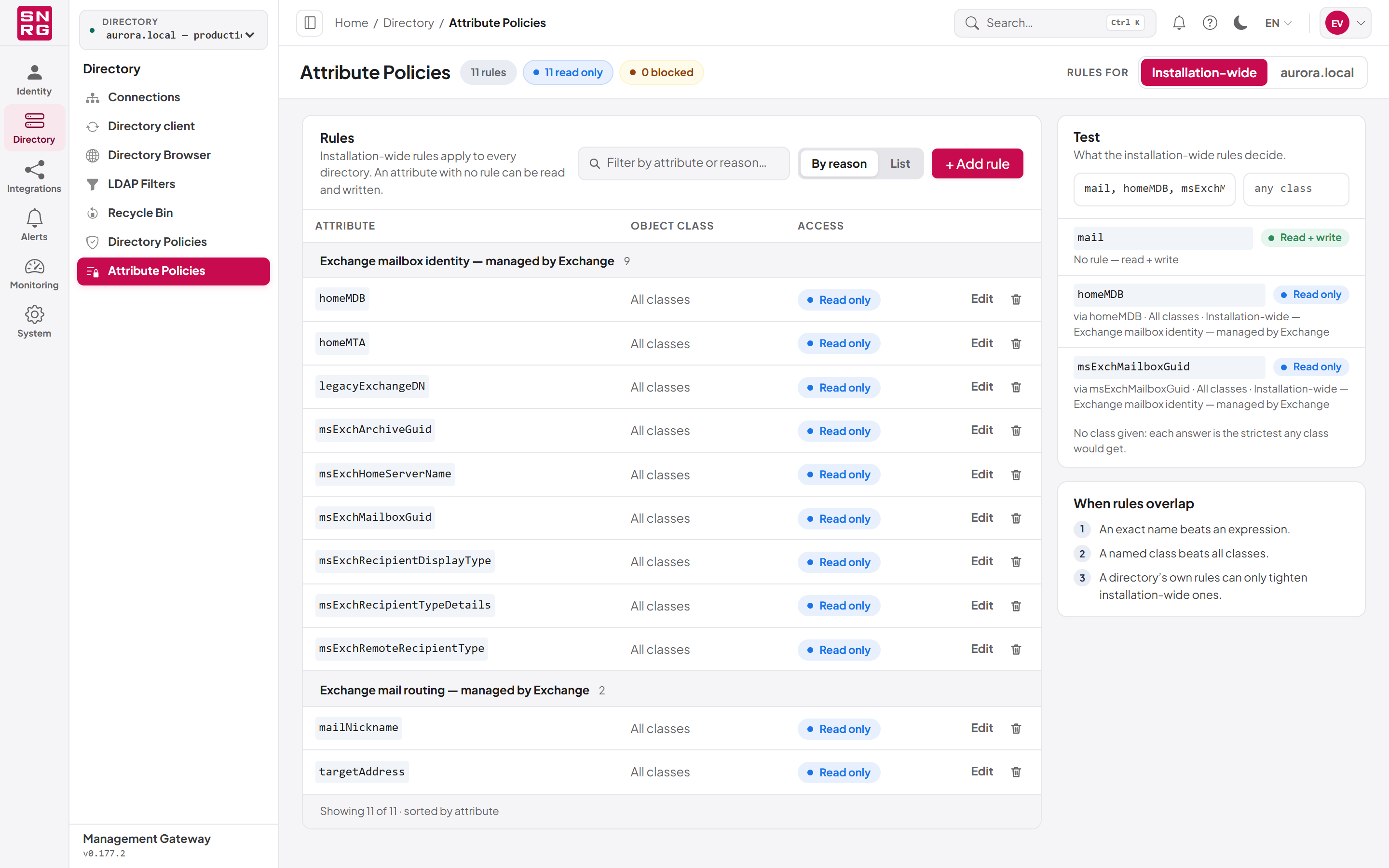
The Test card answers "what happens to these attributes?" using the rules in force in the scope shown — installation-wide rules alone, or those in force in the directory selected under Rules for.
To test:
- Type one or more attribute names in the first box, separated by commas (for example
mail, homeMDB, msExchMailboxGuid). Up to 100 names can be tested at once. - Optionally, type an object class in the second box (any class when empty).
The answer appears as you type. For each attribute the card shows its access and the rule that decided it, for example "via homeMDB · All classes · Installation-wide — Exchange mailbox identity — managed by Exchange", or "No rule — read + write". When you gave no class, the card adds "No class given: each answer is the strictest any class would get."
The test uses the platform's own decision, so it is the reliable way to check how an exception or an expression behaves before you rely on it.
What people see when a rule applies
A read-only attribute is still shown everywhere, but cannot be changed:
- In the Directory Browser, the attribute's row shows a padlock instead of the edit pencil. Its tooltip reads "Read only: an attribute policy protects this attribute in this directory." followed by the rule's reason. If you type the attribute's name in the attribute picker, it says "attribute is read only in this directory: an attribute policy protects it." See Chapter 6, Directory Browser.
- The directory's schema, as the platform returns it to the console and to integrations, marks the attribute as read-only, with the rule's reason.
- Any request that would write it — an edit of the attribute, a create that sets it (including the object's naming attribute, such as
cn), a batch item — is refused with HTTP status 403 and the error codeAD.Attributes.Protected. The message names each attribute and the rule's reason, for example: "The change cannot be made: 'mailNickname' is read-only by an attribute policy (Exchange mail routing — managed by Exchange)." A batch is refused as a whole, before any item runs. Nothing is changed in the directory.
A blocked attribute disappears:
- It is left out of every read: the Directory Browser's Attributes tab, searches and lists, and the schema.
- Asking for it by name in a request is refused with 403 and the error code
AD.Attributes.ReadForbidden("Attribute 'attribute' cannot be retrieved."). - An LDAP filter that tests it is refused with the same code ("The LDAP filter references attribute 'attribute', which cannot be used in a search."), including when the filter belongs to a saved filter (Chapter 8, Saved LDAP filters). Otherwise a filter could reveal a value one comparison at a time.
- Writing it is refused as for a read-only attribute.
History follows the rule. The before and after values shown in the operations log, the change-history panels, the waiting-operations views and exports leave out any attribute that is blocked now for that row's directory and object class, even for changes recorded before the rule existed. The stored log itself is not altered, so deleting the rule shows the values again. New deletions and restore copies do not keep blocked attributes at all, and the Recycle Bin's Reapply attributes dialog lists read-only and blocked attributes as "protected by an attribute policy" instead of writing them back (see Chapter 7, Deleted objects (Recycle Bin)).
Important: Blocking an attribute that people or integrations rely on — in a search, a report or an n8n workflow — makes those requests fail with AD.Attributes.ReadForbidden rather than quietly return less. Check with the owners of your integrations before blocking an attribute that is already in use.The rules installed with the product
A new installation, and an installation upgraded to version 0.185.0 or later, starts with eleven installation-wide rules for the attributes that Exchange manages. Each is an exact name for all classes, Read only:
| Attribute | Reason |
|---|---|
msExchMailboxGuid | Exchange mailbox identity — managed by Exchange |
msExchArchiveGuid | Exchange mailbox identity — managed by Exchange |
legacyExchangeDN | Exchange mailbox identity — managed by Exchange |
homeMDB | Exchange mailbox identity — managed by Exchange |
homeMTA | Exchange mailbox identity — managed by Exchange |
msExchHomeServerName | Exchange mailbox identity — managed by Exchange |
msExchRecipientTypeDetails | Exchange mailbox identity — managed by Exchange |
msExchRecipientDisplayType | Exchange mailbox identity — managed by Exchange |
msExchRemoteRecipientType | Exchange mailbox identity — managed by Exchange |
mailNickname | Exchange mail routing — managed by Exchange |
targetAddress | Exchange mail routing — managed by Exchange |
mail and proxyAddresses are deliberately not included. If Exchange manages them in your organisation, add a rule for them yourself. Avoid an exact Read + write rule for them unless you need the exception: an exact name beats any expression, so it would also override a broader rule you add later.
These rules are ordinary rules: you can edit or delete them. They are installed once and never put back, so a rule you deleted stays deleted after an upgrade. If your organisation does not use Exchange, they do no harm, because the attributes do not exist in your directory.
Troubleshooting attribute policies
A change is refused with AD.Attributes.Protected. An attribute policy makes one of the attributes read-only or blocked. The message names the attribute and the rule's reason. Make the change in the system that owns the attribute, or ask an administrator to review the rule — use the Test box with the attribute and the object's class to see which rule decides.
An attribute is missing from the Directory Browser, a search or the schema. It may be blocked. Test the name in the Test box, in the scope of the directory you are working in.
A search or saved filter fails with AD.Attributes.ReadForbidden. The filter tests a blocked attribute (or a credential attribute the platform never reads). Remove that clause from the filter.
A Read + write exception has no effect. Check where each rule lives: a directory's Read + write rule cannot lift an installation-wide rule. Also check the class: an exception for user does not apply when the platform cannot tell the class, because the strictest answer applies then.
A rule for user does not protect a computer account. The class must match the object's own class exactly; add a rule for computer, or leave the class empty.
Saving or deleting a rule fails although you have audit:policies:update. The operations log may be unavailable — rule changes are refused while it cannot be written. For a directory's rule, your active role must also be allowed to use that directory.
Last updated
Thank you for your feedback.