
4.5Messages and live operation cards
Last updated
Messages (toasts)
When something you did succeeds or fails, a short message appears at the top right of the screen, for example "Profile updated" or "Failed to update your password". Its colour shows its kind:
| Colour | Kind |
|---|---|
| Green | Success |
| Red | Error |
| Amber | Warning |
| Blue | Information |
A message disappears by itself after a few seconds. Select its × to close it sooner. Only one message is shown at a time; a new one replaces the previous one.
Live operation cards
While you work, the console can show live operation cards in the corner of the screen as operations happen across the installation: a user created, a group changed, an operation queued for approval, and so on. They give you a running view of activity without keeping the operations log open.
You see the cards only if:
- your active role holds
audit:list, the permission to read the operations log, and - you have not switched Live operation notifications off in My profile (see Chapter 3, Signing in and your account).
Each card shows the operation's status, the action, how long ago it happened ("just now", "5m ago"), what it was about, and who requested it. Ordinary cards disappear by themselves after about six seconds; select × (Dismiss) to close one sooner. At most five cards are shown at once; when more arrive, the oldest ordinary card makes way.
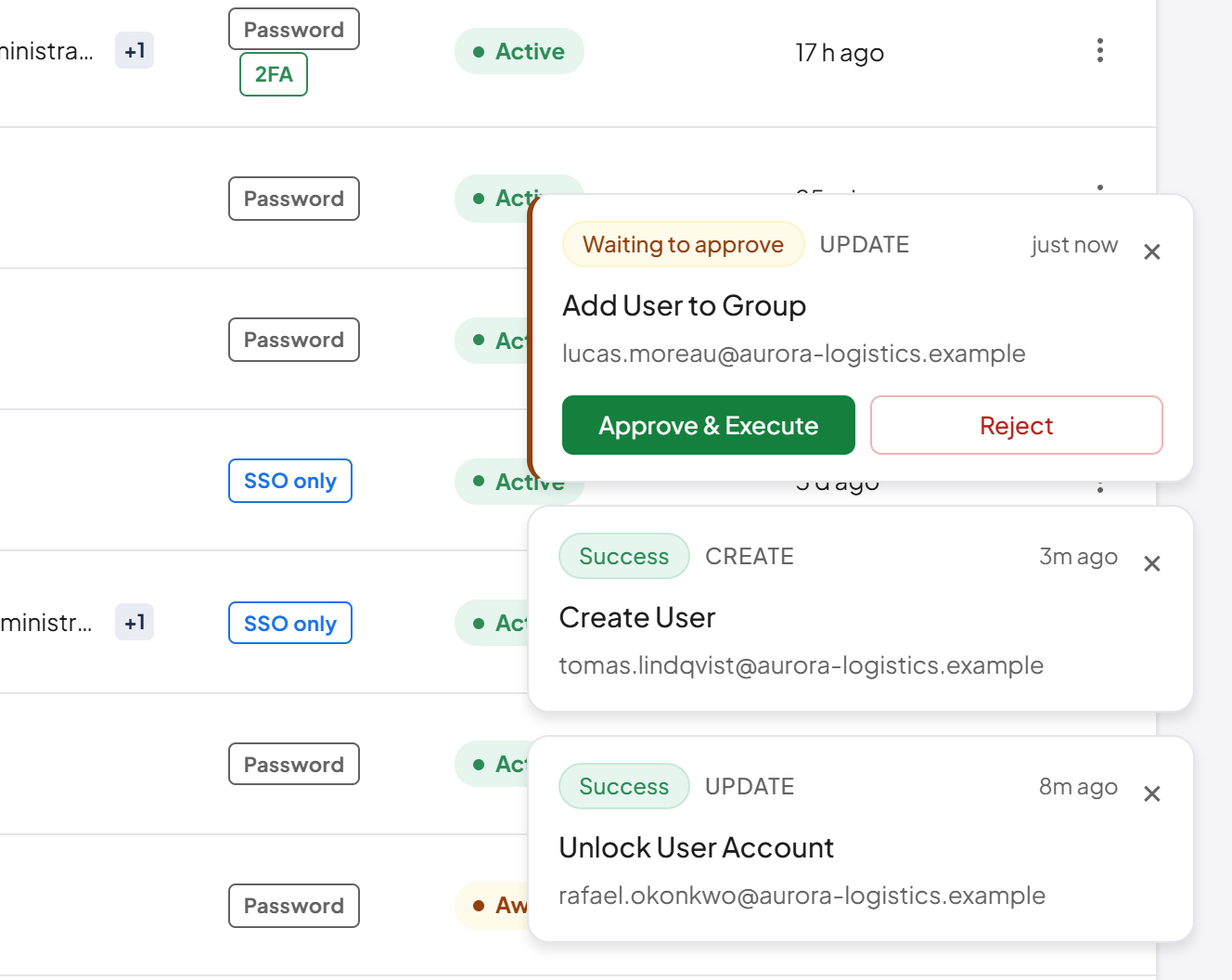
operations:approve, its card shows Waiting to approve and stays on screen until you act on it or dismiss it. It has two buttons:
- Approve & Execute runs the operation now. A message confirms that it was approved and executed.
- Reject refuses it. A message confirms that it was rejected.
Operations are queued for approval only when they are requested by a machine credential, such as an AI agent or an API key, under the supervision rules described in Chapter 10, Operation policies, attribute policies and agent supervision. A person's own requests are never queued. For the full approval process, including the details an approver should check before deciding, see Chapter 9, Operations log, approvals and waiting operations.
Tip: If the cards distract you, switch Live operation notifications off in My profile. Nothing is lost: every operation is still recorded in the operations log, and anything waiting for your approval still appears under Operations, where the navigation shows a red count.
Your account menu
Select your initials at the far right of the toolbar to open the account menu. It shows:
- your name and email address,
- My profile, which opens your profile page (see Chapter 3, Signing in and your account),
- Switch active role with the list of your roles, or Role with your only role,
- Sign out.
Pressing Esc or selecting anywhere outside the menu closes it. Opening the account menu closes the help menu, and the reverse.
Last updated
Thank you for your feedback.