
6.6Managing users
Last updated
User management in the browser requires the directory-management licence entitlement and the relevant ad:users:* permission. Managed user objects are those of class user or inetOrgPerson; computers and managed service accounts, which also descend from user in Active Directory, are handled separately.
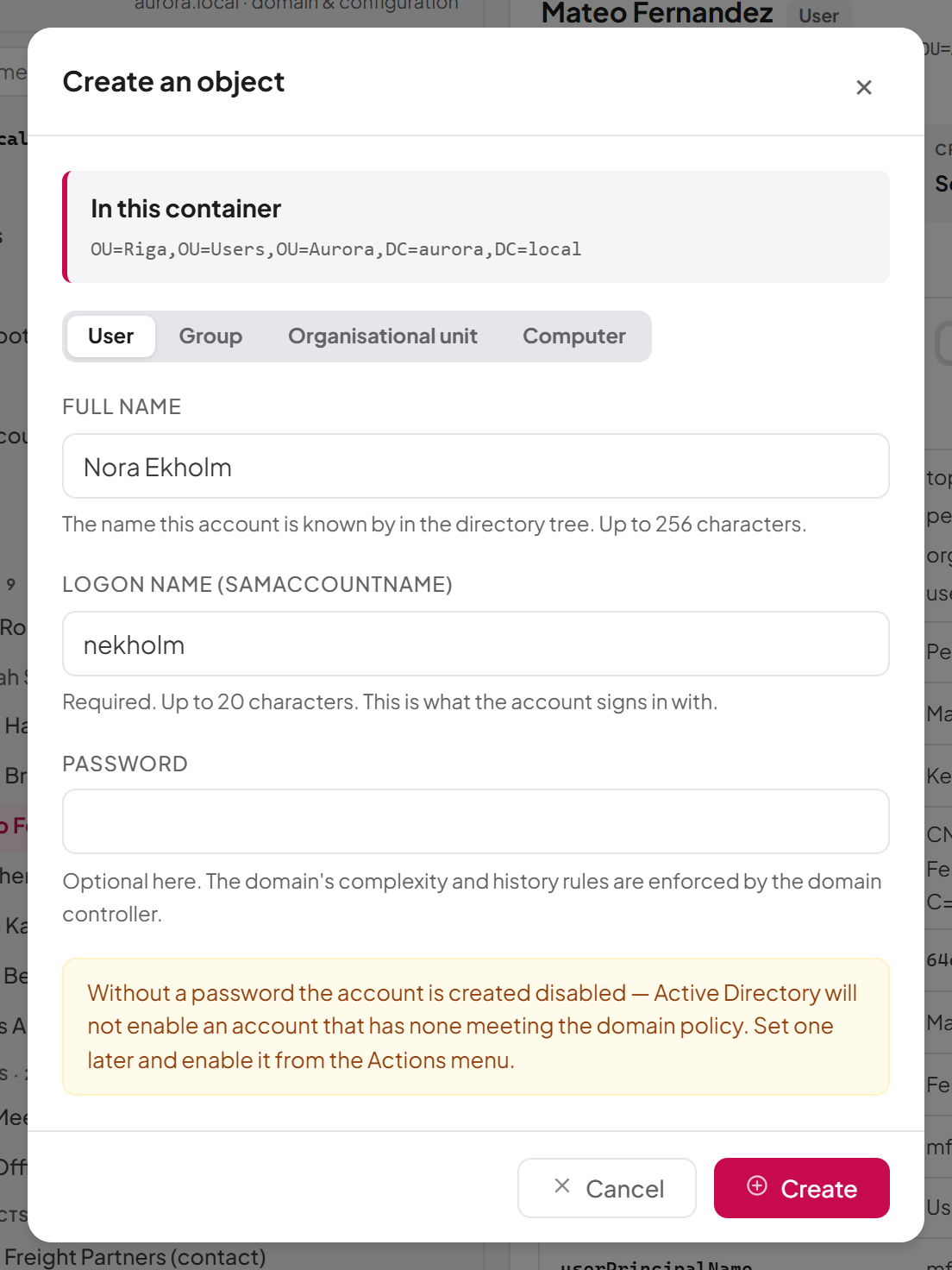
To create a user
- In the tree, right-click the organizational unit or container that should hold the user and choose New object here….
- In the Create an object dialog, check the container shown under In this container.
- Under What to create, select User. Only the kinds of object you are allowed to create are offered.
- Fill in the fields described below.
- Select Create.
The user is created, the container is re-read, and the new user is selected in the tree.
| Field | Description |
|---|---|
| Full name | The name the account is known by in the tree (its cn). Up to 256 characters. |
| Logon name (sAMAccountName) | Required. Up to 20 characters, with no special characters (see the note below). Suggested from the full name without spaces until you type your own. |
| Password | Optional. The domain's complexity and history rules are enforced by the domain controller. |
Note: A user logon name may not contain any of these characters: " / \ [ ] : ; | = , + * ? < > @Important: If you leave Password empty, the account is created disabled: Active Directory will not enable an account without a password that meets the domain policy. Reset the password and enable the account later from the Actions menu.
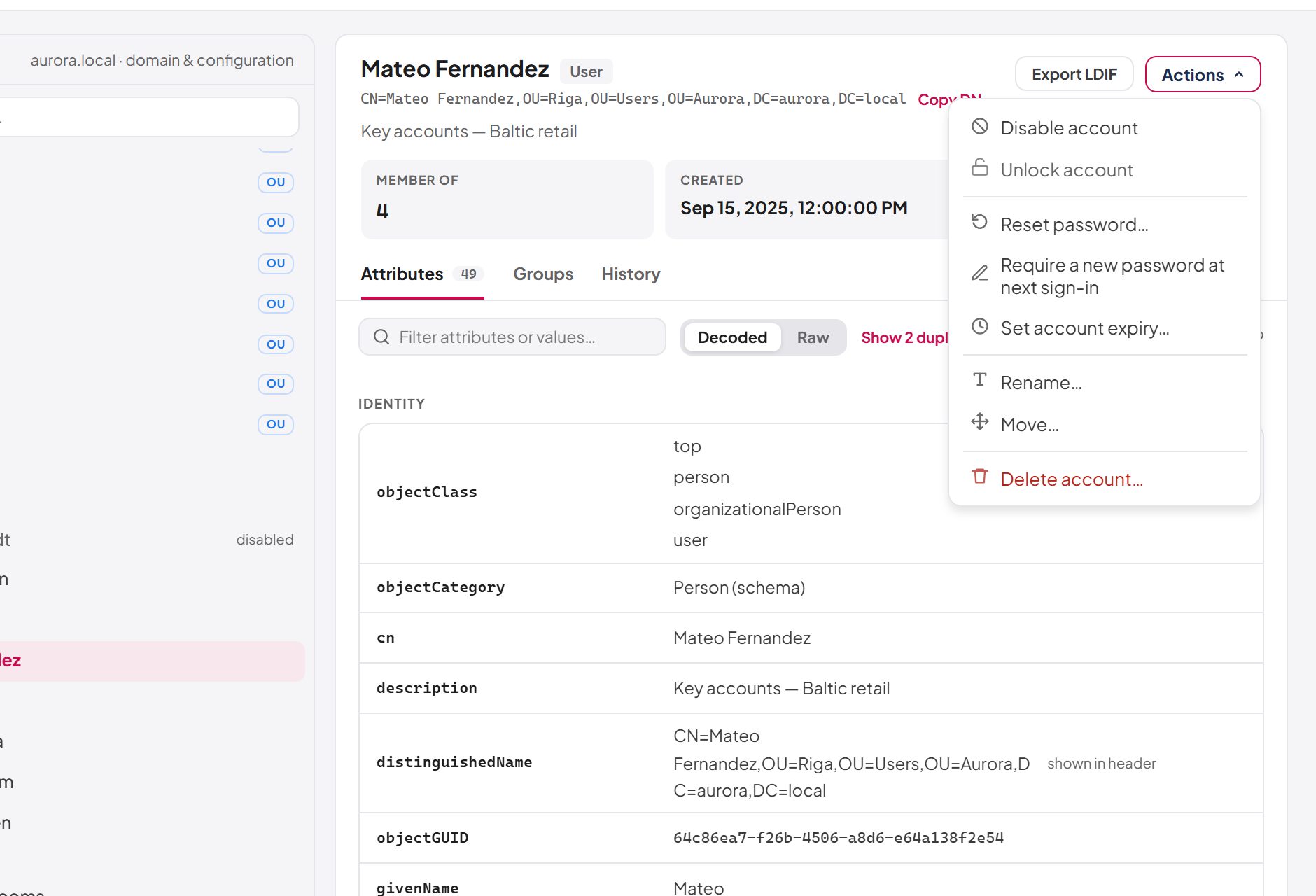
The user Actions menu
Select a user and open Actions in the inspector header. The menu holds:
| Action | Permission | What it does |
|---|---|---|
| Enable account / Disable account | ad:users:update | Only the one that applies to the account's current state is shown. Asks for confirmation. |
| Unlock account | ad:users:update | Clears an account lockout. Always shown, but greyed with the tooltip "This account is not locked out." when it is not locked. |
| Reset password… | ad:users:update | Sets a new password — see below. |
| Require a new password at next sign-in | ad:users:update | Forces a password change at next sign-in. Hidden when already required. |
| Set account expiry… / Change account expiry… | ad:users:update | Sets or clears the account's expiry date. |
| Rename… | ad:users:update | Changes the name in the tree. |
| Move… | ad:users:update | Moves the account to another container. |
| Delete account… | ad:users:delete | Deletes the account after confirmation. |
To enable or disable a user
- Select the user and open Actions.
- Choose Enable account or Disable account.
- Confirm with Enable or Disable.
Disabling stops the person signing in; the account stays in the directory and can be enabled again.
To unlock a user
- Select the user and open Actions.
- Choose Unlock account.
If the account turns out not to be locked, nothing changes and you are told that the sign-in problem lies elsewhere.
Tip: Help-desk staff can use the menu to check lockout status: if Unlock account is greyed out, the account is not locked out.
To require a new password at next sign-in
- Select the user, open Actions and choose Require a new password at next sign-in.
- Confirm with Require.
The person is asked to set a new password at their next sign-in, and their current password stops working then. The entry is not shown while a change is already required.
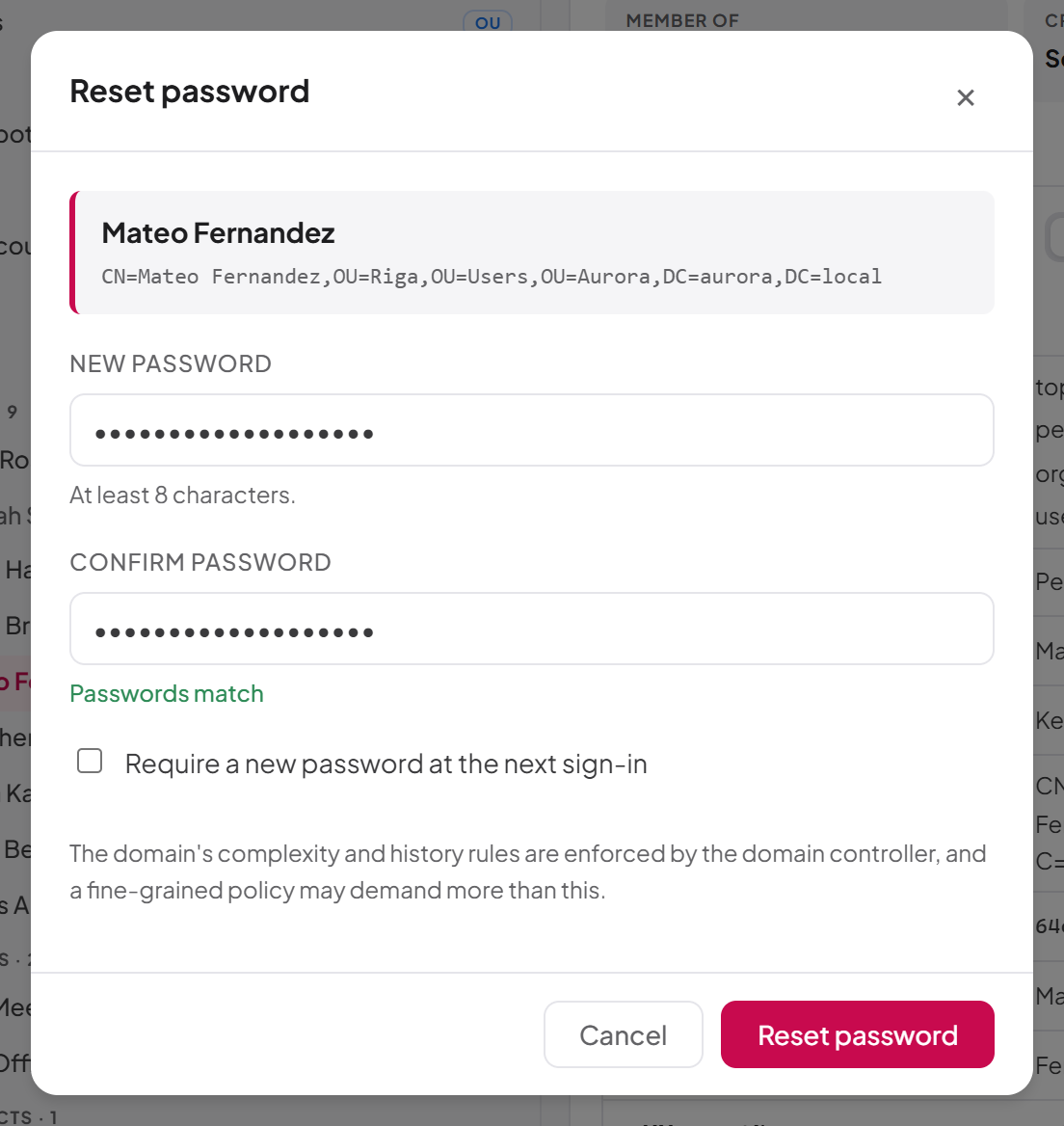
To reset a user's password
- Select the user, open Actions and choose Reset password….
- Enter the New password and repeat it in Confirm password. The password must be at least 8 characters; the dialog shows "Passwords match" when the two agree.
- Optionally select Require a new password at the next sign-in.
- Select Reset password.
This is an administrative reset: the current password is not needed. The domain's own complexity and history rules, and any fine-grained password policy, are enforced by the domain controller and may demand more than 8 characters.
If the password is set but requiring a change at next sign-in fails, you see a warning saying so, with the reason; the new password remains in force.
To set or clear an account expiry date
- Select the user, open Actions and choose Set account expiry… (or Change account expiry… if one is set).
- Either select Never expires, or choose the Last day the account works. The dialog confirms the exact moment: the account stops working after 23:59:59 on that day, in your local time.
- Select Save.
To rename a user
- Select the user, open Actions and choose Rename….
- Enter the New name and select Rename.
Important: Renaming changes the name in the tree only. The account keeps signing in with its current logon name. If the logon name should change too, editsAMAccountNameoruserPrincipalNamewith the attribute editor (see 6.10).
To move a user
- Select the user, open Actions and choose Move….
- In Destination container, enter the distinguished name of the target organizational unit or container, for example
OU=Staff,DC=example,DC=com. - Select Move.
The tree re-reads both the old and the new container and selects the user in its new place.
Tip: To get a container's distinguished name, right-click it in the tree and choose Copy DN, then paste it into the dialog.
Moving changes the account's distinguished name, so scripts, group policy links and saved filters that refer to it by distinguished name will need updating.
To delete a user
- Select the user, open Actions and choose Delete account… — or right-click the user in the tree and choose Delete….
- Read the confirmation, which names the account and its distinguished name, and select Delete account.
The account is removed from the directory and from every group. It cannot be undone from the browser. If the Active Directory Recycle Bin is enabled, a deleted object can be restored from Recycle Bin; see Chapter 7, Deleted objects (Recycle Bin).
A user's group memberships
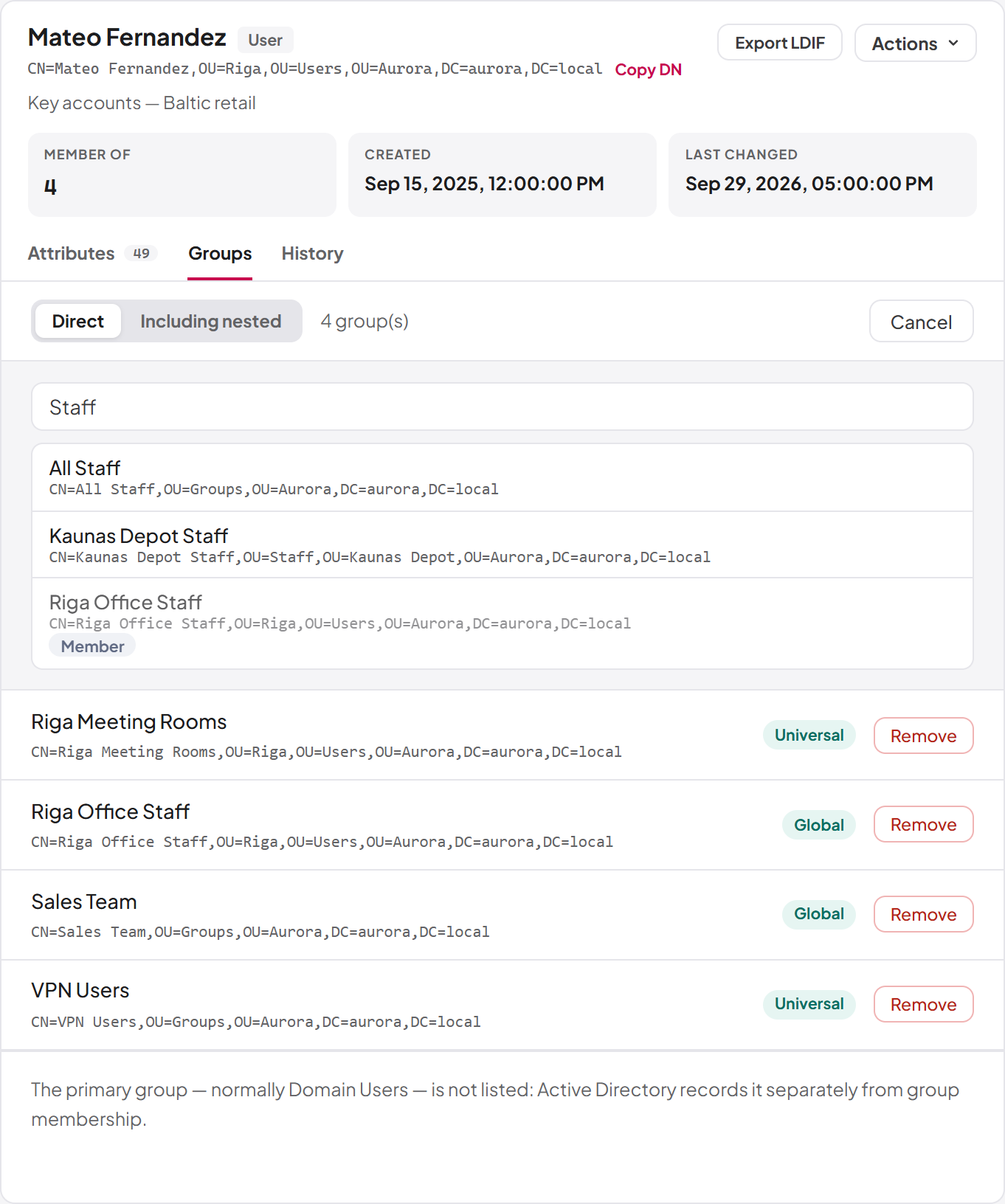
The Groups tab lists the groups the selected user belongs to. Choose:
- Direct — groups the account is listed in directly.
- Including nested — all groups reached through nesting, resolved by the domain controller.
The primary group (normally Domain Users) is not listed, because Active Directory records it separately from group membership.
To add the user to a group (needs ad:groups:update and the management licence):
- Select Add to group….
- Type part of the group's name in Search groups by name.
- Select a group in the results. Groups the user already belongs to are marked Member.
To remove the user from a group, switch to Direct and select Remove next to the group. Removal is only offered on the direct list, because a nested membership comes from another group and cannot be removed here without guessing which link to cut.
Every membership change is a change to the group, so it needs the group update permission, not the user one.
Last updated
Thank you for your feedback.