
4.4Sending feedback and reporting bugs
Last updated
You can send feedback or report a bug directly to the Synergy team from inside the console. Any signed-in user can do this; no permission is needed.
Your report goes to Synergy, not to anyone at your organisation. It is sent through the same channel the installation uses for its licence, so:
- the installation must have an activated licence; without one, reports cannot be sent,
- reports are identified by your installation's licence, so Synergy knows which customer sent them,
- your system administrator can switch the feature off (configuration setting
Feedback:Enabled).
Your product version, browser and the screen you were on are attached automatically. The dialog says so: "Your version, browser and current screen are attached automatically."
Sending feedback
- Open the Help menu and select Send feedback.
- Optionally, in Summary, write a one-line subject (up to 200 characters).
- In Your message, write what you would like to tell us. This field is required.
- Select Send. While it is being sent the button reads Sending….
- A message confirms "Thank you — your feedback has been sent."
Reporting a bug
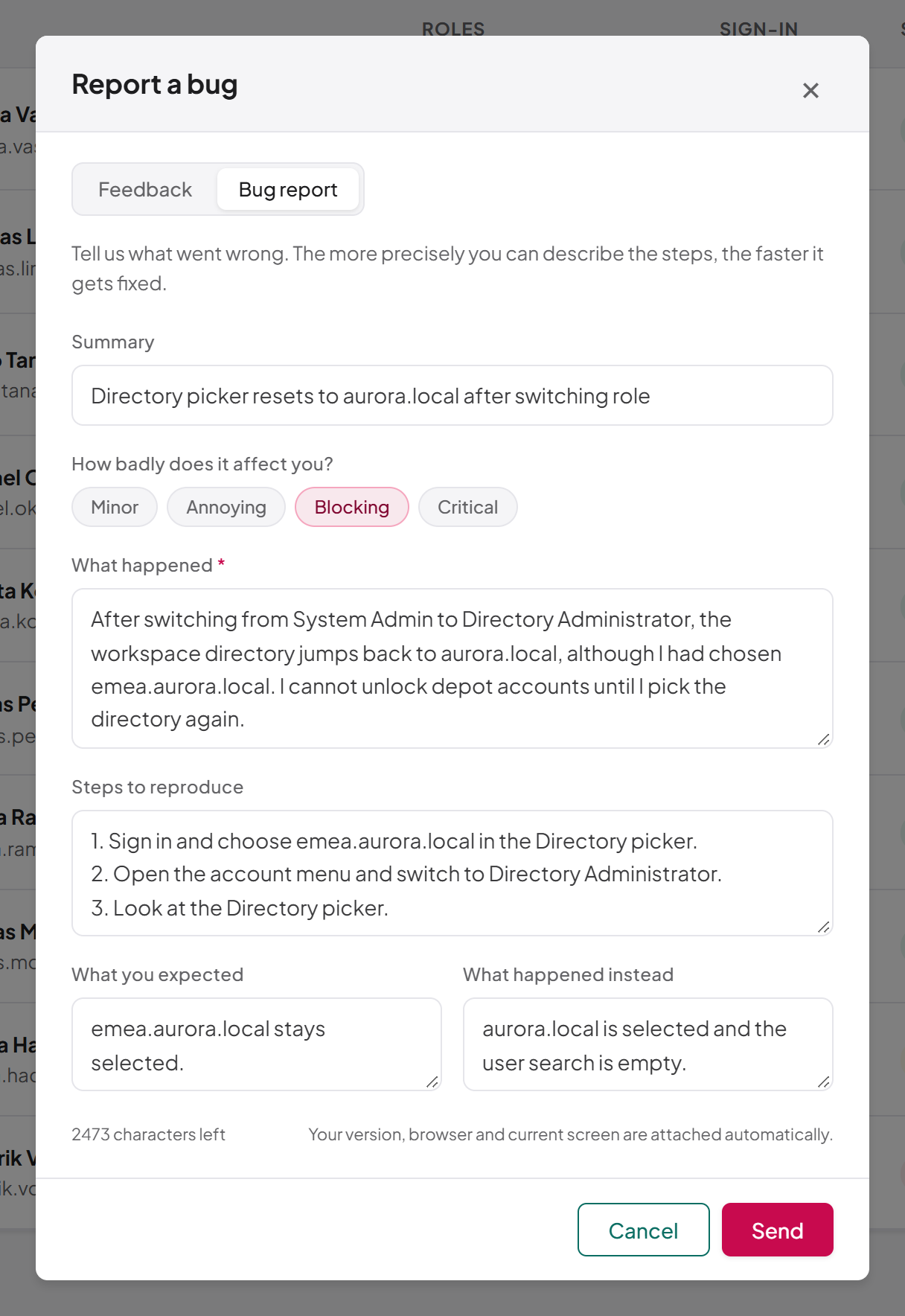
- Open the Help menu and select Report a bug. (If you started with Send feedback, you can switch to Bug report at the top of the dialog without losing what you typed.)
- In Summary, write one line describing the fault.
- Under How badly does it affect you?, select a severity (see the table below). Annoying is selected by default.
- In What happened, describe the problem. This field is required.
- Optionally fill in Steps to reproduce, What you expected and What happened instead (each up to 1,500 characters).
- Select Send.
- A message confirms the report was sent. When Synergy's system returns a reference number for the bug (in the form
BUG-…), the message shows it: "Thank you — your bug report has been sent. Reference: BUG-…". Write it down: it is the only identifier you can quote to Synergy support for this report, and it is shown only once.
| Severity | Use it when |
|---|---|
| Minor | A small fault that does not stop your work |
| Annoying | Something works, but badly or with a workaround |
| Blocking | You cannot complete a task |
| Critical | A serious fault, such as wrong data or a security concern |
Length limit
Everything you type in one report shares a single budget of 3,000 characters. The counter at the bottom of the dialog shows how many are left ("N characters left") and turns red if you go over; Send is disabled until you shorten the text. The limit is shared, rather than per field, because the report is delivered as one message.
Attaching a log file
A System Admin can report a problem with a particular server log file: on the Live Logs page (see Chapter 18, Monitoring and logs), open the log file and select Report a problem with this log. The Report a bug dialog then opens carrying that file, shown under Attached log with a Remove button. Read the warning before sending: log files routinely contain distinguished names, account names, email addresses and anything an error message included. Send the log only if you are content for Synergy to see it. Large logs are trimmed to their last 8 MB. Attachments are possible on bug reports only; a report opened from the Help menu never carries one.
If the report is sent but the log cannot be attached, a message tells you so and gives the reason.
Note: A copy of every report is kept on your installation, so administrators can see what their users have sent to Synergy. Reading this record needs the feedback:history permission.The licence banner
If the installation's licence is not active, a banner appears at the top of every page, just below the toolbar, for every signed-in user. It tells you why:
| Message | Meaning |
|---|---|
| No licence key is configured. | No licence has been entered |
| This instance is not activated. | A key is entered but not activated |
| The licence has expired. | The licence's validity has ended |
| The licence is invalid or was rejected. | The key is not valid for this installation |
| Licence status could not be verified. | The licence check failed |
| The licence is not active. | Any other reason the licence is not active |
The banner may add a line of detail below the message. If your role holds license:manage, the banner also has a Manage licence link to the Licence page.
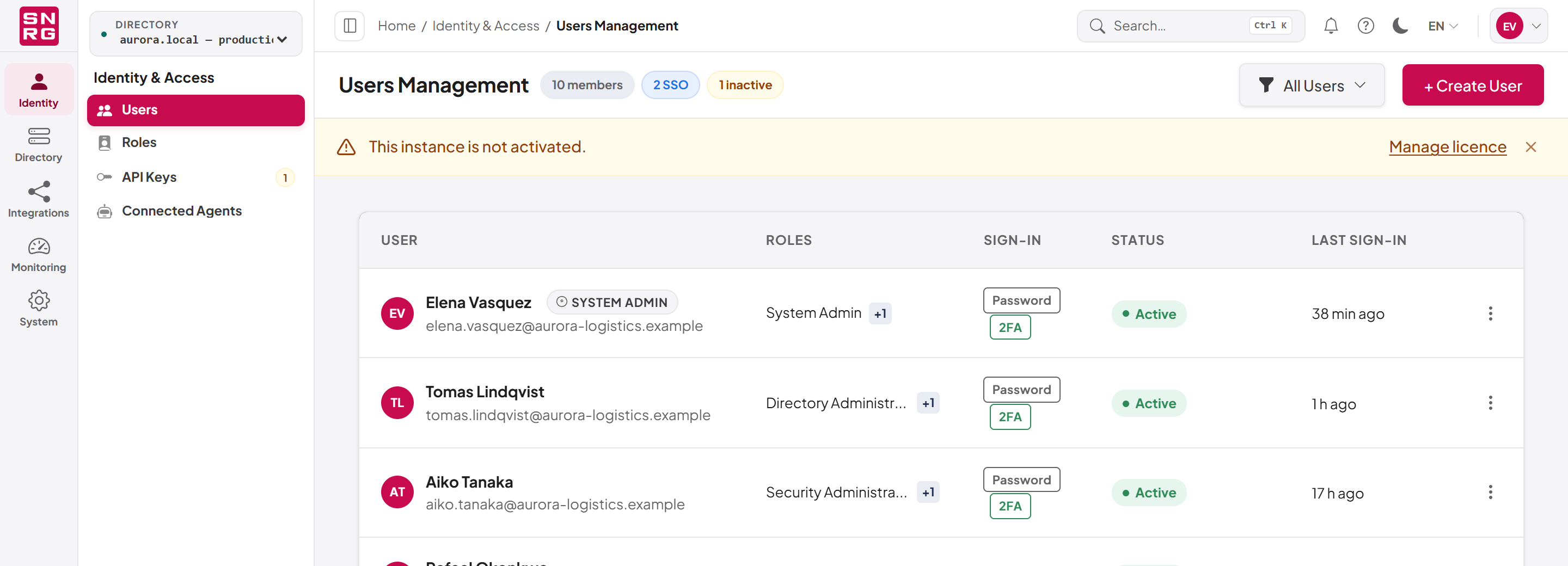
While the licence is not active, every operation on Active Directory is refused, and licensed pages are hidden from the navigation. Pages that do not reach Active Directory keep working, including sign-in, the Licence page, the directory picker and the Updates page, so that the installation can always be licensed or updated. See Chapter 19, Licence, updates and backups.
Last updated
Thank you for your feedback.