
16.2Notification rules
Last updated
A notification rule decides whether a kind of event sends an email, and to whom. There is one rule for each notification type. You do not create or delete rules — the platform registers one for every type it can send — you switch them on, choose recipients, and, for some types, set thresholds or operations.
To manage rules you need the notifications:manage permission.
Notification types
| Rule | Code | Category | Per directory |
|---|---|---|---|
| User Deactivated | user-deactivated | Event | No |
| API Key Created | api-key-created | Event | No |
| API Key Revoked | api-key-revoked | Event | Yes |
| API Key Expiring Soon | api-key-expiring | Expiration | Yes |
| API Key Expired | api-key-expired | Expiration | Yes |
| Operation Executed | operation-executed | Operation | Yes |
| Operation Approval Required | operation-approval | Approve | Yes |
| Licence Expiring Soon | license-expiring | Expiration | No |
| Licence Expired | license-expired | Expiration | No |
| Account Limit Approaching | managed-accounts-limit-approaching | Event | No |
| Account Limit Reached | managed-accounts-limit-reached | Event | No |
| Directory Credentials Rejected | ad-connection-credential-invalid | Event | Yes |
| Agent Connected | agent-connected | Event | Yes |
| Agent Slowed Down | agent-volume-tripped | Event | Yes |
What each one reports:
- User Deactivated — a platform user account was deactivated.
- API Key Created — a new API key was created. The key works immediately, so this is the earliest anyone can hear about it.
- API Key Revoked — a key stopped working for any reason other than expiry: revoked by hand, or as a consequence of its owner being deactivated or its role being deleted. The reason is in the message.
- API Key Expiring Soon — sent ahead of a key's expiry at each threshold (by default 30, 7 and 1 days before).
- API Key Expired — sent once when a key reaches its expiry date.
- Operation Executed — one of the operations you select in the rule was carried out.
- Operation Approval Required — an operation is waiting for approval. Each recipient receives a personal approve and reject link. See Approval emails below.
- Licence Expiring Soon — sent ahead of the licence end date at each threshold (by default 60, 30, 14 and 7 days before).
- Licence Expired — sent once when the licence entitlement ends and licensed features stop working.
- Account Limit Approaching — the Active Directory user accounts this installation manages have reached a set percentage of the licence's account limit (by default 90% and 80%). See Account limit emails below.
- Account Limit Reached — the managed user accounts have reached the licence's account limit, so new user accounts can no longer be created or restored. See Account limit emails below.
- Directory Credentials Rejected — a domain controller refused the credentials stored for an Active Directory connection: a rotated service-account password, or a locked, disabled or expired account.
- Agent Connected — someone connected an AI agent (over MCP) to their account. The message says which agent, which role and directory it acts with, and whether it can write. While the rule is switched on, the person the agent acts as is always copied, even if the rule lists no recipients, so a connection they did not make still reaches them.
- Agent Slowed Down — one agent credential made an unusual number of destructive changes in a short time, and everything it does now waits for approval. While the rule is switched on, the credential's owner is always copied, even if the rule lists no recipients. See Chapter 10, Operation policies, attribute policies and agent supervision.
The Rules page
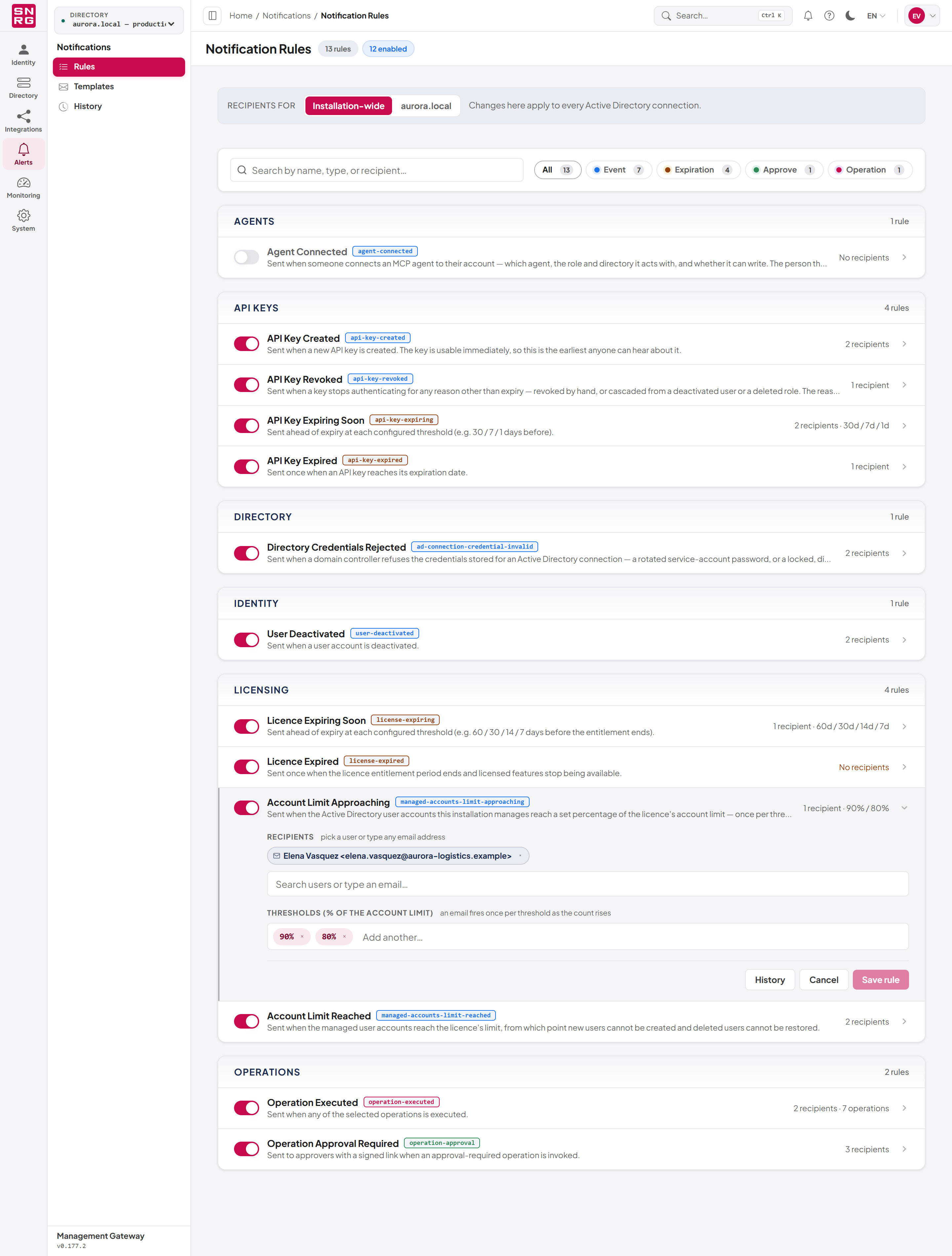
Rules are grouped by area: Agents, API Keys, Directory, Identity, Licensing and Operations. Each row shows:
- an on/off switch;
- the rule's name and code, coloured by category;
- a short description;
- a summary on the right, such as "2 recipients · 30d / 7d / 1d", "1 recipient · 90% / 80%" or "No recipients". The summary is highlighted as a warning when a rule is switched on but has no recipients, because such a rule sends nothing.
Above the list you can search by name, type or recipient, and filter by category: All, Event, Expiration, Approve or Operation. Each category chip shows how many rules it holds. Clear filters resets both.
Editing a rule
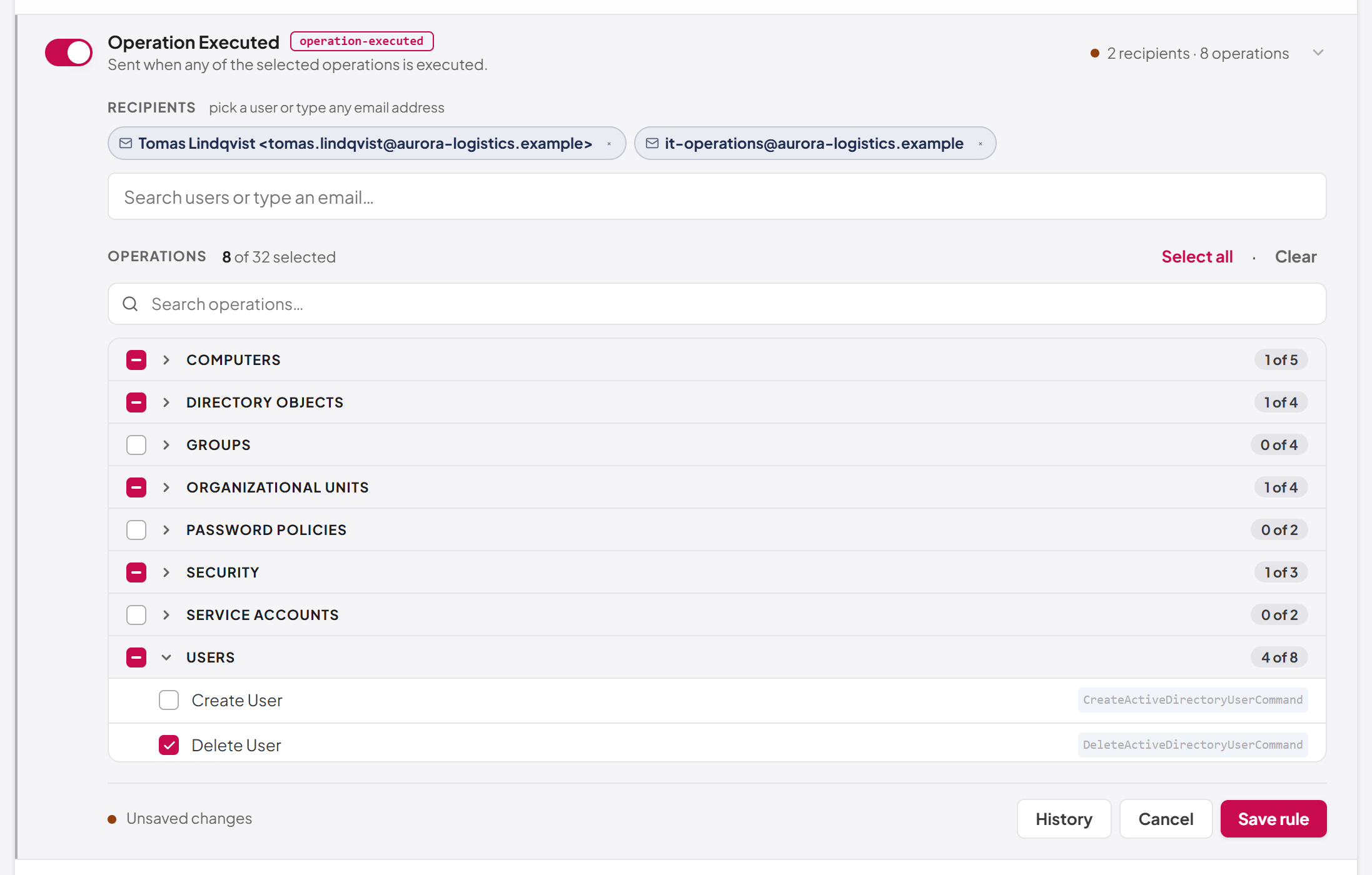
Select a rule's row to open its editor in place. The editor contains:
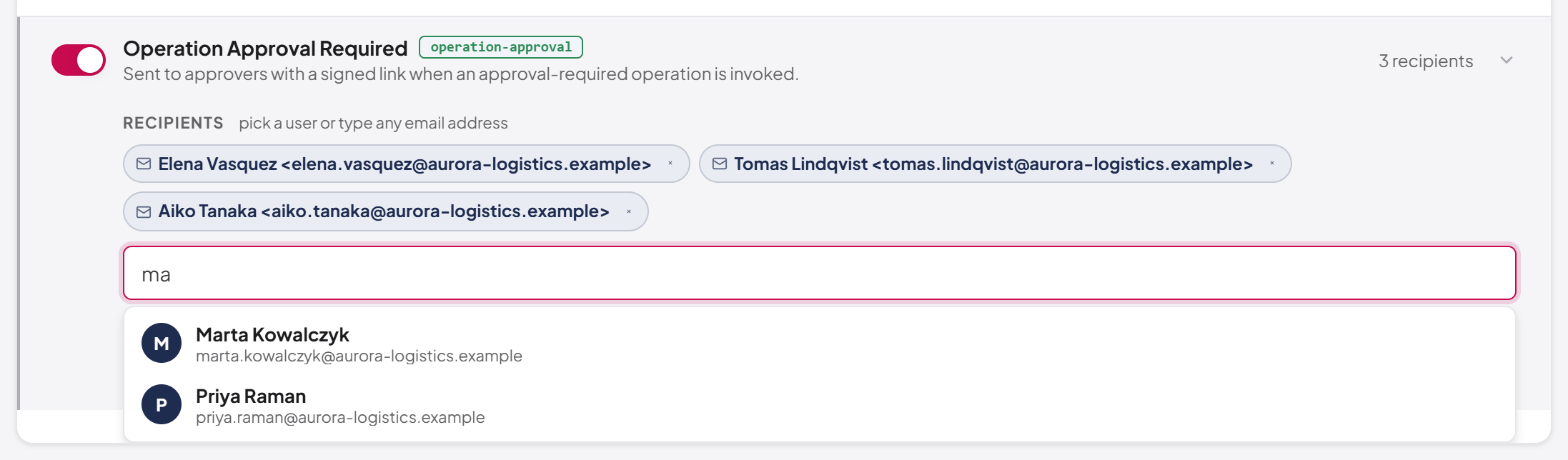
- Recipients — the people who receive the email. Start typing to search platform users by name or email and pick one, or type any full email address and choose the Add option that repeats it (marked "External email address") to add an external recipient. An entry that is not a valid email address is refused. Remove a recipient with the cross on its chip.
- Thresholds (days before expiry) — only for expiration rules that warn in advance (API Key Expiring Soon, Licence Expiring Soon). Type a number of days and press Enter; each threshold sends one email as the expiry date approaches. Each value must be between 1 and 365.
- Thresholds (% of the account limit) — only for Account Limit Approaching. Type a percentage, such as
90, and press Enter; it is shown as a chip, for example 90%. Each value must be a whole number between 1 and 99 ("Threshold must be a percentage between 1 and 99"); 100% is the limit itself, which has its own rule, Account Limit Reached. You can type several values at once, separated by commas or spaces. - Operations — only for Operation Executed. A grouped list of every operation the platform can perform. Tick individual operations, tick a group to select all of it, or use Select all and Clear. Search narrows the list. The counter shows how many are selected out of the total. An email is sent whenever any selected operation runs.
The on/off switch on the row is part of the same form: changing it marks the rule as having Unsaved changes, like any other edit.
To edit a rule:
- Open Notifications > Rules.
- Select the rule's row.
- Switch the rule on with the switch on its row.
- Add recipients under Recipients.
- If shown, add Thresholds or select Operations.
- Select Save rule. Select Cancel to discard your changes.
Installation-wide rules and per-directory recipients
If you have more than one Active Directory connection, you may want the team that owns a directory to hear about events in that directory only. For this, a rule has two levels:
- Installation-wide — the global rule. It applies to every Active Directory connection.
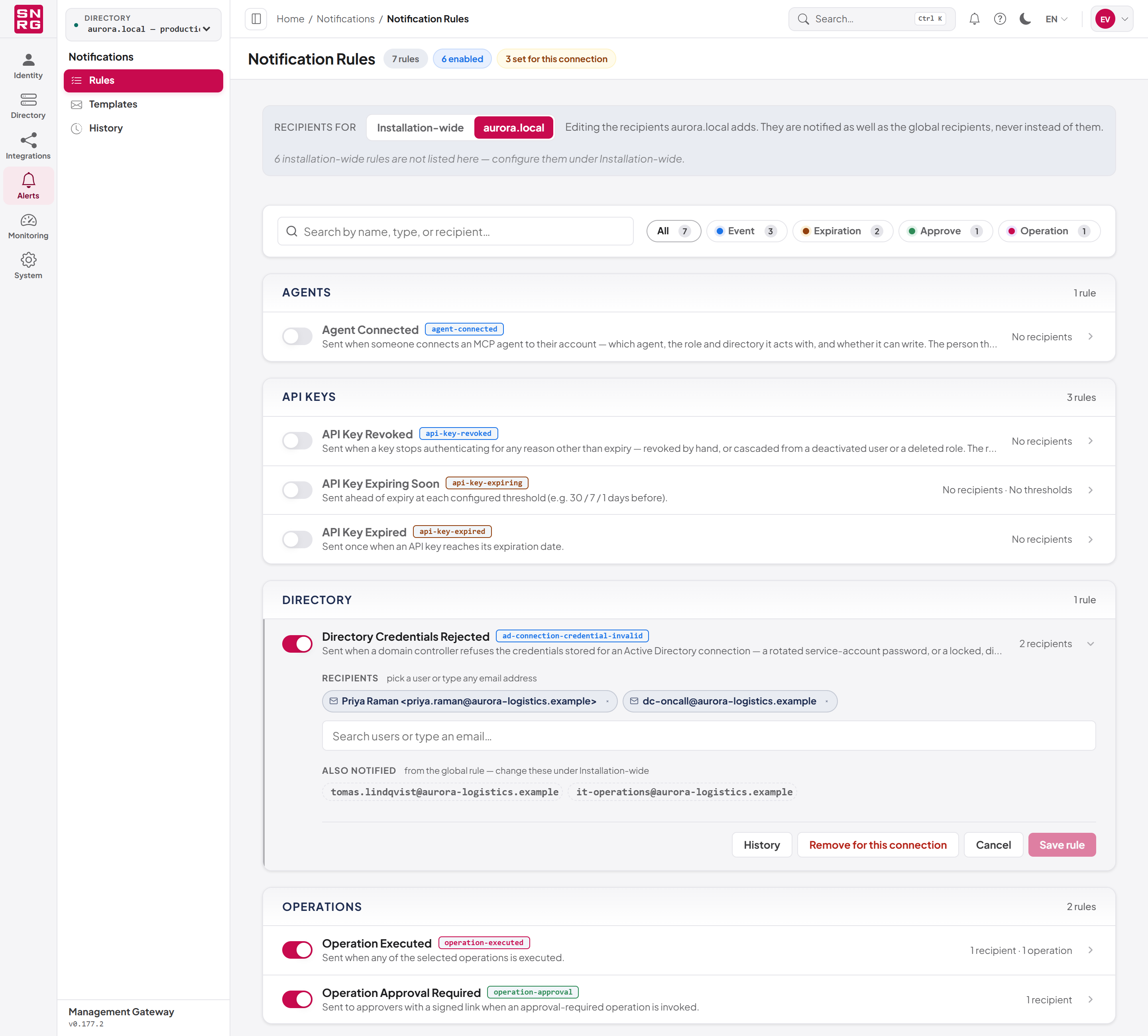
- This directory — extra recipients (and, for Operation Executed, extra operations) that apply only to the directory selected in the top bar. On the page, this half of the toggle is labelled with the directory's name, for example aurora.local.
Choose the level with the Recipients for toggle at the top of the Rules page: Installation-wide, or the name of the selected directory. The toggle appears only when at least one Active Directory connection exists. The directory used for This directory is the one selected in the console's top bar, so select a directory there first. See Chapter 4, Working in the console.
Per-directory settings only ever add to the global rule; they never replace or silence it:
- The people who receive an email about a directory are the global rule's recipients plus that directory's recipients. An address listed in both is mailed once.
- For Operation Executed, the operations that trigger an email are the global selection plus the directory's selection.
- If either the global rule or the directory's rule is switched on, the notification is sent to whoever is on the switched-on side(s). Switching a directory's rule off does not stop the global rule.
- Thresholds are always global. A threshold decides when the platform notices that something is about to expire or run out, which does not depend on the directory.
When This directory is selected:
- Only rule types that are about one directory are listed (the types marked "Yes" in the table above). A note tells you how many installation-wide rules are not shown, for example "3 installation-wide rules are not listed here — configure them under Installation-wide."
- Each rule shows Also notified with the recipients it inherits from the global rule, so you can see the whole audience.
- Remove for this connection deletes the directory's additions, so the directory uses the global rule alone. Saving an empty recipient list has the same effect.
API Key Created is deliberately not available per directory: when a key is created it is not yet bound to any directory, so a per-directory rule could never match. API Key Revoked, Expiring Soon and Expired are available, because by then the key has its directory.
To add recipients for one directory:
- Select the directory in the console's top bar.
- Open Notifications > Rules.
- Set Recipients for to the directory's name (the second half of the toggle).
- Open the rule, switch it on and add the directory's recipients.
- Select Save rule. The message "Recipients saved for this connection." confirms it.
Tip: To send a notification only to per-directory recipients, clear the recipients of the global rule (or switch it off) and configure each directory under This directory.
Change history of a rule
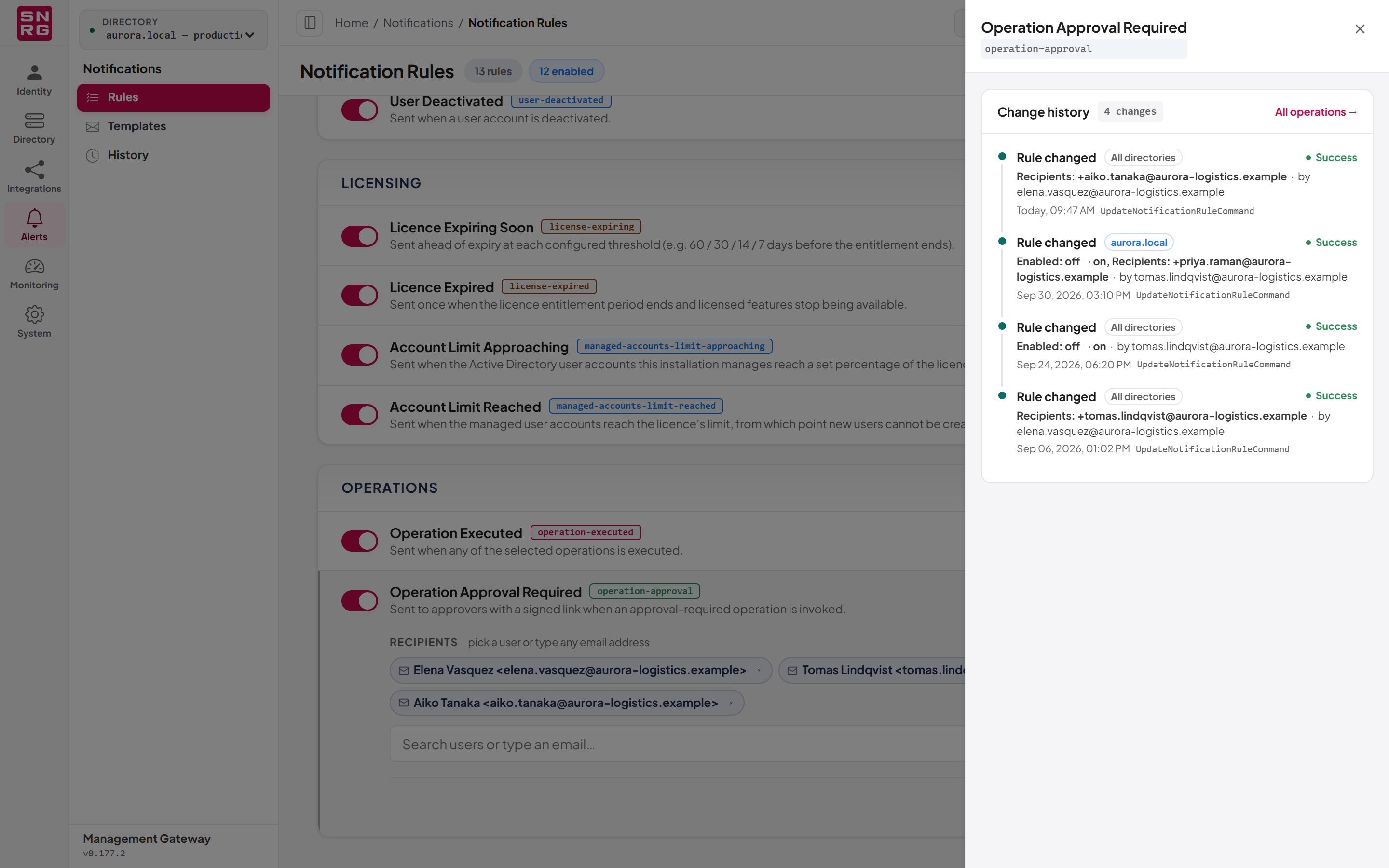
Every change to a notification rule is recorded in the operations log. When you have the audit:list permission, the rule editor shows a History button that opens a side panel with the rule's change history — for every directory and for one — showing who changed what, when, and the values before and after (enabled, recipients, thresholds, operations). For the operations log itself, see Chapter 9, Operations log, approvals and waiting operations.
Approval emails
The Operation Approval Required rule decides who is emailed when an operation is queued for approval. Some points to keep in mind:
- Each recipient receives a personal link to approve or reject. The link is made for that address.
- The link does not approve anything by itself. It opens the console, asks the recipient to sign in, and only lets them decide if the signed-in account is the one the email was sent to, holds
operations:approveand may act on that directory. A forwarded or shared email cannot be used by someone else. - Recipients should therefore be the email addresses of platform users who can approve. An external address can receive the email but cannot act on it.
- If the rule has no recipients for the directory concerned, the operation is still queued, but nobody is emailed. Approvers can still find it under waiting operations.
For the approval process, see Chapter 9, Operations log, approvals and waiting operations, and Chapter 10, Operation policies, attribute policies and agent supervision.
Account limit emails
A licence can limit how many Active Directory user accounts the installation manages. When the limit is reached, new user accounts can no longer be created or restored from the Recycle Bin, and above it, users can no longer be added to or removed from groups. The limit, what counts towards it and where to see the current count are described in Chapter 19, Licence, updates and backups. The two account limit rules warn you before that happens and tell you when it has:
- Account Limit Approaching — sent when the count reaches one of the rule's thresholds, each a percentage of the limit. The defaults are 90% and 80%.
- Account Limit Reached — sent when the count reaches the limit itself.
Both rules are in the Licensing group and are installation-wide only: the limit is one figure for all your directories together, so they cannot have per-directory recipients. Like every rule, each one sends nothing until you switch it on and give it recipients.
When the emails are sent:
- The platform checks after every count of the managed accounts: when it starts, then every 15 minutes (more often while a directory could not be counted).
- Only the highest threshold reached is emailed. If the count jumps from 70% to 92% of the limit between two counts, one email says 90%; no 80% email follows. Each threshold is emailed once.
- Once the limit is reached, only the Account Limit Reached email is sent, provided that rule is switched on. Warnings that had not gone out yet are skipped. If Account Limit Reached is switched off, Account Limit Approaching still sends its highest threshold.
- A level warns again only after the count has fallen clearly below it: at least 5 percentage points. For example, after the 90% warning, the count must drop below 85% of the limit before reaching 90% again sends another email. Likewise, Account Limit Reached is sent again only after the count has dropped below 95% of the limit and risen back to it. This stops a count hovering around a threshold from sending the same email every 15 minutes.
- A new limit or a new licence starts afresh. Thresholds already emailed under the old limit are emailed again when the count crosses them under the new one, because the same percentage now means a different number of accounts.
- Nothing is sent when the licence has no account limit.
- If a rule is switched on but has no recipients when a threshold is reached, nothing is sent and nothing is marked as sent. When you add recipients, the email goes out after the next count if the count is still at that level.
For example, with a limit of 5,000 accounts and the default thresholds, the 80% email is sent when the count reaches 4,000 and the 90% email when it reaches 4,500. The 90% email's subject reads "Account limit 90% used — 4,512 of 5,000 user accounts", and its details give the Licence Holder, Managed User Accounts ("4,512 of 5,000 (90%)"), Accounts Left, Threshold Reached ("90% of the limit") and Counted At. The percentage is rounded down. When the count reaches 5,000, the Account Limit Reached email, "Account limit reached — 5,000 of 5,000 user accounts", says what is now refused and what still works: editing, password resets, enabling, disabling, moving and deleting accounts.
To be warned before the limit is reached:
- Open Notifications > Rules with Recipients for set to Installation-wide.
- Select Account Limit Approaching, switch it on and add recipients — typically whoever looks after the licence.
- Under Thresholds (% of the account limit), keep 90% and 80% or type your own values.
- Select Save rule.
- Repeat for Account Limit Reached.
The wording of both emails can be changed on the Templates page (see Notification templates).
Last updated
Thank you for your feedback.